
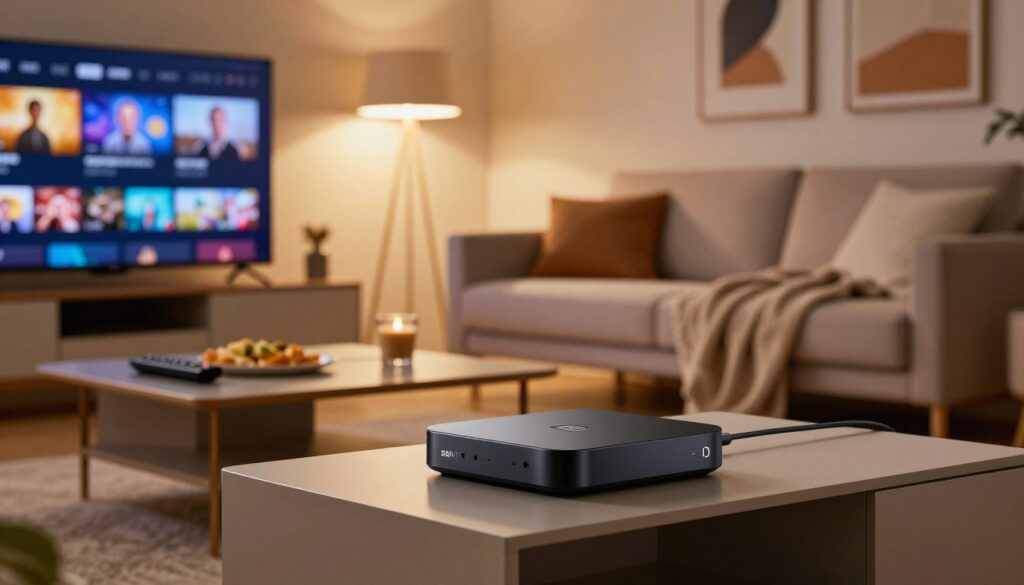
Curious if a budget Android TV device can truly deliver smooth 4K streaming for live channels and on-demand content? This guide walks a U.S. user through practical steps to get a reliable setup without overspending.
The Mi Box S is a Google-certified Android TV player with Google Assistant, Chromecast built-in, and support for 4K HDR up to 60fps. Its audio stack includes Dolby and DTS, though final results depend on your TV and the stream source.
Read on for a clear checklist: network setup, choosing an IPTV app/player, adding provider details, and simple tips to optimize picture and sound. We focus on lawful, user-friendly setup practices and do not cover accessing pirated streams or free codes.
For viewers who want a legal subscription, consider GetMaxTV — a comparison link is available later at watchmaxtv.com. Ready to set up? Finish the guide and then choose a legal provider like GetMaxTV to get started.
Key Takeaways
- An Android TV player can run IPTV apps for live and on-demand content when paired with a good network.
- 4K HDR playback depends on stream quality and your TV, not just the device.
- This guide provides a stepwise flow: checklist, network, app, provider entry, optimization, and troubleshooting.
- We only cover legal setup and best practices; no instructions for pirated content.
- Consider reputable services like GetMaxTV for a legal subscription; link provided for easy comparison.
Why Mi Box S is a smart budget device for IPTV streaming in 2025
If you want a simple, TV-first experience for live and on-demand streaming, this small device is a solid pick. It runs Android TV (Android 8.1 referenced) and gives access to Google Play, Google Assistant voice search, and Chromecast built-in.
What Android TV brings:
What “Android TV” means for IPTV apps, interface, and updates
Android TV offers a remote-first launcher and navigation that feels native on a television. Users get thousands of apps via Google Play and easy voice search with Google Assistant. Apps update through Google Play, so the app interface can change with each new app version.
Who this setup is best for compared with Fire Stick and other streaming devices
This device suits budget-minded cord-cutters who want a straightforward Android TV experience, casting from a phone, and simple voice search. It is flexible for different streaming services and file management.
Households tied to Amazon accounts or who prefer Amazon’s home screen may choose a Fire Stick for tighter integration with Prime apps. Both options work well; pick based on which ecosystem you use most.
“Choose legitimate services to reduce the risk of malware, stolen credentials, and constant channel outages.”
| Feature | Android TV device | Fire TV / Fire Stick |
|---|---|---|
| App availability | Google Play, many players | Amazon Appstore, curated |
| Interface style | TV-first launcher, remote-friendly | Amazon-focused home screen |
| Flexibility | Good for varied services and casting | Best if tied to Amazon services |
| Updates | App updates via Google Play; interface varies by version | App updates via Amazon; UI driven by Amazon |
Mi Box S basics you should know before you start
Before you plug anything in, know which hardware limits affect 4K playback and audio performance.
Key specs that impact video quality:
Key specs that impact video and audio
The unit supports 4K HDR up to 60fps. That lets compatible content look sharp and smooth when your TV and stream match those settings.
Premium audio labels like Dolby and DTS can deliver richer surround sound, but only if the content and your receiver or TV also support those formats.
Storage and memory realities
Performance comes from 2GB RAM and 8GB eMMC storage. That is enough for basic apps and light multitasking.
Available space is smaller after the operating system and preinstalled apps. Expect to free up space or use cloud options for big media files.
Ports and connections
Physical ports matter: HDMI 2.0a with HDCP 2.2 is required for true 4K HDR output. USB 2.0 is handy for local playlists and media. SPDIF or a 3.5mm audio out lets you route sound to a receiver or soundbar.
Wireless: dual-band Wi‑Fi (2.4/5GHz) helps reduce congestion; Bluetooth 4.0 pairs the voice remote, headphones, or controllers.
“Check ports and network options first — they often decide whether a stream plays smoothly.”
What’s in the box
- Device unit
- Bluetooth voice remote
- HDMI cable
- Power adapter
- User guide
| Spec | What it affects | Notes for the user |
|---|---|---|
| 4K HDR, up to 60fps | Video sharpness and motion | Requires matching TV and high-quality content |
| Dolby + DTS audio | Surround and dynamic range | Works when content and receiver decode formats |
| 2GB RAM / 8GB storage | App performance and space | Available space reduced by OS; clear apps if needed |
| HDMI 2.0a, USB 2.0, SPDIF/3.5mm | Connections for video and audio | HDMI for 4K; USB for local files; SPDIF for legacy audio |
Pre-setup checklist for smooth IPTV playback
Before you install any player, run a quick check so your TV, network, and audio chain can handle high-res streams. This saves time and reduces troubleshooting later.
TV and content requirements
4K requires a 4K display and 4K source. HDR needs an HDR-capable TV and HDR-enabled content.
Premium audio like Dolby or DTS only works when the entire chain supports it: the content, device settings, TV or receiver, and the correct HDMI path.
Internet readiness and connection choice
Pick 5GHz Wi‑Fi to cut interference and improve streaming quality. Use 2.4GHz if you need range through many walls.
If the router is far away or many devices share bandwidth, a wired Ethernet option (via an adapter) is the best way to stabilize playback.
Quick checks and common issues
- Confirm your plan actually includes 4K content.
- Set the TV HDMI input to enhanced mode if available.
- Run a speed test at the TV location and check for peak-hour slowdowns.
“Check these items first — many black screens, stutters, and audio dropouts come from setup mismatches, not the streaming service.”
Network and device setup on Android TV for reliable streaming
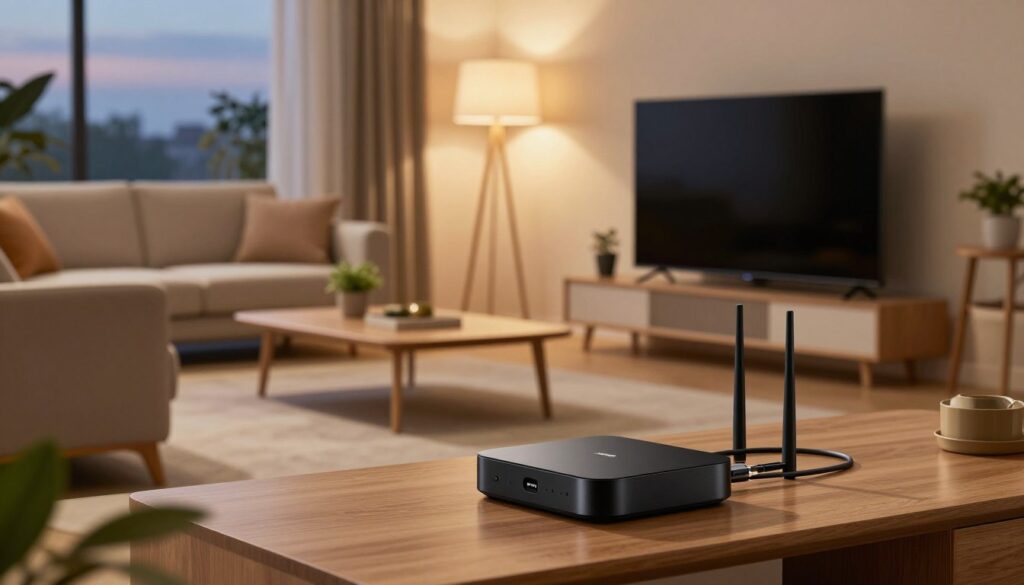
Start with a stable network and the right physical connections to make streaming smooth from day one. A few clear steps will help the device reach its full ability and avoid common problems.
Connecting your box to the TV for best picture quality
Plug the box into power, connect an HDMI 2.0a cable to a 4K-capable HDMI port on your TV, and select that input. Some TVs enable full 4K HDR only on specific ports, so pick the labeled HDMI port to avoid handshake issues.
Signing in and getting Google Play and voice search ready
On first boot choose language, join Wi‑Fi (5GHz when possible), and sign in with a Google account. Use the remote mic button to activate Google Assistant—voice search speeds up finding apps and content.
Reducing buffering: practical placement and network tips
Place the router higher and closer to the box. Don’t hide the device in a tight cabinet; that can weaken Wi‑Fi and raise temperatures.
- Prefer 5GHz if signal strength is strong.
- Reboot the router monthly and limit background downloads during peak viewing time.
- Move channels or change Wi‑Fi band to reduce congestion.
Quick diagnostic rule: consistent stutter across all apps usually signals network or HDMI issues. If only one app fails, focus on app settings or the service.
For legal set-top options and comparison, check legal set-top options to pick a reliable service that matches your streaming needs.
Choosing an IPTV app and video player that works great on Mi Box S
A well-matched player and app cut channel load times and reduce playback errors.
Think of an app as the manager that holds your playlist and service settings. A player is the decoder that actually renders the video and audio. Pairing a strong app with a capable player improves stability and switching speed.
What to look for in a player
- Codec support: H.264, H.265, and common audio codecs.
- Remote-friendly interface and fast channel switching.
- Playlist handling and EPG support without long load times.
- Minimal intrusive ads that slow performance or invade privacy.
Safe installation and file handling
Prefer Google Play for apps. Review permissions before installing. Avoid APKs from an unknown website unless the developer page is official and reputable.
If you must sideload, verify the APK and disable unknown-source installs after setup. Use a file manager to move M3U or configuration files to local storage or USB for testing.
“Keep only the apps and files you use; low storage causes crashes and update problems.”
| Role | Key benefit | What to check |
|---|---|---|
| App | Manages playlists, EPG, and login | Permissions, source, update path |
| Player | Decodes video/audio smoothly | Codec support, buffering, remote UI |
| File manager | Moves files and imports backups | USB support, local storage access |
For a deeper how-to on a reliable player, see the Perfect Player guide for setup tips and safe options.
iptv xiaomi mi box s setup steps for channels and streaming content

Start by identifying the exact entry format your paid service uses. That keeps setup quick and secure.
Three common entry methods:
- Portal URL: paste the provided portal into the app’s portal field and save.
- M3U playlist: import via URL or upload a local file; store the file on the device or a USB drive if needed.
- Xtream-style: enter server, username, and password into the app’s dedicated fields.
When importing a playlist file, keep it private. A shared file can expose your subscription information. Use local storage or a USB only for testing, and delete temporary files after import.
Organize channels and EPG basics
Create groups for sports, news, and kids. Build a short favorites list for daily viewing.
Confirm EPG mapping so schedules show correctly. If times look off, adjust the time zone in the player settings.
Test playback like a pro
- Switch between multiple channels to test load times.
- Try SD, HD, and available 4K streams to confirm resolution and audio sync.
- Check stability at different times of day to spot congestion patterns.
Keep your information secure
Avoid random codes and credential dumps on forums or sketchy sites. These often lead to malware or stolen information.
“If authentication fails, contact your service support instead of reusing credentials from unknown pages.”
Use official support channels for account or code problems. That preserves your access and protects your personal information over time.
Optimize picture and audio for 4K HDR, Dolby, and DTS
To see and hear 4K HDR correctly, your TV, playback app, and audio system must all agree on resolution and codecs.
Matching resolution and refresh rate to your TV for consistent 4K playback
Set the output to match your TV’s native resolution and refresh rate. Choose 3840×2160 and 60Hz when both the TV and stream support it.
Note: “Up to 60fps” means streams may be 24, 30, or 60 frames per second. Forcing a mismatched refresh rate can cause judder on some models.
When Dolby Vision®, Dolby Atmos®, HDR10+, and DTS decoding will actually work
These advanced modes only appear when four elements align: the content, the app, the TV/receiver, and the HDMI chain (HDMI 2.0a or better).
- Verify the stream advertises the format.
- Confirm the app supports passthrough and the TV/receiver declares the format in its info menu.
- Use an HDMI port labeled for HDR or enhanced video on the TV.
“Advanced formats won’t trigger unless every device in the chain supports them — start by checking your TV input and app settings.”
Common quality issues: lip-sync, stutter, and frame drops — what to try
Lip-sync fixes: toggle audio passthrough vs PCM in app settings, adjust delay on the TV or soundbar, and try another HDMI port to reset handshakes.
Frame drops and stutter: lower the output resolution to test, clear the app cache, close background apps, and check Wi‑Fi strength or try wired Ethernet.
| Problem | Quick check | Fix |
|---|---|---|
| Lip-sync | Audio offset or delay | Toggle passthrough/PCM; set AV receiver delay; test different HDMI port |
| Stutter | Repeated frame drops | Lower resolution; clear cache; improve Wi‑Fi or use Ethernet |
| Missing advanced formats | No Dolby Vision®/Atmos or HDR10+ | Confirm content, app, TV, and HDMI port support; update firmware |
UI names differ by Android TV version and app version. If menu labels don’t match guides online, look for equivalent settings like “display”, “refresh rate”, “audio output”, or “passthrough”.
For a device review and compatibility notes, see the full device review. For comparisons of suitable set-top options, check this comparison guide.
Streaming beyond IPTV: Chromecast built-in, screen mirroring, and web browser options
Expand how you use your Android TV by combining casting, mirroring, and a built-in browser for specific tasks. These options let you bring apps, photos, and web content to the big screen without installing everything directly on the device.
How Google Cast enabled apps expand streaming choices
Many popular apps support Google Cast. When you tap the cast icon on a phone or tablet, the cast session hands control to the TV device and the stream plays from the internet directly. That often gives more stability than screen mirroring and avoids extra app installs on the TV.
How casting works and when to choose it
With casting, your phone or laptop acts as a remote and controller. The device starts the stream, then the TV streams the content itself. This is a clean option when the app is reputable and supports casting.
Mirroring: quick sharing from phone, tablet, or laptop
Mirroring shows exactly what’s on your source device. It’s useful for photos, demos, or sharing a web page from a laptop. Mirroring can coexist with other playback in some cases, but it depends on how the app and Android TV handle focus.
Expectations: mirroring quality and latency depend on Wi‑Fi. Avoid mirroring for fast-action sports or gaming because lag and frame drops can appear.
When a web browser helps — and when it causes issues
A web browser is handy for logging into legitimate web services, checking account status, or reading support pages. Use a browser for simple tasks like downloading receipts or testing a stream URL.
However, browser navigation can be clumsy with a remote, and many browsers lack full DRM support for protected content. Avoid downloading random APKs or files in the browser; stick to official app stores to reduce security and privacy risks.
“If a reputable cast-enabled app exists for the content you want, casting is usually the cleaner and safer option compared with relying on a browser workaround.”
Troubleshooting problems on Mi Box S IPTV apps
When playback goes wrong, a calm, step-by-step check will usually reveal whether the root cause is the network, the app, or the device itself.
Playback symptoms and quick fixes
Buffering: usually network congestion or Wi‑Fi interference. Try 5GHz, move the router closer, or test wired Ethernet.
Black screen: often an HDR/HDMI handshake or codec mismatch. Switch HDMI port, try another cable, or toggle HDR/output resolution.
Channels not loading: check for expired login, bad playlist URL, or a service outage before changing device settings.
App problems and safe repair steps
Force stop the app, clear cache, then check for updates. Reinstall only if issues persist to avoid losing settings.
If crashes continue, verify available storage and remove unused apps or large caches to prevent update conflicts.
Remote, Wi‑Fi and HDMI connectivity
Re‑pair the Bluetooth remote if it stops responding. Reduce Wi‑Fi drops by switching bands or improving router placement.
For handshake problems, try a different HDMI cable, port, or set the TV input to enhanced mode.
Service vs device: how to tell
If many users report an outage or EPG fails across devices, it’s likely a service problem and you should contact provider support.
If problems appear across multiple apps or settings like resolution revert after updates, the cause is probably a device setting or system version.
“Document one change at a time — it helps you know exactly what fixed the issue.”
For step-by-step help and official guidance, see the support tutorial. Thanks for sticking with it — small tests often restore smooth viewing.
| Symptom | Likely cause | First fix |
|---|---|---|
| Buffering | Network congestion | Switch to 5GHz / Ethernet |
| Black screen | HDMI handshake | Swap cable/port, toggle HDR |
| Channels fail | Service outage / bad URL | Check provider status / login |
Conclusion
A consistent viewing experience depends less on a single gadget and more on how the whole chain works together.
Best budget 4K approach: start with a stable network, choose a reliable app and player, then tune picture and audio to match your TV and sound system. Treat the device as one part of a system—service quality, Wi‑Fi, TV settings, and app setup all matter.
Keep credentials private and avoid sketchy websites or forum codes; stability and security go hand in hand. If you want to explore a legal option, you can review GetMaxTV’s offer on the main website or see related legal set-top options.
Thanks for reading. If you’re ready for a dependable setup, check GetMaxTV’s offer and pick a reputable service so your device setup delivers consistent channels and quality content.
FAQ
What makes the Mi Box S a smart budget 4K streaming device in 2025?
The Mi Box S offers 4K HDR playback, reliable Wi‑Fi and Bluetooth, a simple Android TV interface, and a voice remote—at a lower price than many flagship streamers. It supports common audio formats like Dolby and DTS and runs most Android TV apps, making it great for users who want 4K media without a big spend.
How does Android TV affect app choices, interface, and updates?
Android TV provides a familiar, Google-backed interface with Google Play access, Chromecast built-in, and Google Assistant. That means most mainstream streaming apps work out of the box and updates come through Google Play. Some specialized players may need sideloading, which requires extra care.
Who should pick this device instead of an Amazon Fire TV Stick or other streamers?
Choose it if you want a pure Android TV experience, easy Chromecast support, and compatibility with Google ecosystem features. If you need the absolute latest hardware performance or an Amazon-centric app store, a Fire TV device could be better. For cost-conscious users focused on 4K streaming and simple setup, this is a solid pick.
Which hardware specs most impact 4K streaming quality?
Key specs include 4K HDR and up to 60fps support, hardware decoding for common codecs, and audio support for Dolby and DTS. Network throughput matters too—Wi‑Fi or Ethernet speed will directly affect buffering and resolution.
Is the box’s 2GB RAM and 8GB storage enough for streaming?
It’s fine for running a few apps and streaming, but available space can be limited after system files and updates. Expect to manage apps and media files; use external storage or a network share for large libraries.
What ports and connections should I check before buying?
Look for HDMI 2.0a for 4K@60Hz, USB for media or storage, audio output options, reliable dual‑band Wi‑Fi, and Bluetooth. These determine picture quality, external playback, and accessory support.
What accessories come in the box?
Typical contents include the voice remote with Google Assistant, power adapter, HDMI cable, and a quick start guide—enough to get you streaming quickly.
What TV and content requirements ensure true 4K HDR playback?
Your TV must support the matching HDR format (HDR10, Dolby Vision, or HDR10+) and 4K resolution at the chosen refresh rate. The source app or service must deliver 4K HDR streams, and your internet needs sufficient bandwidth—usually 25 Mbps or more for stable 4K.
Should I use 2.4GHz or 5GHz Wi‑Fi for streaming?
Use 5GHz when possible for higher throughput and less interference, especially for 4K. Choose 2.4GHz if your signal range or walls prevent a stable 5GHz link. For the best reliability, wired Ethernet is preferable when available.
How do I connect the device to my TV for best picture quality?
Use the included HDMI cable and plug into an HDMI port on the TV that supports 4K@60Hz and HDR. Enable the correct HDMI color and HDR settings in your TV menu and the device display settings to match resolution and refresh rate.
How do I set up Google Play and voice search on Android TV?
Sign in with your Google account during initial setup or in Settings. Open Google Play to download apps and use the remote’s Google Assistant button to search by voice or control playback with commands.
What practical tips reduce buffering and improve streaming stability?
Place the device near your router or use a 5GHz network, avoid heavy network use during viewing, close unused apps, and consider a wired Ethernet connection. Also check for firmware updates and limit background downloads on your network.
What should I look for when choosing a video player app?
Prioritize codec support (HEVC, H.264), smooth UI, playlist handling, subtitle options, ad management, and reliable playback of network streams. Good EPG and channel grouping help when you use playlists from a service.
Is it safe to install apps from outside Google Play?
Installing from unknown sources increases security risk. Only sideload apps from reputable developers and enable unknown sources temporarily. Use an up-to-date file manager and verify APK integrity before installing.
How do I manage playlist and media files on the device?
Use a trusted file manager app to import M3U or XML playlists, organize local media on USB or NAS, and point your chosen player to those files. Keep backups and avoid random sites offering playlists to reduce security risks.
What’s the correct way to enter service details like portal URLs or M3U links?
Enter portal URLs, M3U links, or Xtream-style credentials exactly as provided by your service. Use the app’s import feature when available, and double-check for typos. Never share private login details on public forums.
How can I organize channels and use EPG effectively?
Group channels into favorites, create custom lists, and sync or import an EPG file where supported. Many players let you map channels to guide data for accurate scheduling and search.
How do I test playback and verify stream stability?
Switch between multiple channel streams, monitor for stutter or buffering, check bitrate and resolution in the player, and run tests over several hours to catch intermittent drops. Use a wired connection if inconsistencies persist.
How can I keep my account and device information secure?
Avoid downloading credentials from sketchy websites or public forums. Use strong passwords, enable two‑factor authentication where possible, and update apps and system firmware regularly.
How do I match resolution and refresh rate to prevent judder or scaling issues?
Set the device to output the native resolution and refresh rate of your TV or enable automatic mode if available. Some apps or TVs offer dynamic switching—test sources to confirm smooth playback.
When will Dolby Vision, Dolby Atmos, or DTS actually work on this device?
Support depends on app, content, TV or AVR compatibility, and the device’s decoder capabilities. Dolby Atmos passthrough often requires a compatible receiver and appropriate app support; check each app’s specs and your audio chain for end-to-end support.
What are common audio/video problems and quick fixes?
For lip‑sync, try audio delay settings in the player or TV. For stutter, reduce resolution or switch to wired Ethernet. For frame drops, close background apps, reboot the device, and confirm the source bitrate matches your network capacity.
How does Chromecast built‑in expand streaming options?
Chromecast lets mobile apps cast video and audio to the device from phones, tablets, or Chrome browsers, so you can stream apps that aren’t installed on the device itself without interrupting local playback.
Can I mirror my phone, tablet, or laptop to the TV without interrupting playback?
Yes—screen mirroring or casting typically runs alongside active playback if the app or system supports background playback. Use the Cast feature or wireless display options on your device for mirroring.
When is using a web browser on the device helpful, and when does it cause issues?
A web browser helps for web-only portals, account management, or streaming sites without apps. It can cause performance issues and is less stable for high‑bitrate video than native apps—use it sparingly and prefer dedicated apps when possible.
What should I do if channels buffer, show a black screen, or won’t load?
Restart the app and device, verify your internet speed, switch Wi‑Fi bands or use Ethernet, and test other channels. Update the app and clear its cache. If issues persist, contact your service provider for stream-side troubleshooting.
How do I handle app crashes, full storage, or update conflicts?
Clear app caches, uninstall unused apps, free up storage or add external storage, and ensure apps and system firmware are current. Reinstall problematic apps and avoid running multiple heavy apps at once.
What if the remote or Bluetooth connection keeps dropping?
Replace batteries, re-pair the remote, move the device away from interfering electronics, and update firmware. For persistent Bluetooth drops, test with another remote or use the Android TV mobile app as a backup.
How do I troubleshoot HDMI handshake and TV detection problems?
Use a different HDMI cable or port, power cycle TV and device, enable the correct HDMI mode on the TV, and check for firmware updates. If issues continue, try a direct connection without AV receivers to isolate the problem.
When should I contact my streaming service support versus fixing a device setting?
Contact your service provider if multiple devices fail to play the same channels, if credentials or portal URLs appear invalid, or if the service reports outages. Tackle device-specific problems like network, app, or HDMI issues yourself first.
The WatchMaxTV Team is a dedicated group of streaming specialists and entertainment technology reviewers covering IPTV services for viewers in the USA, UK, and Canada since 2023. Our team independently evaluates every service we feature — testing across Smart TVs, streaming sticks, mobile devices, and gaming consoles. We measure stream stability, picture clarity in HD and 4K, program guide accuracy, and customer support quality. Our goal is simple: help cord-cutters find reliable, affordable alternatives to overpriced cable. Every recommendation on WatchMaxTV.com comes from real-world testing — not sponsored content or paid placements.