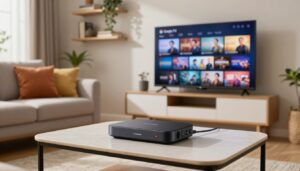
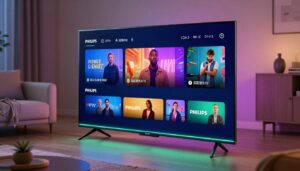
Curious how a single streaming system can power every television in your house without juggling logins? This short guide explains the concept in plain language and shows why many U.S. families want streaming on more than one screen at once.
What it is: A multi-room approach creates a unified media network that delivers channels to several devices at the same time. You can watch the same show in sync or let different people choose different channels.
This article will walk you through planning, the hardware you need, wired versus wireless choices, sharing methods, router configuration, installation tips, and common troubleshooting. Performance depends more on your home network design — Wi‑Fi coverage, Ethernet access, and router capability — than on any single app.
We focus on legal, reputable options and stable playback rather than unreliable free sources. As one example to evaluate later, consider providers such as GetMaxTV.
- A multi-room system sends streams to multiple TVs so family members can watch independently.
- Plan first: assess bandwidth, devices, and where Ethernet can improve stability.
- Wired connections give the most consistent performance; Wi‑Fi offers flexibility.
- Router settings and QoS matter more than any single app for smooth playback.
- Stick to legal, reputable services for reliable entertainment and support.
What Multi-Room IPTV Means for a Modern Home
Think of a single home media system that sends live channels and on‑demand content to every screen without juggling apps. That system distributes IPTV content to multiple TVs and tablets, not just mirrors one display.
Watching the same channel in sync: You can watch a sports broadcast in the living room and open the same feed on a tablet in the kitchen. Inside your LAN the delay is minimal, so applause and replays stay close to real time.
Different channels at once: Family members can choose separate channels — kids’ shows in one room and news in another. This works until you hit your provider’s limit on simultaneous connections or your network bandwidth.
- Local sharing reduces internet load. When a stream is served from a local server, the router keeps traffic inside the home and avoids repeated internet pulls.
- App behavior varies. Some apps request independent streams per device; others let a server coordinate delivery.
- Match technology to layout. Wired or wireless choices and a central server affect stable viewing across devices.
Planning Your IPTV Multi Room Setup Before You Buy Anything

Start smart: list each TV and device, then estimate how many feeds will run at the same time.
Quick planning checklist:
- Count rooms and screens you want active during peak hours.
- Note how many people will watch simultaneously and if they need HD or 4K.
- Check whether your provider plan allows that many concurrent connections.
Bandwidth matters. Typical HD streams use ~5–8 Mbps each, while stable 4K often needs ~25 Mbps per stream. If three people watch 4K at once, target at least 75 Mbps of usable speed at the devices, not just the advertised ISP number.
Content type changes needs: live sports and fast action use higher bitrates than news or talk shows. That raises both bandwidth and quality demands.
Choose a legal provider with clear licensing, transparent terms, responsive support, and steady uptime. Legal services reduce shutdown risk and give better reliability and customer help.
Plan first so you avoid overspending on boxes, routers, or extra hardware. For a practical configuration guide, see this setup walkthrough and this connectivity guide.
Minimum Hardware Kit for Multi-Room Streaming

Think in roles: one device routes traffic, one decodes the stream, and endpoints show video on screens. This keeps purchases focused and practical.
Core components
- Gigabit router — Look for gigabit Ethernet ports and dual-band Wi‑Fi (2.4 GHz + 5 GHz). That gives wired stability and flexible wireless reach.
- Main receiver — Use a smart television app, a set-top box, or a dedicated media player. Apps are simple; a separate box often handles more codecs and steady playback.
- Secondary devices — Phones, tablets, and laptops act as extra endpoints when a room lacks a television.
- Cables & extras — Cat-5e or Cat-6 cable is the dependable choice. A small splitter hub can distribute a wired feed in simple layouts without choking bandwidth.
- Powerline adapters — A clean retrofit when running new cable is impractical. Performance varies with your home’s wiring.
Quick tip: Match gear to your home network and the quality you expect. For a practical walkthrough on distribution and installation, see this how to set up multi-room.
Wired vs. Wireless IPTV for Multiple TVs

A simple ethernet run can remove most buffering headaches, but Wi‑Fi still wins for convenience in many homes.
Why Ethernet is the gold standard
Wired connections deliver the most reliable playback because they avoid radio interference and signal loss. A solid 100 Mbps cable link can carry several Full HD streams without trouble, making it a dependable baseline for a multi‑TV home.
How to make Wi‑Fi work
Wireless is fine when the router is modern, distances are short, and there’s little interference. Place the router near the center of the house, keep it elevated, and don’t hide it behind a TV or inside a cabinet.
Mesh nodes or extenders help fill dead zones without running new cable. Add nodes near problem areas and keep them on the same network to preserve discovery and streaming reliability.
Quality tuning by room
Match video quality to signal strength. In weak areas, choose SD to avoid constant buffering. In strong spots, allow Full HD for the best picture.
If you want a practical distribution guide, see this how to set up multi-room walkthrough and this quality guide for tuning tips.
How to Share IPTV Content Across Your Home Network
Sharing content over a home network means one source device can publish a feed on your LAN so other players can discover and play it. This keeps traffic local and reduces repeat downloads from the internet.
Simple sharing with DLNA or built-in media servers
Many smart TVs and apps can find a DLNA server automatically. This is the easiest way to get basic multi-device playback. Devices can browse folders and play files without extra setup.
Limitations: device compatibility varies and features are basic. Some players won’t show live channel lists or advanced controls.
Running a home server on a mini‑PC or NAS
A small server using Tvheadend or Plex manages playlists, guides, and endpoints. This system gives better control, smoother switching, and centralized distribution.
It adds complexity and needs stable hardware and storage. For a full guide to integrating media with Plex see this Plex integration guide.
Transcoding: when it helps and when it hurts
Transcoding converts a stream to another format or bitrate. It helps older players and saves bandwidth on weak links.
But it uses heavy CPU. If the server is underpowered, transcoding can cause stutters or dropouts for multiple streams.
| Option | Ease | Control | Hardware Needs |
|---|---|---|---|
| DLNA / built-in server | Very easy | Basic | None (use existing devices) |
| Mini‑PC / NAS + Tvheadend | Moderate | High | Low–Medium (CPU, storage) |
| Plex server | Moderate | High (UI, guides) | Medium (for transcoding) |
For hands-on distribution tips and a practical walkthrough, review this how to set up multi-room guide from a vendor perspective.
Router Configuration for Smooth Streaming and Stable Playback
Small, safe changes on your router can stop interruptions and help devices find each other. Start with one change at a time and write down defaults so you can revert if needed.
Enable IGMP snooping or multicast
Why it matters: consumer routers may broadcast video packets to every device by default. Enabling IGMP snooping or multicast control tells the router to forward packets only to devices that asked for them.
This reduces wasted traffic and lowers congestion during heavy streaming periods.
Use QoS to protect playback
How to set it: open your router’s QoS or traffic control panel. Prioritize streaming devices by MAC address, IP, or service ports when available.
Give higher priority to the set‑top or media player so a large download or game update won’t cause stutters.
Keep devices on one subnet
Discovery systems like DLNA and multicast often fail across isolated subnets. Turn off guest isolation and avoid split VLANs for streaming devices.
Keeping endpoints on the same subnet preserves automatic discovery and simplifies control.
“Document each change, test, then move to the next. That keeps troubleshooting simple and safe.”
| Setting | Effect | How to test |
|---|---|---|
| IGMP Snooping / Multicast | Reduces broadcast traffic | Stream to two TVs; watch CPU and buffer behavior |
| QoS (prioritize MAC/ports) | Prevents stutter during heavy downloads | Start a large file download; confirm continuous playback |
| Single Subnet (disable guest isolation) | Allows discovery and control | Verify device list and DLNA discovery from each TV |
Final checks: change one option at a time, note results, and test playback after each tweak. If a change causes trouble, revert and try a different adjustment.
Room-by-Room Installation Tips That Save Time Later
A room-by-room plan saves time and keeps your living spaces neat as you add screens.
Future-proof cabling: during renovations run extra Cat‑6 to every likely TV spot. It costs little more now and avoids cutting drywall later.
Make tidy termination points
Terminate cables near TVs, behind media consoles, or into a structured panel. That keeps boxes and hardware out of sight and simplifies upgrades.
Maximize each run
One cable can serve the IPTV feed, a game console, a work PC, or an access point. Plan outlets so a single connection meets several needs.
Clean retrofits for finished homes
Quick option: Powerline adapters often give an instant, usable connection with minimal work.
Neater option: run discreet cables along baseboards or in raceways for predictable performance and better longevity.
- Test each room as you go — one device at a time to note speed and stability.
- “Label every cable and record endpoints” — this saves hours when you add another TV later.
For a practical guide to final box placement and a quick installation checklist, see this setup guide.
Troubleshooting Common IPTV Multi-Room Problems
When streams falter, a calm, step-by-step checklist gets most homes back to smooth playback fast.
Start here:
- Restart the app, the device, and the router.
- Check your provider status and try a different channel.
- Run a speed test at the TV to measure Mbps on the actual device.
Why HD switches to SD
Weak Wi‑Fi antennas, interference, or mesh handoffs often force clients to drop to SD. Move the router closer, add a node, use 5 GHz, or wire that TV for stable quality.
Audio / video out of sync
Pausing can trigger drift. Try switching the player audio codec to AAC, disable aggressive frame matching, or test a different app on the same device.
Devices can’t see the stream
Check guest isolation, ensure all devices are on one subnet, and enable IGMP/multicast on the router. Verify the client supports multicast discovery.
Reducing buffering
Confirm Mbps at the endpoint, lower bitrate or quality for weak links, stop background downloads, and reduce Wi‑Fi interference (change channel, move away from microwaves/Bluetooth).
| Problem | Quick Fix | When to Contact Provider |
|---|---|---|
| Frequent buffering | Speed test at TV; lower quality; limit background tasks | Persistent across wired and wireless, same channels |
| Channels switch to SD | Improve antenna/router placement; use wired link | All devices on wired links still downgrade |
| Discovery fails | Disable guest isolation; enable multicast/IGMP | Router lacks multicast support or VLAN blocks |
One last tip: note time of day, which channels, and wired vs wireless behavior before you call support. That info helps pinpoint whether the issue is the provider or your home network.
Conclusion
A reliable network and simple sharing method beat extra hardware for steady playback every time.
Plan your rooms and concurrent viewing needs first. Then choose stable networking — wired where possible — and pick a sharing method, from a basic DLNA server to a full media server, to deliver local content and channels.
Fix the fundamentals: router placement, QoS/IGMP settings, and tidy wiring will improve your system far more than extra boxes or apps.
Provider choice matters. Reputable services give steady channels, consistent features like EPG and catch‑up, and better support when multiple televisions stream at once.
If you want a legal iptv subscription designed for smooth whole‑home streaming, check GetMaxTV’s current offer at GetMaxTV. Start with one stable room, then expand the same approach across the home for the best viewing experience.
FAQ
What does a multi-room streaming system let me do?
It lets you watch live channels or on-demand content on multiple TVs, tablets, and phones at the same time. You can play the same channel in sync in several rooms or stream different channels simultaneously, depending on your provider and home network capacity.
How many simultaneous streams can my home support?
Count the devices you expect to use at once and add headroom for other internet use. Plan for roughly 5–8 Mbps per HD stream and 15–25 Mbps per 4K stream. Multiply by the number of concurrent viewers and ensure your router and ISP plan meet that bandwidth.
What internet speed do I need for reliable HD and 4K viewing?
For smooth Full HD, aim for at least 25–50 Mbps total for several rooms. For 4K, target 100 Mbps or more if multiple 4K streams will run at once. Also consider latency and stability—consistent throughput matters more than bursty peak speeds.
How important is choosing a legal streaming provider?
Very important. Licensed providers offer reliable channel lineups, regular updates, and support. They also reduce the risk of service interruption or legal issues compared with unverified sources.
What basic hardware do I need to play streams on multiple TVs?
A modern dual-band router with gigabit Ethernet, a primary receiver (smart TV, set-top box, or media player) for the main feed, and secondary devices like smart TVs, streaming sticks, phones, or tablets. Keep Cat-5e/6 cables and a few Ethernet switches or Powerline adapters on hand.
Is wired or wireless better for home streaming?
Wired Ethernet is the gold standard for reliability and low buffering. Use it wherever possible. Wi‑Fi works for convenience, but you’ll need good router placement, mesh nodes, or extenders to avoid dead zones and bitrate drops.
Can I use a NAS or mini-PC to share content across my network?
Yes. Running a server like Plex or Tvheadend on a NAS or mini-PC can centralize recordings and live streams. Be mindful of CPU for transcoding—offloading heavy transcoding to capable hardware prevents playback issues on client devices.
What router settings improve streaming stability?
Enable IGMP snooping or multicast support to reduce wasted traffic, set up Quality of Service (QoS) to prioritize video streams over large downloads, and keep devices on the same subnet so they can discover each other easily.
How can I reduce buffering and stuttering in weak Wi‑Fi areas?
Test speeds in each room, lower the stream bitrate if needed, and minimize interference from other electronics. Consider using mesh Wi‑Fi, relocating the router, or running Ethernet/Cat-6 to problem rooms for the best results.
Why do streams sometimes drop from HD to SD automatically?
Auto-quality switching happens when the network can’t sustain the higher bitrate. Improve signal strength, add wired links, or reserve bandwidth with QoS. In some cases, upgrading antennas or using a mesh system fixes these drops.
What causes audio and video to go out of sync after pausing?
Sync issues often come from codec handling or client decoder buffering. Try updating the player software, switching audio codecs (like to AAC), or disabling hardware acceleration. Rebooting the receiver device can also clear buffering delays.
My devices can’t find the stream. What should I check?
Verify multicast is enabled on the router, ensure all devices are on the same local network, and confirm firewall rules aren’t blocking the stream. Also test the stream on a directly connected device to isolate network issues.
Any tips for future-proofing cabling during a remodel?
Run extra Cat-6 to each TV location and centralize cables near the router or media closet. Label runs, leave service loops, and consider an Ethernet switch with PoE if you plan to add devices like access points or cameras later.
Can Powerline adapters help in a finished home?
Yes, Powerline is a practical retrofit option when running new Ethernet is difficult. Performance varies with home wiring quality—use adapters that support gigabit passthrough and test speeds in the target rooms before committing.
How do I decide between a smart TV, a streaming stick, or a set-top box?
Choose based on codec support, app availability, and performance. Streaming sticks are cheap and portable, set-top boxes often offer smoother playback and better network ports, and smart TVs are convenient but vary widely in app quality and updates.