
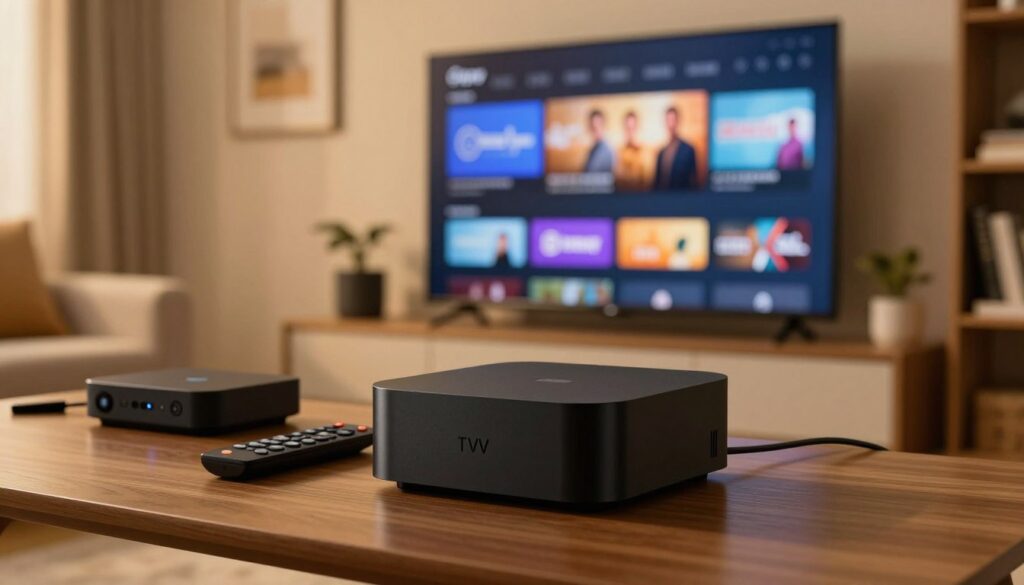
Ready to use voice to control live channels and apps on your streaming device? This friendly guide walks U.S. users through hands-free Alexa setup, app installs, and playback tuning on the Fire TV Cube.
We cover the full flow: prep Fire OS settings, install Downloader, sideload a player like IPTV Smarters Pro or choose Smart IPTV, then add a playlist/EPG and optimize voice commands. Expect tips for stable playback using Wi‑Fi or Ethernet and for fast app launches with 4K Ultra HD, Dolby Vision, and HDR10+ support.
Important: an IPTV app is usually just a player and does not include channels. You need a separate subscription service to access live and on-demand content. Legality depends on the provider and material you watch, so this guide emphasizes privacy best practices and reputable sources.
We briefly note GetMaxTV as a reliable option and link to further info at watchmaxtv.com. Later sections troubleshoot buffering, EPG failures, and login errors so you can complete a secure, working setup.
Ready for a legal subscription? Consider GetMaxTV for a trusted service and start watching.
Key Takeaways
- Follow step-by-step setup for hands-free Alexa control and smooth playback.
- Install a player app, then add a playlist and EPG to watch channels.
- Use Ethernet or strong Wi‑Fi for stable streaming and fewer buffers.
- Legality depends on the provider; use reputable subscriptions like GetMaxTV.
- This guide also covers common fixes: buffering, EPG issues, and login problems.
Why the Fire TV Cube Is a Great Device for IPTV Streaming
For a simple, fast way to watch live channels, this device puts key features front and center.
Performance perks that matter for live channels and fast app launches
The Cube’s hexa-core processor gives the device the speed to switch channels and open an app without long waits.
Faster processing also helps load guide data and reduce lag during live streaming, which matters during sports and news.
Picture and audio quality basics: 4K Ultra HD, Dolby Vision, and HDR10+
4K Ultra HD means higher resolution on your screen. Dolby Vision and HDR10+ add better contrast and color.
That combo makes fast-motion scenes and crowded visuals look cleaner and more natural on larger screens.
Hands-free Alexa voice control for a simpler IPTV experience
Built-in voice control speeds up launching apps, pausing and resuming playback, and navigating channels without the remote.
This is an easy way to multitask and keep your living-room experience tidy and remote-free.
Connectivity options that improve stability: Wi‑Fi vs Ethernet
Wi‑Fi is convenient but can be crowded during peak hours. Ethernet is often the best option to cut buffering and keep streams steady.
Choose the option that fits your home setup, and remember the device works best with a solid provider and player settings.
Want a step-by-step install? See the full setup guide for configuration tips and best practices.
Before You Start: What You Need for IPTV on Fire TV Cube
Before you install anything, make sure you understand the roles of your subscription and the app that plays it.
An IPTV service supplies channels and on‑demand content; an IPTV player is the app that organizes and plays those streams on your device.
What your provider should give you
Your provider must supply clear login credentials when they are required. They should also provide an M3U URL or a downloadable playlist file and an EPG URL for guide data.
Common problems include expired links, typos in the URL, or the wrong server address. Check these before you start to avoid setup delays.
Choosing a compatible player for Fire OS
Pick a player with a simple interface, regular updates, and support for multiple playlists if you plan to test more than one provider. The app must be stable and easy to manage.
Two popular options discussed later are IPTV Smarters Pro (free core features, M3U and Xtream Codes API support) and Smart IPTV (automatic EPG, trial plus a one‑time activation fee). Remember: the player does not host content — legality depends on the provider and the material you watch.
Need a step-by-step Smarters setup? Try the Smarters setup walkthrough or read a broader provider checklist and user guide.
Using IPTV Players Safely and Legally on Fire TV Cube
You may notice that certain player apps don’t appear in app stores; this often stems from compliance or policy concerns.
Why apps vanish from official catalogs
Some players are missing from the play store or google play store due to policy limits, regional laws, trademark issues, or past removals. That absence does not always mean the app is unsafe, but it does raise caution.
How to reduce installation risk
Take these practical steps:
- Download APKs only from reputable sources and verify the download URL.
- Scan files or links with VirusTotal before installing.
- Avoid “modded” versions that promise free premium features; they often carry malware.
When a VPN makes sense
A vpn can protect privacy on shared networks, reduce ISP visibility, and secure traffic when using third-party apps. Do not assume a vpn makes unauthorized access legal.
Bottom line: a player app is usually a legal tool, but streaming copyrighted content without rights is not. Choose reputable providers, check billing transparency, and stop any service that seems dubious.
Prepare Fire TV Cube Settings for Installation

A quick settings check on the home screen saves time and prevents install errors later. Follow these simple steps to enable sideloading safely and keep your device running well.
Finding Developer Options from the home screen
Use your remote to go to Settings → My Fire TV. Highlight About and press the Select button on the remote.
If Developer Options is hidden, open About and click the device name seven times until the menu appears.
Enable Install Unknown Apps the right way
Open Developer Options and choose Install Unknown Apps. Do not allow unknown sources globally.
Enable this permission only for the Downloader app so future installations stay controlled and safer.
Storage and cleanup tips before you download
- Confirm available space and remove unused apps.
- Clear app cache for large apps and restart the device if storage looks stuck.
- After installation, delete the APK file to free space and avoid future conflicts.
Next step: once settings and storage are ready, you can install Downloader and continue the sideload installation workflow.
Install Downloader App to Download IPTV Apps
Open Search and type “Downloader” to install the tool that lets you fetch APK files.
Follow these quick steps:
- Press the Search icon on the main screen and enter Downloader.
- Select the official Downloader listing—confirm the familiar orange-and-white icon before you install.
- Choose Install on the app store listing and wait for the download to finish.
First-run prompts and common fixes
When you open Downloader, accept or dismiss the initial prompts until the URL field appears.
Permissions requested (file access, downloads) let the app save and run APKs. They are required for sideloading.
- If installation fails, restart the device and retry.
- Check your network, account status, and available storage.
- Confirm you picked the correct app if multiple search results appear.
| Issue | Likely Cause | Quick Fix |
|---|---|---|
| Install button missing | Store glitch or account sign-in | Sign out/in, restart, check account |
| Download stalls | Weak network | Switch Wi‑Fi or use wired connection |
| Insufficient storage | Low available space | Uninstall unused apps and clear cache |
Next step: open Downloader and enter the APK URL to download. If you need extra help with a player install, see the Smarters setup walkthrough.
Sideload IPTV Smarters Pro on Fire TV Cube
This short guide walks you through downloading the APK, installing it, and clearing out the installer file. Follow each step to keep your device tidy and responsive.
Why users choose this player
IPTV Smarters Pro is popular because it has a clean interface and supports multiple providers and playlists in one app. It shows EPG data when your subscription supplies it. Remember: the player does not provide channels; your subscription does.
Download and install pattern
- Open Downloader, highlight the URL field on screen, and enter the APK link from a trusted source.
- Press the Go or click download button to start the download.
- When the file finishes, run the installer, select Install, then choose Done (not Open).
Save space and create a shortcut
After installation, delete the APK file to free limited storage. This prevents crashes and update failures later.
Move the app to the front row or add a home screen shortcut so you can launch the player without digging through apps.
| Step | Action | Why it matters |
|---|---|---|
| Enter URL | Type the APK link into Downloader | Ensures correct download source |
| Click download | Press Go / download button | Starts the installation file transfer |
| Install | Run installer and tap Install | Completes app installation |
| Delete file | Remove APK from storage | Frees space and prevents issues |
| Create shortcut | Move app to home screen | Quick access for daily use |
For detailed tips and the official Smarters walkthrough, see the Smarters guide.
Set Up IPTV Smarters Pro With Your Subscription
Open the player and accept the terms, then pick the Load Your Playlist or File/URL option to start. Allow any permission prompts so the app can save and access playlist files.
Sign in with M3U Playlist / File / URL
Choose M3U as the playlist type and paste the long URL or upload the file the provider sent. Use the mobile keyboard app to type quickly and avoid mistakes.
Name the playlist something clear like “Sports,” “Family,” or “Backup Provider.” A short, descriptive name keeps multiple subscriptions organized inside the app.
Adding EPG for live channels
Paste the EPG URL from your subscription into the EPG field. The guide populates slowly at first; wait a few minutes and refresh the guide if entries look empty.
Note: EPG data lets you see program titles and start times for live channels. If the guide is missing, confirm the provider included an EPG link.
Xtream Codes API: when to use it
Choose Xtream Codes API when your provider supplies short credentials instead of a long M3U URL. It’s faster to enter, but some providers no longer support it or rotate servers frequently.
Expect occasional limitations; keep both sign-in options available so you can switch when one method fails.
Manage multiple providers and playlists
Switch between playlists in the app menu, refresh playlists after server updates, and remove old entries you no longer use. This keeps channels tidy and reduces playback errors.
For faster setup from email links or multi‑device sync tips, see the detailed setup guide and the playlist sync walkthrough.
Smart IPTV on Fire TV Cube: An Alternative IPTV Player Option

If you prefer a focused, paid player with automatic guide support, Smart IPTV is a solid alternative. It’s a premium app that does not provide channels or subscription content. Your provider still supplies the streams and login details.
What Smart IPTV offers
Features include M3U playlist support and automatic EPG so the program guide updates without extra input.
The app gives a 7-day trial so you can test the interface and guide on your screen before paying.
Activation basics and fees
After the trial, Smart IPTV requires a one-time activation fee of €5.49 per device. On first launch the app shows the device MAC address and basic remote hints.
Activate at Smart IPTV details or directly via the vendor site to avoid losing playlists when the trial ends.
Uploading playlists from another device
To add a playlist, visit siptv.app/mylist on a phone or laptop, enter the device MAC and submit the M3U and EPG URL entries. Activation at siptv.app/activation should be completed before the trial expires to retain uploaded playlists.
Quick decision filter: choose Smarters for flexible multi-provider management. Pick Smart IPTV if you want a streamlined paid app and don’t mind the activation step.
Voice Control Tips: Using Alexa With IPTV Apps on Fire TV Cube
A few voice tips make a big difference in daily streaming routines and family use.
Voice commands that work well for playback, search, and navigation
Try commands like “open [app name]”, “pause”, “resume”, “stop”, “go home”, and “volume up/down”.
Use clear names when you ask Alexa to search the screen or an app to avoid misfires.
Hands-free vs remote button control: when to use each
Hands-free voice is great to launch an app or perform global actions. For precise guide or channel selection, switch to the remote button controls inside the player app.
Reducing misheard commands with better device settings
Rename your device in the Alexa app, confirm language and privacy settings, and test the microphone before a big show.
Avoid background noise, speak channel names consistently, and keep an eye on the on‑screen prompts so you know when voice control succeeded or needs a retry.
- Hybrid way: voice to open and search; buttons for fine control.
- Options to improve accuracy: change wake word, update language, and place the device where room noise is low.
Troubleshooting IPTV on Fire TV Cube
Start troubleshooting by isolating whether the issue is on your home network or with the streaming service.
This approach saves time and avoids unnecessary reinstalls.
Buffering and lag: network, Ethernet, and settings checks
Confirm internet speed with a quick test and reboot your modem/router as a first step.
Switch from Wi‑Fi to Ethernet when possible; wired connections often cut buffering.
Test at different times to spot peak-hour congestion. If many channels buffer, the problem may be the iptv service. If only one device has issues, check local settings and Wi‑Fi interference.
Playlist errors and login credential checks
Common playlist faults: expired M3U URL, extra spaces when pasting, wrong protocol (http vs https), or server rotation by the provider.
For login problems, re-type login credentials, watch for capitalization and trailing spaces, and confirm the subscription is active and not tied to other devices.
EPG not loading: causes and fixes
Verify the EPG URL your provider supplied. Refresh the guide and wait a few minutes for initial sync.
If the guide stays empty, ask the provider whether EPG is included in your plan or if they changed the file URL.
App crashes and black screens: quick resets and reinstall steps
Force close the app, clear cache, and restart the device as the next step.
If the problem persists, uninstall and reinstall the app, then re-add your playlist or file and test.
Audio/video sync and quality settings for 4K streams
Reduce output resolution temporarily and toggle match-frame-rate or HDMI audio settings to fix sync issues.
Check HDMI cables and receiver formats for Dolby audio. Lowering bitrate or resolution can stabilize playback when bandwidth is limited.
| Issue | Quick check | Action |
|---|---|---|
| Stuttering/Buffering | Run speed test | Reboot router, use Ethernet, test later |
| Playlist / URL error | Bad link or expired file | Re-paste URL, remove spaces, request new link |
| Login failure | Wrong credentials | Re-enter credentials, confirm account status |
| EPG missing | No guide data | Refresh guide, verify EPG URL with provider |
| App crash / black screen | App hang or blank screen | Clear cache, restart device, reinstall app |
Privacy reminder: a VPN can help protect privacy on streaming devices and reduce ISP visibility, but it does not replace a stable network or a reputable provider. Use a vpn when appropriate, and follow each troubleshooting step in order to isolate the root cause.
Conclusion
Conclusion – quick recap and next steps.
Use this guide to pick a reputable iptv service, select a player (Smarters or Smart IPTV), prepare Fire OS installation settings, add your playlist and EPG, and fine‑tune Alexa voice control for daily use.
Remember: a player organizes streams; your subscription and providers supply the actual content and determine legality and available channels.
App availability differs by platform—some apps appear on Google Play or the play store for Android devices, while your streaming device may need sideloading steps or activation fees.
Choose Smarters for flexible playlist management or Smart IPTV for its paid activation workflow. Readers comparing legal subscription options can review GetMaxTV details at watchmaxtv.com.
If you want a legal subscription, check GetMaxTV’s offer on https://watchmaxtv.com.
FAQ
What is needed to start streaming on a Fire TV Cube with an external IPTV service?
You need a compatible device, a reliable internet connection, and a valid subscription from a provider that supplies login credentials and an M3U URL or Xtream Codes API. Install a compatible IPTV player app, such as IPTV Smarters Pro or Smart IPTV, then load your playlist or file/URL to access live channels and guide data (EPG).
How do I find and install the Downloader app on my device?
Use the device’s Search on the home screen to locate “Downloader” in the Appstore. Click download and open it; this app simplifies sideloading APKs by letting you enter a URL and fetch the file directly to your device. If the app doesn’t appear, check region settings or device compatibility.
Why aren’t some IPTV players available in the Google Play Store or Amazon Appstore?
Some apps don’t meet storefront policies or are distributed directly by developers to avoid marketplace restrictions. That’s why users often sideload APKs using Downloader or transfer files from another Android device. Always verify the source and publisher before installing.
Is it safe to sideload an IPTV player like IPTV Smarters Pro?
Sideloading can be safe if you use a trusted source and take basic precautions: enable Install Unknown Apps only for the Downloader app, scan APKs with a reputable antivirus on a computer, and delete the installer after installation to save storage. Avoid pirated content and confirm your subscription is legitimate.
What steps should I take before installing new streaming apps to avoid storage problems?
Check available storage in Settings and uninstall unused apps. Clear cache for large streaming apps and move media files to external storage if supported. After installing an APK, delete the installer file to free space and keep performance smooth for 4K playback and app launches.
How do I set up IPTV Smarters Pro using an M3U playlist or URL?
Open the app, choose “Load Your Playlist or File/URL,” then paste the M3U URL provided by your service or upload a file. Add EPG/guide URL if available for live channels. Save and refresh the playlist to load channels, categories, and program data.
Can I use multiple providers and playlists inside one IPTV player?
Yes. Most players let you add multiple playlists or provider accounts. Organize them using profiles or separate playlists so you can switch between subscriptions, manage different channel lists, and keep EPGs distinct for each source.
When should I use a VPN with my streaming device?
Consider a VPN for privacy, to protect login credentials, or to secure your connection on public networks. Choose a reputable VPN with fast servers to avoid buffering. Remember that a VPN won’t make illegal streams legal; use it to enhance security and privacy only.
My EPG isn’t loading—what should I check first?
Confirm the EPG URL from your provider is correct and active. Ensure the player supports the EPG format provided (XMLTV, JSON). Check network connectivity, refresh the playlist, and restart the app. If problems persist, contact your provider for an updated guide link.
Why do some channels buffer or lag during playback?
Buffering usually comes from network issues, insufficient bandwidth, or server-side problems with the provider. Test Ethernet vs Wi‑Fi, reduce other network traffic, and lower the stream quality if needed. Using wired Ethernet often improves stability for 4K streams and live channels.
What are quick fixes when an IPTV app crashes or shows a black screen?
Force‑close the app, clear its cache, and restart the device. If the issue continues, uninstall and reinstall the player, verify your subscription/login credentials, and ensure the APK you installed is compatible with your device’s OS version.
How do I create a home screen shortcut for faster access to an IPTV player?
After installing the app, go to Apps & Channels on the home screen, highlight the app, press the menu button on the remote, and choose Move to front or Add to favorites. This creates a visible shortcut for quicker launches.
What playback voice commands work best with Alexa on the Fire TV Cube?
Use clear commands like “Alexa, play [channel name],” “fast forward 30 seconds,” or “search for [title]” for reliable results. Pairing voice control with accurate channel names or app names improves recognition. Use hands‑free mode or the remote mic depending on preference and environment noise.
Are there free IPTV players available for Android devices and Fire OS?
Yes. Apps like Smart IPTV and other players may offer free trials or free versions with limited features. Paid options often include advanced features like multiple playlist support, built‑in EPG, and better codec handling for higher quality streams.
What should my IPTV provider supply to ensure the best viewing experience?
Your provider should supply valid login credentials, an M3U or playlist URL, and an EPG link for program guides. They should also offer clear setup instructions, supported player recommendations, and timely customer support for troubleshooting playlists or playback issues.
The WatchMaxTV Team is a dedicated group of streaming specialists and entertainment technology reviewers covering IPTV services for viewers in the USA, UK, and Canada since 2023. Our team independently evaluates every service we feature — testing across Smart TVs, streaming sticks, mobile devices, and gaming consoles. We measure stream stability, picture clarity in HD and 4K, program guide accuracy, and customer support quality. Our goal is simple: help cord-cutters find reliable, affordable alternatives to overpriced cable. Every recommendation on WatchMaxTV.com comes from real-world testing — not sponsored content or paid placements.