
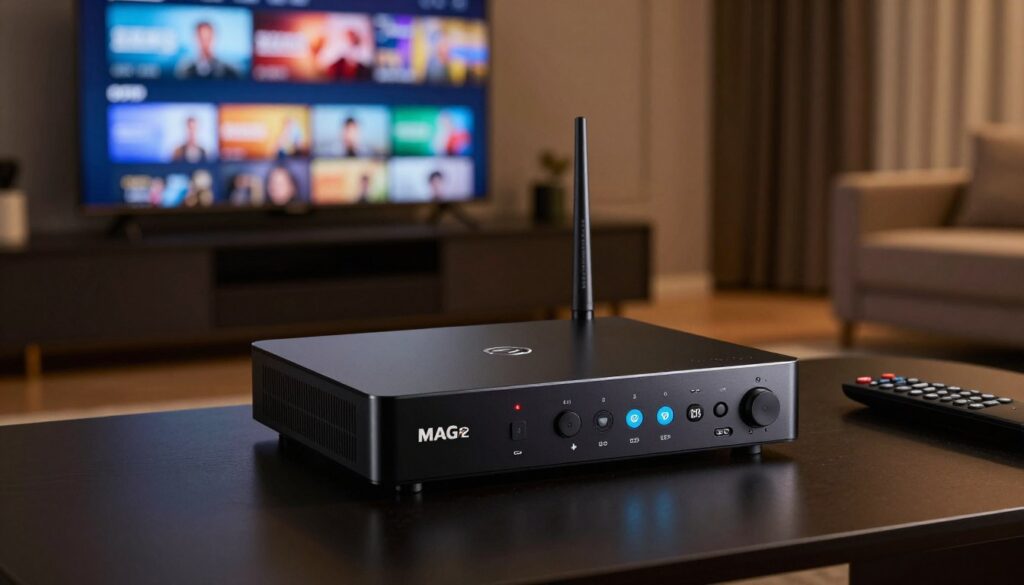
Looking for a more reliable living-room TV player—one that feels simple, fast, and built for channel surfing? If you want a steady MAG-style set-top box experience rather than an app-heavy streamer, this guide is for you.
The MAG 524 family are Linux-based set-top boxes designed for stable playback and easy navigation. They pair a neat interface with predictable performance, so users in the United States get a consistent channel-switching and EPG experience without constant troubleshooting.
In plain terms: the physical device plays content; the service supplies channels. This guide covers choosing connections, basic configuration, and simple tweaks to optimize picture and sound for modern content. We’ll also preview wired vs Wi‑Fi trade-offs and walk through unboxing and first-stream steps.
Want to explore legal service options while you learn setup best practices? Check a trusted resource at WatchMaxTV, and consider GetMaxTV as a legal subscription choice when you’re ready to activate.
Key Takeaways
- The MAG 524-class device is a dedicated player that prioritizes stable playback and simple navigation.
- Set expectations: connections, initial setup, and display/sound tweaks are covered in this guide.
- Use a wired Ethernet link when possible for the best performance; Wi‑Fi can work with good router placement.
- The device and service are separate—choose a legal provider for channels and content.
- Later sections will compare connectivity, unboxing steps, and common setup mistakes to avoid.
What Makes MAG 524 Set-Top Boxes “Premium” for IPTV in the US
Performance comes from specific components, and the specs tell a practical story for everyday TV use.
Core hardware: The Amlogic S905X2 paired with a quad-core ARM Cortex‑A53 at 1.9 GHz gives quick menus, snappy channel changes, and steady playback in the operator portal. The published 18,400 DMIPS is useful headroom for a responsive UI rather than a gaming benchmark.
Memory and storage: With 1 GB DDR3 RAM and 4 GB eMMC, the device is sized for a Linux 4.9 based set-top box focused on streaming portals. That amount of ram and flash supports stable operation and local cache, though it isn’t meant for loading lots of extra apps.
Video and audio: Support reaches 2160p (4K) with H.265/HEVC decoding and optional 60 fps when the stream allows it. Dolby Digital Plus and common codecs improve TV/AVR compatibility for better surround sound.
Formats and connectivity: M3U/M3U8 playlists, MP4/MKV/TS containers, and SRT/WebVTT subtitles are supported. Interfaces include HDMI 2.1, Ethernet at 100 Mbps, USB 3.0 plus usb 2.0. Operators value Ministra TV pre-integration and MAG JS API continuity for consistent service delivery, while DRM/CAS remains available on request.
iptv mag box 524w2 Setup: From Unboxing to Your First Stream
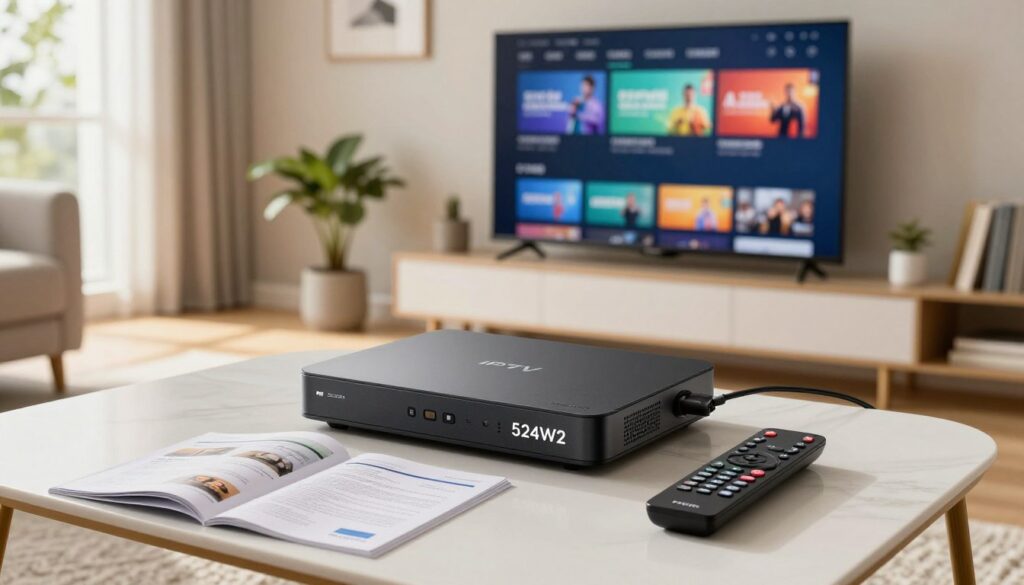
Start by confirming your package contents so setup goes smoothly and you avoid surprises.
In the box checklist
Open the packaging and confirm you have the set-top box unit, user manual, HDMI cable, remote control, and two AAA batteries. Contents can vary slightly by seller, so stop if something is missing.
Power and cabling done right
Insert AAA batteries correctly: slide the cover, match the + and – markings, then press the cover back on. Test the remote control before moving on.
Connect the HDMI cable to a free HDMI input on your TV, select that input, then plug Ethernet (recommended for 100 mbps stability) and finally attach the power adapter. Use the included adapter or a manufacturer-approved replacement (documented DC 5V/2A or optional 12V/1A).
USB add-ons: Use USB storage for local playback or accessories. Prefer USB 3.0 for faster transfers; USB 2.0 works for controllers and basic peripherals.
- First stream readiness: stable home internet, correct TV input, working remote control, and valid service credentials or playlist info.
- Troubleshooting: no signal — check HDMI and TV input; no network — check Ethernet and router; remote not responding — reseat the AAA batteries and re-pair if needed.
| Connection | Purpose | Quick fix |
|---|---|---|
| HDMI 2.1 | Video/audio to TV | Try another HDMI port or cable |
| Ethernet (100 mbps) | Stable network | Test cable, reboot router |
| USB 3.0 / USB 2.0 | Storage or accessories | Use USB 3.0 for large files |
For a smooth setup walkthrough, see the detailed IPTV box setup guide for next steps and official support options.
Optimizing Your Viewing Experience on MAG 524

Optimizing resolution, frame rate, and sound settings helps you match the source to your TV for sharper, smoother playback.
Choosing the best picture settings
Match output to your TV’s native panel. Use 720p or 1080p for older 60 Hz panels and 2160p for true 4K displays to avoid needless upscaling.
Smooth 60 fps playback depends on the stream’s frame rate, codec, and a stable network. H.265 (HEVC) supports 2160p@60 fps when encoded and delivered correctly; H.264 tops out at 2160p@30 fps.
Quick checklist: confirm HDMI, set TV input to the device, disable duplicate motion processing on the TV, and test a known high-quality VOD title.
Audio setup tips
Enable Dolby Digital Plus if your TV or AVR supports it for better multichannel sound. If you see dropouts, switch to stereo PCM to restore stability.
Use the remote control to toggle output modes and test audio from USB or network sources to confirm codec compatibility.
Content and service compatibility
Operator portals use the MAG API and many operators adopt Ministra TV middleware for a consistent user interface. MAG JS API continuity keeps navigation familiar across firmware updates.
Protected content may require DRM/CAS enabled by the provider. Ask operators about DRM support before subscribing to premium services.
Practical network and legal service notes
Prefer wired Ethernet for consistent streaming in U.S. homes. If you use a Wi‑Fi-capable unit like the mag 524w3, place it near the router and reduce interference for stable playback.
For a legitimate subscription option, review GetMaxTV’s current offer at WatchMaxTV. For product details and sourcing, see a known retailer listing at the MAG 524 product page.
Optimization steps you can do in 10 minutes:
- Confirm output resolution matches your TV.
- Set audio to Dolby Digital Plus or stereo as needed.
- Test several channels/VOD and check subtitle sync (SRT, WebVTT supported).
- Verify the provider portal and DRM status with your operator.
Conclusion
A reliable living-room player pairs steady software with the right hardware for stress-free viewing.
The MAG 524-class unit earns its “premium” label through stable Linux-based playback, broad codec support, and a simple living-room navigation model. These strengths make channel changes and menus feel fast and predictable.
For the best results, run the correct HDMI cable path, prefer Ethernet for network stability, and match video and audio settings to your TV and sound system. Small setup steps deliver big gains in picture and sound.
For legal and smooth viewing, pair the device with a reputable service that supplies proper portal credentials and content rights. If you want a legal subscription, check GetMaxTV’s current offer on https://watchmaxtv.com and see the MAG 524 product page for device details.
FAQ
What core hardware powers the MAG 524 series?
The device runs on the Amlogic S905X2 chipset with a quad-core ARM Cortex‑A53 CPU. This combination delivers smooth navigation and reliable decoding for common codecs like H.265/HEVC, enabling 4K playback at compatible bitrates.
How much memory and storage does the device include?
It ships with 1 GB DDR3 RAM and 4 GB eMMC internal storage. That setup handles the system and lightweight apps, but adding external USB storage is recommended for recordings or large media libraries.
Which video and audio formats are supported?
The unit supports up to 2160p (4K) resolution, HEVC/H.265 decoding, and multi‑channel audio including Dolby Digital/Dolby Digital Plus passthrough when connected to compatible receivers.
What ports and connectivity options are available?
Expect HDMI 2.1 output, a 100 Mbps Ethernet port, and both USB 3.0 and USB 2.0 ports. Wi‑Fi is available on the MAG 524W3 variant; the wired connection gives more stable throughput for high‑bitrate streams.
What comes in the box and what batteries are needed?
The package typically includes the set‑top unit, an HDMI cable, a remote control, and two AAA batteries for the remote. A DC power adapter is also included for proper operation.
How do I set up power and cabling correctly?
Connect the DC adapter to the unit, plug HDMI to your TV, and use Ethernet for the best network stability. If you need extra storage or USB accessories, use the USB ports; avoid long, low‑quality cables that can degrade signal.
How can I optimize picture settings for smooth playback?
Match the device output to your TV’s native resolution (720p/1080p/2160p) and enable 60 fps where supported. Use a wired Ethernet connection for high‑bitrate content to avoid stutter and buffering.
Any tips for audio configuration?
Enable Dolby Digital Plus passthrough in audio settings if your AV receiver or soundbar supports it. Use HDMI for the best multichannel audio; if using optical out, note its bandwidth limits for some codecs.
What content and service compatibility should I expect?
The device works with services and middleware built on the MAG API, including popular operator platforms like Ministra TV. Check with your content provider for DRM and conditional access support before subscribing.
Is there a recommended legal subscription service to use?
For legitimate streaming, consider established providers that offer MAG compatible profiles. One example is GetMaxTV (visit https://watchmaxtv.com for details), which publishes setup guides and account options for compatible devices.
Can I expand storage or record live streams?
Yes. You can attach external USB drives for media playback and recordings. Use high‑quality USB drives or external SSDs for better reliability and performance with recordings.
What remote control features are included?
The bundled remote provides standard navigation keys, playback controls, and numeric input. It runs on two AAA batteries and supports basic IR commands for operation and TV power/volume on many models.
How does the device handle network speeds and bitrates?
The Ethernet port supports 100 Mbps, which is suitable for most HD and many 4K streams. For very high bitrates, ensure your LAN and internet connection can sustain required mbps to prevent buffering.
Are firmware updates and support available?
Manufacturers and service operators periodically release firmware and image updates over the network. Keep your device updated for stability, security, and improved codec or DRM support.
The WatchMaxTV Team is a dedicated group of streaming specialists and entertainment technology reviewers covering IPTV services for viewers in the USA, UK, and Canada since 2023. Our team independently evaluates every service we feature — testing across Smart TVs, streaming sticks, mobile devices, and gaming consoles. We measure stream stability, picture clarity in HD and 4K, program guide accuracy, and customer support quality. Our goal is simple: help cord-cutters find reliable, affordable alternatives to overpriced cable. Every recommendation on WatchMaxTV.com comes from real-world testing — not sponsored content or paid placements.