Ever wondered why channels freeze in the living room but stream fine near the router? That frustrating split in performance often comes down to how your network routes multicast traffic, port mapping, and where you place your mesh units.
You’ll learn what causes freezes versus buffering, which router settings to check, and how to use wired backhaul or a 5/6 GHz wireless link to fix room-to-room drops.
We’ll walk you through real product menus on ASUS and TP-Link Deco so you can enable IGMP, set the right STB port, and confirm ISP profiles without guesswork. You’ll also see how a sensible internet plan and a solid router configuration keep video crisp while the rest of your home stays fast.
Finally, if you want a best-value streaming option after you stabilize the network, we’ll explain why GetMaxTV’s service is worth considering and how easy signup and activation can be. For deeper connectivity details, check the connectivity guide and the connection guide.
- Diagnose freezes vs buffering by checking IGMP, DHCP routes, and STB port settings.
- Place units for strong coverage; prefer wired backhaul when possible for stability.
- Use router features to prioritize streaming without slowing other devices.
- Confirm firmware and ISP profiles in ASUS or TP-Link Deco menus for best results.
- Consider GetMaxTV for a low-cost, wide-content service that activates quickly.
Understand IPTV over mesh WiFi: what matters for smooth streaming today
Knowing the exact symptom — a frozen image vs. slow loading — saves time and missteps.
Recognize performance symptoms. A spinner that grows and recovers usually means your internet or the service is congested. A sudden freeze with no spinner often points to multicast handling, IGMP issues, or port mapping on your router.
Spot latency spikes and multicast drops. If channels hang when you change rooms or stop after a few minutes, the problem may be multicast flooding or wrong IGMP Snooping settings.
Baseline requirements. Aim for stable throughput rather than headline speed: 25–50 Mbps per 4K stream and low jitter. Test the connection before tweaking advanced settings. If you need step‑by‑step guidance, follow this setup tutorial.
Device compatibility. Firestick, Smart TV, Android, Mac, Windows, and set‑top boxes usually work out of the box. For multiroom setups, use Udpxy to convert multicast to unicast if some clients prefer HTTP streams.
| Issue | Likely Cause | Quick Fix |
|---|---|---|
| Freezes (no spinner) | Multicast/IGMP misconfig or wrong STB port | Enable IGMP Proxy/Snooping, set correct STB port on router |
| Buffering | Insufficient internet speed or server load | Check throughput, upgrade plan or reduce simultaneous streams |
| Intermittent stutter | Wireless interference or backhaul limits | Use wired backhaul or 5/6 GHz link for critical units |
| All devices fail similarly | Infrastructure issue (router or units) | Document ports/units tested and contact isp or vendor for help |
IPTV mesh WiFi setup and optimization: from router settings to room‑by‑room coverage
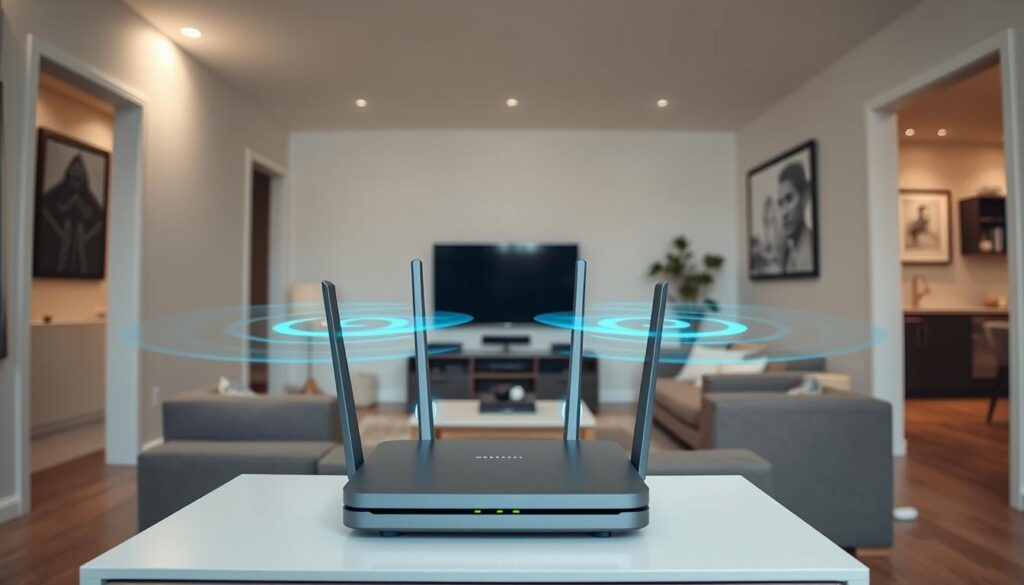
Begin with a simple layout: decide which units will use Ethernet backhaul and which rely on a 5 GHz or 6 GHz wireless link. Placing satellites in open spaces, mid‑height, and within two rooms of each other gives you the best shot at stable video.
- Prefer wired backhaul for critical viewing nodes; run Ethernet where you can.
- Keep streaming boxes wired to a LAN port when possible or on the nearest 5/6 GHz radio.
- Separate IoT clusters from main viewing areas to cut airtime noise.
Dial in router settings next. Enable IGMP Proxy (IGMP v3) and IGMP Snooping to stop multicast flooding. Pick the correct STB port in the router UI so multicast traffic stays on the expected interface.
On ASUS, go to LAN > IPTV, choose your ISP profile (or Manual), set the IPTV STB Port, pick DHCP routes if required, enable IGMP v3, configure Udpxy (example port 4000) for unicast access, then Apply and test.
For TP‑Link Deco users, confirm your model and update firmware before changes. Freezes that look like a frozen frame often clear after multicast fixes and a firmware refresh on models such as X20, X55, XE75, X68, and X90.
Fine tuning: Prioritize devices like NVIDIA Shield Pro with QoS or MAC‑based shaping. Run speed and jitter tests during peak hours; if the internet numbers are good but channels still freeze, revisit router settings and port mappings.
When in doubt, ask your ISP whether they require a VLAN, a specific profile, or a reserved port for the box. For a step‑by‑step connection walkthrough, see the connection guide.
Choose the best IPTV service for mesh homes: why GetMaxTV delivers unbeatable value
Pick a streaming plan that matches your home setup, then confirm your router ports and multicast options before you hit play.
GetMaxTV bundles huge value into one simple plan. For $6.95/month you get 19,000+ live channels and 97,000+ VOD titles, with all sports and movies included. No add‑ons, no surprises.
- Universal compatibility: Works with Firestick, Smart TV, Android, Mac, Windows, and most set‑top box models.
- Fast activation: Subscribe and start in about two minutes—perfect once your router and ports are set.
- No contract + 24/7 support: Try risk‑free and get help with multicast or STB port mapping anytime.
GetMaxTV is built to play nicely with tuned networks. If you need setup steps, follow the quick install guide here.
Ready to start? Subscribe now or request a no‑obligation free trial via WhatsApp.
Conclusion
You now have a clear plan: place satellites smartly, pick Ethernet or a fast wireless backhaul, and stabilize multicast by setting the correct STB port and enabling IGMP v3 and Udpxy where needed.
Small changes make a big difference. Enable IGMP Snooping/Proxy, confirm port mappings and update your mesh firmware or your TP‑Link Deco models (X20, X55, XE75, X68, X90). Apply the ASUS LAN > IPTV flow if you use that platform so your set‑top box and apps stream smoothly.
Ready to watch? With your network tuned, choose great content: subscribe for instant access at GetMaxTV or read more about setup on the whole‑home mesh guide. Prefer a trial? Message for a free test via WhatsApp: start a free trial.
FAQ
What is the best way to place your mesh units for whole‑home streaming?
Place one unit near your main router and space remaining units evenly to avoid dead zones. Aim for a direct line of sight when possible, keep units off the floor, and avoid large metal objects. Use Ethernet backhaul for room-to-room links when you can to free up wireless capacity for streaming devices.
How do you tell the difference between buffering and a multicast drop?
Buffering usually shows as slow loading or small pauses and ties to bandwidth; multicast drops cause sudden freezes or channel loss. Check device CPU and app logs, test other internet tasks, and run a simple speed test. If other services work fine but live channels fail, suspect multicast handling on the router.
What baseline network settings must be in place for smooth live streaming?
You need consistent downstream bandwidth, low latency, and stable DHCP lease times. Enable IGMP snooping or proxy on the router, open any required ports the service specifies, and reserve IP addresses for set‑top boxes or streaming devices to prevent address conflicts.
Which devices commonly work with modern streaming services and require special settings?
Fire TV Stick, NVIDIA Shield, Android TV boxes, Smart TVs, Windows and macOS laptops, and traditional STBs are common. Some devices need static IPs or port forwarding. Shields and high‑end Android boxes often benefit from QoS priority to reduce stutter during peak use.
When should you use Ethernet backhaul versus 5 GHz or 6 GHz wireless?
Use Ethernet backhaul whenever possible for the most reliable throughput and lowest latency. If wiring isn’t feasible, prefer 5 GHz or 6 GHz bands for backhaul to keep 2.4 GHz free for IoT and long‑range devices. Prioritize wired links for the units serving your main viewing areas.
Which router settings most affect multicast and set‑top box behavior?
Enable IGMP snooping or IGMP proxy, check multicast forwarding, and ensure DHCP reservations for set‑top boxes. Disable AP isolation and review firewall rules that might block multicast or UDP streams. Some routers offer an IPTV or media mode—use it when available.
How do ASUS routers handle multicast and IPTV settings?
On ASUS units go to LAN › IPTV, enable IGMP v3 if supported, and configure Udpxy or equivalent if your app requires UDP‑to‑HTTP conversion. Apply changes and reboot both the router and your streaming device. Keep firmware up to date to fix multicast bugs.
What should you check on TP‑Link Deco systems to stop intermittent freezes?
Verify you run the latest firmware, confirm backhaul band selection, and check any built‑in QoS rules. If you have multicast issues, look for an option to optimize streaming or enable multicast passthrough. For persistent problems, use Ethernet backhaul or a router with advanced IGMP controls.
How can you prioritize streaming devices with QoS?
Enable QoS in your router or mesh app, then assign a higher priority to your streaming boxes or apps like Shield, Fire TV, or your set‑top box. Set bandwidth limits for noncritical devices during peak viewing to keep live streams steady.
What ISP settings might block or affect live TV services?
Some ISPs restrict multicast, block specific UDP ports, or use carrier‑grade NAT that complicates port mapping. Confirm with your provider that multicast and the ports your service uses are allowed. If needed, request a public IP or bridge mode for your modem/router.
How many concurrent streams can a typical home network support?
It depends on your internet speed and the stream bitrates. As a rule, a 100 Mbps connection can handle many HD streams; 4K streams need roughly 15–25 Mbps each. Also consider local Wi‑Fi capacity—multiple high‑bitrate streams can saturate a single wireless band.
What quick steps fix most streaming issues at home?
Restart the router and the streaming device, check for firmware and app updates, switch to a wired connection if possible, and test speed. If problems persist, enable IGMP settings, set static IPs for boxes, and look for QoS rules to prioritize your player.
Are there compatibility concerns with universal streaming services and set‑top boxes?
Most services support standard Android and Linux‑based boxes, Smart TVs, and popular streaming sticks. Confirm your box supports the required codecs and network protocols. If in doubt, use an app on a supported device like NVIDIA Shield or a modern Smart TV for best results.
What should you ask a provider before subscribing to a streaming package for a mesh home?
Ask about supported devices, required ports and multicast support, activation time, and refund policy. Confirm the service works well with your existing router or if they recommend specific router settings or hardware for optimal performance.
How do you secure your network while optimizing it for live streaming?
Use WPA2/WPA3 encryption, separate guest and IoT networks from main streaming traffic, and keep firmware current. Reserve bandwidth and use secure remote admin settings. Proper segmentation keeps streaming devices fast while protecting your other devices.