
Confused by messy TV guides and missed premieres? What if a clean electronic program guide could end that frustration in minutes?
You’ll learn the essentials of an EPG and how a clear xml program layout turns confusing listings into reliable schedule data you can trust.
This guide walks you from basic tags and timestamps to practical setup steps that prevent early cutoffs and missed shows. A 2024 Nielsen study found over 70% of cord-cutters use guide information to plan viewing, so accurate listings matter more than ever.
Along the way, you’ll see why consistent channel mapping, timezone offsets, and daily validation keep reminders, recordings, and logos correct. You’ll also get a simple path to a provider that pairs great guide quality with strong value—like GetMaxTV’s deep content, instant activation, and 24/7 support.
Ready to clean up your schedule and sign up with confidence? Start by following our step-by-step configuration guide.
Key Takeaways
- Understand core EPG fields so your schedule and recordings work reliably.
- Use proper timestamps and timezone offsets to avoid missed starts.
- Map channels with stable IDs to keep logos and episode data correct.
- Validate and refresh guides daily to prevent stale listings.
- Choose a provider that pairs solid guide data with clear value and fast activation.
From messy guides to perfect schedules: your path to a clean EPG in 2025
Tidy guide data keeps your shows starting on time and your recordings reliable across devices. Accurate epg entries and clear title and desc fields make search and DVR logic work the way you expect.
Why it matters: Over 70% of cord-cutters rely on correct guide data to plan viewing. Wrong timestamps or missing timezone offsets cause early cutoffs and missed starts. Clean channel IDs stop logos and episodes from attaching to the wrong channels.
The result is practical: fewer missed shows, smarter recommendations, and tidy series recordings. Consistent episode numbering keeps your library free of duplicates and gaps.
What you get when the program guide is right
- Reliable schedules so recordings trigger precisely when they should.
- Aligned time across apps and devices thanks to timezone-aware data.
- Cleaner browsing and accurate channel logos with stable IDs.
Quick tip: When your guide is dependable, switching to a provider with instant activation and 24/7 support is simple. See a practical walkthrough on how to use M3U and EPG to pair sources without extra hassle.
IPTV XML format
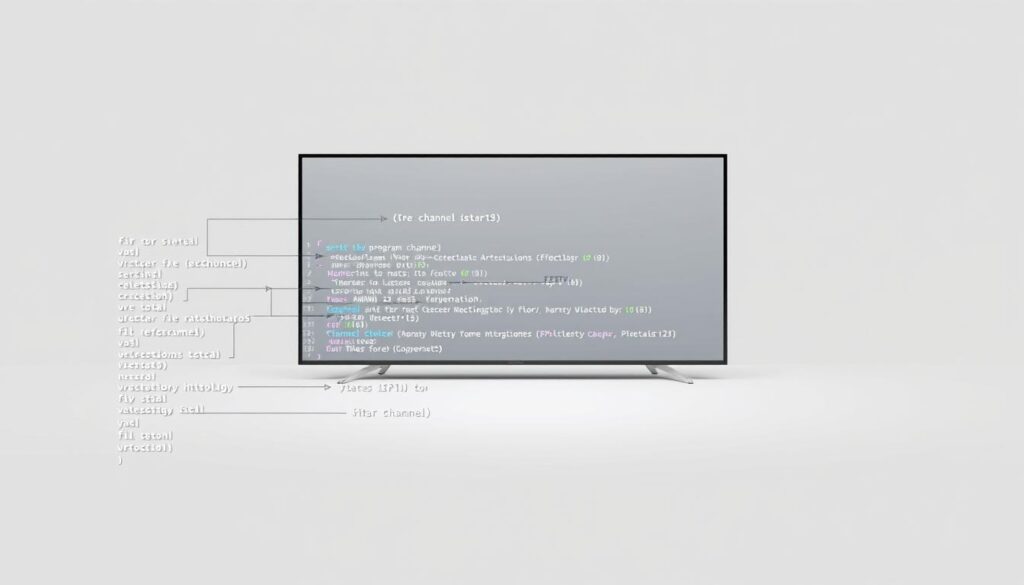
A solid xmltv root gives your guide a backbone so channels and programme entries behave predictably.
What to expect: The tv root wraps all content and often includes version and generator attributes. That helps your system spot updates and avoid duplicate imports.
Core xmltv structure
The channel tag defines a unique id, a display-name, and an optional icon. Use stable channel ids so logos and listings stay linked across updates.
Essential programme fields
Each programme entry points to its channel and uses start/stop timestamps with timezone offsets. Include title, sub-title, desc, category, episode-num (prefer xmltv_ns), rating, and language for reliable search and recordings.
| Element | Purpose | Best practice |
|---|---|---|
| tv (root) | Wraps channel & programme | Include version/generator info |
| channel | Defines id, display-name, icon | Use stable ids and short names |
| programme | Holds start/stop, title, category | Use timezone offsets & xmltv_ns |
Quick tips: Keep titles short, use common category labels for better filtering, validate the xml before import, and schedule daily updates so your programme timeline stays fresh.
Setting up your XML EPG: URLs, mapping, languages, and time correction
Start clean: add a direct url to the xml file so your player pulls structured guide data instead of scraping pages. This one step cuts errors and speeds imports.
Adding a source and using unique prefixes
Add the EPG by entering the direct url and choose a unique prefix when you use multiple sources. A prefix prevents ID collisions and keeps channel matches exact.
Priority language selection
Pick up to five priority languages to trim duplicate listings. Setting a single language keeps the guide clean and makes search results predictable.
Mapping IDs and forcing a full update
Map the XMLTV ID to each channel using the format <your_prefix>ID for multi-source setups. After mapping, run a Force update to refresh every entry.
Daily updates and time correction
The system auto-updates daily, but you can apply EPG time correction (minutes) when live air time drifts. Enter the offset, then force a full refresh so the schedule aligns with broadcasts.
| Step | Action | Why it matters |
|---|---|---|
| Add EPG | Enter direct url to xml file | Pulls structured schedule data reliably |
| Prefix | Set unique prefix for extra sources | Prevents ID conflicts across channels |
| Language | Choose priority language(s) | Keeps guide listings focused and tidy |
| Map & update | Assign xmltv IDs and Force update | Ensures full refresh and correct mappings |
Pro tip: follow this routine and you’ll enjoy a stress-free guide that pairs perfectly with a value-driven provider like GetMaxTV—instant activation and 24/7 support make the switch painless.
Smart channel mapping: clean IDs, regional feeds, and sports-first organization

When channel IDs are correct, your guide shows the right feed, art, and live games every time. That reliability starts with mapping the id found in the <channel id=””> attribute to each line in your player.
Finding and locking the id
Look up each channel id in the channel tag so mapping is precise. The display name is what viewers see, but the id is what the system uses to attach programmes and artwork.
Regional alignment and readable names
Standardize the display-name for clarity while keeping the system id unchanged. Align US and UK feeds with their correct ids so the schedule and artwork match the feed you watch.
Sports-first organization
Make games easy to find: pin league and team channels to the top of your guide. Tag sports listings with a consistent category and use filters to surface live events first.
- Locate the id in the channel tag to avoid name-based mismatches.
- Keep a simple mapping table with an example for tricky networks so you can reuse it.
- Cross-check data fields to prevent wrong logos or mismatched title entries.
| Action | Why it helps | Quick example |
|---|---|---|
| Map channel id | Stable link to programme data | news_us_101 → Channel 101 |
| Standardize name | Cleaner listings for viewers | ESPN US → ESPN |
| Pin sports | Fast access on game day | Top row: NFL, NBA, MLB |
Pair smart mapping with an all-inclusive sports package and you’ll stop hunting for the big game. With mapping in place, providers like GetMaxTV deliver every event without extra fees so your guide feels personal and predictable.
Automate and optimize: scripting, filtering, and validation workflows
With the right pipeline, your EPG rebuild runs itself and your guide stays fresh without manual edits. Automation makes repetitive edits safe and fast so you spend less time fixing listings and more time watching.
Python-friendly renaming and filtering
Use xml.etree.ElementTree or lxml to parse an xml file, loop channels, and rename display-name entries from a mapping dict. That keeps names readable while preserving stable ids.
Build a sports-only programme feed
Create a filtered file by selecting channels whose ids match patterns like ESPN or SKYSPORTS and keeping programmes where the category contains “sport” or the title matches sports keywords. The result is a lean, sports-first guide.
Validate, schedule, and version your changes
Add generator-info-name and generator-info-url to the tv root for traceability. Validate the xmltv structure before import to avoid import errors.
- Schedule daily rebuilds so category labels and programme times stay current.
- Keep scripts in version control and tag each version for rollback.
- Use simple ID patterns (ESPN, SKYSPORTS) as an example to speed filtering.
| Action | Benefit | Example |
|---|---|---|
| Rename channels | Cleaner listings | news_us_101 → NBC |
| Filter sports | Lean EPG | Keep category=”sport” |
| Validate & version | Reliable imports | generator-info + git tag |
Pro tip: a small automation pipeline paired with a value provider saves time and keeps your schedule dependable. If you want a ready service, GetMaxTV offers a $6.95/month plan with instant activation and 24/7 help.
Why GetMaxTV + a clean EPG equals unbeatable streaming value
Combining a tidy EPG with an all-inclusive service gives you accurate listings and instant access to more channels. That pairing means your schedule lines up with live events and the titles you expect.
- You’ll get 19,000+ live channels and 97,000+ VOD, so the guide surfaces sports, movies, and series without juggling apps.
- You’ll pay only $6.95/month with no contract, making this a low-risk way to try a broad content catalog.
- You’ll stream in about two minutes thanks to instant activation; your pre-configured epg pairs immediately for seamless first use.
Universal compatibility and support
Run GetMaxTV on Firestick, Smart TV, Android, Mac, Windows, and more. Your tuned schedule and titles follow you room-to-room.
All sports and movie packages are included at no extra cost. Clean mappings and daily updates keep show names, start time, and descriptions correct so reminders and recordings work reliably.
- 24/7 support for setup, epg questions, and device help.
- One signup url, instant activation, and accurate schedule data the same night.
Conclusion
A reliable guide depends on clear channel IDs, validated files, and daily updates—so your reminders and recordings always fire.
Quick wrap: populate core fields, validate the xmltv file, and automate daily refreshes so your program lineup and schedules stay in sync with live airings.
These simple steps cut errors, speed browsing, and keep your system aligned with timezones and program details. Pair that clean epg with a value provider and you get 19,000+ live channels and 97,000+ VOD for $6.95/month.
Ready to subscribe? Start now at watchmaxtv.com. Prefer to try first? Get a free trial—message support on WhatsApp: open trial chat. For setup details, see our EPG content manual.
FAQ
What is the best way to structure your EPG file for reliable guides?
Use a clear tv root with separate channel and programme entries. Make sure each channel uses a consistent id attribute and that programme entries reference that id. Include essential fields like title, sub-title, desc, category, episode-num, rating, language, and an icon so your guide displays correctly across devices.
How do you handle timezones and schedule drift so recordings start on time?
Provide start and stop times with explicit timezone offsets and use UTC when possible. If you see drift, apply a daily time correction offset or adjust the source times during the import. Many guide systems offer a time correction setting — use it sparingly and log changes for troubleshooting.
How should you map listings when you have multiple guide sources?
Add each source URL with a unique prefix and map the source’s channel IDs to your system IDs. Maintain a mapping table so your player can match streams to programme entries and prioritize one source for languages or regional variants.
What’s the easiest way to prioritize languages in multi-language listings?
Configure a priority language list and discard lower-priority descriptions or titles during import. Keep your listing clean by only importing the preferred language fields and offering alternate-language metadata as optional extras for advanced users.
How do you find and avoid channel ID mismatches?
Inspect the channel id attribute in the header of your guide source and compare it to your player’s channel identifiers. Normalize display-name and system ID values, trim whitespace, and remove special characters. Run a small script to flag unmatched IDs before deploying updates.
How often should you update guide data and when is a full refresh needed?
Update program listings daily for most channels and more frequently for live sports. Force a full update when you add a new source, change mapping rules, or after major schedule shifts like daylight saving adjustments.
Can you create a sports-only guide from a general listing?
Yes. Filter programmes by category, keywords (team and league names), and durations to extract sports events. Many workflows use simple scripts to copy matching programmes into a separate feed and then rebuild channel mappings for a sports-first guide.
What validation steps keep your guide reliable across devices?
Run XML validation against the feed’s schema, verify timestamps and timezone offsets, check for duplicate programme blocks, and confirm that icons and ratings use supported formats. Automate these checks in your update pipeline and log failures for quick fixes.
Which fields are essential for on-screen display and search?
Title, sub-title, desc, category, episode-num, rating, language, and icon are critical. Including clear episode numbering and concise descriptions helps search and recommendation features work better on smart TVs and apps.
How do you handle regional feeds and local variants effectively?
Maintain region-specific channel lists and map each channel ID to a regional display-name. Use consistent naming conventions and group feeds by region so users get localized schedules without conflicts from overlapping sources.
What tools work well for automating renames, filters, and updates?
Python scripts using libraries like lxml or ElementTree are popular for parsing and transforming listings. Combine those with cron jobs or CI pipelines to schedule downloads, run validation, and push updates to your streaming platform.
How do you manage version control for guide files and changes?
Store source mappings, transformation scripts, and sample feeds in a Git repository. Tag releases, keep changelogs for mapping updates, and use branches for testing changes before deploying to production so you can roll back if needed.
The WatchMaxTV Team is a dedicated group of streaming specialists and entertainment technology reviewers covering IPTV services for viewers in the USA, UK, and Canada since 2023. Our team independently evaluates every service we feature — testing across Smart TVs, streaming sticks, mobile devices, and gaming consoles. We measure stream stability, picture clarity in HD and 4K, program guide accuracy, and customer support quality. Our goal is simple: help cord-cutters find reliable, affordable alternatives to overpriced cable. Every recommendation on WatchMaxTV.com comes from real-world testing — not sponsored content or paid placements.