
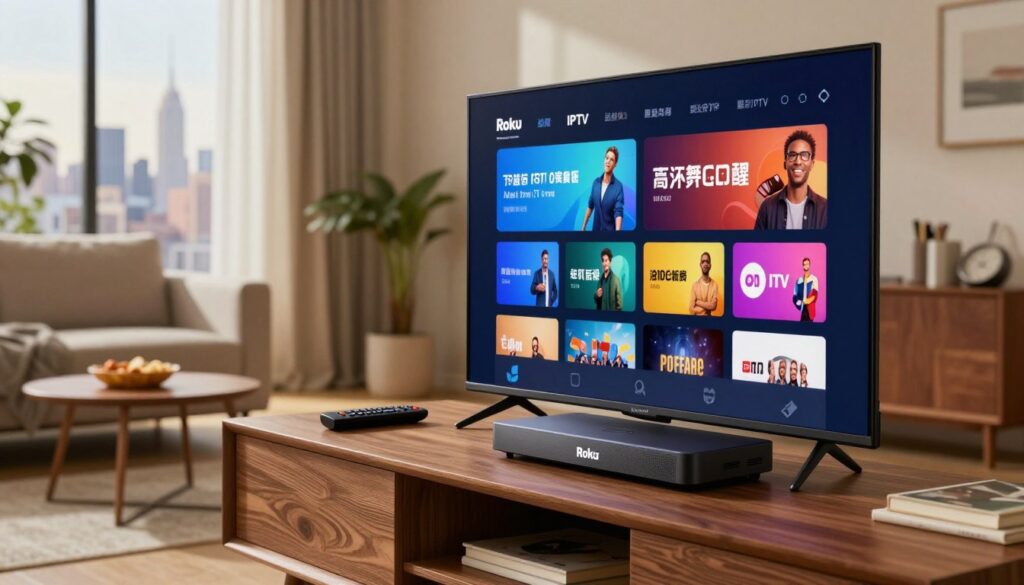
Have you wondered whether you can get a reliable internet-based TV experience on your streaming player while staying within the law?
This guide is for you if you use a Roku device in the U.S. and want an IPTV-style setup, especially when comparing options in New York while living or traveling in California.
You’ll learn what you’re actually buying, what Roku can and can’t do natively, and how typical setup steps work. I’ll walk you through how to evaluate providers with a focus on reliability, clear support, and legal safety signals.
Expect realistic workarounds rather than promises of a perfect native app. My definition of the best IPTV here means consistent streams, good support, and clear licensing—no hype.
Later, I’ll point out key buyer questions: which channels matter, buffering risks, EPG usefulness, multi-device needs, and trial/refund policies. I’ll also preview a legal-first option and a simple next step if you want a straightforward path, including a mention of GetMaxTV as an option to consider.
Key Takeaways
- You’ll learn what the service actually delivers and what Roku supports.
- “Best” means reliability, legal clarity, and strong support.
- Expect practical workarounds instead of a perfect native app.
- Important buyer questions include channels, buffering, and EPG value.
- A legal-first option and a simple next step are provided at the end.
What you’re really buying with an IPTV subscription
Let’s break down what your online TV plan actually delivers so you can compare offers with confidence.
How the internet delivery differs from traditional cable
When you pick a channel, your device requests a stream from a provider’s server and plays it over your internet connection. That contrasts with traditional cable, which sends channels over a managed coax or fiber network.
The difference matters: internet delivery gives more device flexibility and often lower price points. But performance depends on home Wi‑Fi and the provider’s servers.
Live TV, Video on Demand, and time‑shifted viewing
Most offers bundle three experience types. Live TV covers real‑time sports and news. VOD libraries let you watch movies and shows whenever you want.
Time‑shifted features add catch‑up, pause, and rewind on live channels when the provider supports it. Check which of these the service actually includes before buying.
What a provider delivers vs what an app does
Your provider supplies access: logins, playlists, and the actual streams. An iptv player is just the software that organizes and plays those streams on your device.
Program guide quality varies. Some providers give a solid EPG; others ship incomplete or mismatched guide data, which makes channel navigation frustrating.
- Quick checklist: content types you need, number of devices, and what the service includes (support, uptime, guide data, stream stability).
- Decide whether you’re buying access or only installing an app—apps don’t create channels; reliable providers do.
Why Roku users in the U.S. are considering IPTV right now
Rising costs and better streaming tech make this a logical moment to reassess how you get live channels and on‑demand shows.
Typical cable bundles can run around $120/month. Many internet-based plans advertise rates in the $10–$50 range. That gap explains the growing interest, but price alone doesn’t tell the full story.
Cost, reliability, and what price signals mean
Lower prices can signal slimmer licensing and variable uptime. If you choose by cost, expect trade-offs in channel stability and legal clarity. Test during a trial to confirm live sports and news hold up.
What sports fans and local viewers care about
For many sports fans, consistent live streams, fast channel switching, and low buffering matter most. Big events expose weak servers quickly.
Local news can be hit-or-miss. Some providers carry full locals; others do not. Verify local channel availability before you buy.
International channel demand drives many households to these services. Language-specific channels and niche content are frequent selling points.
“Compare price, stability, and legality—not just the channel list.”
- Quick buyer checklist: test sports during peak hours, verify locals, and check EPG accuracy.
- Consider your living-room device. Your streaming stick affects which workarounds and apps will work best.
- Look beyond price to uptime, support, and clear licensing.
| Service Type | Typical Monthly Cost | What to Expect |
|---|---|---|
| Traditional cable | $100–$140 | Stable locals, wide channel mix, higher cost |
| Third‑party internet TV | $10–$50 | Lower cost, variable reliability, mixed licensing |
| Licensed live streaming | $40–$80 | Clear licensing, good support, predictable uptime |
When you’re ready to explore device-friendly options and check streaming compatibility, see recommended streaming devices here: streaming device guide.
Roku compatibility reality check before you subscribe
Compatibility isn’t automatic: device rules and app availability shape the real experience. You should confirm how your TV setup will run live streams before committing to a long plan.
Why Roku often feels limited
Roku’s app store has tighter policies than some other players. That leads to fewer native apps that act like a full iptv player with a polished guide and channel controls.
Common workarounds that actually work
Two practical options cover most use cases.
- Screen mirroring: Use a phone or tablet as the player, then mirror to the TV device. It’s fast and simple for occasional use.
- Plex‑style media server: Run a local server or media app that transcodes playlists and presents a TV-like guide on the device.
What “compatible apps” usually mean
Often a compatible app is a general media player that reads playlists. It may not include a clean EPG, fast channel switching, or advanced controls.
Practical support and device mapping
Some providers help with Roku workflows; others only document Fire TV and Android TV steps. If your household includes smart tvs or another streaming box, run the app natively there instead.
| Scenario | Ease | When to use |
|---|---|---|
| Main TV is Roku only | Confirm method first | Test mirroring or server approach before buying |
| Phones/tablets available | Easy | Mirror device to TV for casual viewing |
| Other streaming boxes or smart tvs | Best | Run provider app natively on another device |
Decision rule: If you’re relying on one Roku device, confirm the exact viewing method and support steps before you pay for a long plan. That avoids surprises and reduces playback issues.
iptv subscription for roku new york: what to look for as a buyer
A smart buyer focuses on lineup fit, playback quality, and family controls—not raw channel counts. Start by listing the channels and features that matter to you. That short list becomes the filter you use to compare providers.
Channel lineup fit: sports, movies, locals, and niche content
Don’t equate a high channel count with value. Check whether the service carries the exact networks you watch.
Include locals, live sports, premium movie networks, and any international or niche channels you need.
Streaming quality targets: HD vs 4K and home setup needs
Decide if HD is enough or if you require 4K for big screens. 4K uses more bandwidth and needs a capable device and router.
Test quality during a trial and compare real-world playback on your device and TV.
Program guide expectations: EPG accuracy and usability
Program guide data varies widely. Some providers supply a clean, searchable guide; others ship mismatched or sparse listings.
During testing, try browsing, search, and schedule info to confirm the guide fits your routine.
Family needs: parental controls and multi-device options
Check for parental controls and account profiles if kids use the TV. Confirm how many simultaneous streams the provider allows.
Also consider device compatibility across phones, tablets, and living-room players.
Buyer checklist
- Must-have channels (locals, sports, movies, niche)
- Real-world quality test (HD/4K on your device)
- EPG accuracy and navigation
- Parental controls and simultaneous devices
- Stability and fast channel navigation over extra channels
“Focus on the channels and features you use daily; stability matters more than a long list you won’t open.”
Legal and safety fundamentals for IPTV in the United States
Before you pick any streaming plan, it helps to separate the technology that delivers video from the legal rights that let a channel be shown. The delivery method is neutral: legality hinges on whether a provider has proper licensing to distribute the content.
IPTV technology is legal; licensing is what changes the risk
The transport method itself is legitimate. But if a service streams premium channels without rights, using it can expose you to problems. A VPN does not make unlicensed streams lawful.
Practical signs of a more trustworthy service
Look for clear company details, published terms, responsive support, and secure payment options. Real providers usually offer a transparent trial or refund policy so you can test quality safely.
- Visible contact info and business registration
- Detailed terms and privacy statements
- Secure checkout (card processors, PayPal) and friendly support
Why “too good to be true” pricing is a red flag
Extreme underpricing for big-channel packs often signals unclear licensing. Anonymous operators, frequent domain changes, or vague answers about rights are warning signs.
“Choose services that trade low risk and clear support for a little extra cost—stability and payment safety matter more than rock‑bottom prices.”
When you evaluate offers, also review device compatibility and how the provider handles refunds. For an example of industry warnings about suspicious offers, see this notice: warning on a questionable 8K streaming.
Choosing between legal live TV streaming and third-party IPTV services
A clear split exists: major licensed live TV services trade higher cost for stability, while third‑party packs sell breadth at risk.
Licensed services like YouTube TV, Hulu + Live TV, and Sling TV give you native apps, clear channel rights, and reliable support. You usually get predictable DVR and catch‑up features and fewer surprise outages.
What many third‑party providers claim
Third‑party providers often advertise massive channel lists, premium sports and movie channels, and low prices. That appeal is real but comes with trade‑offs.
- Licensed service benefits: legal clarity, stable streams, official apps, consistent support.
- Third‑party claims: big channel libraries, international content, lower monthly costs.
- Common trade‑offs: higher legal risk, buffering at peak times, weak EPG data, and spotty support.
“Start with a trial and test during peak hours—compare total value, not just the sticker price.”
| Factor | Licensed services | Third‑party providers |
|---|---|---|
| Cost | Higher | Lower |
| Reliability | High | Variable |
| Support & legality | Clear | Often unclear |
Decision list: try official services if you value uptime and legal protection; try a short trial of third‑party services only if you accept higher risk and test at peak sports hours.
Setup requirements for smooth IPTV streaming on Roku
A smooth viewing session begins with the right internet speed and a tuned home network. Start by confirming your connection and router can handle live streaming before you troubleshoot playback problems.
Internet speed guidance for HD and 4K streaming
Speed targets: aim for ~10 Mbps per HD stream and ~25 Mbps per 4K stream. Add headroom if multiple devices stream at once.
Router basics that reduce buffering
Use 5 GHz Wi‑Fi when possible. It has less interference and higher throughput than 2.4 GHz.
Place your device near the router and avoid thick walls or appliances that cause signal loss.
When Ethernet is worth it
Choose wired Ethernet if you watch sports live, see frequent drops, or the device sits far from the router. Ethernet gives the most stable connection and reduces buffering.
Account details you’ll receive
Providers typically send either an M3U URL or Xtream Codes credentials. Know the format so you pick a compatible player and guide workflow.
“Run a speed test on the same Wi‑Fi near your TV at your usual viewing time—simulate peak use before you commit.”
| Requirement | Minimum | Recommended |
|---|---|---|
| HD per stream | ~10 Mbps | 15–20 Mbps |
| 4K per stream | ~25 Mbps | 35+ Mbps |
| Network setup | 5 GHz Wi‑Fi | Ethernet for main device |
If you want step‑by‑step setup help or device options, see the practical guide at recommended Roku workflows.
How to set up IPTV Smarters Pro and similar players on your phone first
Begin with mobile setup so you can enter credentials and confirm playback quickly. This saves time and keeps troubleshooting simple before you try any living-room workarounds.
When this player makes sense — and when it doesn't
Use smarters pro if your provider offers Xtream Codes or an M3U URL and you want a familiar interface with favorites and a solid program guide. It gives quick access to live channels and VOD on phones and tablets.
Don’t use it if the provider uses an unsupported format, if the app isn’t available on your device, or if you need a native TV app with built-in Roku support. In those cases, choose a different app or a mirroring path.
Loading your credentials correctly
Follow these steps exactly to avoid common copy/paste errors:
- Open the app and pick the login method your provider gave (Xtream or M3U).
- Place the server or URL in the Server/URL field; paste the username and password in their boxes.
- Double-check for extra spaces or truncated links — those are the usual culprits.
Configuring the program guide and grouping channels
Ask your provider for a matching EPG URL if they don’t auto-assign one. Load it in the guide settings and confirm times match live broadcasts.
Create simple groups: Sports, News, Kids, Movies. Mark favorites so the layout feels familiar when you mirror to the TV later.
“If your provider can’t help you get a player working on mobile, consider that a red flag about future support.”
| Step | Action | Why it matters |
|---|---|---|
| Mobile login | Enter Server/URL, Username, Password | Confirms credentials work before TV routing |
| EPG setup | Paste EPG URL in guide settings | Aligns program guide with live schedules |
| Channel grouping | Create favorites: Sports, News, Kids, Movies | Makes mirroring and navigation simple |
When you’re ready to move to the TV, follow the provider’s guide or visit a practical setup walkthrough at this setup guide.
How to get IPTV onto Roku without native IPTV player support

If a native player isn’t available, you can still watch live feeds by mirroring from a phone or by using a media server that feeds your TV. These two paths cover most needs and keep setup simple.
Screen mirroring from iOS or Android — the fast path
Enable mirroring on the streaming device and on your phone. Then open the app on your phone and cast the stream to the TV.
Pros: quick, works with most apps and devices. Cons: slight latency, notifications can interrupt playback, and audio sync can vary.
Media server approach — a more TV‑like setup
Run a local server or Plex‑style app that transcodes playlists and serves channels to the TV. It feels more native and avoids constant mirroring.
Setup takes time and may need extra apps on other devices. The trade-off is a cleaner on‑screen guide and fewer interruptions.
Test playback and sync before you buy long term
Test the same channel during peak hours, run a sports clip for motion clarity, and watch 10–15 minutes to check audio sync. If streams drop or lag, the issue is often the network or the provider, not the device.
“If a provider can’t keep stable streams during your test window, a long plan won’t fix it.”
| Method | Ease | Best use |
|---|---|---|
| Screen mirroring | Very easy | Quick tests and casual viewing |
| Media server | Moderate setup | Daily TV‑like experience with guide |
| Native app (when available) | Easy to moderate | Best stability and official support |
For a practical walkthrough of device options and step steps, see the best methods to stream live TV guide. Confirm quality and ask the provider about support before you commit.
Best practices to prevent buffering during peak hours and big events
A few simple checks will tell you whether slow playback is your home network or the provider’s servers. Start calm and test one variable at a time so you can identify the real cause quickly.
Recognizing provider-side vs home-network issues
Provider-side signs: many channels fail at once, friends report outages, or problems only happen during major events. These point to the service rather than your gear.
Home-network signs: only one device buffers, issues stop on Ethernet, or buffering spikes when other downloads start. That means your local connection needs attention.
Optimizing your connection: QoS, reboots, and interference checks
Reboot your router and streaming device first—this often clears caching or routing problems. Use 5 GHz Wi‑Fi or Ethernet to reduce interference.
Enable QoS on the router to prioritize video traffic and lower latency. Move devices away from walls and microwaves to cut wireless interference.
Adjusting stream settings: resolution, buffer, and decoder choices
Lower the resolution from 4K to HD during peak streaming to reduce bandwidth needs. Increase the player buffer if the app allows it to smooth brief hiccups.
Try alternative decoder modes or players if audio sync or frequent buffering persist. Document your tests and contact provider support with timestamps—clear information speeds up help.
“Reduce the variables you control first; if streams still fail during big events, the issue is likely on the provider side.”
For detailed router and player tweaks, follow the step-by-step settings guide to prepare before major events.
Must-have features to prioritize when comparing IPTV providers
When you compare live‑stream services, focus first on real‑world uptime and how the provider handles peak events. That separates marketing from what you’ll actually watch during a big game or breaking news.
Uptime and reliability for live sports and breaking news
Uptime means stable streams during peak hours, not just a sunny afternoon test. Look for providers that publish uptime targets and report recent performance.
Catch-up TV and recording-like features
Catch-up features let you rewind or watch within a window after broadcast. Check how long shows remain available and whether the service offers cloud recording or simple catch‑up lanes.
Multi-device rules and household sharing
Confirm simultaneous stream limits and device compatibility. If your family uses multiple TVs and phones, choose services that explicitly allow several concurrent streams.
Customer support quality and setup documentation
Support matters. Prefer providers that publish clear setup guides, Roku workarounds, and responsive help channels. Good documentation lowers the risk during setup.
“Use a short trial to test uptime, guide accuracy, and multi‑device behavior during real viewing hours.”
Compare candidates across four axes: reliability, EPG/guide quality, support responsiveness, and device flexibility. Try a provider review and this best services guide to validate choices before you commit.
Pricing, trials, and refund policies that protect you as a buyer
A short, real-world test is the best way to judge whether a service matches your daily viewing needs.
How to use a trial to evaluate quality, EPG, and channel stability
Use the trial window like a mini stress test. Watch during your usual peak hours and run the channels you care about most: sports and local news are priority checks.
Create a simple checklist: channel stability, program guide accuracy, stream start time, and whether VOD loads and plays cleanly. Note any drops or long load times.
Test on the exact device and network you’ll use daily. That reveals real-world quality and reduces surprises after purchase.
Payment safety and subscription terms to read before checkout
Prefer services with clear refund rules and secure checkout (card processor or PayPal). Avoid providers that accept only anonymous payment methods.
Read the fine print on device limits, simultaneous streams, auto-renewal, and cancellation rules. Confirm how support handles outages and refunds.
Tip: Keep notes during each trial so you can compare providers objectively instead of chasing a long channel list.
Troubleshooting checklist for common Roku IPTV problems
When playback breaks, a calm, step-by-step checklist gets you back to watching fast.
Playback failures and “invalid playlist” mistakes
First-response checklist: confirm your playlist or credentials, make sure your account is active, and re-check the server URL for typos.
Common causes of an “invalid playlist” error are extra spaces when you paste, expired trial access, wrong URL format, or swapping M3U fields with Xtream fields. Fix those first.
Audio sync, freezing, and frequent stream drops
If audio lags or video freezes, test multiple channels. If only one channel has problems, the stream itself may be at fault.
Try lowering resolution, toggling decoder settings in your iptv player, or switching apps to see if the issue clears.
When to switch players vs when to switch providers
If several players fail the same way, the provider is likely the root cause. If one app works and another does not, focus on the app or its settings.
Fix frequent drops: test internet speed at the TV, move to 5 GHz Wi‑Fi, or use Ethernet during peak hours to reduce buffering and drops.
Working with support efficiently
When you contact support, give clear details: device type, connection type, local time of the error, exact error text, and a short clip or timestamp if possible.
Pro tip: include your player name and the guide or EPG behavior you saw. That speeds diagnosis and gets you a useful reply.
- Try a quick app swap before blaming the provider.
- Document tests and timestamps so support can reproduce the issue.
- Use the provider’s support tutorial for step-by-step checks.
“Start simple: verify credentials, check the network, then change the player if needed.”
A trustworthy path to a legal IPTV subscription with GetMaxTV
If you want a simpler, legal-first route, choose a provider that publishes clear terms, contact details, and a visible refund policy. That approach lowers risk and makes everyday use less stressful.
Where GetMaxTV fits if you want a more straightforward, legal-first approach
Expect clarity: a legal-first service highlights licensing, channel availability, and predictable uptime. You should see business info and fast, documented support rather than anonymous contacts and shifting domains.
Why this matters: transparent providers make troubleshooting and refunds faster. That matters when you test sports, local news, or high-traffic channels during peak hours.
Explore the main offer here: GetMaxTV
GetMaxTV is one option if you prefer clear terms and active customer help. Explore details and current options on the official offer page at https://getmaxtv.com.
Before you buy, verify channel fit, device limits, support responsiveness, and trial/refund terms. Remember, even with a legal provider your viewing path may still use mirroring or a media server, so solid setup guides and responsive support are essential.
“Choose a legal-first provider when you value dependable streams and straightforward support.”
Conclusion
Make your final choice based on real tests, reliable support, and channels you actually watch.
You can replace traditional cable and still get great content, but your success depends on careful testing. Use a short trial and watch sports and local news during peak hours to check streams and buffering.
Remember device reality: many setups use a phone or media server plus mirroring rather than a native app. Confirm EPG accuracy, simultaneous device access, and responsive support before you commit.
Licensing matters. The delivery method is neutral, but proper rights reduce legal risk. Avoid offers that are unusually cheap or lack clear contact and refund terms.
If you prefer a legal-first path, explore GetMaxTV’s offer and read a guide on how to pick the best provider to compare providers and options confidently.
FAQ
What are you actually buying with a streaming TV service that runs over the internet?
You’re paying for access to live channels, on‑demand libraries, and the software that delivers them. Licensed services bundle carriage rights and customer support. Third‑party services often provide access streams and playlist files that depend on the provider’s server quality, channel list, and uptime. Expect differences in reliability, legal standing, and support between licensed providers (YouTube TV, Hulu + Live TV, Sling TV) and unlicensed offerings.
How does internet-based live TV differ from traditional cable?
Internet delivery uses your home network to send compressed video streams, while cable sends signals over coax lines. That means you can get flexible packages and on‑demand content, but performance depends on your broadband speed and router. With the right setup, streaming can match or exceed cable picture quality, but peak‑time buffering and latency during big events are possible.
What’s the difference between live TV, video on demand, and time‑shifted viewing?
Live TV is real‑time broadcasts. Video on demand (VOD) lets you select movies and shows anytime. Time‑shifted features—catch‑up or cloud DVR—let you pause, rewind, or record broadcasts for later. When choosing a service, check how much catch‑up content and storage are offered and whether program guide data supports scheduling.
What does a provider deliver versus what the player app does?
The provider supplies the channel streams, servers, EPG (program guide) data, and account credentials. The player app (like IPTV Smarters Pro or another media player) decodes streams, displays the guide, and manages playlists and parental controls. A good player improves navigation and playback; the provider controls content availability and stream stability.
Why are many Roku users in the U.S. looking at internet TV options now?
Cord‑cutting saves money and lets you pick channels you actually watch. Sports packages, local news, and international feeds are big draws. Streaming services also add flexible device support and on‑demand libraries that appeal to households wanting more control and lower monthly bills.
How should you assess channel lineups—sports, movies, locals, and niche content?
Start with must‑have channels: your local affiliates, sports networks, and any niche or international channels you watch. Compare lineups side‑by‑side and verify whether regional sports networks and local news are included. If sports matter, confirm blackout rules and whether the service supports live event reliability.
What streaming quality should you expect: HD vs 4K and what does your home setup need?
HD streams typically require 5–8 Mbps per stream; 4K needs 25 Mbps or more. To get consistent HD/4K, use a modern router, 5 GHz Wi‑Fi or Ethernet, and avoid multiple heavy streams on the same connection. Also check that the service actually offers native 4K channels and that your TV and player support the codecs used.
How accurate and usable are program guides (EPGs) with third‑party services?
EPG reliability varies. Licensed services maintain accurate, interactive guides. Third‑party providers may supply basic EPGs or rely on playlists that lack metadata, causing mismatches or missing descriptions. Look for services that let you import or sync EPG data and test guide responsiveness during a trial.
What family features should you check, like parental controls and multi‑device options?
Verify user profiles, PIN protection for mature content, simultaneous stream limits, and device pairing rules. Good services let multiple household members watch different channels at once and set viewing restrictions per profile. Confirm device count and whether mobile, tablet, and TV use count toward the same stream limit.
Is the technology legal in the U.S., and what changes the risk?
Streaming technology itself is legal. The risk comes from licensing: services that don’t secure rights to channels expose you to copyright issues and unstable offerings. Choose providers that are transparent about licensing or stick with established licensed platforms to avoid legal and reliability problems.
What are practical signs of a more trustworthy streaming service?
Look for clear terms, active customer support, real‑time uptime stats, publicly listed channel lineups, and trial options. Payment via reputable processors and positive reviews across multiple sites are good signs. Extremely low prices with promised full channel lists are a red flag.
How do licensed live TV services compare with many third‑party offerings?
Licensed services like YouTube TV or Hulu + Live TV guarantee rights, offer reliable EPGs, and provide professional support—but cost more. Third‑party services sometimes offer broader international or niche channels at lower cost but may suffer from uptime issues, poor EPGs, and legal uncertainty. Choose based on your priority: legal protection and reliability versus price and channel breadth.
What internet speeds do you need for smooth streaming on a TV player?
For single HD streams aim for 5–8 Mbps. For 4K, plan on 25 Mbps or more. Add about 5–10 Mbps per additional simultaneous stream. Run a speed test during peak household hours to confirm available bandwidth before upgrading your plan.
Which router basics reduce buffering: 5 GHz Wi‑Fi and device placement?
Use a dual‑band router and connect the TV or streaming box to 5 GHz when possible to reduce interference. Place the router centrally, avoid physical obstructions, and minimize competing devices. If you have many smart home gadgets, consider guest networks or bandwidth prioritization for your streaming device.
When is Ethernet worth it for stability?
Use Ethernet if you experience buffering, frequent drops, or if you require rock‑steady performance for live sports and big events. A wired connection removes Wi‑Fi interference and often reduces latency and packet loss, giving more consistent bitrate delivery.
What account details will you get: playlist formats like M3U vs Xtream Codes?
Providers typically supply M3U playlists, Xtream Codes API credentials, or portal URLs. M3U lists are simple text files pointing to streams. Xtream Codes offers more structured APIs with user authentication and EPG mapping. Ensure your chosen player supports the format the provider uses.
When does using IPTV Smarters Pro (or similar) on your phone first make sense?
Test streams on your phone if you want a quick setup, to verify channel quality, or to troubleshoot before moving to a TV. Mobile testing helps you confirm credentials, EPG integration, and stream stability without altering your TV configuration. It’s also useful if your TV platform lacks native app support.
How should you load provider credentials correctly into a player app?
Follow the provider’s instructions exactly: paste API URLs or upload the M3U file, enter username and password, and then import the EPG XML if provided. Avoid typos, and test one channel first. If the guide doesn’t populate, refresh the EPG or re‑import the playlist after a short wait.
How do you configure the EPG and initial channel grouping?
In the player, map the EPG source to your channel list and use grouping features to sort sports, news, and favorites. Rename groups if needed. Some apps let you create favorites and custom categories—use those to speed navigation and reduce channel scanning time.
How can you get streams to a TV platform that doesn’t support native player apps?
Use screen mirroring from iOS or Android to your TV device, set up a local media server (Plex or Emby) to relay content, or use an HDMI adaptor from a mobile device. Each method has pros and cons: mirroring is quick but may introduce latency; a server is more robust but requires setup.
What’s the best way to test playback quality and sync before committing?
Run a trial and watch several live channels and VOD items at different times, including peak hours. Test audio/video sync, channel change speed, and guide accuracy. Simulate real‑world use—multiple devices streaming concurrently—to see how the service performs under load.
How do you tell if buffering is caused by the provider or your home network?
Check multiple devices: if all devices experience buffering, the provider or upstream network may be at fault. Run a speed test during freezes; if bandwidth is stable but streams still buffer, contact provider support. If only one device struggles, troubleshoot that device’s Wi‑Fi, app cache, or hardware decoder.
What home network optimizations help during peak hours and big events?
Prioritize streaming traffic with QoS, reboot your router before major events, close unnecessary apps on streaming devices, and use Ethernet for key boxes. Reducing wireless interference and limiting downloads during live events also helps maintain steady streams.
Which stream settings should you adjust to reduce drops: resolution, buffer, decoder?
Lower resolution to HD or SD if 4K stutters. Increase player buffer size if the app supports it, and try alternative decoders (hardware vs software) in settings. Test each change one at a time to find the best balance between latency and reliability.
What uptime and reliability should you expect for live sports and breaking news?
For premium live events you want near‑100% uptime and low latency. Licensed services and reputable providers advertise high availability and redundancy. Look for SLA‑style language, mirrored servers, and fast‑responding support if uptime is critical.
Are catch‑up TV and recording features common, and what should you check?
Many licensed platforms include cloud DVR or catch‑up windows. Third‑party services vary—some offer limited catch‑up or local recording options via apps. Check storage limits, retention times, and whether recordings are accessible across devices.
What are typical multi‑device streaming rules and household sharing limits?
Services usually limit simultaneous streams (commonly 2–4). Confirm whether family members in different rooms can watch separate channels and if mobile viewing is unlimited. Some providers offer add‑on streams for a fee.
How do you gauge customer support quality and setup documentation?
Look for clear setup guides, video tutorials, responsive support channels (chat, email, phone), and active community forums. Good providers offer step‑by‑step instructions for popular players and platforms and quick troubleshooting for common issues.
How should you use a trial to evaluate a service safely?
Use the trial to test channel availability, EPG accuracy, stream quality, and customer support response times. Try peak‑time viewing and multiple device streams. Avoid sharing trial credentials publicly and cancel promptly if the service fails to meet expectations.
What payment safety and subscription terms should you read before checkout?
Check refund policies, automatic renewal terms, accepted payment methods, and privacy practices. Prefer services that use secure payment processors and offer clear cancellation steps. Beware of recurring charges from unknown vendors and save receipts.
What common playback errors should you know and how to fix “invalid playlist” mistakes?
“Invalid playlist” often means a malformed M3U or expired link. Re‑download the playlist, verify credentials, and ensure the player supports the format. Clear app cache, update the app, and reimport the list. If errors persist, request a fresh playlist from the provider.
How do you troubleshoot audio sync, freezing, and frequent stream drops?
Restart the app and device, test other channels, check your network speed, and switch between hardware/software decoders. If problems persist across devices, contact the provider with timestamps and channel names so they can investigate server issues.
When should you switch players versus when to switch providers?
Switch players if playback issues appear isolated to one app or the app lacks features you need. Switch providers if multiple players show the same channel instability, frequent outages occur, or content disappears. Use a short trial to validate any new provider.
What should you expect from a legal‑first provider like GetMaxTV if you want a straightforward approach?
Legal‑first providers focus on licensed content, clear channel lists, reliable EPGs, and customer support. They often offer trials, transparent pricing, and multi‑device apps. If you prioritize stability and legality over the lowest price, look for providers that emphasize rights management and support.
How can you evaluate a provider’s main offer during a trial period?
Test channel stability, EPG accuracy, catch‑up features, device compatibility, and support responsiveness. Try live sports, news, and on‑demand titles you care about. Confirm simultaneous stream limits and mobile access before committing to a long‑term plan.
The WatchMaxTV Team is a dedicated group of streaming specialists and entertainment technology reviewers covering IPTV services for viewers in the USA, UK, and Canada since 2023. Our team independently evaluates every service we feature — testing across Smart TVs, streaming sticks, mobile devices, and gaming consoles. We measure stream stability, picture clarity in HD and 4K, program guide accuracy, and customer support quality. Our goal is simple: help cord-cutters find reliable, affordable alternatives to overpriced cable. Every recommendation on WatchMaxTV.com comes from real-world testing — not sponsored content or paid placements.