

Curious which method is best to save live shows and sports without a cable box? In 2025, many viewers choose cloud storage, local device options, or provider-hosted catch-up libraries to keep favorite content.
This guide explains what a modern recording system looks like, and why the term DVR can mean either a provider cloud feature or a local appliance depending on your plan and app.
Expect clear differences between true recordings you control and provider-hosted features that act like recordings with retention limits (often 7–30 days) and licensing rules.
We’ll preview three paths—cloud DVR, local device DVR, and catch-up TV—so you can pick the simplest approach for your household. Reliability usually hinges on internet stability, storage space, and app support, plus plan limits set by providers.
Brands like GetMaxTV appear in comparisons, but this piece stays focused on practical choices and a legal subscription path. For deeper configuration tips, see this helpful configuration guide.
Key Takeaways
- Modern systems include cloud-based and local recording options plus catch-up archives.
- “DVR” can refer to different features—know whether you control the recordings.
- Recording reliability depends on internet speed, storage, and app/provider rules.
- Common uses: saving sports, nightly news, and building a personal library of shows.
- Compare plans and licensing limits before you choose a legal subscription service.
What “Recording” Means in IPTV: DVR, Cloud DVR, and Catch-Up TV
When you save a show today, it might live on your device or on a remote server controlled by the service.
Cloud DVR vs local DVR: where your files actually live
Cloud options store programs on a remote server managed by the provider. That makes recordings available on phones, smart TVs, and web browsers tied to your account.
Local DVR puts video on internal or external drives you own. Those files stay with your system and work offline, but they may not be reachable from other devices.
Catch-up TV vs saved files: when you don’t press Record
Catch-up is a short archive. You open a channel’s listings and play a recent episode without scheduling a save. It’s ideal for light users who just missed an episode.
Common limits to expect
- Retention windows: commonly 7–30 days.
- Storage caps: total hours or number of titles per plan.
- Licensing blocks: some channels may be restricted from saving.
- Simultaneous captures: recording multiple channels may need a higher tier.
| Option | Where it lives | Best for |
|---|---|---|
| Cloud | Provider server | Multi-device access |
| Local | Internal/external drive | Offline ownership |
| Catch-up | Provider archive | Casual viewing |
Quick decision: pick cloud for cross-device use, local if you want files you control, or catch-up if you only need short-term access.
What You’ll Need Before You Start Recording
Don’t assume every plan lets you save live shows. First, confirm your service plan explicitly supports a cloud or local recording option. Some providers block saves at the stream level even if an app shows a record button.
Get verification in writing — check plan details, billing pages, or ask support chat before troubleshooting app settings that won’t work without provider permission.
Devices and apps
Common US devices that handle captures include Fire TV, Firestick, Android TV boxes, and Android phones/tablets. Device performance affects long sessions, so choose a faster device for multi-hour saves.
Pick an app that shows a visible recording feature, EPG scheduling, and a recordings library. Look for settings that let you choose a storage location.
Internet and storage
Consistent internet connection matters more than peak speed. Aim for steady bandwidth and prefer wired Ethernet over Wi‑Fi when possible to reduce failed or corrupted saves.
Storage options: internal memory (limited), external USB drive or NAS (more control), or a provider cloud server (convenience but plan-limited). Balance convenience vs. control when you choose.
- Verify provider support first; some providers disable saves even if apps can.
- Confirm where files live and any retention limits in your plan.
- For mobile guidance, see this mobile setup guide.
- For cloud details, review this cloud DVR overview.
| Need | Why it matters | Quick tip |
|---|---|---|
| Service plan | Controls whether saves are allowed and retention length | Get written confirmation of support |
| Device & app | Determines performance and available features | Use Fire TV/Android box for longer captures |
| Internet connection | Steady bandwidth prevents failed files | Prefer wired Ethernet where possible |
| Storage | Local drives give control; cloud gives access | Choose USB/NAS for larger libraries |
iptv recording setup dvr: Choose the Right Approach for Your Home
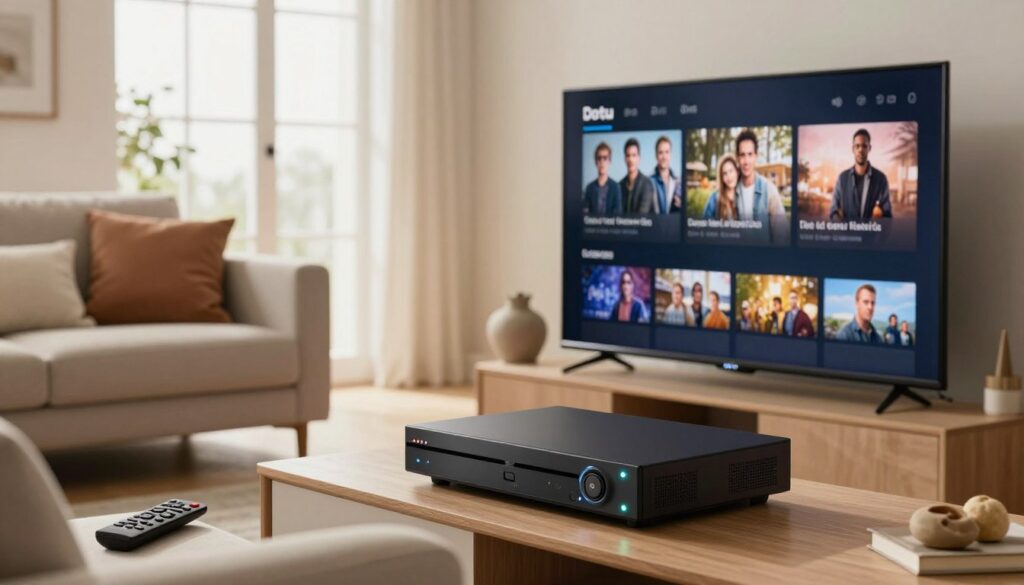
Choose the method that fits how your household watches TV and how much control you need over saved shows.
Best fit for multi-device households: cloud with account-based access
Cloud options let one capture be available on every device tied to the same account. Record once, then log in on a phone, tablet, or another TV to access recordings from anywhere.
This is ideal for families who stream on multiple screens and want minimal device management. Check plan limits for concurrent captures and retention hours before you rely on cloud access.
Best fit for offline-like access: local saving to a hard drive or USB drive
Saving files to a local hard drive or USB gives you direct control and offline playback. This works well when internet reliability or provider limits are a concern.
Tip: Choose a fast external drive and confirm your device supports the chosen format.
Best fit for light users: catch-up features and short-term archives
Casual viewers often don’t need a library. Catch-up archives let you play recent shows without managing storage or a recordings list.
If you rarely miss an episode, this option saves space and avoids the hassle of trimming saved files.
Trade-offs that affect the viewing experience
- Quality settings drive file size — higher quality means fewer hours per drive.
- Storage limits determine how long you can keep files or how many episodes fit on a drive.
- Simultaneous captures may need a higher plan tier to schedule multiple channels at once.
Quick examples: A sports fan needs concurrency and scheduled captures; a casual viewer leans on catch-up; a family benefits from account-based access across multiple devices.
For details on cloud options and provider rules, see this cloud DVR overview and this recording guide for practical steps.
How Cloud DVR Recording Works in IPTV Apps

Pressing the record button in an app begins a server-side save that follows your account across devices.
Start from the player menu
Open the player menu while a live stream plays and choose the record control. Look for a visual indicator that confirms the save has started. If no indicator appears, check provider permissions before troubleshooting the app.
Schedule from the EPG
Use the EPG to pick a future program and select one-time or series saves. Verify the app’s schedule list so you can see upcoming captures and cancel or edit them if needed.
Access anywhere via your account
Server-side files tie to your account, so you can access recordings by logging in on another device. This makes cross-device playback simple and reliable when the provider supports it.
Manage cloud storage and limits
Monitor storage so you don’t hit plan caps. Providers may drop the oldest file, block new saves, or stop a capture when you reach the limit. Delete watched items regularly to free space.
Best practice: Treat cloud saves as a curated library. For step-by-step help with app features, see this support tutorial.
Step-by-Step: Recording in IPTV Smarters Pro (and Similar IPTV Apps)
Follow these hands-on steps to capture live shows in Smarters Pro or similar apps without guessing where to start.
Install and sign in
Get the official app from the app store on your device. Open it and enter the username, password, and server URL your provider gave you.
Enable the feature in settings
Open settings and turn on the recording or DVR option if present. Confirm with your provider that the service allows saves before troubleshooting the app.
Record now vs. schedule later
Use Live TV to start recording immediately or open the EPG to schedule one-time or series captures. Scheduling is safer for recurring shows.
Pick storage and quality
Choose internal or external storage in settings. Lower quality saves space; higher quality uses more storage and creates larger video files.
Find and manage files
Open the Recordings section to play, delete, or rename files. Keep the library tidy so you don’t hit storage caps.
- Quick troubleshooting: update the app, check free storage, restart the device, clear cache, or reinstall the app.
- Run a short test save before trying a full game or movie.
For a focused guide on Smarters Pro, see how to record on Smarters Pro.
Device Storage and Setup Tips for Firestick, Fire TV, and Other Devices
Small streaming sticks are handy, but their limited storage affects how much you can save and keep.
Why Firestick storage runs out fast: Fire TV sticks pack small flash memory. Apps, system files, and cache consume space, so you may only get roughly 2–6 hours of saved video depending on bitrate and quality. Long games or multi-episode sessions can fill a device quickly.
Expanding space with an OTG adapter and USB memory stick
An OTG adapter plus a USB stick is the simplest solution for Firestick users. You’ll need an adapter compatible with your Fire TV model and a decent USB 3.0 stick. Many apps let you change the save path so the app writes to the external drive instead of internal flash.
Using external hard drive or NAS for heavier needs
Households that record daily shows may need a larger hard drive or a NAS. These options give more hours, better longevity, and shared access across multiple devices and apps.
| Constraint | Solution | Good for |
|---|---|---|
| Limited internal flash | OTG + USB stick | Light to moderate users |
| Daily captures / big library | External hard drive / NAS | Heavy users / families |
| App varies where it saves | Confirm writable path in app settings | Avoid missed scheduled saves |
Practical rules: Run a short test save, estimate space by quality, and confirm the app can write to your chosen drive. Even with ample storage, a stable internet connection still matters — stream drops can create incomplete or corrupt files.
Learn more about device choices and practical.
Conclusion
A simple test save will show whether your chosen method delivers the access and quality you expect.
Cloud, local, and catch-up each have clear strengths: cloud gives account-based access across multiple devices, local keeps files you control on a drive, and catch-up works for casual viewing with no library to manage.
Common roadblocks may also include provider limits on what a plan allows, device storage constraints, and inconsistent internet. Each issue has practical solutions outlined above: confirm your plan, use external storage, and run over-the-air tests.
Get started with a short save, confirm playback, then scale up to longer captures and series once settings prove stable. For a legal, straightforward place to compare iptv service features, check GetMaxTV here: GetMaxTV.
If you want a legal IPTV subscription with reliable service options, take a look at GetMaxTV’s offer on https://watchmaxtv.com.
FAQ
What does “recording” mean in an IPTV context — is it the same as DVR or cloud storage?
Recording can mean local DVR-style files saved to a device, a cloud DVR hosted by your provider, or catch-up features that let you watch past broadcasts without manually saving them. Local saves live on your drive; cloud saves live on the provider’s server and link to your account.
How do cloud DVR and local DVR differ in where my shows live?
A cloud DVR stores video on the provider’s servers so you can access it from multiple devices tied to your account. Local DVR writes to internal memory, an external USB drive, or NAS and keeps files on the device where you recorded them.
When is catch-up TV enough and I don’t need to press Record?
Catch-up works well for recent episodes or short retention windows offered by channels. Use catch-up when you only need a show for a limited time and the provider already archives it — no storage management required on your device.
What common limits should I expect when saving shows?
Expect retention windows, storage caps, simultaneous recording limits, and content rights restrictions. Providers often cap cloud storage by plan tier and limit how long certain channels remain available.
What do I need before I start saving live TV?
You’ll need a service plan that includes saving or cloud DVR, a compatible device and app with the feature enabled, a steady internet connection for cloud saves or streaming, and storage options — internal memory, external USB, or provider cloud.
How do I choose between cloud saves and local storage for a household?
Pick cloud saves if multiple family members watch on different devices and you want account-based access. Choose local storage if you prefer offline access, have a large external drive, and don’t need remote access.
What’s the best option for light users who rarely save programs?
Light users benefit from catch-up and short-term archives. These avoid managing storage and usually cover recent content without the need to manually schedule recordings.
How do quality settings and storage affect playback and simultaneous saves?
Higher quality consumes more space and bandwidth, reducing how many shows you can keep and how many can be saved at once. Lower bitrates save space but can reduce visual clarity, so balance quality against available storage and plan limits.
How do I start saving a show from the player or app menu?
Open the player or EPG, select the program, and choose the Save, Record, or cloud DVR option. Many apps let you record now, schedule from the guide, or set up series saves from the episode list.
Can I schedule series saves from the program guide?
Yes. Most apps let you schedule a single episode or series through the electronic program guide (EPG). Series saves automatically capture each episode that airs within the provider’s limits.
How do I access saved shows from another device?
Log into your provider account on the app or web portal. Cloud-saved content ties to your account and appears in the Recordings or Cloud DVR section. Local files require the same device or a network share from your hard drive.
How do I manage cloud storage and delete old shows?
Open the Recordings or Cloud DVR section in the app, select items to delete, and confirm removal. Check your plan limits to see how much space remains and whether older content is auto-pruned.
How do I enable and confirm DVR or cloud features in common IPTV apps?
Install the app from your device’s app store, sign in with your provider credentials, then enable DVR or cloud options in Settings. Verify your provider supports the feature and check for any plan or feature toggles in the account dashboard.
What’s the difference between recording now and scheduling later in the guide?
“Record now” saves the currently airing program immediately. Scheduling from the guide lets you set future recordings or series saves so the app captures episodes automatically when they air.
How should I pick a storage location and quality to balance space and playback?
For limited space, choose a lower bitrate and keep items short. For long-term archives, use an external HDD or NAS with higher quality. Cloud plans can simplify the choice because the provider manages storage tiers and bitrate options.
Where do I find, play, and remove saved files inside an app like IPTV Smarters Pro?
Open the app and go to the Recordings or DVR section. From there you can play saved shows, delete items, and view metadata. The exact labels vary by app, so look for Recordings, My Library, or Cloud DVR in the main menu.
Why does Fire TV Stick storage fill up so fast, and what can I do?
Fire TV devices have limited internal flash memory, so apps and temporary files consume space quickly. Use an OTG adapter with a USB drive, uninstall unused apps, or rely on cloud storage to avoid local space constraints.
How can I expand storage for heavy saving needs?
Use an external USB hard drive, a NAS on your home network, or sign up for a higher-tier cloud plan. For Fire TV, an OTG cable plus a powered drive provides reliable extra space for large archives.
Are there solutions for accessing local library files on multiple devices?
Yes. Set up a NAS or a media server like Plex to stream locally saved files to other devices on your network. Alternatively, rip files to a portable drive and connect it to the device you want to watch from.
The WatchMaxTV Team is a dedicated group of streaming specialists and entertainment technology reviewers covering IPTV services for viewers in the USA, UK, and Canada since 2023. Our team independently evaluates every service we feature — testing across Smart TVs, streaming sticks, mobile devices, and gaming consoles. We measure stream stability, picture clarity in HD and 4K, program guide accuracy, and customer support quality. Our goal is simple: help cord-cutters find reliable, affordable alternatives to overpriced cable. Every recommendation on WatchMaxTV.com comes from real-world testing — not sponsored content or paid placements.