Is your stream blurry or keeps freezing even though your internet “should” be fast?
Many picture problems—blurry frames, blocky pixels, mid-show freezes—are fixable without new hardware. Start by checking the app’s resolution and bitrate, then look at your router, Wi‑Fi, or Ethernet link. Small changes often restore smooth playback.
This guide walks a practical path: quick, safe tweaks first, then deeper network and display fixes only if needed. You’ll learn how stream bitrate, resolution choice, and network stability connect to visible issues.
Examples like GetMaxTV show why stable streams matter once your setup is tuned. For hands-on tips and five simple fixes, see a helpful post on five simple fixes.
Follow one change at a time, test, and isolate the cause. If you want a legal subscription after optimizing your system, check the configuration guide and consider that service.
Key Takeaways
- Blurry or freezing video often links to resolution, bitrate, or network stability.
- Fixes live in three places: app/player, network, and TV/device display.
- Start with simple in-app and network tweaks before buying gear.
- Buffering is usually a stability issue, not just raw speed.
- Test one change at a time to find the real cause.
- Services like GetMaxTV benefit most from an optimized setup.
What actually controls IPTV streaming quality in real-world viewing
What you see on-screen comes from three parts working together: resolution, bitrate, and your internet link. Each piece affects the viewing experience in a different way.
How resolution, bitrate, and compression affect picture quality and buffering
Resolution (720p, 1080p, 4K) sets how many pixels make the image. But bitrate decides how much data those pixels get. Low bitrate on a high resolution causes blockiness and banding.
Compression shrinks files so streams use less data. Aggressive compression can cause motion smearing, blocky artifacts, and poor detail on dark scenes or sports.
Bandwidth and internet connection basics for U.S. households
Many U.S. homes share Wi‑Fi with phones, tablets, and smart gadgets. That load, plus microwave or neighbor interference, can drop effective bandwidth at the TV.
Run a speed test near the streaming device, not just by the router, to see the real connection where you watch.
Quick speed targets: what to aim for with HD and 4K streams
Plan on ~10 mbps for each HD stream and ~25 mbps for each 4K stream. Give extra headroom when multiple people watch at once.
Remember: a fast headline speed can still buffer if latency spikes or packets drop. Adaptive “Auto” modes will lower image detail first to keep playback smooth.
“If your stream softens during peak hours, the player is protecting playback by reducing bitrate before it pauses.”
For more hands-on streaming tips, see this streaming tips guide.
iptv quality settings adjustment inside your IPTV app or player
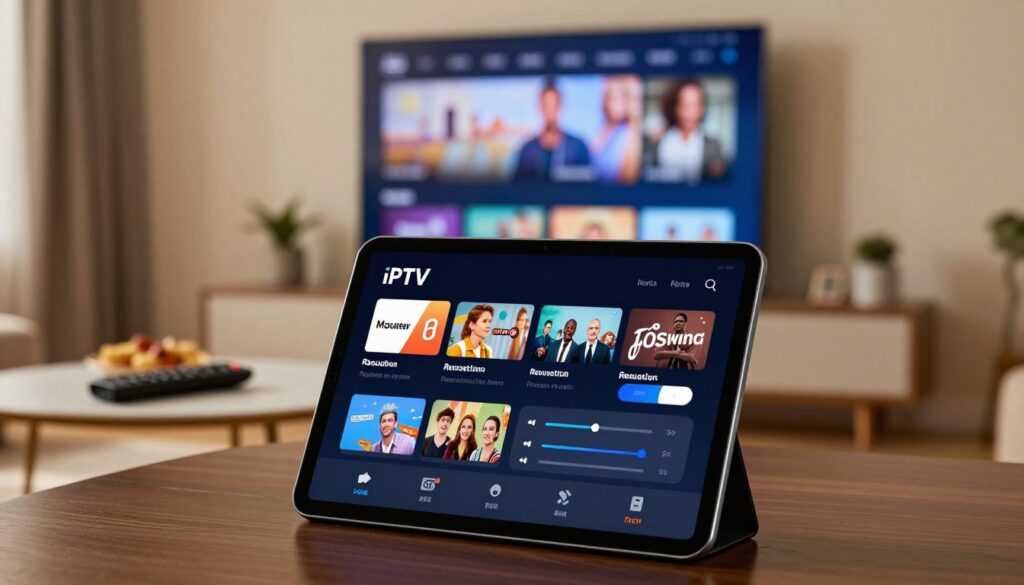
Start inside the player — it often fixes playback faster than network changes. On Android TV, Fire TV, and many smart TVs you’ll find Video, Playback, or Player menus in the app’s main settings or channel context menu. Common labels include Quality, Resolution, Decoder, Buffer, and Player Engine.
Follow this safe order of operations:
- Set the player to Auto quality and test playback for one minute.
- If buffering continues, cap the max resolution to 1080p, then 720p and retest.
- Try switching the decoder: test hardware first; if you see glitches, switch to software.
Why lower resolution helps more than expected
Dropping from 4K to 1080p or 1080p to 720p often reduces bitrate needs dramatically. That cut lowers buffering and makes motion look smoother on weak links.
Hardware vs. software decoding
Hardware decoding uses the device chipset and saves CPU cycles, improving playback on older boxes. Software decoding uses the CPU and can fix codec glitches when hardware fails. If you see freezes, audio dropouts, or overheating, test the hardware decoder first; use software decoding as a fallback.
Player engines, buffer, and adaptive options
Engines like ExoPlayer handle adaptive HLS/TS streams differently than basic decoders. Increase buffer size to reduce rebuffering on unstable connections, but keep it modest — too large a buffer slows channel switching.
Adaptive or auto-quality protects playback by stepping down when packet loss occurs. Turn it off only if you accept more buffering in exchange for sharper images.
Validate source tiers and try other players
Check your playlist for SD/HD/FHD labels and test alternate streams where available. If an app still struggles, try proven players: TiviMate, OTT Navigator, IPTV Smarters, or Perfect Player — they often manage decoders and buffering better.
For deeper player tips and a guide to getting the best from your subscription, see these streaming tips.
Fix your network first: router, Ethernet, and bandwidth management

Start by treating the home network as the foundation for every smooth stream. Even the best player options can’t hide packet loss or weak signal. Make the network your first troubleshooting stop.
Why a wired Ethernet connection is the fastest path to stable streaming
Wired Ethernet avoids Wi‑Fi interference and keeps latency low when you switch channels. If your streaming box has an Ethernet port, plug a Cat5e or Cat6 cable straight into the router and test the same channel over the wire.
You’ll usually see fewer freezes and steadier throughput during long viewing sessions.
Powerline adapters as a practical alternative
When running cable is impossible, Powerline adapters send internet over house wiring. In apartments or multi‑story homes they often beat unreliable Wi‑Fi for sustained streams.
Router features that help
Look for dual‑band or tri‑band routers and MU‑MIMO support; these reduce signal congestion when many devices share the link. Better antennas and chipsets improve range and overall performance.
Using Quality of Service to prioritize streaming
Enable QoS to mark your streaming box as high priority so downloads and calls don’t steal bandwidth. It’s an easy way to prevent buffering during peak household use.
Reduce congestion and use quick resets
Pause big downloads, cloud backups, and console updates while you watch. If performance drops suddenly, reboot the modem/router, wait for the reconnect, then retest speed and playback.
“If buffering rises at the same times each evening, it can point to local congestion or ISP limits.”
For extra troubleshooting and step‑by‑step fixes, see the network troubleshooting guide and this connectivity guide.
Optimize your TV and devices for sharper resolution and smoother motion
Before you change the network, check the TV and the device that feeds it. Many complaints about poor playback stem from how a television processes incoming video, not from the content itself.
Pick the right picture preset
Start with Cinema, Neutral, or Custom. These modes usually tone down aggressive processing and keep skin tones and shadows natural.
Simple, safe picture tweaks
Lower Sharpness until halos around edges vanish. Set Contrast so highlights keep detail and don’t clip.
Choose a warmer or neutral color temperature for more accurate color. Avoid heavy noise reduction and edge enhancement — they hide detail on compressed streams.
Check device compatibility and performance
Confirm your streaming device supports the stream’s codecs and the target resolution. Older sticks and boxes often struggle with 4K or high-frame-rate sports and may stutter or overheat.
If menus lag or playback drops, try lowering the output resolution on the streaming device or switching decoders to reduce load.
Keep everything updated
Firmware and app updates quietly fix codec bugs, add decoder improvements, and boost stability. Check for updates monthly and after major OS releases.
For more tips on improving playback, see this streaming guide that covers system-level changes and device choices.
Advanced stability options: VPN, DNS, cache, and peak-time fixes

When streams worsen at night, a few advanced fixes can help steady playback. Start by confirming the basics: test the internet connection near the device and try a wired link to rule out Wi‑Fi interference.
Signs of ISP throttling include smooth daytime playback but heavy buffering in the evenings, speed tests that look fine while streaming still stutters, or streaming traffic performing worse than general browsing.
When a VPN helps and how to test it
A VPN can hide streaming traffic from an ISP, improve routing to the content server, or unlock geo-restricted channel packages. It can reduce peak-time throttling in some cases, but it won’t add raw mbps to a slow plan.
Test this way: connect the VPN, pick a nearby server (or the content’s country), then launch the app so the stream loads over the new route. If playback improves, throttling or poor peering was likely at fault.
VPN performance tips
- Choose fast protocols like WireGuard when available.
- Prefer UDP for lower latency; try TCP if you see repeated dropouts.
- Pick a less crowded, geographically close server to lower lag.
- Enable auto-reconnect and a kill switch to avoid abrupt interruptions.
Cache and DNS quick wins
Clearing the app cache on Android or Fire TV often fixes odd freezes and slow load times. It’s a fast, low-risk step before changing other tools.
Switching to Cloudflare (1.1.1.1) or Google DNS (8.8.8.8) can speed name resolution and improve initial load reliability, especially if your ISP’s DNS is slow.
Honest limits: VPNs and DNS tweaks can improve consistency, but they can’t replace insufficient bandwidth—plan for ~10 mbps per HD stream and ~25 mbps for 4K.
For step-by-step VPN troubleshooting and tips on router-level options, see this VPN troubleshooting guide and the player configuration guide.
Conclusion
In short, steady connections and sensible tweaks deliver the best viewing experience. Start by learning what controls the picture, then test the player options, network, and TV one step at a time.
Follow this order: check source stream (HD vs SD), tweak app resolution/decoder/buffer, secure Ethernet or Powerline, and tune the TV while keeping firmware updated. Change one item, re-test the same channel, and note whether buffering or performance improves.
If peak-time issues persist, try VPN routing, clear the app cache, or use faster DNS. For deeper reads, see the Smarters Pro guide and our connection guide.
Want a legal, reliable option? Review GetMaxTV’s offer at GetMaxTV and pick the plan that fits your home setup and expectations.
FAQ
How do I change resolution and bitrate in my streaming app to get a sharper picture?
Most apps hide these controls in a Video, Playback, or Player menu. Look for options labeled Resolution, Bitrate, or Stream Quality. Pick 720p for reliable HD on modest connections, 1080p for typical home fiber or cable, and 4K only if your device, TV, and plan all support it. If playback stutters, try lowering bitrate before changing resolution — that often reduces buffering with less visible loss in detail.
What really affects streaming performance in everyday home viewing?
Three things matter most: available bandwidth, the stream’s bitrate, and how the video is compressed. Higher bitrate and resolution demand more megabits per second. Older devices and weak Wi‑Fi add decoding or packet-loss issues. A fast, stable internet connection and efficient compression (like H.264 or H.265) help keep picture and motion smooth.
How much internet speed do I need for HD and 4K playback?
As a rule of thumb, aim for 5–8 Mbps for a single 720p or 1080p stream, 15–25 Mbps for 4K. If multiple people stream at once, add each stream to your target. Ethernet lets you hit those numbers more consistently than Wi‑Fi, especially during peak use.
Where do I find player-level controls on popular apps like VLC, Kodi, or TiviMate?
VLC: Tools → Preferences → Input/Codecs to set caching and hardware decoding. Kodi: Settings → Player → Videos for player cores and cache size. TiviMate and similar IPTV apps: open channel or player settings, then look for Video Decoder, Adaptive Streaming, or Buffer size. Most apps also let you switch between software and hardware decoding.
When will lowering resolution actually improve playback more than I expect?
If your network shows fluctuating throughput or packet loss, the player can’t keep up with peaks in bitrate. Dropping to a lower resolution reduces required throughput and can eliminate frequent rebuffering. It also helps when your device struggles with high-bitrate codecs or lacks hardware decoding support.
How does hardware decoding differ from software decoding and why does it matter?
Hardware decoding uses a device’s dedicated chips (GPU or dedicated video block) to decode video, using less CPU and offering smoother playback. Software decoding runs on the main processor and can overload older devices, causing dropped frames. Choose hardware decode when available for stable, low-power playback.
What are good player engines to look for like ExoPlayer or others?
ExoPlayer (Android), FFmpeg-based players, and native platform decoders often provide robust adaptive streaming and codec support. ExoPlayer handles adaptive bitrates well on Android boxes; FFmpeg-based players are flexible across formats. Try different engines in settings if one shows frequent glitches.
Which buffer and adaptive streaming settings should I tweak first?
Increase buffer size modestly to reduce rebuffering during short network hiccups. Enable adaptive streaming (ABR) so bitrate drops automatically when throughput dips. Avoid extremely large buffers — they add delay and can hurt channel changes. Test changes one at a time to see their effect.
How can I test alternate streams or playlists to check SD vs. HD sources?
Open the same channel from different providers or M3U entries and compare startup time, frame drops, and image clarity. Many players show current bitrate; use that to confirm whether you’re on an HD or SD feed. Switching streams isolates whether the issue is source quality or your network/device.
What are reputable player apps to try when issues persist?
Try VLC, Kodi, ExoPlayer-based apps, and specialized players like Perfect Player or TiviMate. Also test the official app from your service provider. Different players use different decoders and buffering strategies, so swapping apps often identifies whether the problem is app-specific.
Why is a wired Ethernet connection better for stable viewing?
Ethernet provides consistent throughput and lower latency than Wi‑Fi, reducing packet loss and jitter that cause freezes or pixelation. It removes interference from other networks and devices, giving your stream a direct path to the router and improving reliability for high-bitrate streams.
Are powerline adapters a good alternative if I can’t run cable?
Powerline adapters work well in many homes and give more stable throughput than distant Wi‑Fi. Performance depends on your wiring quality and electrical noise. Use gigabit-rated adapters and test speed in your room; they’re a practical compromise when Ethernet isn’t feasible.
Which router features help streaming: dual-band, tri-band, MU-MIMO — what should I look for?
Dual- or tri-band routers split devices across 2.4 GHz and 5 GHz bands to reduce congestion. MU‑MIMO improves simultaneous traffic handling to multiple devices. Look for a modern router with QoS, beamforming, and at least Wi‑Fi 5 (802.11ac) or Wi‑Fi 6 (802.11ax) for best results.
How do I use Quality of Service (QoS) to prioritize video traffic at home?
Enable QoS on your router and set high priority for the device running the player or for specific ports used by your service. Some routers offer preset streaming priorities. Prioritizing reduces contention from downloads and gaming during peak use and helps prevent stuttering.
How can I reduce network congestion to improve playback?
Pause large downloads, schedule backups for off-peak hours, and disconnect unused devices. On busy networks, move streaming devices to the 5 GHz band or use wired connections. These steps free bandwidth so your stream gets the throughput it needs.
Will simply rebooting my router fix streaming slowdowns sometimes?
Yes. Rebooting clears memory leaks, resets congested routing tables, and can restore normal throughput. It’s a quick first step when you see sudden slowdowns or frequent buffering across devices.
Which TV picture modes usually give the most natural look for streamed content?
Cinema, Movie, or Neutral modes generally preserve natural color and motion without aggressive sharpening. Avoid overly bright or dynamic presets for streamed video — they often add artificial processing that can exaggerate compression artifacts.
How should I adjust sharpness, contrast, and color to avoid overprocessing?
Lower sharpness to prevent haloing around compression artifacts. Set contrast to a balanced level for good shadow and highlight detail. Keep color temperature near “Warm” or “Neutral” for accurate skin tones. Small tweaks improve clarity without exposing artifacts.
Why do older streaming boxes or TVs cause lag even with fast internet?
Older hardware often lacks modern codecs, hardware decoders, or enough CPU to handle high-bitrate HEVC or AV1 streams. That leads to dropped frames and slow channel changes. Upgrading the streaming device or using lower-bitrate streams fixes the issue.
How often should I update firmware and apps to avoid playback problems?
Check monthly for firmware and app updates. Updates include codec improvements, security patches, and performance fixes that reduce freezes and expand compatibility with newer streams.
What signs indicate my ISP might be throttling streaming during peak times?
If streams slow only at predictable peak hours while other services remain fast, or if multiple providers’ streams degrade similarly, throttling or congestion may be the cause. Run speed tests at different times to compare results.
Can a VPN improve routing or bypass throttling for better playback?
A VPN can reroute traffic to avoid poor ISP peering and sometimes bypass ISP throttling. However, it adds overhead and latency; choose a fast provider with nearby servers and test UDP-based protocols for lower lag. If a VPN worsens performance, stop using it for streaming.
Which VPN settings most affect streaming performance?
Protocol choice (WireGuard or UDP-based OpenVPN is typically faster), server distance, and server load impact speeds. Select a low-latency server and a protocol optimized for throughput to keep playback smooth.
How do I clear app cache on common streaming devices to reduce glitches?
On Android TV: Settings → Apps → Select app → Clear cache. On Amazon Fire TV: Settings → Applications → Manage Installed Applications → Clear cache. On many smart TVs, uninstalling and reinstalling the app achieves the same result.
Can switching DNS providers speed up channel loading and reliability?
Yes. Faster DNS can reduce lookup time for playlists and manifests, improving channel startup. Try public DNS providers like Google (8.8.8.8), Cloudflare (1.1.1.1), or OpenDNS to see measurable improvements.