
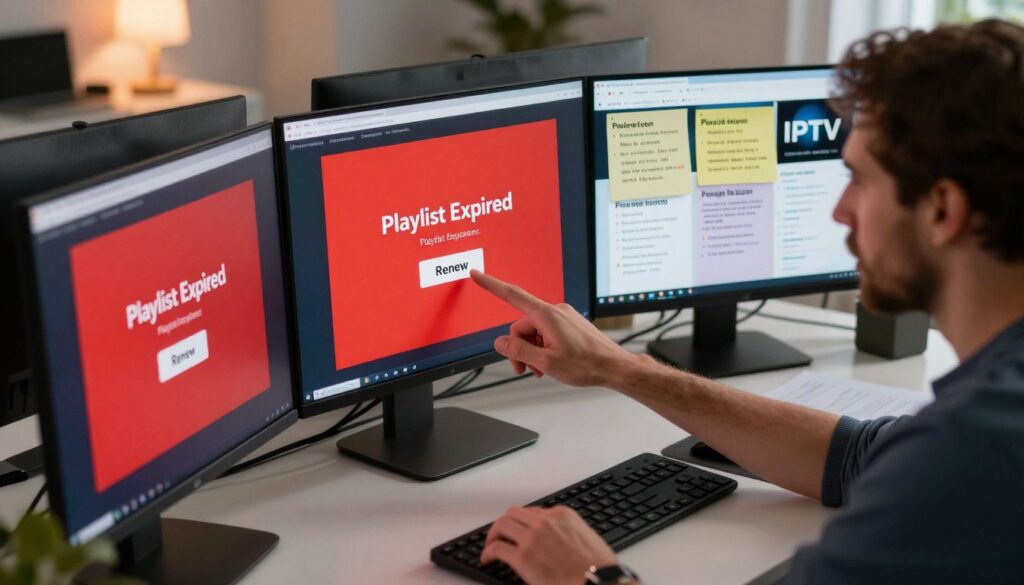
Have you ever opened your player and found channels gone—what really causes a playlist to stop working? This short guide explains what “expiration” means and how to fix it without guessing.
Expiration can refer to a provider subscription, a time-limited URL, or a media player license. Each case needs a different fix: extend a subscription, replace the timed URL, or update your app license.
We’ll walk you through the exact flow: identify the trigger → extend the service or license → update the list inside your player → apply simple steps to prevent repeat interruptions.
Use official dashboards and in-app payment flows for security. For example, follow the Duplecast in-app renewal path in their support guide for license updates and safe payments: Duplecast renewal steps. For setup and troubleshooting best practices, see this support tutorial.
If you want a legal, reliable subscription option in the U.S., consider checking GetMaxTV’s offers. Ready for a step-by-step fix? Keep reading to diagnose channel loss, streams that won’t load, and player demo modes.
Key Takeaways
- “Expiration” may be service-, URL-, or license-related; identify which one first.
- Fixes include extending a subscription, replacing a timed URL, or updating the app license.
- Use official in-app flows and provider dashboards for secure payments and fast reactivation.
- Common signals: channels disappear, streams fail, or the player shifts to limited mode.
- Consider reliable, legal services like GetMaxTV to reduce unexpected interruptions.
Why an IPTV playlist expires and what “expiration date” really means
Knowing which item reached its expiration date saves time and prevents unnecessary charges. The term expiration can point to different systems: a provider subscription, a media player license, or a time-limited playlist link.
Common expiration triggers
Most failures fall into three clear scenarios.
- Subscription ends: your service plan lapses on the account date and channels stop.
- App or license expiration: the media player disables premium features or flips to demo mode.
- Time-limited links: signed M3U/M3U8 URLs often include a time window (for example, a 48-hour signed link) and stop working even if the subscription remains active.
Signs your list has expired
Look for practical symptoms: streams never load, buffering loops, channel lists vanish, or the EPG fails to populate.
These signs overlap. An expired player license can mimic a URL failure, so confirm the source before you pay.
Before you renew
Decision checklist:
- Check your provider account for subscription status and the exact expiration date shown.
- Check the media player license screen or app settings for its expiry date.
- Confirm whether the playlist link is signed and needs regeneration from the provider portal or app.
Use official dashboards and the provider’s support pages, for example consult the user guide to verify link regeneration steps. Always use trusted payment flows and avoid unknown pages.
| Trigger | Typical sign | Immediate check |
|---|---|---|
| Subscription end | All channels stop | Log in to provider account, confirm plan date |
| App/license expiry | Player limits or demo mode | Open app settings, view license date |
| Time-limited URL | Only streaming links fail; account active | Ask provider to regenerate link (48-hour examples common) |
iptv playlist expired renew: step-by-step ways to renew your subscription and keep the same playlist
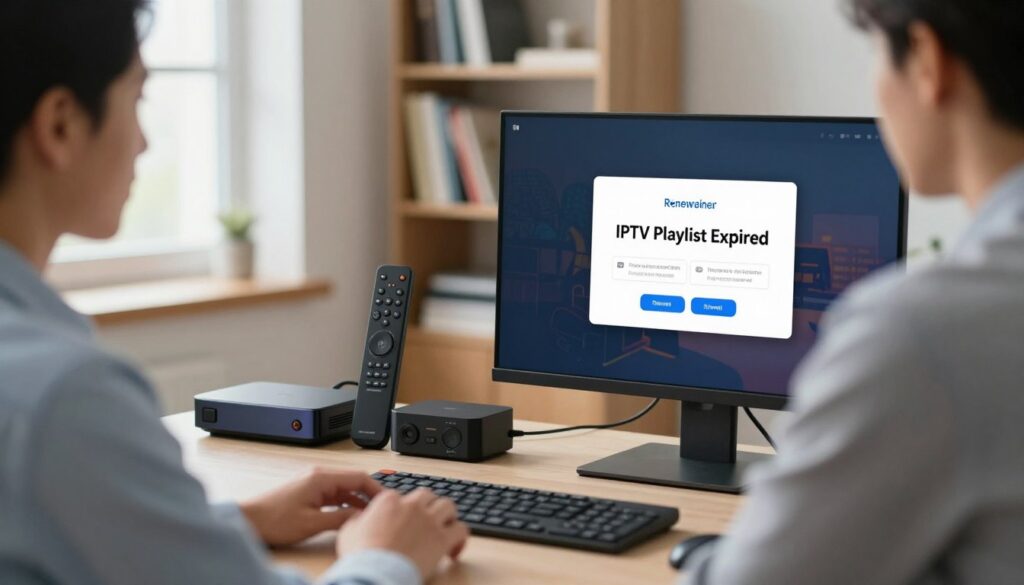
This applies when the provider subscription—not just the app license—has lapsed. Follow these steps to restore your service while keeping the same login and list. The goal is minimal downtime and no reconfiguration on your devices.
Renew within the typical renewal window
You can usually renew up to 14 days before the expiration date, and you may renew after the date if the plan lapsed. Renewing early prevents service gaps and keeps your settings intact.
Log in with the same email
Use the same email you used at sign-up at https://crm.alliptv.tv/clientarea.php. If you can’t sign in, use the “forgot password” flow so you don’t create a second account.
Find your subscription in the dashboard
Open the main menu → Services → My Services. Locate the active subscription entry for the plan you want to renew.
Select the Renew button and confirm payment
Click the Renew button, complete the payment steps, and your existing login details and list typically remain unchanged. If payment fails, disable any VPN and try again—VPNs can trigger payment checks.
After renewal
Check your email for confirmation and a receipt. Note the new renewal date so you can renew a few days early next time. If channels don’t update right away, proceed to the next section to refresh the list in your app.
For setup and configuration tips, see the detailed guide at configuration guide.
Updating playlists in your app or media player (Android device, TV box, Smart TV)

If channels still won’t load after you handle the provider side, check the app and device next. Many U.S. users on an Android device, TV box, or Smart TV find the fix inside the app settings or license screen.
Renewing a player license (example: Duplecast)
When a player license lapses the app can switch to demo mode, limit premium features, and block playlists from handling correctly.
In-app flow to complete a license update
Open the Duplecast app on your Smart TV, android device, or streaming box. Go to Settings → Get Help → License Information.
Scan the QR code shown on the screen to open the secure payment page. Choose the plan you want, complete the checkout, and a receipt is sent to your email.
Apply the update
After payment, restart the app so the new term activates and the media and channels refresh correctly.
Multi-device option
For multiple devices, use the user panel and log in with the registered email or device ID. Select the correct device and choose the license option to update without repeating the flow on every screen.
Maintenance tips and when to contact support or your reseller
- Verify the device ID before paying to avoid updating the wrong device.
- Keep receipts and license info for proof if a reseller must extend access.
- Renew a few days early to reduce interruption across devices.
- Contact support or your reseller when a renewal button is missing, devices mismatch, or the account email is wrong. Provide device details and proof of payment.
For step-by-step setup on an Android TV or box, see the Android TV setup guide.
Conclusion
A quick check usually reveals whether the issue comes from your provider, the app license, or a time-limited link.
Start by confirming the exact item that has expired. Then log into the provider dashboard, update the relevant license or signed URL, and refresh the list inside your app or device. Restart the software after changes to apply them.
Keep simple habits to avoid downtime: save receipts, track renewal dates on your calendar, and avoid waiting until the last day. For common fixes, see this troubleshooting guide at Net IPTV common problems and setup tips at WatchMaxTV box setup.
For a more dependable, legal option, consider GetMaxTV. If you want a legitimate subscription, check GetMaxTV’s current offer at https://watchmaxtv.com and decide if it fits your needs.
CTA: Readers who want a legal subscription should check GetMaxTV’s offer on https://watchmaxtv.com.
FAQ
Why does my IPTV playlist show an expiration date and what does it mean?
The expiration date indicates when access to the media list or service will stop. Common causes include the subscription end date set by your provider, a time-limited M3U/M3U8 link, or the app’s license running out. Check whether the item that ended is the provider subscription, the media player license, or the URL itself before taking action.
What signs tell me the playlist has expired?
Typical signs are streams that stop loading, channels disappearing from the guide, or the player switching to offline or demo mode. You may also see an on-screen message showing an expiration date or a renewal prompt in the app’s settings or notification area.
How can I renew my subscription and keep the same media list on my device?
Log into your account using the same email used at sign-up and open your dashboard or Services menu. Locate the active plan and select the Renew button. Confirm payment using your preferred method. Your existing login details and media address usually stay the same after payment, and you’ll receive confirmation by email.
Can I renew before the expiration date, and how early is too early?
Most providers allow renewal up to 14 days before the expiry. Renewing early typically extends your current term from the original end date. Renewing after the expiration usually restores service, though some resellers may have short grace periods—check your account panel or receipt for exact terms.
What should I do if I forgot the account email or password?
Use the “forgot password” option on the provider’s login page and follow the reset steps. If you no longer have access to the email, contact the reseller or the provider’s support with purchase details, device ID, and payment receipt to verify identity and recover the subscription.
My payment failed during renewal. What can I try?
First, disable VPN or proxy and retry the payment. Confirm your card details and billing address, and try an alternate payment method if available. If the issue persists, contact customer support with the error message and a screenshot of the failure screen.
After I renew, do I need to update anything in my media player app?
Often you should restart the app or the device so the new term activates. Some apps require you to refresh the playlist or re-import the M3U link. Check the app’s Settings or License Information area for any specific steps, such as scanning a QR code to finalize payment.
How do I renew a player license to restore premium features?
Open the app’s Settings and find License Information or Get Help. Follow the in-app renewal flow, which may display an on-screen QR code for payment. After completing payment, apply the update and restart the app to restore premium features and playlist access.
Can I renew from a different device if I don’t have access to the original box or app?
Yes. Many services let you renew from the user panel on a web browser using your registered email or device ID. Make sure you enter the correct device ID or account email so the renewed term links to the right devices.
What maintenance tips help avoid service interruptions?
Keep a record of receipts, license info, and the device ID. Renew a few days before the expiration to avoid gaps. Regularly check the account dashboard and verify the playlist URL or stream link is current. Update the media player app to the latest version for best compatibility.
When should I contact support or my reseller for help?
Contact support if devices don’t match the registered account, the wrong email appears on your plan, the renewal button is missing, or the playlist still won’t load after payment. Provide screenshots, order ID, device ID, and the email used to speed resolution.
The WatchMaxTV Team is a dedicated group of streaming specialists and entertainment technology reviewers covering IPTV services for viewers in the USA, UK, and Canada since 2023. Our team independently evaluates every service we feature — testing across Smart TVs, streaming sticks, mobile devices, and gaming consoles. We measure stream stability, picture clarity in HD and 4K, program guide accuracy, and customer support quality. Our goal is simple: help cord-cutters find reliable, affordable alternatives to overpriced cable. Every recommendation on WatchMaxTV.com comes from real-world testing — not sponsored content or paid placements.