

Can one app change your home’s viewing environment overnight—and what will you do to keep kids safe?
IPTV delivers live and on-demand shows over the internet to many devices. It can open thousands of channels and big libraries in seconds.
That is why a simple parental controls setup is an essential household step. A single PIN or lock can block content that doesn’t match your family’s values.
This short guide will show what features to look for, how basic settings work on common boxes and apps, and how to keep rules working over time. You will learn quick testing tips and common mistakes to avoid.
Providers and devices vary, but the core ideas—locks, PINs, age filters, and restricted access—work across systems. For a reliable legal option families sometimes consider, check GetMaxTV at WatchMaxTV to learn more about offers and service options.
Key Takeaways
- One internet service can expose kids to lots of content fast—controls help manage that.
- Look for PIN locks, age ratings, and content filters when choosing a provider.
- Different devices use different menus, but the same safety steps apply.
- Test settings right after setup and re-check them now and then.
- Use trusted, legal services and learn each app’s options to keep the family experience smooth.
Why IPTV parental controls matter for safe viewing at home
With thousands of channels at a child’s fingertips, a quick scroll can lead to unexpected adult content. This is the core risk: wide choice increases the chance that children click into something unsuitable while browsing.
Good parental control settings let you limit access by rating, channel, or category so the household can enjoy the service without constant supervision.
Think of everyday moments: kids turning on the TV after school, a babysitter selecting a channel, or a teen exploring late at night. Controls help prevent accidental exposure and keep those moments relaxed.
“Restricting access intelligently is about safety, not banning the whole system.”
Use simple locks like a PIN for blocked items so you can step away and trust what plays. Also, review settings occasionally — providers and channel lineups change, so checks keep your viewing environment current.
For ideas on family-friendly channel lists and legal services, see a curated list at best kids channels and safe content.
Parental control features to look for in IPTV services and devices
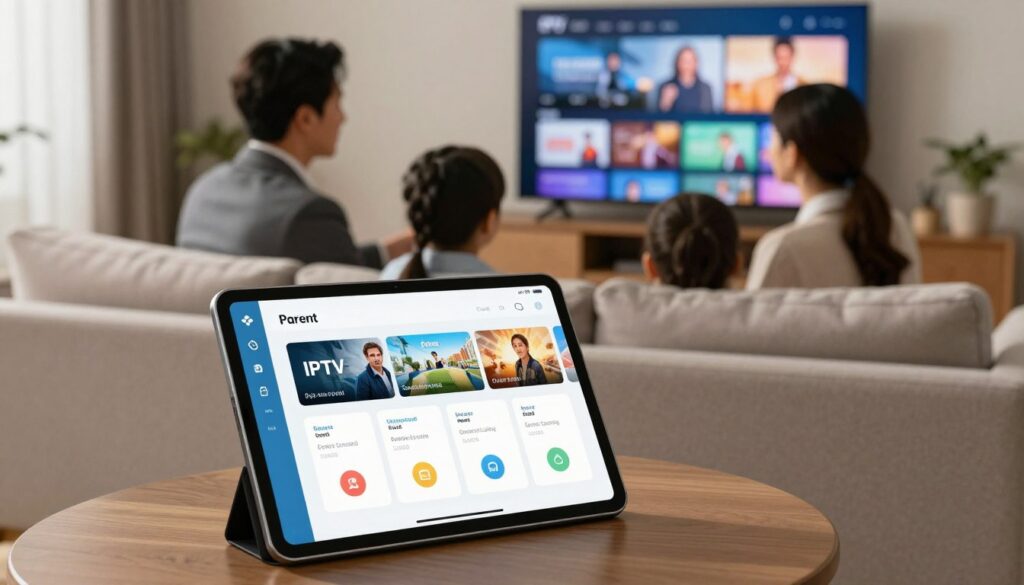
Not all providers and boxes handle family safety the same—so check specifics first. Focus on features that actually block or limit access rather than vague promises.
PIN and password locks
Baseline must-have: a lock that hides adult items behind a PIN or password. This usually sits in app settings, set-top box menus, or profile controls.
Age ratings and mature content filters
Look for rating filters that block common tags like 18+. Good systems block both live shows and on-demand movies when metadata is available.
Channel, category, and keyword blocking
Some services let you block specific channels or whole categories. Advanced apps add keyword or genre filters to trap unwanted content.
Profiles and multi-user access
Create separate profiles: a Kids profile with tight limits, a teen profile with lighter rules, and an adult profile with full access. This keeps one device useful for the whole family.
Time-based restrictions
Time rules help manage screen time—school nights vs. weekends. These work best together with content limits, not as a sole solution.
“Check both the provider’s list and the device’s actual settings before you subscribe.”
| Feature | What to expect | Who benefits |
|---|---|---|
| PIN/Password lock | Blocks adult items across app or box menus | Parents who need quick, reliable gating |
| Age rating filters | Auto-blocks content marked 18+, PG-13, etc. | Families with mixed-age children |
| Channel/category blocking | Block single channels or whole genres | Parents who want precise channel control |
| Profiles | Separate access levels per user | Homes with kids, teens, and adults |
| Time limits | Schedule viewing windows by profile | Those managing homework and bedtimes |
Practical tip: verify what the provider offers versus what your device supports. For a deeper guide on specific options and legal services, see family safety features and service comparison.
iptv parental controls setup: step-by-step on common systems
Start by finding the family or security menu on your streaming box or app—labels differ, but the path is similar.
Step 1 — Open Settings → Parental Control/Family/Security. Look for words like Lock, Restrictions, or Profiles. Different devices and providers use varied names, so scan related menus if you don’t see the exact phrase.
Step 2 — Create a strong PIN or password. Use a mix of digits not tied to birthdays or repeating patterns. Change it if anyone outside the household learns it.
- Apply age ratings. Enable blocks for adult or 18+ content and set limits for PG-13 or lower as needed. Note: rating quality varies by provider and content source.
- Block specific channels. Mark channels that should always require your PIN. Start with adult or uncategorized channels that often surface mature programming.
- Enable extra filters when available. Turn on genre or keyword filtering to catch edge cases where metadata is missing.
Final step — Save, restart, and test. Save changes, reboot the device or app if prompted, then try opening a blocked channel or a mature movie to confirm restrictions work.
“Saving and testing is the simplest way to avoid surprises later—locks only help if they actually engage.”
| Action | What to do | Why it matters |
|---|---|---|
| Find menu | Settings → Family/Security/Lock/Profiles | Locates the control panel for all restrictions |
| Create PIN/password | Pick a non-obvious code; store it securely | Prevents kids from guessing and bypassing locks |
| Apply ratings & filters | Block 18+ and enable genre/keyword filters | Catches mature shows and uncategorized content |
| Block specific channels | Set channel-level locks for targeted control | Controls access to channels that slip through metadata |
| Save & test | Restart device/app and attempt to open blocked content | Verifies the restrictions actually work |
For device-specific instructions and a deeper walk-through, check a detailed configuration guide or follow this service configuration guide. These resources show menu examples across popular boxes and providers.
How to tailor restrictions by child age, device, and viewing habits

Tailoring viewing rules by age and device keeps family life smoother and safer. One rule for everyone usually fails. Children of different ages need different limits, and teens often need more independence.
Setting different rules for kids vs. teens
Create separate profiles for each age group. A Kids profile should block mature content and hide adult categories. A teen profile can allow rated shows with limits, and an adult profile stays unrestricted.
Building “Kids” channel groups and blocking adult categories
Make a favorites list called “Kids” so young children only browse safe channels. This reduces accidental exposure to adult categories and limits the time spent scrolling through mixed listings.
- Design tight restrictions for after-school viewing and looser rules for family movie nights.
- Match limits to routines: tighter at night, relaxed on weekends.
- Replicate settings across devices—living room TV, tablet, and phone—so the same rules apply everywhere.
“Simple, consistent rules reduce arguments and make the viewing experience calmer for everyone.”
For practical examples and comparisons of family features, see a helpful guide at parental control resources and a kids-focused family guide at kids entertainment guide.
After you set parental control: testing, updates, and ongoing monitoring
Setting limits is the start; routine checks make them reliable over time. Treat maintenance as part of household tech care. Small habits keep restrictions working across devices and services.
Why controls can drift
App updates, provider playlist changes, and firmware patches can alter how content is categorized or even reset a setting. When that happens, a lock or rating may stop working the way you expect.
Simple monthly test routine
Once a month — or after any update — try opening a blocked channel or mature title. Confirm the PIN prompt appears and that rating filters prevent access.
PIN, password rotation, and secure storage
Change your PIN or password regularly, especially if kids saw it. Use a password manager or a locked note at home rather than a sticky on the remote.
Use logs when available
Some services and devices show watch history or viewing logs. Use these to spot late-night attempts, repeated access tries, or new channel interests. Treat logs as prompts for calm conversations, not just punishment.
“If something stops working, first check updates, re-open settings, and re-save your restrictions before contacting the provider.”
Keep app and device settings aligned so time limits and access rules apply everywhere. For extra reading on family-friendly options and connection tips, see a helpful family-friendly guide and a practical connection tips page.
Helpful tips and common mistakes to avoid with IPTV parental controls
A quick verification routine saves time and keeps your home media safe. Make testing a simple household habit: update the app or device, open settings, and try one blocked channel.
Common PIN mistakes: avoid easy codes like 0000, 1234, or birthdates. Do not share the code “just this once” — children learn patterns from repeated use.
- Do pick a unique PIN or password and store it securely.
- Don’t reuse obvious numbers or write the code on the remote.
Keep firmware and apps current. Outdated software can introduce bugs that let content slip through or reset settings after a provider update.
When a child tries to bypass a lock, treat it as a sign to tighten settings and have a calm talk about expectations. Combine technical control with clear family rules about viewing times and suitable content.
“Technical tools protect more when paired with open conversations and consistent rules.”
Services offer different features, so prioritize profiles, time limits, and granular channel blocking when you compare any provider. For a deeper look at features and options, see this guide on smart players: smart player features.
Conclusion
Finish with a practical promise: strong rules, checked often, make the home streaming experience calm and secure.
Good configuration reduces accidental exposure by limiting access to adult content and sensitive channels, while keeping family viewing convenient. The winning formula is simple: choose the right features, complete the PIN, ratings and channel blocks, tailor profiles for kids and teens, then keep settings updated and tested.
Remember that no filter is perfect. Pair technical control with age-appropriate conversations so children learn how to handle borderline content and make better choices across services and devices.
For readers comparing options, see GetMaxTV’s family-friendly offers at child-friendly channel guide and consider a legal subscription at GetMaxTV if you want a straightforward, family-focused service.
FAQ
What is the quickest way to enable family safety settings on my streaming box or app?
Open the device or app settings menu, look for the section labeled for safety or locks, then create a secure PIN and turn on age filters. Save changes and test by trying to access a restricted channel or show. If your device asks, restart the box or app to apply the new rules.
How do I choose a strong PIN my children won’t guess?
Pick a mix of digits unrelated to birthdays or simple patterns; use at least four numbers. Store the code in a password manager or written note in a safe place. Change it periodically and never share it over messages or with anyone who shouldn’t have access.
Can I block specific channels or just whole categories?
Most modern systems let you block both individual channels and entire categories or genres. Look for channel-lock options in the controls area and add any channel names you want restricted. If your provider supports keyword filters, enable those too.
How do I set different rules for kids and teens on the same service?
Create separate user profiles or kids profiles if the app supports them. Assign age ratings and channel access per profile, and limit viewing hours for younger profiles. This keeps teen-friendly content available while restricting younger viewers.
What rating levels should I use to block mature content?
Use the industry-standard ratings—G/TV-Y for young children, PG/TV-Y7 for older kids, and restrict TV-14, TV-MA, or 18+ content for younger profiles. Choose the highest allowed rating that matches your child’s maturity and adjust over time.
Will system or provider updates undo my restrictions?
Updates can sometimes reset settings. Re-check your restrictions after major firmware or app updates. Keep a record of your preferred settings so you can quickly reapply anything that changed.
How can I limit screen time with time-based rules?
Use the built-in scheduling tools to set daily viewing windows or total watch time. Some systems allow bedtime locks or weekday/weekend rules. Combine these with profile-specific limits to manage different routines for each child.
Is there a way to see what my child watched or tried to access?
Many services offer watch history or viewing logs in the account or profile area. Check those logs regularly to verify compliance and to spot attempted access to blocked content. If logs aren’t available, enable third-party monitoring apps if compatible.
What common mistakes should I avoid when securing content for kids?
Don’t use easy PINs like 0000 or 1234, avoid sharing codes with older siblings, and don’t rely solely on filters—talk with your kids about acceptable content. Keep apps and firmware updated to prevent bypasses and test locks after changes.
Can I block access on specific devices only?
Yes. Assign restrictions per device when the system supports device-level controls, or create profiles tied to individual devices. That way a tablet used by a child can have tighter limits than the living-room TV.
What should I do if a show slips past the filters?
Manually add that show, keyword, or channel to the block list and tighten the age rating. Report the incident to your service provider if the content was miscategorized. Review viewing logs and discuss the event with your child to reinforce rules.
Are there any extra safety features I should look for in a service?
Seek services that offer multi-user access controls, two-factor authentication for account changes, keyword filtering, and robust kids profiles. Parental dashboards and email alerts for attempted access are also helpful additions.
How often should I change my PIN or review settings?
Change the PIN every few months or after any suspected leak. Review settings after device updates, subscription changes, or when children reach new ages. Regular checks keep restrictions effective and up to date.
Can I restrict pay-per-view purchases and channel subscriptions for kids?
Yes. Enable purchase confirmations, require the account PIN for transactions, and disable in-app purchases on kids’ profiles or devices. This prevents accidental or unauthorized buys.
What if my provider doesn’t offer strong safety features?
Use external solutions: router-level filters, third-party parental apps, or dedicated family-safe streaming devices. You can also contact the provider to request more controls or consider switching to a service with better family features.
The WatchMaxTV Team is a dedicated group of streaming specialists and entertainment technology reviewers covering IPTV services for viewers in the USA, UK, and Canada since 2023. Our team independently evaluates every service we feature — testing across Smart TVs, streaming sticks, mobile devices, and gaming consoles. We measure stream stability, picture clarity in HD and 4K, program guide accuracy, and customer support quality. Our goal is simple: help cord-cutters find reliable, affordable alternatives to overpriced cable. Every recommendation on WatchMaxTV.com comes from real-world testing — not sponsored content or paid placements.