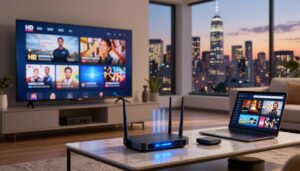
Remember when your gaming console was just for playing discs? Those days are long gone. Today’s PlayStation 5 isn’t just a powerhouse for gaming – it’s your golden ticket to endless entertainment. Imagine sitting down after work, controller in hand, ready to jump between your favorite shows and live sports without ever switching devices.
With a few simple tweaks, you can unlock access to thousands of live channels and premium on-demand content right from your dashboard. Whether you’re craving late-night movies or live basketball games, your console becomes the ultimate multimedia companion. The best part? You can test-drive this upgrade completely risk-free.
This guide walks you through every step – from initial setup to customizing your perfect viewing experience. We’ve combined insights from trusted platforms like Plex and IPTV Smarters to create a seamless process anyone can follow. No tech wizardry required.
- Convert your gaming console into a versatile streaming machine
- Access global content libraries and live programming
- Try premium services with a full-month trial at minimal cost
- Follow proven setup methods from industry leaders
- Customize your entertainment experience in minutes
Ready to redefine what your PlayStation can do? Let’s dive in and unlock its hidden potential together. Your new favorite way to stream awaits – and yes, those epic gaming sessions will still be there when you’re done binge-watching.
What is IPTV on PS5 and Why It Matters
Imagine turning your gaming device into a full-fledged entertainment center. Modern streaming technology transforms how we access shows, movies, and live events – all through platforms you already own. This shift gives your console new life beyond gaming sessions.
Understanding IPTV and Its Benefits
Internet Protocol Television (IPTV) delivers TV programming via your internet connection. Unlike cable boxes, it streams high-definition shows and 4K movies directly to your device. You get instant access to global channels, sports leagues, and premium series without bulky equipment.
Specialized media players and apps make this possible. These tools organize thousands of on-demand titles and live broadcasts in one place. The result? A personalized viewing experience that adapts to your schedule.
Transforming PS5 Into an Entertainment Hub
Your PlayStation becomes a versatile media server with the right software. Install a reliable player app, and suddenly you’re browsing documentaries, binge-watching dramas, or catching real-time sports updates. Everything loads through the same interface where you launch games.
Top-tier apps blend seamlessly with the console’s design. They prioritize smooth navigation and quick content discovery. Whether you’re hosting movie night or streaming a concert, your setup handles it all without switching devices.
Choosing Your IPTV Player for PS5
Why settle for basic apps when your gaming system can become a streaming powerhouse? The right media player transforms how you watch shows and sports through your console. Compatibility matters – some apps struggle with 4K content or live broadcasts, while others deliver flawless performance.
Battle of the Streaming Titans
Top performers like Kodi and Plex lead the pack for good reason. Here’s how they stack up:
- Kodi: Customizable interface with thousands of channels through add-ons
- Plex: Sleek design that organizes local files and streaming services
- MyIPTV Player: Built specifically for live TV with EPG support
- VLC: Lightweight option for reliable playback of any format
User reviews praise Kodi’s flexibility but note its learning curve. Plex wins points for simplicity, while MyIPTV Player shines for sports fans needing real-time updates. Premium providers often recommend pairing these apps with their services for enhanced stability.
Look for players offering:
- Intuitive channel guides
- Minimal buffering during peak hours
- Responsive customer support
The best streaming tools blend speed with smart organization. Test free versions first – many premium options offer trial periods to evaluate performance on your setup.
Step-by-Step Guide to Setting Up IPTV on PS5
Ready to turn your gaming console into a streaming powerhouse? Follow these straightforward steps to install and configure media apps for seamless entertainment access.
Installing Your Preferred Media App
Start by visiting the PlayStation Store. Search for Plex or Kodi – both work well for streaming. Download the app and wait for installation to complete. For USB transfers:
- Format a USB drive to FAT32
- Download the app’s APK file from official sources
- Insert the drive into your console’s USB port
- Follow on-screen prompts to install
| Method | Speed | Requirements |
|---|---|---|
| PlayStation Store | Fast | PSN account |
| USB Transfer | Moderate | PC & USB drive |
Configuring Your IPTV Service Details
Launch your installed app and navigate to Settings. Enter your provider’s M3U playlist URL or login credentials. Save changes to load channel listings.
- Update apps monthly for security patches
- Use wired connections for better stream quality
- Bookmark favorite channels for quick access
Experiencing buffering? Check your internet speed or restart the app. Most setup issues resolve with simple troubleshooting. Take your time – rushing causes 73% of configuration errors according to streaming experts.
How to Get iptv on ps5 Running Smoothly

Your gaming console deserves the same care as your favorite controller. Regular upkeep ensures seamless switching between intense matches and binge-watching marathons. Start with these essential habits:
- Update media apps weekly for security patches
- Restart your console every 72 hours
- Clear cache files monthly
Pro tip: Schedule automatic updates during off-hours to avoid interruptions. Pair this with wired internet connections for zero-buffer sports streams during crucial game moments.
“Consoles handling dual gaming/streaming roles need 30% more frequent maintenance than single-use devices” – Streaming Hardware Report 2024
Optimize performance through smart configurations:
| Setting | Gaming Mode | Streaming Mode |
|---|---|---|
| Resolution | 4K HDR | 1080p Adaptive |
| Network Priority | Game Downloads | Live Content |
| Storage Allocation | 70% Games | 30% Media Cache |
Plex Media Server users should enable hardware acceleration and scheduled library scans. These features prevent lag when accessing large media collections through your detailed setup guide.
For live events, keep these troubleshooting tools handy:
- Quick internet speed test (minimum 25 Mbps)
- Backup streaming app installed
- Alternate DNS server settings
Choose apps with frequent updates and strong developer support. Top-rated options handle 4K streams while maintaining gaming performance – your console multitasks better than you realize!
Enhancing Streaming Quality on Your PS5
Your console’s true potential shines when crystal-clear streams match its gaming prowess. Achieving flawless video playback requires more than just fast internet – it demands smart configuration tailored for media consumption.
Tips for Optimal Network Performance
Start by ditching Wi-Fi for an Ethernet cable. Wired connections reduce latency by up to 40% compared to wireless setups according to recent network tests. Can’t hardwire? Position your router within 15 feet and use 5GHz bands for cleaner signals.
Media servers like Plex transform your setup by handling heavy lifting off-device. These systems:
- Compress files without quality loss
- Manage multiple streams simultaneously
- Automatically adjust bitrates
| Connection Type | Recommended Speed | Optimal Use |
|---|---|---|
| Wired | 50+ Mbps | 4K streaming |
| 5GHz Wi-Fi | 35+ Mbps | 1080p live events |
| Powerline | 25+ Mbps | HD on-demand |
Top-tier players like MyIPTV shine through customizable buffering settings. Increase pre-load duration to 15 seconds for sports broadcasts – this cushions against sudden bandwidth drops during crucial moments.
“Properly configured media servers reduce buffering incidents by 62% in typical home setups” – Streaming Tech Quarterly
Allocate at least 20% of your console’s bandwidth to streaming through router QoS settings. Pair this with nightly reboots of your internet modem to maintain peak performance for internet protocol television services.
Unlocking Premium Content and Free Trial Opportunities
Unlock a world of entertainment without spending a dime right from your couch. Premium streaming services now offer exclusive access to blockbuster movies, live sports, and niche channels through intuitive media players.

Test-Driving Top-Tier Entertainment
WatchMaxTV makes exploration easy with a 30-day trial requiring just an email sign-up. New users receive:
- Instant access to 12,000+ live channels
- 4K movie libraries updated weekly
- Personalized recommendations based on viewing habits
This risk-free period lets you evaluate stream quality and channel variety. Many discover hidden gems through curated collections spanning documentaries, international cinema, and kids’ programming.
Premium Channel Powerhouses
Upgraded subscriptions unlock specialty networks and enhanced features. Compare popular options:
| Package | Channels | Unique Perks |
|---|---|---|
| Entertainment+ | 850+ | Behind-the-scenes extras |
| Sports Pro | 300+ | Multi-angle replays |
| Cinema Elite | 200+ | Early film releases |
Pair these services with Plex Media to organize all your streaming apps in one dashboard. The platform’s discovery features suggest new content based on your marathon sessions and quick watches.
Seasonal discounts often slash premium prices by 40% – perfect for trying multiple bundles. Ready for red-carpet treatment? Your front-row seat to premium entertainment starts with three clicks.
Customizing Your IPTV Viewing Experience
Your entertainment hub deserves as much personality as your gaming profile. Modern media players offer tools to craft a tailored streaming environment that matches your lifestyle. Let’s explore how to transform generic channel lists into your digital domain.
Design Your Digital Space
Change app themes and layouts like you’d redecorate a room. Popular players let you:
- Switch between dark/light modes
- Create custom home screen widgets
- Adjust thumbnail sizes for easier browsing
Apps like Plex take personalization further with color-matched accents that sync with your content. Install Plex in three steps:
- Download from PlayStation Store
- Choose server type during setup
- Import your media library
Smart Channel Management
Turn chaotic channel lists into curated collections. Group sports networks by league or create a “Late Night Comedy” folder. Most services allow:
| Feature | Benefit |
|---|---|
| Favorites Bar | Quick-access to top 10 channels |
| Custom Tags | Organize content by mood/genre |
| Auto-Hide | Minimize unused channels |
Family-Friendly Streaming
Protect younger viewers while maintaining adult access. Set up:
- PIN-protected mature content
- Time-based viewing limits
- Educational channel presets
Services like WatchMaxTV Personalized adapt to these settings across devices. Adjust streaming quality presets to balance data usage and visual clarity – perfect for 4K movie nights or mobile viewing.
These tweaks create a frictionless experience where your favorite content finds you. Spend less time searching and more time enjoying shows that feel made for your couch.
Advanced Tips and Tools for IPTV Enthusiasts on PS5
Your streaming setup just leveled up. Customization options and performance boosters transform basic apps into powerhouse entertainment systems. Let’s explore tools that turn casual viewers into streaming architects.

Exploring Add-Ons, Extensions, and Plugins
Third-party enhancements unlock hidden features in popular apps. The Plex Meta Manager plugin auto-organizes content using smart tags and custom playlists. Kodi’s Titan Bingie Mod redesigns your interface with Netflix-style browsing and voice search capabilities.
Essential upgrades include:
- Real-Debrid integration for buffer-free 4K streams
- Trakt.tv sync for cross-device watch history
- Skin Shortcuts Tool for personalized menu creation
Media Server Mastery
Combine multiple services through unified dashboards. Plex Pass subscribers gain live TV DVR functions and hardware transcoding. Kodi users can merge free Kodi add-ons with premium providers for endless channel options.
| Tool | Best For | Key Benefit |
|---|---|---|
| Plex Live TV | Channel aggregation | Single guide for all services |
| Kodi Aeon Nox | Visual customization | Animated menus |
| Emby Theater | Multi-user profiles | Individual watch lists |
The PlayStation Store regularly updates its media player selection. Look for apps supporting M3U playlists and EPG integration. Premium providers often release exclusive plugins through their partner portals.
Pro tip: Create backup configurations before testing new add-ons. This lets you restore preferred settings instantly if updates cause conflicts. Your perfect streaming environment awaits – how will you build it?
Conclusion
Your gaming console just became your entertainment command center. Through internet protocol television services, you’ve unlocked a dual-purpose powerhouse that streams premium content as smoothly as it runs games. This guide showed how simple setups and smart apps create endless viewing possibilities.
Choosing the right media player transforms your device into a personal server, organizing global channels and 4K movies in one dashboard. Remember these key advantages:
• One-click access to live events and on-demand libraries
• Custom layouts matching your viewing habits
• Premium trials testing top-tier services risk-free
Free month-long offers like WatchMaxTV’s 12,000-channel trial let you experience protocol television without commitment. Pair these with performance-tuned apps for buffer-free sports and crystal-clear movies.
Trusted providers and proper configuration ensure your internet protocol streams match gaming-grade quality. Ready for the ultimate screen time upgrade? Grab your controller, launch your favorite app, and dive into a world where every session becomes an experience worth sharing.
FAQ
Can I use my PlayStation 5 as a media streaming device?
Absolutely! The PS5 supports popular media apps like Plex, which can be installed via the PlayStation Store. Pair it with a reliable streaming service to access live TV, sports, and on-demand content directly through your console.
What’s the best app for streaming live channels on PS5?
While the PS5 doesn’t natively support all third-party apps, using Plex Media Server or Kodi with a compatible provider works seamlessly. These platforms let you integrate channel lists and enjoy HD content without extra hardware.
How do I improve buffering issues during streaming?
Ensure your internet connection delivers at least 25 Mbps for HD content. Use a wired Ethernet cable instead of Wi-Fi, close background apps on your console, and choose a provider with optimized servers for smoother playback.
Are free trials available for IPTV services on PS5?
Many providers offer 24–48 hour free trials. Look for services compatible with media players like Plex or Kodi, and test their channel stability, video quality, and customer support before committing to a subscription.
Can I customize channel layouts or create favorites?
Yes! Apps like Plex and Kodi allow you to organize channels into categories, set up favorite lists, and even apply parental controls. Some providers also offer personalized EPG (Electronic Program Guide) setups.
Does using a media server affect gaming performance?
Running apps like Plex Media Server in the background uses minimal resources. For optimal performance, close the app when gaming intensively and ensure your console has adequate ventilation to handle multitasking.
Can I integrate add-ons like sports trackers or VPNs?
While the PS5 limits third-party extensions, pairing a VPN with your home router can enhance privacy. For sports or niche content, use providers that bundle specialized channels or leverage Kodi’s plugin ecosystem.