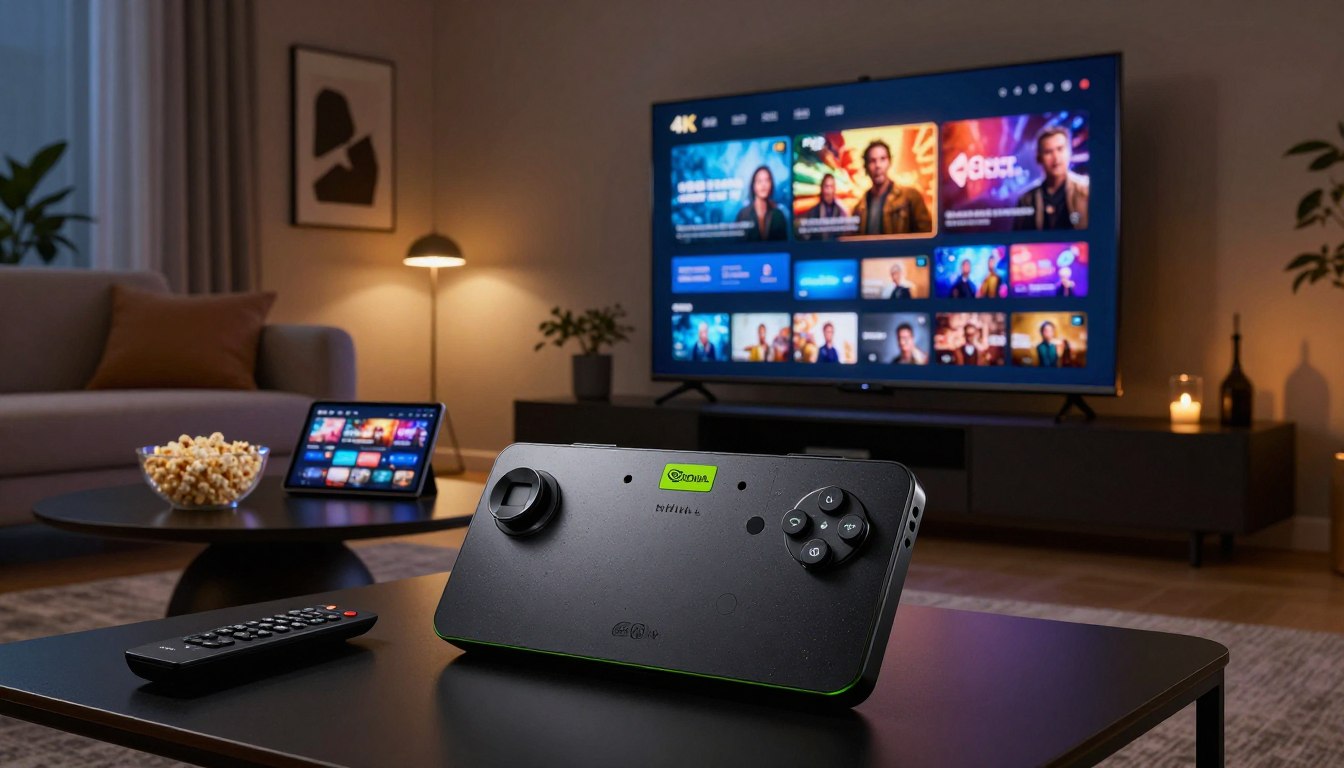
Curious how to get true 4K streaming from your device without endless buffering?
This short guide explains a complete iptv nvidia shield pro setup for reliable 4K streaming on your Nvidia Shield Pro. It walks you from installing a player app to loading channels and optimizing playback.
Expect two parts: a streaming provider (your subscription) and a player app. The app does not include channels by itself, so you’ll need both pieces to watch.
This walkthrough is for Shield Pro owners in the United States who want fast channel loading, stable playback, and a clear, organized installation path. We use the Google Play ecosystem when possible to keep the process simple and safer for most users.
The article previews prerequisites, choosing between Smarters Pro and TiviMate, installing from the Play Store, configuring M3U/Xtream Codes (see an example guide at Viking IPTV Nvidia Shield guide), and tuning settings for 4K.
Note: For a legal subscription option to review later, consider GetMaxTV. If you want a legal IPTV subscription now, check GetMaxTV’s offer and see if it fits your needs.
- Two parts are required: a provider subscription and a player app.
- This guide targets Shield Pro owners in the U.S. seeking 4K reliability.
- We favor Google Play installs for ease and safety.
- Steps cover choosing an app, adding M3U/Xtream details, and 4K tuning.
- Consider legal providers like GetMaxTV and related resources at WatchMaxTV.
Why Nvidia Shield Pro Is a Top Device for IPTV Streaming in 4K
Powerful hardware and direct access to the Google Play Store help the Shield Pro deliver fast channel loads and clean 4K video.
The device runs Android TV, so you can find reputable player apps in the Google Play Store without sideloading. That makes it safer and easier for most users to install iptv players and updates.
Performance matters. Faster CPU and GPU mean quicker navigation, faster channel switching, and fewer frame drops. When the stream and network are solid, you get smoother 4K playback.
Keep expectations realistic. Buffering usually comes from the stream source, internet congestion, or Wi‑Fi limits—not just the device.
Player vs provider: think of your subscription like a SIM card and the player app like a phone. The provider supplies channels and credentials. The player plays them. You need both to stream.
- Look for EPG support, profiles, favorites, and playback stability.
- Smarters Pro and TiviMate are common choices; we cover them in detail later.
- For a clear installation path and tips, see the installation guide.
| Feature | Why it matters | What to check |
|---|---|---|
| App store access | Safer installs and easier updates | Google Play Store availability |
| Hardware performance | Smoother UI and fewer frame drops | CPU/GPU and memory specs |
| Player vs provider | Defines who supplies streams vs who plays them | Playlist URL or credentials from provider |
| Playback features | Improves daily use and multi-user support | EPG, profiles, favorites, stable playback |
What You Need Before You Start Streaming
Start by verifying your media device is powered, connected by HDMI, and has internet access.
Basic hardware checks: make sure the nvidia shield is plugged into your TV, turned on, and connected to the network via Ethernet or Wi‑Fi. A wired connection reduces drops, but a strong 5 GHz Wi‑Fi link can work well.
Gather provider details
Contact your iptv provider and get one of these: an M3U URL, a playlist file, or Xtream Codes-style credentials (server URL, username, password). Save them in a note so you can paste without errors.
Common setup blockers
- Expired subscriptions or revoked access.
- Copied URLs with extra spaces or broken characters.
- Wrong username/password casing.
Recommended internet speeds
For reliable streaming, aim for ~25 Mbps for HD channels and ~50+ Mbps for 4K, especially if others use the network at the same time.
Run a quick speed test on the device or a phone on the same network. Wi‑Fi signal quality can matter as much as raw Mbps. Finally, remember streaming 4K uses significant data—monitor your plan if it has limits.
VPN guide for Shield and a simple box setup reference can help if you hit connection or provider issues.
Choose the Right IPTV App: Smarters Pro vs TiviMate
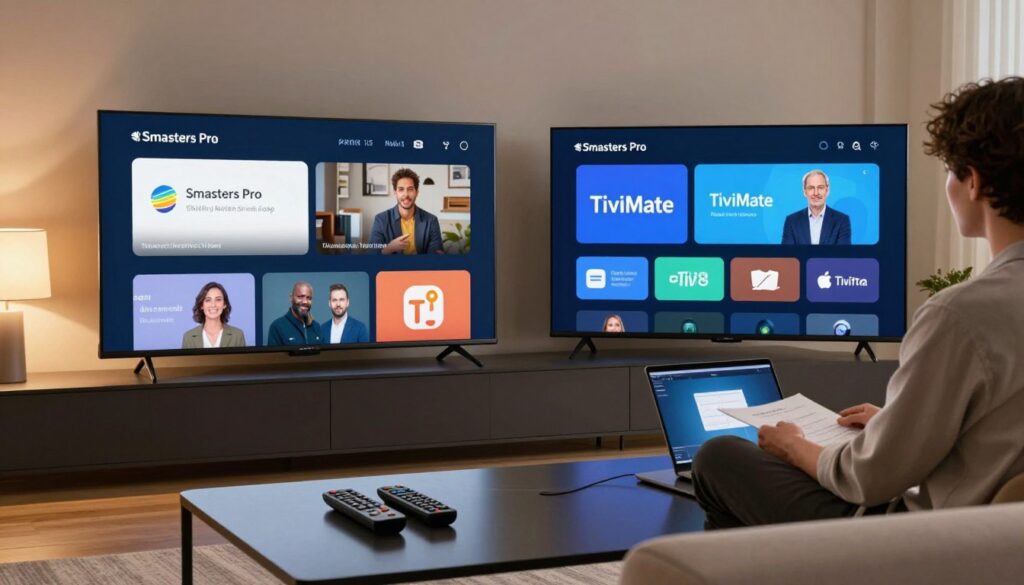
Choosing a player app comes down to your habits: simple profiles or deep customization.
What to weigh: ease of use, EPG quality, profiles, and customization. A simple interface helps casual viewers. Advanced guide layouts suit power users who like categories and favorites.
IPTV Smarters Pro basics
iptv smarters pro supports multiple user profiles and accepts a playlist via file or url. That makes it easy for users who get different formats from providers.
Its interface focuses on quick login, profile switching, and straightforward playback controls.
TiviMate player basics
TiviMate centers on playlist URL workflows and a TV-like guide. It shines when you want robust EPG handling, favorites, and category organization.
Many users pick it for guide customization and stable channel navigation with a remote.
When to switch players
If a stream fails to show audio tracks, subtitles, or the EPG is wrong, try another app before blaming your provider. Different players handle formats and remote input differently.
Paid tiers and trials
Note: some apps lock multi-playlist support or advanced guide layouts behind a license after a trial. Test basic playback first and then decide if premium features are worth it.
- Tip: The app does not supply channels — you still need a provider and valid playlist/credentials.
- See the best player options for more comparison: best player options.
- For a detailed feature comparison, check this feature comparison.
Install IPTV From the Google Play Store on Nvidia Shield
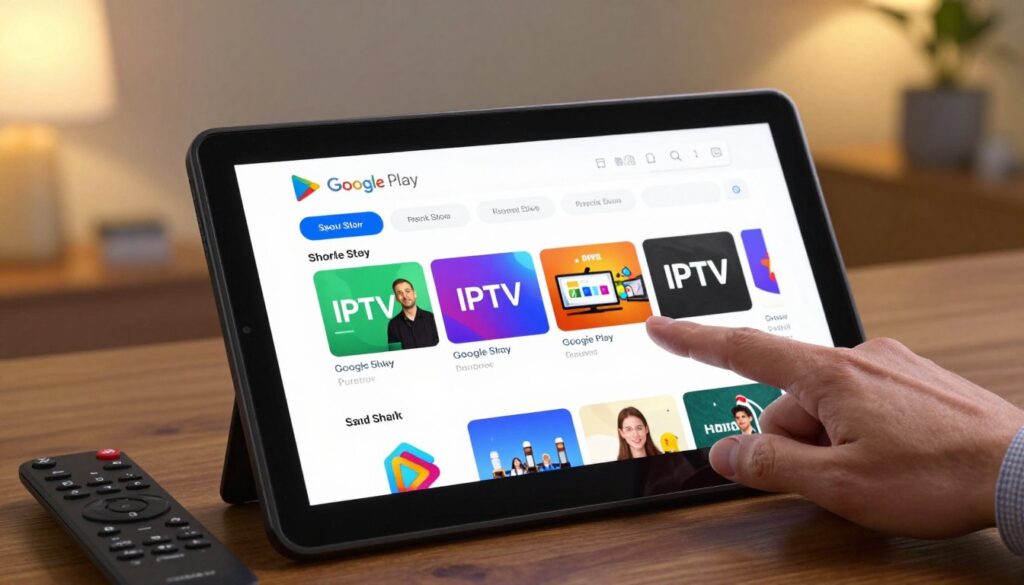
Begin on the Shield home screen, then open the Google Play Store to install a trusted player.
Use the remote to highlight and open the Google Play Store from the home screen. Move to the search bar and type “IPTV Smarters Pro” or “TiviMate IPTV Player” to start your search.
When results appear, confirm the app name, developer, and icon before you tap Install. Check reviews and download size to avoid clones.
Quick install flow
- From the home screen: open the Play Store.
- Use the search bar and enter the app name.
- Select the official listing, choose Install, then tap Open when done.
Launch the app immediately to confirm it opens and accepts permissions. If the app does not appear in your region, try another reputable Android TV player. For an extended installation reference, see the installation guide.
Configure Your Playlist and Load Channels (M3U URL, File, or Xtream Codes)
Start by opening the player and choosing how you want to add a playlist—URL, local file, or service credentials.
First launch steps: open the app, tap Accept to agree to terms, then choose Add New User (or Add Playlist). This screen is the entry point for all methods and shows options for URL, File, or Login.
M3U URL method
Choose the M3U URL option, give the playlist a clear name like “Live TV,” and paste the m3u url exactly as provided. Save or Add User and wait while channels populate.
Local file method
Select File, name the playlist, and browse to the saved file on your device or USB. Pick the file and add the user. The app imports channels and categories automatically.
Credentials (Xtream Codes) method
Pick the Login/Server option and enter the server url, username, and password from your service. Double-check each character—one typo will block channels and content from appearing.
Verify it worked: confirm channel counts show, open a few channels across categories, and look for VOD entries if your provider includes them. If items are missing, recheck the url or credentials in settings.
Pin the app to your home screen for faster access. Long-press the app icon on the main screen and choose Add to favorites or Pin, depending on your launcher.
EPG basics: the electronic program guide (EPG) loads in the background. It may take several minutes to populate. Be patient and avoid reloading the playlist immediately.
| Method | What to enter | When to use | Verification |
|---|---|---|---|
| M3U URL | Playlist name + m3u url | Provider gave a live URL | Channel count, sample streams load |
| Local file | Playlist name + file selection | You downloaded the playlist file | Categories and VOD import shown |
| Credentials | Server URL, username, password | Provider uses Xtream Codes-style login | Channels and VOD populate if credentials correct |
For more on creating and managing an M3U playlist, see the M3U playlist guide at M3U playlist guide.
Optimize Settings for a Seamless 4K IPTV Experience on Shield Pro
Small tweaks to playback, display, and your home network can make 4K streams feel instant and smooth.
Video and player tweaks to reduce buffering
Choose the most stable playback mode in your player. If the app offers hardware or software decoder options, test each to see which cuts stutter.
Increase buffer size if the player supports it — a larger buffer trades a small start delay for fewer interruptions. Match the player’s output to your TV’s resolution and HDR settings so the screen shows true 4K without handshakes.
Connection tips: wired, 5 GHz, and router placement
A wired Ethernet link is the most reliable choice for 4K streaming. If you must use Wi‑Fi, prefer 5 GHz and keep the device close to the router.
- Move the router higher and away from thick walls and metal objects.
- Reduce concurrent heavy downloads during playback to lower congestion.
- Place the router in a central spot for best signal to the device.
Organize channels, favorites, and users
Create favorites and hide unused categories to make daily navigation faster. Sort channels into logical groups so surf time drops.
For multi-user homes, set separate profiles where the app supports them. Each user keeps their own favorites and recently watched lists.
Note: A VPN can sometimes help if you suspect ISP throttling, but it’s not a guaranteed fix. Network quality remains the foundation—start with connection and device settings.
For a deeper walkthrough of advanced settings, see the detailed settings guide.
Privacy, VPNs, and Choosing a Trustworthy IPTV Provider
Good privacy habits and a trustworthy service can make a big difference in everyday streaming reliability.
A VPN encrypts traffic between your device and the internet. That can improve privacy on shared networks and may reduce ISP throttling in some cases. Results vary by VPN server location, load, and the ISP’s policies.
Use a simple rule: if buffering happens mostly during peak hours or only on certain networks, try a VPN as a troubleshooting step. Also test a wired Ethernet link or better Wi‑Fi before drawing conclusions about the stream source.
How to spot a reliable provider
- Responsive support: fast, helpful answers by email or chat.
- Clear credentials: working playlist URLs or Xtream-style logins you can paste into common devices.
- Transparent billing: clear plans, trial terms, and refund policies.
- Uptime and documentation: realistic uptime claims and step-by-step setup guides for popular devices.
Clarity matters: a trustworthy provider delivers a working url or credentials and guides for Android TV boxes and other devices. That reduces setup time and avoids repeated support tickets.
| Trust Signal | What it shows | Why it matters |
|---|---|---|
| Live support | Quick troubleshooting | Limits downtime and speeds fixes |
| Working credentials | Consistent playlist URL or login | Immediate channel access on multiple devices |
| Documentation | Setup steps for common apps | Makes onboarding easier and reduces errors |
If you prefer a legal subscription, consider reviewing GetMaxTV’s offer at GetMaxTV. Choose services that are transparent, responsive, and accountable rather than vague or unreachable after purchase.
Conclusion
To finish strong, use a compact checklist to confirm your player, playlist, and network are working.
Quick recap: on your nvidia shield you install a player app, add a playlist via M3U URL, local file, or service credentials, then confirm channels and content load correctly.
Remember the split: the app (for example, IPTV Smarters Pro) only plays streams; the provider supplies the playlist, channels, and EPG. That distinction fixes most beginner confusion.
For steady 4K, prioritize a wired connection, accurate url/credential entry, and a few player settings tuned for buffering and decode.
If something fails, recheck each step, confirm the playlist name and url formatting, verify the provider account, and try another player app.
Safety tip: install from the Play Store when possible and keep the device updated. If you want a legal subscription, check GetMaxTV’s offer via this IPTV Smarters Pro guide.
FAQ
How do I install an IPTV app from the Google Play Store on my Nvidia Shield Pro?
Open the Google Play Store from the home screen, use the search bar to find apps like IPTV Smarters Pro or TiviMate, select the app, and choose Install. After installation, launch the app to verify it opens correctly and appears on your home screen for quick access.
What information do I need from my IPTV provider before loading channels?
Get your M3U URL, playlist file, or Xtream Codes credentials (username, password, and server URL). These details let the app fetch channel lists and EPG data. Keep them handy when you Add New User or import a playlist in the player app.
Which app should I choose: IPTV Smarters Pro or TiviMate?
Choose based on features: IPTV Smarters Pro offers user profiles and multiple login methods, while TiviMate focuses on a polished TV-style guide and playlist management. Try both to compare playback, interface, and premium features before committing.
How do I add my M3U playlist or local file to the player?
In the app, select Add New User or the equivalent option, pick M3U URL to paste your playlist link, or choose the local file import option if you have a playlist file on a USB drive. Follow on-screen prompts to load channels and EPG data.
What should I do if channels don’t appear after adding my playlist?
First confirm the URL or credentials are correct and active with your provider. Restart the app, check for EPG load times (it can take a few minutes), and verify network connectivity. If problems persist, contact your provider’s support or try another player to rule out app-specific issues.
How can I improve playback and reduce buffering for 4K content?
Use wired Ethernet when possible, prefer 5 GHz Wi‑Fi over 2.4 GHz, place your router near the device, and reduce other heavy network use during viewing. In the app, adjust player settings like buffer size, hardware acceleration, and video decoder options for smoother playback.
Should I use a VPN with my streaming device?
A VPN can help with privacy and avoid ISP throttling, but it may add latency. Choose a fast, reputable VPN with streaming-friendly servers. Test performance with and without the VPN to ensure it doesn’t cause buffering or quality drops.
How do I manage multiple users, favorites, and categories on the device?
Many players offer profiles, favorites, and category editors. Create separate profiles for each user, add frequently watched channels to favorites, and organize playlists or categories in the app’s settings to keep navigation fast and personalized.
What is an EPG and why does it sometimes take time to show?
EPG is the electronic program guide that shows schedules and program details. It may take extra time to download and map to channels, especially for large playlists. Allow the app a few minutes or trigger a manual EPG update from settings if available.
How can I tell if an IPTV service is trustworthy and legal?
Look for clear contact/support channels, stable uptime, transparent pricing, and verified payment options. Reliable services provide credentials, documentation, and responsive support. If legal streaming is a priority, review licensed offers like GetMaxTV at https://watchmaxtv.com for an authorized subscription option.
Are there paid features I should consider when choosing a player app?
Yes. Some players unlock advanced guide layouts, multiple playlist support, recording, or remote management with a premium license. Evaluate trial options and prioritize the specific features you need—like recording or advanced EPG—before purchasing.
Can I use a local USB playlist file with the player?
Yes. Many apps let you import a playlist file from attached USB storage. Insert the drive, choose the local file import in the player, and follow prompts to map channels and load any accompanying EPG files.
What internet speeds do I need for HD and 4K streaming?
For HD streams plan for at least 5–10 Mbps per stream; for 4K, aim for 25 Mbps or higher per stream. If multiple devices stream simultaneously, add their requirements together and add headroom for smooth playback.