Curious how you can turn your living room TV into a simple, TV-like experience in 2025? This guide shows you how to get a lean-back streaming setup on your Hisense smart television that runs VIDAA without fuss.
You’ll learn what the phrase IPTV on Hisense VIDAA really means today and how this platform differs from other TV systems. The VIDAA OS aims for an intuitive, frictionless feel so you can focus on entertainment, not settings.
This short intro gives a plain-English roadmap: pick a player app, install it, add provider details, and organize channels so watching feels like regular TV. You’ll also see why apps act as players while your provider supplies channel lineups and on-demand libraries.
Want to explore options? Take a quick look at providers to evaluate reliability — you can explore options and then consider a legal subscription or trial at WatchMaxTV.
Key Takeaways
- You’ll get a clear, step-by-step setup roadmap.
- VIDAA is built for a simple, lean-back viewing experience.
- Apps serve as players; providers supply channels and VOD.
- Choose reputable providers for reliability and safety.
- See setup options like M3U and Xtream-style configurations.
- Consider a legal trial from a trusted vendor to start.
What you need before you set up IPTV on your Hisense Smart TV
Get these essentials ready first — they cut setup time and prevent common errors.
Confirm your TV model and OS. You need to know whether your set runs VIDAA or an Android/Google TV variant. The OS decides which app store and player apps are available to you.
Prepare a stable network. Aim for steady Wi‑Fi or, ideally, Ethernet. Stability matters more than peak speed because it reduces buffering during streaming.
Gather your subscription details
Have your subscription info handy: either a M3U playlist URL or Xtream-style credentials (username, password, and server/port address). This speeds setup and prevents copy-paste errors.
Save key setup notes
- Pick a clear playlist name you’ll recognize.
- Record the server/portal address exactly as provided.
- Note any access limits, expiration, or device counts.
“Double-check firmware and app compatibility — many problems trace back to outdated software or network blocks.”
Finally, verify your account opens the content you expect (live, VOD, series) before changing settings. Setup success depends on OS, app availability, and accurate access details.
Understanding VIDAA on Hisense and why it matters for IPTV apps
VIDAA focuses on simplicity so your setup and app choices often look different than on other smart TV systems.
Lean-back means the interface aims to get you to entertainment fast. Menus are trimmed, and the built-in store favors a curated set of players. If a particular player isn’t offered, you’ll need an alternative that supports your provider’s playlist and EPG formats.
Where apps come from and why it matters
VIDAA apps come from the TV’s native marketplace. That affects which players you can install and which features work with your remote.
How VIDAA differs from other platforms
- Android TV / Google TV: Large app ecosystem with many third-party players and broad codec support.
- Fire TV: Amazon/Alexa integration and an app mix tuned to Amazon’s ecosystem.
- Roku TV: Channel-focused model with its own channel store and simplified app rules.
- VIDAA: Curated apps, quick navigation, and fewer setup steps for casual viewers.
| Platform | App availability | User control | Practical impact |
|---|---|---|---|
| VIDAA | Curated selection | Simple remote support | Fast access, may need alternative players |
| Android/Google TV | Large app catalog | Wide codec and sideload options | More player choices, complex settings |
| Fire TV | Amazon-centric apps | Alexa integration | Good voice control, fewer Google apps |
| Roku TV | Channel store model | Simple navigation | Streamlined but limited player features |
To avoid frustration, pick an app that is compatible with your OS and supports your provider’s formats. If you want a quick overview of platform options, see Hisense smart TV platforms for details on how each system handles apps and content.
Choosing the right IPTV app for VIDAA: players, not channels
Picking the right media player changes how smooth live TV and on‑demand content feel on your TV.
Remember: most players do not include channels by default. They act as tools that load what your provider supplies. That means the provider delivers the channel list, while the player reads and plays it.
What to check in a player
- Playlist support: Look for M3U and Xtream Codes API compatibility so your playlist and login work.
- EPG: A built‑in electronic program guide makes browsing shows and live schedules simple.
- Remote-friendly UI: Clear categories, fast loading, search, and favorites improve daily use.
How the disclaimer matters
MEDIA PLAYER, NO CHANNELS INCLUDED… No channels are included in the application… app is not responsible for the content uploaded to it.
This means the player plays what you add. Responsibility for sources and legality lies with the provider, not the player. Choose legal, reputable services so your movies and shows play reliably.
For a curated list of VIDAA smart TV players and compatible options, see VIDAA smart TV players.
How to find and install an IPTV app from your TV’s store
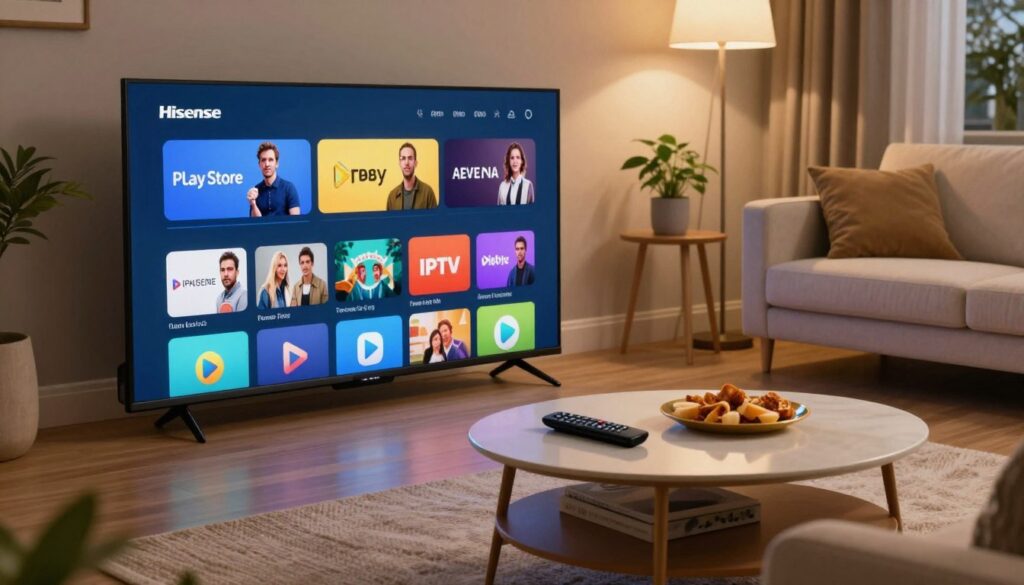
Begin at the on-screen store and use the search bar to find the player by its exact name. This is the easiest way to avoid look-alike apps and confusing icons.
Using the store search to find an app by name
Open the Play Store (or your TV’s native marketplace). Type the player name exactly—many players differ by a single word. Confirm the publisher and icon before you install.
Installing and launching the app, then accepting terms
Select Install, wait for the app to finish, then open it from your apps screen on your hisense smart TV. The app usually prompts you to accept Terms and Conditions before setup.
“Accept the terms so the login and playlist screens become available — many players block setup until you do.”
After launch, find the Add playlist or Add user menu to paste a working playlist URL or enter credentials. If you want a step walkthrough, see this guide to install on your TV and this page about the player for details: install guide and IPTV Smarters Pro.
| Step | What to check | Why it matters |
|---|---|---|
| Search by name | Exact app name and icon | Avoids look-alikes and fake apps |
| Install | Publisher and reviews | Ensures authentic app version |
| Launch | Accept terms, locate Add playlist | Unlocks login and playlist options |
iptv hisense vidaa setup using IPTV Smarters Pro
Start by opening your TV’s app marketplace to locate the official Smarters Pro listing.
Open the Play Store and search for the official app
On supported hisense smart models you go to the Play Store (or the TV’s native marketplace). Type “IPTV Smarters Pro” into the search box to find the verified publisher.
Install, launch, and accept Terms
Install the app and open it from your home screen. Keep your remote handy; the first run asks for confirmations and permissions.
Accept the Terms and Conditions so the screen for adding a user becomes available. This unlocks fields for M3U or Xtream-style credentials.
Before entering credentials, confirm the app loads and has network access. That helps you tell network issues apart from login errors.
Next steps
Prepare provider details in the format your provider recommends. Choosing the correct method avoids time-consuming retries.
| Step | What to check | Why it matters |
|---|---|---|
| Search | Exact app name and publisher | Avoids fake or look-alike listings |
| Install | Permissions and reviews | Ensures authentic install and network access |
| Accept Terms | User setup screen appears | Enables M3U or Xtream entry |
| Verify | App loads without errors | Saves troubleshooting time when logging in |
Add your playlist the easy way with an M3U Playlist URL
Start by copying the exact M3U playlist URL your provider gave you. Treat this link like a password: it grants access to your service and must be kept private.
Where your M3U URL comes from and why it matters
Your provider sends the M3U URL when you subscribe. That URL points the player to the channel list and any available VOD content.
If the link is incomplete or altered, the app will not load channels or movies. Use the original text from your provider to avoid errors.
Select “Load Your Playlist or File/URL” in the app
Open the player and choose the option often labeled Load Your Playlist or File/URL. This tells the app you’re importing a playlist link rather than a portal login.
Enter a playlist name and paste the M3U URL correctly
Pick a clear name like “Living Room” or your provider’s brand so you can tell multiple lists apart.
Paste the full M3U URL exactly as provided. Do not add spaces or trim characters. One missing symbol can stop playback.
Tap Add User and start watching channels, movies, and shows
After pasting, tap Add User and wait for the app to sync. You should see categories for live channels and VOD sections such as movies and shows if included.
Verify playback by opening items in different categories. Confirm both video and audio work before organizing favorites.
“Treat your playlist link as a secure credential — accuracy and a legit provider give the best playback experience.”
| Step | Action | Why it matters |
|---|---|---|
| Get M3U URL | Copy from your provider email or dashboard | Link grants access to content and must be exact |
| Choose M3U option | Select “Load Your Playlist or File/URL” | Ensures the app imports a playlist, not a portal |
| Name playlist | Enter a memorable name | Makes multiple lists easy to manage |
| Paste URL | Paste full link, no extra spaces | Prevents loading errors and missing channels |
| Add User | Tap to sync and view content | Displays live channels and VOD sections |
Set up IPTV with Xtream Codes API (Username, Password, and Port URL)
Choose Xtream Codes when your provider gives a username, password, and a portal or port server address. This method often imports EPG and categories cleanly, so browsing feels organized.
When Xtream Codes is the better option than M3U
Use Xtream Codes if your subscription includes login credentials and a portal URL. It usually loads channel groups and program data for faster navigation.
Enter credentials carefully to avoid login errors
Select the Xtream Codes API option, then type the username and password exactly. Watch for similar characters like O vs 0 and l vs 1.
Confirm the server/port address and finalize Add User
Verify the server address matches your provider’s text, including http/https and any port number. Click Add User and wait—initial sync can take longer depending on the size of your subscriptions and connection speed.
“Test at least one live channel and one on-demand title to confirm full access and proper streaming.”
| Action | What to check | Why it matters |
|---|---|---|
| Select Xtream Codes | Choose API option in app | Enables structured login and EPG import |
| Enter credentials | Exact username and password | Prevents login errors and denied access |
| Confirm address | Server/port URL with protocol | Correct connection to provider server |
| Add User | Allow time for sync | Imports channels, EPG, and categories |
Organize your content for better browsing and faster access
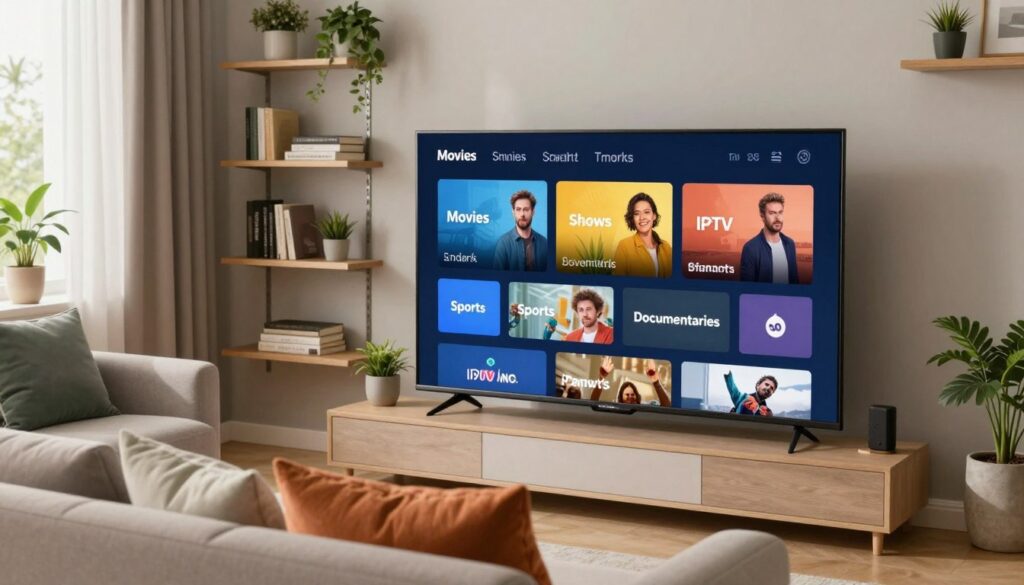
Make your home screen work for you by arranging the channels and menus so you reach favorites in two clicks. A simple layout saves time and makes daily viewing smooth for everyone in your house.
Create a clean list of favorites for live channels
Build a short favorites list that holds only the channels you actually watch. Keep it remote-friendly so you can jump to live TV without endless scrolling.
- Limit the list to your top picks to cut navigation time.
- Group entries by household needs like news, sports, and kids.
- Remove duplicates and broken links every few weeks to keep the list tidy.
Improve discovery with search, categories, and recently watched
Use the app’s search and filters to find movies or shows fast when you know what you want. Categories are great for exploration, but search wins when you need speed.
Rely on the recently watched section as a quick resume option. It is often the fastest way to get back to a series or channel you view daily.
For tips on organizing large lineups and a practical channel guide, see the channel guide.
Simple workflow: favorites for everyday use, categories for browsing, and search when you know the title — that’s the best way to keep content easy to reach.
Streaming quality tips for 2025: reduce buffering and improve playback
Smooth playback starts with a few simple checks you can do in minutes. These steps focus on easy fixes so you avoid deep technical changes.
Network basics that impact streaming: Wi‑Fi strength and router placement
Place your router central to the TV and avoid thick walls or appliances between them.
Use Ethernet when possible. A wired link gives steadier bandwidth for live entertainment and lowers jitter.
Check for TV firmware updates and app updates
Open your TV settings and install the latest firmware. Then update the player app so playback bugs and EPG issues are fixed.
Choose the right video settings for your connection
If buffering starts, lower the stream quality to a stable option. Test a live channel and a movie to confirm both play smoothly.
“Start with network checks, then firmware, then app options—this order saves time and isolates problems.”
For step-by-step network and app instructions, see the settings guide. Test at different times of day to spot congestion, and keep expectations realistic—some peak-hour slowdowns are normal.
Privacy, security, and legal considerations when using IPTV
Privacy matters more than ever when you stream on a smart TV, and small choices affect what others can see. Your ISP and local network operators can observe connection patterns and the services you contact, even if they can’t read every detail of the video itself.
What third parties can actually see
They can log which servers you connect to, the times you watch, and roughly how much data moves. That reveals viewing habits without exposing exact titles.
VPN basics for your smart TV
A VPN can hide destination servers from your ISP and add a layer of privacy. It may also help if an ISP throttles traffic.
Limitations: VPNs can slow your connection depending on server distance and encryption. They won’t make illegal sources lawful or fix a poor provider or incompatible app.
Spotting risky services and choosing legal options
Look for clear company info, support, and licensing for channels and content. Avoid services with vague contact details, unrealistic promises, or missing EPG and support.
Prefer legal subscriptions for reliable playback, accurate guides, and consistent updates that keep your hisense smart TV working well for family entertainment.
Where GetMaxTV fits
Consider GetMaxTV as an example to evaluate: check reviews, trial access, and transparent support before you commit.
“Use privacy tools wisely and choose reputable services to keep streaming safe and stable.”
Conclusion
Finish with a quick check: ensure the player loads your channels and that both live streams and a movie play without error.
Recap the flow: choose a compatible player for your hisense smart TV, install it, add your playlist or Xtream login, then tidy up a short list of favorites for fast access.
Remember: the app is usually the player; your provider supplies the actual channels, movies, and shows. Keep login details private and save your playlist/server notes.
Quality checklist for 2025: stable network, updated firmware, and sensible stream settings that match your connection. Pick reputable subscriptions for reliable service and lower risk.
If you want a legal subscription, check GetMaxTV’s current offer and the detailed configuration guide.
FAQ
What do you need before you set up streaming on your Hisense Smart TV?
You need your TV model and OS noted, a stable internet connection, and your subscription details such as a playlist URL or login credentials. Also save the playlist name, server address, and any access notes so you can paste them quickly during setup.
How do I tell if my TV runs VIDAA or Android TV?
Check the TV’s settings menu or the startup screen for the platform name. VIDAA shows a simple, lean-back interface and a custom app store, while Android TV or Google TV displays Google services and the Play Store. The model sticker or the manual also lists the OS.
Why does the smart platform matter for apps and streaming?
The platform controls which apps are available, how they update, and which features work. VIDAA uses its own store and app framework, so some Android apps might not appear or run differently compared with Android TV, Google TV, Fire TV, or Roku.
Are IPTV apps actual channel providers?
No. Most apps are media players that load playlists you provide. They don’t include channels or subscriptions. You’ll need a valid playlist URL or account from a provider to view live TV, movies, and shows.
What features should I look for in a media player app?
Look for playlist (M3U) support, EPG/guide compatibility, user-friendly navigation, reliable playback, and support for Xtream Codes or similar APIs. Good apps also let you bookmark favorites and sort channels or categories.
How do I find and install a compatible app on the TV store?
Use the TV’s app store search box and type the app name. Review app descriptions and ratings, install, then launch and accept any terms. If the exact app isn’t listed, check for trusted alternatives or sideload options if supported.
How do I set up IPTV Smarters Pro from the Play Store?
Open the Play Store on the TV, search for IPTV Smarters Pro, install the app, then launch it and accept the Terms and Conditions. After that, choose your preferred login method—M3U or Xtream API—and enter your details.
Where does my M3U playlist URL come from and how do I add it?
Your provider supplies the M3U URL. In the app choose “Load Your Playlist or File/URL,” enter a playlist name, paste the M3U URL exactly, then tap Add User. The app will load channels, movies, and shows from that list.
When should I use Xtream Codes API instead of M3U?
Use Xtream Codes when your provider offers username, password, and server/port details. It often provides faster EPG loading and authentication. Enter the credentials precisely to avoid login errors and finalize by adding the user.
How can I organize channels and content for faster access?
Create a favorites list for live channels, use categories and search to find content quickly, and rely on recently watched to pick up where you left off. Many apps let you reorder or hide channels for a cleaner guide.
What can you do to reduce buffering and improve playback?
Improve Wi‑Fi strength by moving the router closer or using Ethernet, check for firmware and app updates, and choose video quality settings that match your bandwidth. Prioritize a stable connection over maximum resolution when buffering occurs.
Are there privacy or legal risks I should know about?
Third parties can see some streaming activity depending on your setup. Use reputable providers, avoid services that promise too much for too little, and consider a VPN for privacy — knowing it can’t legalize access to restricted content. Always choose legal subscriptions when possible.
How do I spot a reputable service and what about GetMaxTV?
Look for clear contact info, transparent pricing, positive reviews, and tested uptime. Reputable providers publish terms and support channels. Services like GetMaxTV are examples of providers you should vet by checking reviews and refund policies before subscribing.