
Ever wondered why the same live match looks smooth on one TV but choppy on another?
You want the best-value streaming without the headaches, and choosing the right motion settings is the first step. This guide helps you pick between 30fps and 60fps so your sports, movies, and news look their best on your screen.
GetMaxTV gives you over 19,000 live channels and 97,000+ VOD for $6.95/month, with universal compatibility and instant activation, so you can test settings fast.
European feeds often run at 25fps (50Hz). If your display is 60Hz, mismatches can cause judder on fast pans—so matching PAL or NTSC output matters on devices like NVIDIA Shield or Fire TV Stick.
We also explain how re-encoding and bandwidth can make two identical 1080p feeds look different, and where 1080p60 outshines 4K30 for motion clarity. For pro encoder differences and refresh tips, see this encoder guide here: encoder differences and refresh tips.
Key Takeaways
- Match 50Hz or 60Hz output to source content to avoid judder during fast motion.
- Choose 60fps for sports and fast action; 30fps often suffices for movies and talk shows.
- Resolution, bitrate, and bandwidth must balance with fps to get smooth, sharp video.
- Device settings on Fire TV, Android, Smart TVs, and STBs matter—set refresh to match content.
- Re-encoding and provider bandwidth can change perceived quality even for the same nominal resolution.
- Try GetMaxTV to test ideal settings without a long-term contract.
Understand frames per second so your IPTV looks the way it should
Knowing how many images your stream shows each second makes it easier to pick settings that keep motion smooth. This short guide explains what those numbers mean and why they matter for your picture.
What “frames per second” (FPS) means for streaming video
Frames per second is simply how many still images a video shows every second. More frames give smoother motion, especially when things move fast on screen.
Why higher or lower frame rates change motion, clarity, and bandwidth
Higher fps like 60 produce clearer motion and less blur, which helps sports and gaming look crisp. But fps higher also needs more bandwidth and higher bitrate to keep quality steady.
Lower frame rates such as 24 or 30 suit movies and talk shows. They save data and still look great when resolution and encoding are solid.
- More frames per second = smoother motion, more data.
- Lower frames = less bandwidth, good for slower content.
- Your device and video output must match the content for the best playback on your screen.
Quick tip: Balance fps with resolution and bandwidth. Try different settings on GetMaxTV to find the best value and smoothest experience for your home system.
IPTV frame rate: 30fps vs 60fps—what should you use in 2025?
A single switch in motion settings can make sports replays crisp or keep news channels steady on limited bandwidth.
When 30fps gives you the best balance
Choose 30fps when you mostly watch news, talk shows, and slower live TV. These types of content have little fast motion, so lower frames per second save data while keeping clear playback.
Why 60fps shines for sports and action scenes
Pick 60fps for sports, fast-cut clips, and quick camera pans. The extra frames reduce judder and keep detail during replays. If your device and screen support fps higher modes, action will feel smoother and more lifelike.
The trade-off: bandwidth, bitrate, and device capability
You must balance resolution, bitrate, and network speed. A prioritized 60fps channel with higher bitrate often looks better than a standard 30fps stream at the same video resolution.
- Use 30fps to save bandwidth and keep steady quality on weaker connections.
- Use 60fps if your system, output, and internet can handle the extra data.
- For mixed households, set sports profiles to 60fps and general profiles to 30fps for best value.
Quick tip: Try GetMaxTV’s 19,000+ channels and 97,000+ VOD for $6.95/month to compare settings in minutes with 24/7 support.
Match refresh rate and region: PAL vs NTSC, 50 vs 60, and your video output mode
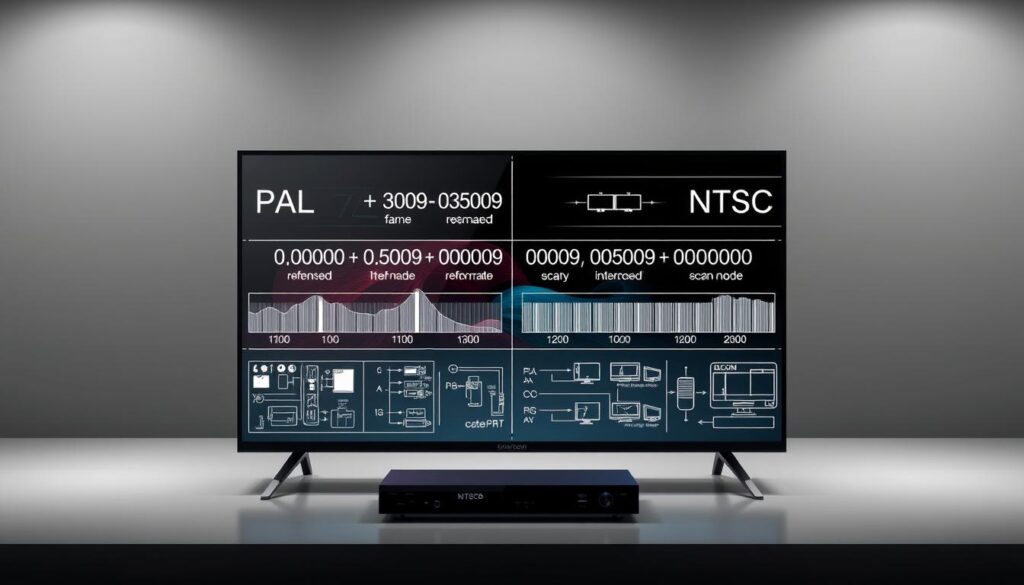
Matching your output to the content’s native cadence fixes many common motion problems.
PAL content typically uses 25fps or 50Hz modes like 576p50, 720p50, 1080p50, and 2160p50. NTSC content runs near 30fps or 60Hz with modes such as 480i, 720p60, 1080p60, and 2160p60.
Why this matters: when 50Hz material plays at 59.94/60Hz, fast camera pans show visible judder on your screen. That is most obvious during sports and quick motion scenes.
Auto switching and practical tips
- Set MAG/STB units to Auto frame selection (24/50/60) so the player matches content without manual changes.
- On Android streamers, choose 50Hz output for European feeds to reduce judder with PAL sources.
- Check your TV’s supported modes like 720p50 or 1080p60 and pick the matching video output for best playback.
- If you watch channels from multiple regions, enable match-frame features on the device so switching is seamless.
Quick help: Proper refresh matching often improves perceived motion more than a small bump in resolution. If you need assistance, GetMaxTV’s 24/7 support can confirm your region, device capabilities, and the best output mode for your system.
How to set the right frame rate on your devices for smooth playback
A few quick adjustments on your streamer or TV often fix motion problems fast.
Fire TV Stick and Android TV
On Fire TV, go to Display & Sounds and enable Match original frame rate. This lets the player switch output to the content’s cadence automatically.
On Android TV or Google TV devices, turn on match-content refresh or set display to 50Hz for PAL sports when needed. This reduces judder and keeps fast pans clear.
Smart TVs (Samsung, LG)
Turn off aggressive motion smoothing if it creates artifacts. Set the HDMI input to the correct mode and let the app match content where available.
MAG / STB boxes
Open System ⇒ Video ⇒ More and set Auto frame rate to 24/50/60. Pick supported video output modes like 1080p50 or 1080p60. If the screen is black at boot, enter the bootloader and toggle PAL/NTSC, then refine graphics resolution to match TV System.
“Match your device output to the source and you’ll fix most motion issues quickly.”
| Device | Quick setting | Common outputs |
|---|---|---|
| Fire TV / Android | Enable match-content | 720p50, 1080p60 |
| Smart TV (Samsung/LG) | Turn off smoothing; set HDMI mode | 1080p50/60, 2160p50/60 |
| MAG / STB | System → Video → Auto 24/50/60 | 576i (PAL), 480i (NTSC), 1080p50/60 |
On Windows and Mac, set display refresh and enable match-frame in apps like Kodi or Plex. After changes, test fast-motion clips to confirm smooth playback.
Tip: No matter your platform, GetMaxTV works with Firestick, Smart TV, Android, Mac, and Windows, and our 24/7 team can walk you through settings. For deeper guides on quality settings, see quality settings help.
Balancing frame rate, resolution, and bitrate for the best picture
A smart balance between clarity and smooth motion keeps buffering down and enjoyment up.
When to prefer 60fps at 1080p vs 30fps at 4K
If you watch fast sports or action, 1080p at 60 fps often beats 4K at 30 fps. The higher cadence cuts blur and preserves detail during quick pans. That means smoother playback and a better viewing experience on most TVs.
For movies and scripted shows, 4K30 or 24 fps can look stunning on large screens. Higher resolution wins when motion is slower and detail matters more than motion cadence.
Adaptive strategies for variable internet speeds and Wi‑Fi congestion
When your bandwidth fluctuates, choose steady playback over peak resolution. Cap resolution and boost fps for sports. Do the opposite for films.
Also, create two presets on your device or platform: one for high-motion content and one for high-detail content. Let apps match frames per second when possible and cap maximum resolution to avoid frequent buffering.
| Use case | Preferred setting | Why it works |
|---|---|---|
| Fast sports | 1080p60 | Reduces motion blur and keeps action smooth on limited bandwidth |
| Movies / drama | 4K30 / 24 | Higher resolution and cinematic cadence improve detail and immersion |
| Unstable Wi‑Fi | 1080p60 cap or 720p60 | Keeps playback consistent and lowers rebuffering |
| Mixed household | Two presets | Quickly switch between motion-first and detail-first profiles |
Quick tip: With GetMaxTV’s $6.95/month plan you can test 1080p60 vs 4K30 across thousands of streams and use 24/7 support to tune bitrate-friendly settings for your home network. Small changes to output and bitrate often deliver the best value for your system.
Fix motion issues fast: judder, stutter, blur, and mismatches

A few simple checks on your TV and streamer will usually restore smooth motion fast.
Quick fixes: check output mode, enable Auto frame rate, and correct PAL/NTSC
Start by matching your video output to the content’s region. Pick 50Hz for PAL and 60Hz for NTSC to remove cadence judder.
- Enable Auto frame rate on MAG/STB devices so the system switches between 24/50/60 automatically.
- If the screen goes black after a change, use recovery or the bootloader to toggle PAL/NTSC, then set the correct output.
- On Android/Google TV, set 50Hz for European football nights and switch back for US sports or 24fps movies.
- Check HDMI cables and ports; try another port if higher fps modes drop signal.
- If stutter continues, lower resolution one step to free bandwidth for higher fps playback.
- Still stuck? GetMaxTV’s 24/7 support can remote-walk you through change settings and stabilize playback.
| Symptom | Quick action | Result |
|---|---|---|
| Judder on pans | Switch to 50Hz or 60Hz to match content | Smoother motion, fewer artifacts |
| Black screen after switch | Use bootloader to toggle PAL/NTSC | Restore visible output, then refine |
| Stutter during sports | Enable Auto frame rate or reduce resolution | Stable fps and better real-world fluidity |
Why GetMaxTV delivers silky sports and cinema at the best price
Skip guessing and tune your system quickly—massive content plus quick activation means you compare settings in minutes.
All the value, none of the risk: GetMaxTV gives you over 19,000 live channels and 97,000+ VOD for just $6.95/month. There’s no contract, so you can test 1080p60 versus 4K30 on your device without commitment.
Event feeds often carry higher bitrate and optimized cadences. That helps sports look cleaner at 60fps compared to generic entertainment folders even when nominal resolution matches.
Instant setup and wide compatibility
Activation takes about two minutes. Your Firestick, Smart TV, Android box, Mac, or Windows system works right away.
- You get every sports and movie package at no extra cost.
- Universal compatibility means fewer tweaks on your device or output mode.
- 24/7 support helps you pick the best settings and preserve bandwidth while improving motion clarity.
“Use fps and resolution settings the way they were meant to be used—GetMaxTV makes that simple.”
Ready to compare settings on real streams? See the detailed streaming guide and start tuning your system today.
Conclusion
Conclusion
A quick setup pass on your player often fixes most motion problems and improves viewing instantly.
You now know when to pick 1080p60 for fast sports and 4K30 for detail-first films. Match PAL vs NTSC and enable auto frame switching on supported STBs so your device output aligns with the source.
Balance resolution and bandwidth, and test presets for sports and movies. For a deeper walkthrough, read our quality guide to fine-tune settings and avoid common pitfalls.
Ready to act? Subscribe at WatchMaxTV—19,000+ live channels, 97,000+ VOD, $6.95/month, instant activation and 24/7 support. Prefer to try first? Message us on WhatsApp for a free trial and help setting auto match.
FAQ
What does “frames per second (FPS)” mean for streaming video?
FPS tells you how many individual images your stream shows each second. Higher values make motion look smoother, while lower values can save bandwidth and still look natural for slower-paced content like news or talk shows.
When should you choose 30fps versus 60fps for your viewing?
Use 30fps for live broadcasts, news, and talk programs where motion isn’t rapid. Pick 60fps for sports, action scenes, and fast camera moves — it reduces motion blur and keeps details clear during quick motion.
How does choosing a higher FPS affect data use and quality?
Higher settings need more bitrate and network capacity to avoid compression artifacts. If your connection is limited, you may see pixelation or stuttering at 60fps. Balance resolution and bitrate to get steady playback.
What’s the difference between PAL and NTSC and why does it matter for playback?
PAL traditionally uses 50Hz and NTSC uses 60Hz. Your display and source should match refresh and output standards to avoid judder or dropped frames. Many modern devices handle both, but mismatches can still create motion issues.
How do you match refresh rate automatically to prevent judder?
Enable the “match content” or “auto frame rate” option in your device or app. This lets the player switch output to the video’s native cadence (24/50/60Hz), reducing judder and producing smoother motion.
What settings should you change on a Fire TV Stick or Android TV?
Turn on match frame rate or match content in the video settings, and set the video output to the highest supported refresh that your TV accepts. Also check HDMI input settings and ensure the app can change output modes.
How do Samsung or LG smart TVs handle motion and refresh options?
Look for motion smoothing, motion enhancement, or auto low-latency mode in picture settings. Disable aggressive smoothing for movies if you prefer natural motion. Set HDMI inputs to the correct mode for the best sync with external players.
What should you do on a MAG or STB box to get correct playback?
Select the proper TV system (50/60Hz), enable auto content matching for 24/50/60, and pick the correct output resolution. These options help avoid judder and ensure the stream matches your screen’s capabilities.
How can Windows or Mac match a video’s native cadence?
Use app-level settings (VLC, Plex, media apps) to enable “match display refresh rate” or “switch display mode.” On macOS, some apps can request the system change refresh rate automatically; on Windows, use the player’s output options or a compatible GPU setting.
When is it better to choose 60fps at 1080p instead of 30fps at 4K?
Pick 60fps/1080p when smooth motion matters, such as live sports or esports. Choose 4K/30fps for cinematic shots where resolution and detail outweigh motion fluidity. Your choice depends on content type and available bandwidth.
What adaptive strategies help when internet speeds vary?
Use adaptive streaming that adjusts bitrate in real time. Lower resolution or FPS during congestion, prioritize key devices on your router, and use wired Ethernet when possible to reduce drops and buffering.
How do you fix judder, stutter, or blur quickly?
Check your output mode, enable auto cadence matching, confirm PAL/NTSC or 50/60Hz settings, and test a wired connection. Restart devices and update firmware if the issue persists.
Does my screen’s refresh rate limit video smoothness?
Yes. If your display runs at 60Hz, it can’t show more than 60 images per second. Match the content’s cadence to the screen’s refresh to avoid dropped or repeated images and ensure smooth playback.
Will enabling auto frame match always improve playback?
Most of the time it will, by aligning output to content cadence and reducing judder. But on some older TVs or apps, rapidly switching modes can cause brief black screens. Test the setting and keep it enabled if your setup supports seamless switching.
How does device capability affect your streaming choices?
Older or low-power devices may not decode high-bitrate 60fps streams well, causing dropped frames. Upgrade hardware or lower bitrate and resolution to maintain smooth playback on constrained devices.