Can a simple cable really fix your buffering and get you back to live sports and movies in minutes?
You want a reliable connection that just works. This short guide shows how a wired plan and the right router model can solve the most common streaming problem quickly.
You’ll learn the exact pages and settings to check on popular routers, the cable and device list to keep handy, and the one-minute checks that prove your service is active.
We’ll also point you to step-by-step guidance for Keenetic and ASUS options so you can enable IGMP features and VLANs without guesswork. If you need deeper configuration notes, see our connection guide and detailed connectivity guide.
GetMaxTV is highlighted as top value: over 19,000 live channels and 97,000+ VOD for $6.95/month, no contract, quick activation, multi-device support, and 24/7 support — so you can start streaming in about two minutes.
- Wired connection often stops buffering faster than Wi‑Fi.
- Check IGMP/udpxy and VLAN settings on your router for stable multicast delivery.
- Have a short device and cable list ready before you begin.
- Test direct to the ISP cable and disable blocking apps if streams fail.
- GetMaxTV offers fast activation, broad device support, and round‑the‑clock support.
Why a wired IPTV ethernet setup is the smartest move in 2025
If your streams lag, a direct cable is the single smartest change you can make today.
Cut buffering, jitter, and lag:
A LAN cable removes common Wi‑Fi problems like interference and weak signals. That means steady throughput and fewer dropouts during live sports or movie nights.
Multicast streams move more efficiently on wired links. Routers with IGMP features forward channels quickly, so your channel changes and picture quality feel instant.
What you need before you start
- Confirm your provider and ISP support service over a cable and note any VLAN or MAC requirements.
- Check your router for free LAN ports and an IPTV or multicast page where you can assign one port.
- Have a Cat5e or Cat6 cable long enough to reach the TV and a compatible device or adapter for your streaming box.
Quick gear checklist
| Item | Why it matters | Tip |
|---|---|---|
| Router model | Supports IGMP/TV port and VLANs | Look for Keenetic or ASUS pages with IPTV options |
| LAN ports | One dedicated port reduces conflicts | Reserve a nearby port or use a small switch for extras |
| Cat5e/Cat6 cable | Ensures stable bandwidth to the device | Test with a short cable first, then run the long drop |
Need help with router pages or advanced options? See our configuration guide for step-by-step direction.
Step-by-step IPTV ethernet setup and router configuration
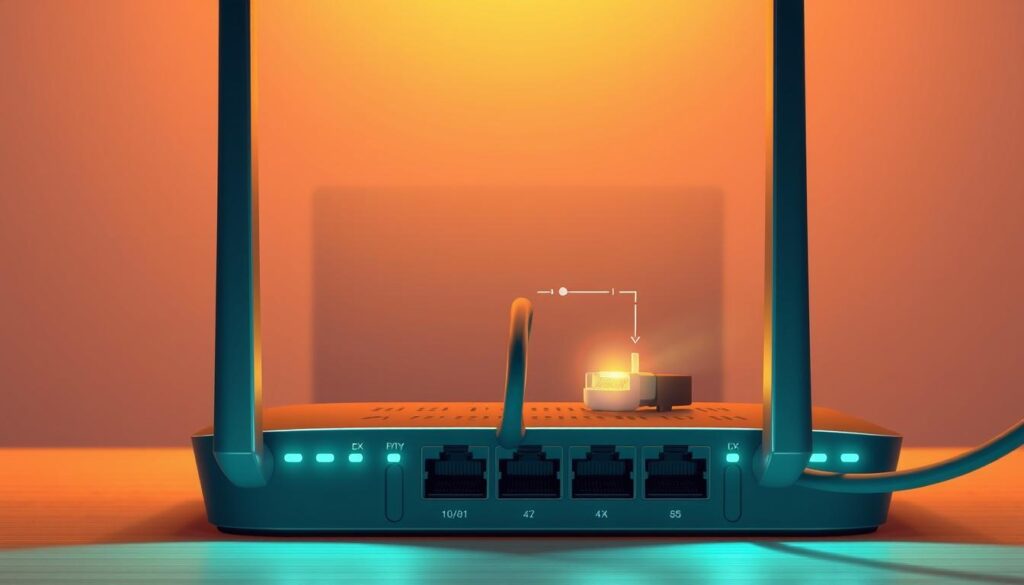
Start by assigning one LAN port as the TV pass-through and you’ll cut configuration time in half.
Keenetic quick path: Update KeeneticOS and install the IGMP/PPPoE proxy component. Open Ethernet Cable Connections → Internet → Ports and VLANs and set one LAN port to TV set-top box mode.
If your ISP provided a VLAN ID, enter it in the TV field so the box gets a public address. Reboot the box and confirm it receives an IP from your provider. In the Home segment, verify IGMP Proxy is enabled on the ISP-facing interface.
ASUS page guidance
Go to LAN → IPTV and pick the ISP profile or Manual Setting. Choose the STB port that matches your cable, set Use DHCP routes as required, and enable IGMP Proxy (IGMP v3 is typical).
Enable IGMP Snooping under Wireless → Professional. Optionally add udpxy (for example port 4000) to convert multicast to unicast for apps like VLC.
VLAN and switch example
Tag the router uplink with VLAN 51 for Internet and VLAN 67 for TV. Set the switch so one access port is untagged for VLAN 67 (feeds the box) and others are untagged for VLAN 51 (computers, consoles).
IGMP, DHCP and troubleshooting basics
IGMP controls multicast group membership so only requesting devices get channel streams. DHCP routes send the correct default gateway and address to the box when the TV port is active.
- If channels fail, test the box or a computer directly on the ISP cable to isolate the issue.
- Recheck STB port assignment, VLAN IDs, IGMP toggles, and DHCP mode if needed.
- Temporarily disable firewalls or antivirus that may block multicast during testing.
- On mesh systems, install the IGMP/PPPoE proxy on extenders so multicast flows end-to-end.
Need a concise walkthrough for your model? See our connection guide for step-by-step help and device notes.
Choose the right IPTV service for your wired setup: why GetMaxTV wins on value
A wired connection makes high-bitrate channels and big libraries feel instant and reliable.
GetMaxTV pairs perfectly with a direct LAN link. With 19,000+ live channels and 97,000+ VOD for just $6.95/month, this provider delivers huge variety without the usual add-on costs.
Massive content, tiny price
All sports and movie packages are included. You get top-tier events and new releases without confusing extra fees. That means your weekend plans stay simple and affordable.
Fast activation and wide device support
Sign up and start watching in about 2 minutes. There’s no contract, so you can test the service on Firestick, Smart TV, Android, Mac or Windows without buying a new box.
- Works with common router pages and IGMP features so channels stay responsive.
- Because your network is wired, channel zaps feel instant and high-bitrate feeds remain stable.
- 24/7 support answers your questions about the app, your device, or port and setting iptv issues.
Ready to try it? Subscribe at GetMaxTV or request a free trial via WhatsApp at free trial on WhatsApp. For quick troubleshooting, see our support tutorial.
Conclusion
A direct cable and the right router settings remove the guesswork from streaming.
Final path: enable IGMP/PPPoE proxy on Keenetic or turn on IGMP Proxy and IGMP Snooping on ASUS, assign the dedicated STB port, and apply the provider’s VLAN (example: VLAN 67) while keeping Internet on VLAN 51.
If channels fail, confirm the dedicated port, verify IGMP and DHCP address assignment on the box, and try a direct-to-ISP test. Temporarily disable firewall or antivirus that may block multicast.
Keep firmware updated so routers get stability fixes. When you’re ready to watch, subscribe at https://watchmaxtv.com/ or request a free trial via WhatsApp: https://wa.me/message/OZ4NORVZQTYAC1. Enjoy GetMaxTV’s 19,000+ live channels and 97,000+ VOD with instant activation and 24/7 support.
FAQ
How do I wire my IPTV connection to reduce buffering and lag?
Use a quality LAN cable (Cat5e or Cat6) from your router’s LAN port directly to your set-top box or streaming device. Disable Wi‑Fi on the device to force the wired path. On the router, enable multicast features such as IGMP Proxy or IGMP Snooping and, if required by your provider, set the correct VLAN ID for the media traffic. This gives you lower latency, steadier throughput, and fewer drops than wireless links.
What router settings should I check before connecting the box?
Confirm the router firmware is current and inspect the LAN or IPTV page for options like STB port assignment, IGMP settings, and DHCP ranges. If your ISP requires PPPoE, enter credentials under the WAN/Internet interface. If the service uses VLAN tagging, add the provider’s VID to the relevant LAN port or bridge. Finally, ensure the firewall allows multicast and that Quality of Service (QoS) doesn’t throttle the media stream.
My router brand matters — what differences should I expect between Keenetic and ASUS?
Keenetic models often offer explicit IGMP/PPPoE proxy options, per‑port TV assignments, and flexible VLAN handling in the UI. ASUS routers expose an IPTV page where you choose the STB port, enable IGMP Proxy and Snooping, and adjust DHCP routes. Both can work well; follow the vendor guide for the exact menu names and place the set‑top box on the assigned TV port.
Do I need a managed switch or VLANs for a multi-room install?
If your provider separates Internet and media with different VIDs, a managed switch helps. Assign the Internet VID to general LAN ports and the IPTV VID to the ports feeding boxes. Many small managed switches support VLAN tagging and port‑based membership, so you can keep traffic isolated without extra routers.
What is IGMP and why does it matter for live channels?
IGMP (Internet Group Management Protocol) controls multicast group membership. For live TV streams that use multicast, enabling IGMP Proxy or Snooping on routers and switches ensures your boxes only receive the channels they request. That reduces unnecessary network chatter and avoids slowdowns caused by indiscriminate multicast forwarding.
How do I troubleshoot a box that won’t get an IP address?
First, try a different LAN port and a fresh Cat6 cable. Reboot the router and the box. Verify DHCP is enabled and the lease pool has free addresses. If your ISP assigns IPs via DHCP on a specific VLAN or PPPoE, make sure those settings are applied. Temporarily disable firewall or security software to test. If the problem persists, connect a laptop and run a quick DHCP request to see what the router returns.
My live channels stutter only on certain shows — what could cause that?
Stuttering can come from ISP congestion, multicast packet loss, or local network interference. Check for high‑bandwidth devices on your LAN, ensure the streaming port isn’t bridged through wireless extenders, and inspect router logs for dropped packets. If you use a mesh system, try a direct wired path from the router to the box to isolate the issue.
Which cables and ports should I use for best reliability?
Use Cat6 where possible for future‑proof bandwidth and stability; Cat5e also works for most HD/UHD streams. Prefer the router’s primary LAN ports labeled for TV or STB if present. Avoid using USB‑to‑Ethernet adapters or cheap patch leads—those can introduce errors and intermittent connectivity.
Can I run the media service through my PC instead of a set‑top box?
Yes. Many providers support apps for Windows, macOS, and Linux or a web player. Configure your computer’s Ethernet adapter to use DHCP or the VLAN/PPPoE settings required by the ISP. If you plan to use your PC as a bridge for a box, enable Internet Connection Sharing carefully and monitor multicast handling—some desktop firewalls block IGMP traffic by default.
What role does DHCP play in the connection and how should it be set?
DHCP hands out IP addresses and important options like gateway and DNS. Ensure the router’s DHCP scope covers all devices and that lease times are reasonable (short leases can cause churn; very long leases delay recovery). If your provider expects DHCP on a tagged VLAN, configure the interface accordingly so boxes receive the correct network details automatically.
Is a router firmware update necessary for compatibility?
Yes. Firmware updates often add or fix features such as IGMP handling, VLAN tagging, PPPoE improvements, and security patches. Before making major changes, back up your current configuration. After updating, recheck IPTV or multicast settings—some updates reset advanced options to defaults.
How do I test whether problems come from my equipment or the provider?
Test with a direct connection: plug the ISP feed into your router, then a single box on the assigned LAN port with minimal in‑home equipment. If issues persist, record timestamps and channel names, then contact provider support with logs. If problems stop on the direct link, reintroduce switches or extenders one at a time to find the failing component.
Will antivirus or firewall apps on my network devices affect streaming?
Yes. Security software on routers, PCs, or smart devices can block multicast, filter DHCP, or throttle connections. Temporarily disable such services to see if the stream improves. If they’re the cause, create exceptions for multicast traffic and DHCP or move the media device to a trusted LAN segment.
What additional gear should I consider for a robust installation?
A small managed switch for VLANs, a quality router with good multicast support, UPS for power stability, and gigabit patch cables help. If you need Wi‑Fi for other devices, keep streaming boxes on wired ports to avoid contention. Label ports and save your router configuration for faster recovery.
How does PPPoE affect device configuration?
PPPoE requires username and password authentication on the WAN interface. Some providers use PPPoE to authenticate the entire home network while still offering DHCP to set‑top boxes. Enter credentials into the router’s WAN page, and ensure any IPTV VLAN or IGMP options remain active on the LAN side for box connectivity.
Where can I find provider‑specific settings like VLAN IDs or multicast requirements?
Check your service welcome email, the provider’s support site, or the quick‑start sheet that came with the plan. If you can’t find the details, contact support and ask for the VLAN ID, whether IGMP is used, and any PPPoE credentials. Many ISPs publish step‑by‑step guides for popular router models.