
Curious how much internet you really need to stream live TV without buffering? This guide answers that and helps you pick a better-value service for smooth viewing.
You’ll get a plain-English walkthrough of how streaming works, why your connection matters, and how to avoid surprises on monthly plans. We explain bandwidth, headroom, and latency so you can translate tech terms into practical choices.
This section previews how multiple devices affect performance and why device capability and network setup are just as important as raw speed. You’ll also meet GetMaxTV, a top-value option with 19,000+ live channels and 97,000+ VOD for $6.95/month, instant activation, wide compatibility, and 24/7 support to help prevent buffering.
Read on to learn how to size your internet, manage consumption, and keep your main stream solid—even when others are online.
Key Takeaways
- Understand how IPTV data usage ties to internet speed and connection quality.
- Multiple devices and poor network setup cause the most streaming problems.
- Adaptive bitrate helps, but keeping headroom prevents mid-show drops.
- Choose a value service and match it to your plan and devices.
- GetMaxTV offers wide content and low cost with easy setup and support.
What IPTV data usage means today and why it matters for smooth streaming
The shift from broadcast networks to IP delivery means your router and household habits shape playback more than ever. Now the quality of your stream hinges on available bandwidth and moment-to-moment internet stability, not a one-way cable feed.
Internet delivery vs. cable and satellite
Traditional cable and satellite push a steady signal to your TV. Over the internet, that same channel must compete with everything else on your connection.
| Factor | Internet delivery | Cable / Satellite |
|---|---|---|
| Throughput impact | Depends on household bandwidth and peak congestion | Mostly unaffected by home network load |
| Moment-to-moment stability | Affected by router, Wi‑Fi interference, and concurrent devices | Stable broadcast signal from provider |
| Adaptability | Adaptive bitrate can change quality to avoid freezes | Fixed quality; no adaptive scaling |
| Control | You can prioritize streams with QoS and Ethernet | Limited home-side controls |
How multiple devices and background activity strain your home network
When phones, laptops, smart speakers, and TVs share one connection, heavy tasks can cause freezes and pixelation. Auto-updates and cloud backups often run without notice.
Simple fixes like plugging a main stream into Ethernet, moving the router away from interference, and enabling QoS can reclaim headroom and steady your video.
- Monitor peak usage and stagger big downloads.
- Prefer wired connections for your main TV player.
- Use the guides below to learn how much streaming eats and to tune quality.
Learn more about how much streaming pulls from your plan at how much streaming eats and check a practical quality checklist in the quality guide.
How much internet speed do you need for IPTV without buffering?

Choose a download speed that covers your main TV, plus room for other devices, and you’ll skip most buffering headaches.
Aim for these per-stream targets: SD about 3–5 Mbps, HD around 5–10 Mbps, and 4K roughly 20–25+ Mbps.
Plan for headroom. Add 10–20% above those minimums to absorb spikes, jitter, and home interference. That extra margin often prevents sudden drops and pixelation.
Key real-world factors
Download speed drives most streaming, but latency and evening congestion also matter. Wi‑Fi is less stable than Ethernet, so wired connections often improve streaming quality.
For example, a 40 Mbps plan handled an HD lineup smoothly while a 4K YouTube video downloaded in the background. That shows why headroom beats chasing a single higher peak speed.
| Quality | Per-stream target | Recommended plan tip |
|---|---|---|
| SD | 3–5 Mbps | Choose plan +10% for headroom when one or two devices share network |
| HD | 5–10 Mbps | Allow 10–20% extra and prefer Ethernet for main TV |
| 4K | 20–25+ Mbps | Use wired connection and plan for evening congestion |
Bottom line: match speeds to quality, budget 10–20% extra, and fix your connection path before upgrading the plan. Do that and you’ll enjoy better streaming quality on a low-cost service like GetMaxTV for $6.95/month with 24/7 support.
IPTV data usage: hour-by-hour estimates by quality and number of streams
A quick hourly breakdown makes it simple to match viewing habits to the right plan. Below are typical per-hour consumption ranges so you can convert daily hours into a monthly total without guesswork.
Typical per-hour data: SD vs. HD vs. 4K and what it means for monthly caps
Per-hour estimates (approx.):
| Quality | GB per hour | What it means monthly (2 hrs/day) |
|---|---|---|
| Standard definition | 0.7–1.5 GB | 42–90 GB / month |
| High definition (1080p) | 2.5–4.5 GB | 150–270 GB / month |
| 4K (Ultra HD) | 7–15+ GB | 420–900+ GB / month |
Stacking streams: how two TVs, gaming, and downloads multiply consumption
Running multiple streams at once multiplies hourly totals quickly. Two HD TVs plus a gaming session can easily push you from a modest plan to a heavy-use bracket.
- Example: Two HD streams (5 GB/hr each) = 10 GB/hr total.
- Background downloads and game updates will add large spikes during peak hours.
- Use your router’s traffic tools to spot heavy users and shift big downloads to off-peak hours.
Quick monthly estimate method: multiply your typical daily hours by the per-hour value, then by 30. Add a 10–20% buffer for spikes and updates.
When you can predict monthly totals, you avoid oversized plans and choose a service that gives the most entertainment per dollar. For a practical quality checklist and tips to keep your main stream solid, see the streaming quality guide.
Optimize your home network for lower data usage and fewer issues
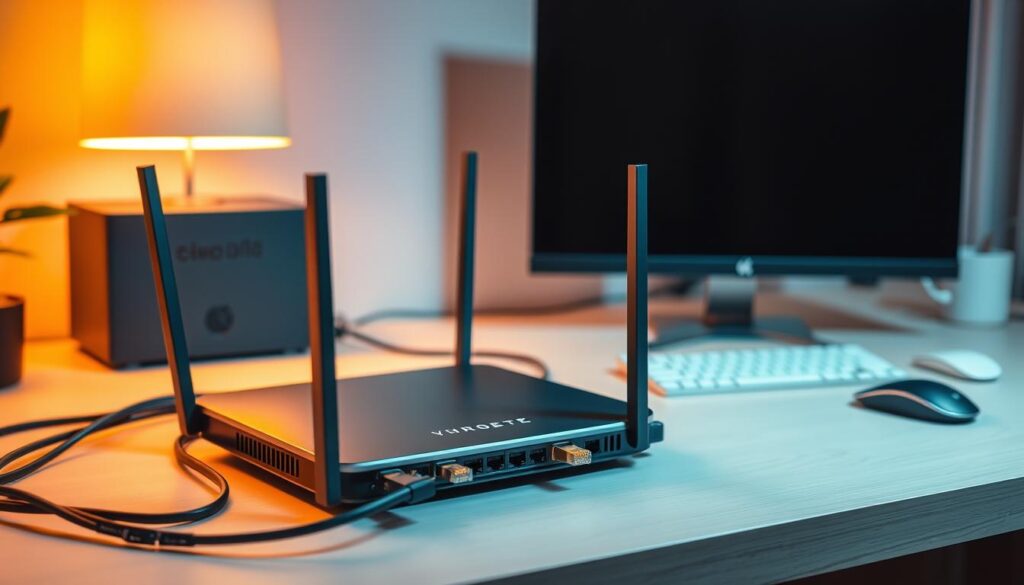
A few quick fixes at your router and in your rooms will make streams steadier and save monthly allowances. These changes cut wasted bandwidth and reduce the common issues that break playback during big games or family movie nights.
Ethernet beats Wi‑Fi: reduce packet loss and stabilize your IPTV player
Plug your main TV or streaming box into Ethernet. Wired links reduce packet loss and retransmits, so the same stream uses less bandwidth and stays smoother.
Router placement, interference, and Wi‑Fi standards (Wi‑Fi 5/6)
Place the router centrally and away from thick walls or microwaves. That improves signal and speed across rooms.
Consider a Wi‑Fi 5 or Wi‑Fi 6 upgrade if many devices share the network. Newer routers handle more simultaneous connections with fewer drops.
Quality of Service (QoS): prioritizing IPTV traffic over other devices
Set QoS to favor your main stream device so bulk transfers don’t steal bandwidth during prime time. This way, gaming and big downloads won’t interrupt live shows.
ISP throttling and peak-hour congestion: ways to detect and mitigate
Use your router app to spot spikes and test speeds during peak hours. If streaming suffers only at night, throttling or local congestion may be the factor.
A reputable VPN can sometimes help, but try router fixes and scheduling updates first. And remember: 24/7 support can assist with setup so GetMaxTV performs at its best.
“Small network steps often deliver the biggest gains—fewer stalls, lower monthly waste, and a calmer streaming experience.”
Choose the right device and streaming settings to balance quality and data

A well-chosen device plus sensible settings gives you solid streaming quality on a modest internet plan.
Adaptive bitrate and modern codecs
Adaptive bitrate adjusts to current speed to keep streams watchable when conditions dip.
Pick a device with strong decoding so efficient codecs preserve clarity at lower bitrates. That saves data and keeps your main screen crisp.
Set resolution intentionally
Reserve 4K for premium video and use standard definition or 720p for background viewing to cut monthly usage.
This way you match your streams to how you watch, not every title to the highest possible setting.
Keep firmware and apps updated
Update apps and firmware on Firestick, Smart TV, Android, Mac, and Windows so decoding stays efficient and glitches drop.
Tip: match device capability to your internet plan and prefer Ethernet for the main player to stabilize adaptive logic.
- Disable motion smoothing and unnecessary overlays to reduce processing overhead.
- Use adaptive bitrate wisely so quality returns when speed allows.
- Choose devices that support modern codecs for better picture at lower rates.
With a tuned device and settings, you’ll get great results on affordable services. For a practical checklist see the streaming quality guide, and remember GetMaxTV works on Firestick, Smart TV, Android, Mac, and Windows with instant activation and 24/7 support.
Why GetMaxTV is the best-value IPTV service in 2025 for data-savvy viewers
GetMaxTV packs a massive library into a single, pocket-friendly plan so you can watch more without overpaying.
The lineup gives you over 19,000 live channels and 97,000+ VOD titles for just $6.95/month. No hidden fees means sports and movie packages are included with no extra charges and no contract.
Activation is instant. You can be watching in about two minutes on Firestick, Smart TV, Android, Mac, or Windows. Universal compatibility keeps setup fast and painless for most users.
| Feature | What you get | Why it matters |
|---|---|---|
| Catalog size | 19,000+ live, 97,000+ VOD | More choices without add-ons |
| Price | $6.95 / month | Low cost makes plans predictable |
| Compatibility | Firestick, Smart TV, Android, Mac, Windows | Use devices you already own |
| Support | 24/7 customer help | Quick fixes to improve your streaming experience |
Adaptive bitrate and modern codecs are used to keep picture steady when speeds dip. Pair that with the network and device tips in this guide to reduce buffering and improve your viewing.
“Huge content, tiny price, and real support make it easy to get a great experience without overbuying your internet.”
Want to compare apps or try setup steps? Check compatible streaming apps in Canada for device guidance and quick start help.
Conclusion
Here’s a short action list that turns what you learned into fast wins for picture quality and fewer freezes.
Start by matching per-stream speeds to your viewing: SD 3–5 Mbps, HD 5–10 Mbps, 4K 20–25+ Mbps and keep 10–20% headroom to cut buffering.
Prefer Ethernet for your main device, place the router wisely, and enable QoS so your main stream stays smooth. Monitor peak times with your router app and shift big downloads off-peak.
Adaptive bitrate helps when speeds dip, and a VPN can sometimes reduce ISP throttling. For setup tips and advanced tweaks, see the configuration guide.
Ready to act? Subscribe now at watchmaxtv.com and start watching in two minutes. Prefer to try first? Get a free trial via WhatsApp: message us. With the right plan, connection, and service, your streaming experience will be smoother and more affordable.
FAQ
What does streaming internet consumption mean today and why does it matter for smooth viewing?
Streaming internet consumption refers to the amount of bandwidth and network activity required to watch live channels and on-demand video. It matters because your connection speed, router quality, and other devices on the network determine whether video plays smoothly or stutters and buffers. Choosing the right plan and optimizing your home setup helps you avoid interruptions and keep picture quality high.
How does streaming over the internet differ from cable or satellite for your bandwidth needs?
Streaming sends compressed video over your broadband link, so it relies on sustained throughput and low latency. Cable and satellite deliver a dedicated signal that doesn’t use your home internet pipe. That means when you stream, your home’s upload/download capacity and local congestion directly impact playback, while cable/satellite tends to be less affected by other internet activity.
How do multiple devices and background apps strain my network?
Every device—and apps like cloud backups, game updates, or video calls—consumes part of your connection. Two TVs streaming HD plus a console download can easily overwhelm a modest plan. Background sync and large file transfers create bursts that cause buffering or quality drops if you don’t have sufficient headroom in your speed.
How much internet speed do you need to avoid buffering for different qualities?
For a single stream you should target these minimums: about 3–5 Mbps for standard definition, 5–10 Mbps for HD, and 20–25+ Mbps for 4K. These figures are per stream, so multiply by the number of simultaneous viewers in your household to size your plan appropriately.
Why should I pick a plan 10–20% higher than the minimum listed speeds?
Real-world connections fluctuate. Picking 10–20% extra gives you headroom for temporary slowdowns, router overhead, and other devices. That margin reduces pixelation and keeps live channels stable during peak hours or when background tasks run.
What hidden factors like latency and evening congestion affect live TV?
Latency (delay) and packet loss can make streams lag, skip, or drop. Many providers experience peak-hour congestion in the evening when everyone is online. That can lower your effective throughput even if your plan nominally supports the required speed. A stable, low-latency connection makes live sports and fast action look much better.
How much internet does one hour of viewing consume by quality and number of streams?
Rough hourly estimates: SD roughly 0.7–1.5 GB per hour, HD about 2–4.5 GB per hour, and 4K around 7–10+ GB per hour. Multiply these by simultaneous streams to calculate daily or monthly totals and compare with any monthly caps on your plan.
How do two TVs, gaming, and downloads multiply monthly consumption?
If two TVs stream HD concurrently, you double the hourly burn. Add a console downloading a patch and a laptop syncing files, and you may triple or quadruple the load. Track peak simultaneous activity and multiply by hours used each day to estimate monthly totals and avoid exceeding caps.
Why is wired Ethernet better than Wi‑Fi for stable streaming?
Ethernet provides consistent throughput with lower packet loss and latency. That stability reduces buffering and keeps adaptive players from reducing picture quality. When possible, connect your main streaming device with a cable for the best experience.
How do router placement, interference, and Wi‑Fi standards affect streaming?
Place your router centrally and away from walls or electronics that cause interference. Newer standards like Wi‑Fi 5 (802.11ac) and Wi‑Fi 6 (802.11ax) deliver higher capacity and better handling of multiple devices. Upgrading improves range and reduces congestion in busy homes.
What is Quality of Service (QoS) and how does it help prioritize video traffic?
QoS lets you tell your router to prioritize streaming packets over less time-sensitive traffic like file downloads. Enabling QoS reduces buffering and keeps live channels smoother when several devices share your network.
How can I detect and mitigate ISP throttling or peak-hour slowdowns?
Run speed tests at different times to spot consistent evening drops. If speeds fall only during streaming, contact your ISP and ask about congestion or traffic shaping. Using wired connections, upgrading your plan, or switching providers can solve persistent throttling.
How do modern codecs and adaptive bitrate streaming balance quality and bandwidth?
Modern codecs like HEVC and AV1 compress video more efficiently, delivering the same perceived quality at lower bitrates. Adaptive bitrate players automatically lower or raise resolution and bitrate based on your current connection, which helps maintain continuous playback with minimal waste.
When should you choose lower resolution intentionally?
Choose SD or lower HD when you watch in the background, when multiple devices share the link, or to conserve monthly allotments. Reserve 4K for premium content and special viewing when picture fidelity matters most.
Which devices benefit most from keeping firmware and apps updated?
Streaming sticks like Amazon Fire TV, smart TVs from Samsung or LG, Android boxes, Windows and Mac players all perform better with current firmware and app versions. Updates often include more efficient decoders and bug fixes that reduce stalls and improve playback efficiency.
How does device compatibility affect your setup and activation time?
Most modern streaming services work on Fire TV, Roku, Android TV, iOS, macOS, and Windows. Universal compatibility speeds setup—often just a few minutes—and lets you switch devices without reconfiguring your home network.
How can customer support help you fine-tune streaming quality?
Good support teams guide you through network tweaks, router settings, and device optimizations. They can suggest suitable plans, troubleshoot buffering, and recommend hardware upgrades to match your household viewing habits.