
Why does your live stream stall during the biggest moments—when the game or show matters most?
This short how-to will help you identify the most common reasons for stuttering live TV and give clear steps to diagnose what’s wrong without guessing. You’ll learn whether the issue is your internet line, the home network, your device, a VPN, or the provider’s servers.
Many viewers in London and across England notice trouble during peak time or big events because routes and servers come under heavy stress. Raw speed alone rarely tells the whole story; path routing, throttling, and regional limits often matter more.
We’ll preview the 12 causes—bandwidth shortfalls, packet loss, Wi‑Fi interference, router quirks, overloaded apps, VPN overhead, and provider congestion—and outline a simple workflow: quick triage → measure connection → fix home network → test device → VPN checks → confirm provider-side problems.
The steps focus on observable signals (speed tests, ping, packet loss, device A/B testing) so you can act with confidence. You may see GetMaxTV referenced later as one legal option for a steadier viewing experience.
Key Takeaways
- You’ll diagnose whether issues come from your line, home setup, device, VPN, or provider.
- Peak-time and big events often expose routing and server stress even on “fast” plans.
- Follow a step-by-step workflow: triage, measure, fix, test, and confirm.
- Look for observable signals: speed, ping, and packet loss before changing hardware.
- A VPN can help in some cases but may slow streams if misconfigured.
What “Buffering” Really Means for IPTV Streams and Live TV
When a live stream pauses or stutters, the problem often lies in how data arrives, not just how fast your plan says it is.
Buffering is simply your player waiting for more packets because the incoming flow isn’t steady enough to keep playback continuous.
Buffering, freezing, and lag — what each symptom suggests
Loading circles usually point to throughput instability or fluctuating download rates. Freezes or frames that stop can indicate packet loss or a device decoder choking. Lag — delayed or out-of-sync audio/video — often means high latency or jitter on the path.
Why live streams are more sensitive than on-demand video
On-demand video builds a big buffer ahead of playback. Live TV keeps that buffer small to stay close to real time. That makes live streams vulnerable to short spikes in jitter or packet loss that would not bother VOD.
Common cause buckets: network path problems, Wi‑Fi interference, device CPU/overheat, VPN routing, or provider overload. Watch for patterns by time of day, specific channels, or one affected device — these clues guide the next steps.
| Symptom | Likely Network Signal | Top Suspect |
|---|---|---|
| Spinning/loading | Throughput instability | Wi‑Fi or congestion |
| Freeze / frame drop | Packet loss | Router or server loss |
| Audio lag / delay | High latency / jitter | Routing or VPN |
| Good Mbps but poor play | High ping or packet loss | Path issues or throttling |
For quick tests that show ping and packet loss (not just Mbps), try a real speed check and see whether jitter or loss explains the issue. If you want guided steps, follow this troubleshooting guide.
Quick Triage Before You Change Anything
Start with quick checks that take less than two minutes. They often show whether the issue is local to your app or linked to the provider’s service.
Reload the stream and fully restart the app
Reload the channel once, then close the app completely. Do not just send it to the background.
Reopen the application and try the same stream. This clears stuck sessions and handshake hiccups fast.
Test the same stream on another device
Play the exact same channel on a second device in the same room. Keep conditions consistent.
If the second device plays fine, focus on the original device and its app. If both fail, shift attention to your home network or ISP path.
Check for provider outages and peak-event congestion
Before changing routers or VPNs, see if the provider reports issues. Use Downdetector.co.uk and the provider’s status or social pages for quick confirmation.
Capture a short note—which channel, the exact time, and which device. Those details make later tests clearer and speed up any support call.
- Fast wins first: reload, restart, then A/B test.
- Use provider status tools before heavy troubleshooting.
- Record time and device to compare results later and avoid extra changes.
For a more detailed troubleshooting flow, try this quick troubleshooting guide.
iptv buffering fix england: Start With Your Internet Connection and Minimum Mbps
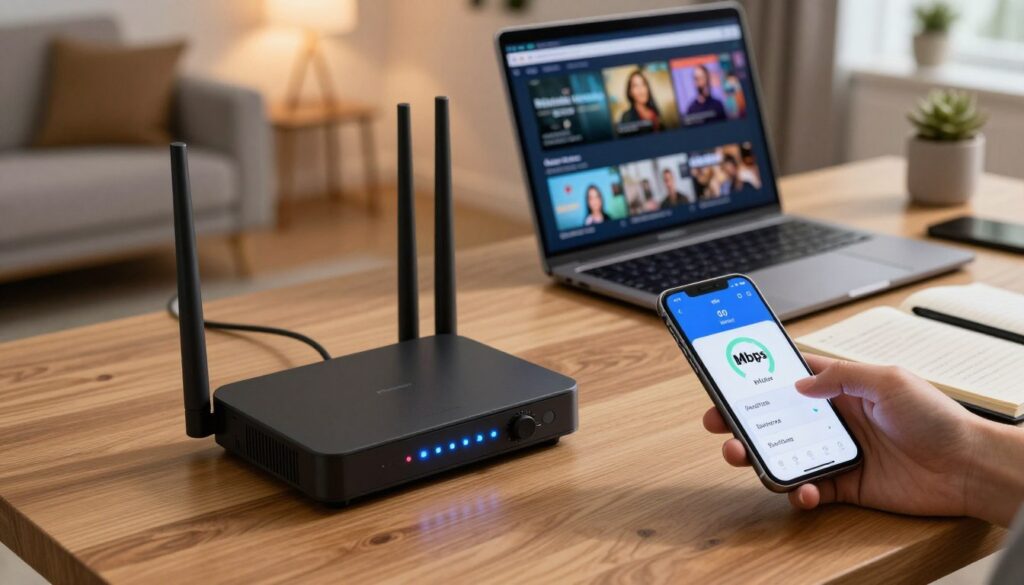
Begin troubleshooting by testing the network where the stream plays; measured data points guide the rest of the steps.
Run a real speed test and note download speed, ping, and packet loss
Use a reliable tester like Ookla on the same device or on a wired internet connection that feeds the TV. Record three numbers: download Mbps, ping (ms), and any packet loss.
“Consistency beats peak numbers—steady delivery matters more than a single high Mbps reading.”
Know the baseline: least Mbps for smooth HD and for reliable 4K playback
Plan for about 10 Mbps per HD stream and roughly 25 Mbps per 4K stream. Add headroom if other devices share the internet or run heavy uploads.
Why “fast internet” on paper can still buffer
Even a high advertised plan can fail due to evening congestion, poor routing to the content server, or busy peering points. Test at different times to spot these patterns.
Run repeat checks in peak and off-peak hours. If your line looks acceptable, the next step is to stabilise the home network and cut packet loss. For a guided test routine try a real speed test and see advanced tips at advanced troubleshooting.
Home Network Fixes That Usually Stop Buffering Fast

A few minutes of network housekeeping at home can make live streams much more stable.
Switch to a wired ethernet connection
If your device supports it, plug into an ethernet connection. Wired links cut interference, lower jitter, and deliver steadier bandwidth for live TV and 4K streams.
After connecting, retest the same channel so you can compare results directly.
Restart your router and clear memory leaks
Unplug the router or modem for about 20 seconds, then plug it back in. Wait for the status lights to stabilise. This often clears glitches and cached errors that harm connection quality.
Stop competing traffic during shows
Pause big downloads, cloud backups, and video calls while streaming. Competing traffic steals bandwidth and causes stalls.
Improve Wi‑Fi position and settings
Move the device closer to the router and away from microwaves or dense electronics to boost signal. Prefer the 5 GHz band if distance allows.
On 2.4 GHz, pick channels 1, 6, or 11 to reduce neighborhood overlap.
“Simple changes—wired connection, a quick router restart, and pausing heavy traffic—deliver the fastest, most reliable gains.”
| Issue | Quick Action | Why it helps |
|---|---|---|
| Unstable play | Use ethernet | Lower packet loss, steadier bandwidth |
| Slow responsiveness | Restart router | Clears memory leaks and resets paths |
| Shared slowdowns | Pause downloads | Frees bandwidth for live streams |
Make one change at a time and retest the same stream. If multiple users watch at once, consider QoS or scheduling to keep service quality steady. For configuration tips, see a short ethernet and router setup guide.
Device and App Performance Checks (Often Overlooked)
Device limits often masquerade as network problems when video playback stutters. Start here after quick network checks to tell whether the issue is decoding or delivery.
Clear the app cache
Why it helps: Clearing the app cache removes corrupted temporary files that cause slow menus and repeated loading loops.
Open the application settings on your streaming device, clear cache, then restart the app. This often improves responsiveness immediately.
Keep software and apps updated
Update the device OS, firmware, and the player app. New releases add codec support and stability that improve video quality and playback.
Watch for high device utilization
If the device feels hot, sluggish, or other apps lag, it may be low on CPU or RAM. That can cause dropped frames that look like network problems.
Try a controlled test: lower the stream quality temporarily. If playback smooths at a lower setting, the device is the bottleneck.
“A brief reboot, a cleared cache, and an app update often fix problems faster than replacing hardware.”
| Symptom | Likely Device Signal | Quick Action | Result |
|---|---|---|---|
| Slow menus / reload loops | Corrupt cache | Clear cache & restart app | Faster app responsiveness |
| Stutter with low CPU | High utilization / heat | Close background apps; cool device | Smoother decoding |
| Works at lower quality | Hardware limit | Test lower bitrate; consider upgrade | Confirms device bottleneck |
Next steps: close background applications, reboot the streaming device, and if problems persist, test the same channel on a newer device. For step-by-step device guidance and support, see the device support tutorial and a short guide to avoid freezes at no-freezing tips.
VPN Troubleshooting for IPTV Buffering, Throttling, and Geo-Restrictions
When your live stream slows only at night, the culprit is often ISP shaping or peak congestion rather than your device.
How throttling looks: if content plays well midday but degrades in the evening, your provider or busy peering points may be shaping traffic.
When a VPN helps — and when it hurts
A VPN can reduce ISP throttling by encrypting traffic so the provider cannot classify streaming packets. That can restore steady playback during peak time.
But a tunnel adds overhead. If a chosen server is far away or overloaded, the VPN will lower speed and increase latency. Test to confirm.
Protocol and server choices that matter
Prefer lightweight protocols like WireGuard when available. UDP-based transports usually offer better throughput for video than TCP on good links.
Pick a server close enough for low latency but not one with high load. Prioritize routing quality and server load over celebrity locations.
Quick test and best practices
- Connect the VPN first, then open the streaming app so the route is set from startup.
- Run the same stream for a few minutes with the VPN on, then off, and note startup time and stalls.
- Enable auto-reconnect and a kill switch to avoid mid-stream dropouts if the tunnel resets.
“During major UK events, avoid congested local servers; try nearby nations with better routing and lower load.”
Provider-Side Causes: When It’s Not Your Network
When major live events draw big crowds, even strong streaming platforms can struggle under the load.
How overloaded servers look in practice
High traffic can saturate a provider’s servers and choke delivery. This happens at peak time or during popular matches and awards shows.
Result: many users see stalled streams or poor playback at the same moment.
How to confirm it’s provider-side, not your home setup
Follow a short workflow to check the source of the issue:
- Check outage and status tools like Downdetector for service reports.
- Test the same channel on multiple devices and networks.
- Try a different stream or channel in the same app to see if only one feed fails.
What you can do next
If the provider is the cause, try an alternate feed, lower quality briefly, or switch to an on-demand replay.
Tip: reputable services invest in capacity planning and redundancy, so choosing a well-managed service reduces these problems and improves viewing experience over time.
Want extra steps? For more hands-on troubleshooting and proven solutions, see this proven solutions.
Conclusion
A calm, measured approach finds the real cause of streaming trouble faster than random changes.
Start with quick triage, then measure the line (speed, ping, packet loss), stabilise your home network, check device/app performance, and only after that test VPN choices or confirm provider congestion. This sequence is the fastest route to lasting solutions.
Key takeaway: most buffering problems come from connection stability, Wi‑Fi or router issues, overloaded devices, VPN routing, or provider capacity — and each needs a different solution.
Make one change at a time and keep the tests you can reproduce. If your network and devices check out but one provider’s feeds fail during peak times, consider a more reliable service. To learn more troubleshooting steps, learn more here.
If you want a legal IPTV subscription, check GetMaxTV’s offer on https://watchmaxtv.com.
FAQ
What does buffering mean for live streams and on-demand video?
Buffering is when the player pauses to load more data so playback can continue. For live streams it often appears as short pauses or stuttering because the stream has less preloaded content. On-demand video usually has a larger buffer, so pauses are less frequent unless download speed or packet loss is high.
How can I tell buffering apart from freezing or lag?
Buffering shows as the player pausing to refill data. Freezing is a sustained halt with no audio or video, often tied to app crashes or device overload. Lag appears as delayed responses—audio/video desync or slow controls—usually caused by high latency or jitter. Each symptom points to different causes, so isolate whether it’s the app, device, or network.
Why is live streaming more sensitive to network jitter and packet loss?
Live streams have smaller buffers to keep latency low, so jitter (variable delay) and packet loss quickly disrupt playback. On-demand services can compensate with larger buffers and adaptive bitrate, but live feeds lack that extra headroom.
What quick checks should I do before changing settings?
Reload the stream and fully restart the streaming app first. Test the same stream on another device to see if the problem follows the network or the device. Also check your provider’s status page or social channels for outages or congestion during big events.
How do I test my internet to see if it’s the issue?
Run a reliable speed test from the device you use for streaming and note download speed, ping, and packet loss. Repeat tests at different times, especially during peak hours, to spot congestion. Low download, high ping, or nonzero packet loss all indicate network problems.
What minimum Mbps do I need for smooth HD and 4K playback?
For consistent 1080p HD plan on at least 5–8 Mbps per stream. For 4K you should aim for 25 Mbps or more per stream. Allow extra headroom if other devices share your network or if your connection shows variable performance.
My plan says “fast internet” but streams still pause — why?
Advertised speeds are peak rates and don’t guarantee low latency or good routing. Congested local networks, ISP throttling during peak hours, poor Wi‑Fi, or distant streaming servers can all cause interruptions despite high headline Mbps.
Will switching from Wi‑Fi to Ethernet help?
Yes. Ethernet provides a stable link with lower latency and no wireless interference, which often resolves inconsistent throughput and improves playback smoothness, especially for live events.
How often should I restart my router or modem?
Restarting once a week can clear memory leaks and refresh connections. If you notice slowdowns or packet loss, a reboot is a good first troubleshooting step. Keep firmware updated to reduce recurring issues.
What home network changes usually stop playback problems quickly?
Reduce parallel traffic like large downloads and cloud backups during viewing. Improve Wi‑Fi by moving closer to the router, switching to 5 GHz for less interference, and choosing cleaner channels. Consider QoS settings to prioritize your streaming device.
Should I clear app cache and update the streaming player?
Yes. Clearing the app cache can remove corrupted data that causes playback errors. Keep the streaming app, device OS, and firmware up to date to ensure efficient decoding and compatibility with newer stream formats.
How do I know if my device is the bottleneck?
Check device CPU and memory during playback. High utilization, overheating, or very old hardware that lacks modern video codecs can choke decoding. Test the same stream on a newer device to confirm.
Can a VPN improve or worsen my streaming performance?
A VPN can bypass ISP throttling or geo-restrictions and sometimes improve routing, but it also adds latency and can reduce throughput if the chosen server is far or overloaded. Use a nearby, high-capacity server and protocol optimized for speed. If problems persist, disable the VPN to compare.
How do I spot provider-side problems versus my home network issues?
If multiple users on different networks report the same channel issues or the provider’s status shows problems, it’s likely server-side. If only your home devices are affected, focus on local network and device troubleshooting. Testing the stream on mobile data can help separate the two.
What should I do during big live events when servers are overloaded?
Try switching to a lower quality stream to reduce needed bandwidth, use Ethernet, close bandwidth-heavy apps, or switch to an alternative official stream or app. If available, select a less crowded server or CDN endpoint offered by the service.
The WatchMaxTV Team is a dedicated group of streaming specialists and entertainment technology reviewers covering IPTV services for viewers in the USA, UK, and Canada since 2023. Our team independently evaluates every service we feature — testing across Smart TVs, streaming sticks, mobile devices, and gaming consoles. We measure stream stability, picture clarity in HD and 4K, program guide accuracy, and customer support quality. Our goal is simple: help cord-cutters find reliable, affordable alternatives to overpriced cable. Every recommendation on WatchMaxTV.com comes from real-world testing — not sponsored content or paid placements.