
Here’s a shocking number for you: by 2026, over 80 million Americans have cut the cord on traditional cable. The average monthly bill had climbed to a staggering $147. At the same time, streaming services now represent 47.5% of all TV viewing.
This isn’t just a trend; it’s a fundamental shift in how we watch. People are demanding better value and more control over their entertainment. This is where Internet Protocol Television, or IPTV, shines as a powerful alternative.
Unlike old-school satellite or cable, this technology delivers programming directly through your internet connection. It brings high-quality digital shows and movies right to your smart TV, phone, or tablet.
With this great control comes an important responsibility: making sure everyone can enjoy the content. Whether for clarity in a loud room or for accessibility needs, managing on-screen text is a crucial part of the modern viewing experience.
This guide is designed to give you that control. We’ll walk you through the simple steps to configure your settings. You’ll learn how to tailor every show to your personal preferences for a perfect, inclusive experience.
Key Takeaways
- Massive cord-cutting has reshaped the TV landscape, with streaming dominating viewership.
- Internet-based television offers a modern, cost-effective alternative to cable.
- This technology provides superior control over what you watch and how you watch it.
- Ensuring an accessible experience for all viewers is a top priority in the streaming age.
- Simple adjustments can personalize your entertainment to fit your needs perfectly.
- Understanding your service’s interface is the first step to unlocking its full potential.
Understanding the Role of IPTV subtitles closed captions
The on-screen text you see is more than just a translation tool. It’s a vital feature for clarity and accessibility in your home.
Whether you need help following dialogue or want to watch quietly, these text options are essential. They turn any show into a personalized experience.
What Are Closed Captions and Their Importance?
Closed captions are text supplements that display over the video. They include dialogue and important sound descriptions.
This feature is crucial for an inclusive viewing experience. It helps in loud rooms or for those with hearing preferences.
You can usually turn them on through your service’s settings or playback menu. This ensures everyone enjoys the content.
Internal vs External Text Formats
Not all on-screen text works the same way. Understanding the format helps you manage it better.
Internal text is built directly into the video stream by the service. External files are separate and added by your device or app.
Knowing about different captioning types makes setup easier. Your device software must support the format for seamless playback.
| Feature | Internal (Built-in) | External (Separate File) |
|---|---|---|
| Source | Part of the original video stream | Added as a separate file (e.g., .srt, .sub) |
| Flexibility | Fixed; set by the channel or service | Customizable; you can choose different files |
| Common Use | Live TV and major streaming platforms | Personal media libraries and some apps |
| Format Type | Typical Extension | Primary Use Case |
|---|---|---|
| Ttxt | .ttxt | Teletext-based subtitles |
| DVB | N/A (Broadcast) | Digital Video Broadcast standards |
| PGS | N/A (Blu-ray) | Blu-ray subtitle graphics |
| Srt | .srt | Simple, widely-compatible text files |
| Sub | .sub | Subtitle file with timing data |
Step-by-Step Guide to Enabling Subtitles on Your IPTV Device
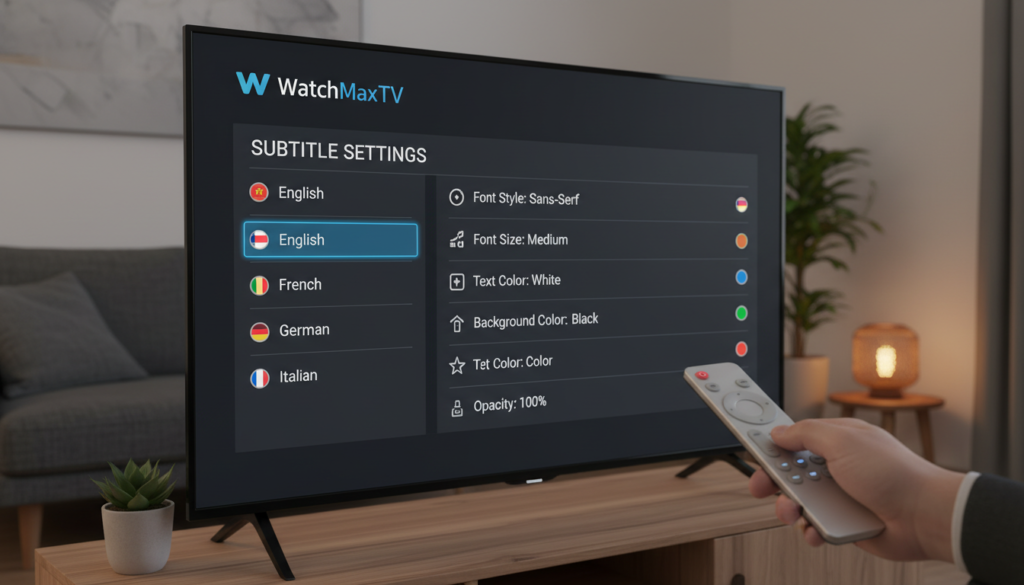
The power to customize your entertainment lies within your device’s menus. This guide will walk you through the simple process to turn on and adjust your on-screen text.
You can make every show fit your personal needs. Let’s get started.
Accessing Subtitle Settings on Various Devices
Finding the right menu is the first step. On a smart TV, look for a “Settings” or “Options” button on your remote during playback.
For streaming boxes, the path is often under “Accessibility” in the main settings. Media player software like Kodi has a dedicated Player Settings menu.
Here is a quick reference for different hardware.
| Device Type | Typical Menu Path | Key Notes |
|---|---|---|
| Smart TV | Playback > Settings > Accessibility | Options may be under a dedicated “CC” button on some remotes. |
| Streaming Box | Settings > System > Accessibility | Look for “Captions” or “Subtitles” in the system-wide settings. |
| Media Player (Kodi) | Settings > Player > Language | Adjust font style, size, and color here for full control. |
| Mobile App | Tap the screen > Settings icon > Subtitles | Often found in the playback overlay menu. |
Configuring Preferences for Optimal Playback
Once you find the options, you can fine-tune them. First, select your preferred language from the list.
If the text seems out of sync, use the slider tool. This fixes timing issues between audio and screen text.
Checking your device compatibility ensures all features work. Visit your service‘s website for details.
These small adjustments create a perfect streaming experience. You ensure wide availability of channels is fully enjoyable.
Optimizing Your Streaming Experience with Customized Subtitle Settings

Fine-tuning your on-screen text transforms a good stream into a great one. It’s all about personal comfort and crystal-clear clarity for your home viewing.
Most apps give you powerful tools to adjust how text appears. You can make every show fit your eyes and your room’s lighting perfectly.
Adjusting Font Size, Color, and Background
Dive into your app’s settings or playback menu. Look for the accessibility or language section.
Here, you can change the font size for easy reading. You can also pick a color that stands out against any scene.
Adjusting the background opacity helps text pop without blocking the action. The best part? These changes use almost no extra data.
Formats like SRT add a tiny 1-2KB per minute to your stream. This means a highly efficient and customized experience.
Troubleshooting Common Subtitle Issues
Sometimes text doesn’t show up. First, check your device settings are on for that specific channel.
If words lag behind the audio, use the sync option in your menu. A simple slider can fix the timing.
Always ensure compatibility between your streaming devices and your service. This prevents most playback problems.
These steps solve the most common issues. They keep your screen text reliable and your viewing smooth.
Why Choose WatchMaxTV
Your home entertainment deserves a platform built for performance and support. WatchMaxTV stands out as a premium choice designed for your needs.
Premium Features and 24/7 Support
This service delivers an incredible selection right to your screen. You get over 21,000 live channels and 97,000 VOD titles in crisp HD and 4K.
With a 99.9% uptime guarantee, your streaming is reliable. If you ever need help, their 24/7 WhatsApp support team resolves any questions fast.
Experience Unmatched Quality with WatchMaxTV - Learn More
You can try everything risk-free with a 24-hour trial. Plans start at just $6.95 per month and include a 30-day money-back promise.
It works on all your favorite devices like Fire TV, Roku, Apple TV, and Smart TVs. This wide compatibility means you enjoy your preferred content anywhere.
You have full control over your viewing experience. For a detailed setup guide on text settings and accessibility options, visit the WatchMaxTV website.
Conclusion
Taking charge of your viewing setup unlocks a new level of personal comfort and clarity. By mastering the use of on-screen text, you ensure every show is accessible and enjoyable for all viewers.
Adjusting your preferences in the settings menu guarantees your preferred language is always available. Whether you’re fine-tuning font size or syncing timing, you now have complete control over your media.
For a seamless experience, choose a reliable service that supports these features across all your connected devices. You can find more detailed guidance on customizing your setup by visiting this helpful resource.
We hope this guide empowers you to create a more inclusive and personalized streaming environment at home.
FAQ
Why are closed captions important for my viewing?
They are crucial for accessibility, helping viewers who are deaf or hard of hearing enjoy content. They also boost comprehension in loud environments and are fantastic for learning new languages while watching your favorite shows.
What’s the difference between internal and external subtitle files?
Internal files are embedded directly into the video stream by the broadcaster. External files, like .srt or .sub, are separate and loaded by your app. Compatibility with external formats depends on your specific streaming software and device.
How do I find the caption menu on my device?
The process varies. On most smart TVs and set-top boxes, look for a “Settings” or “CC” button on your remote during playback. In mobile and computer apps, the option is usually in the on-screen menu, represented by a speech bubble or gear icon.
Can I save my preferred text settings?
A> Yes, many modern apps and devices allow you to configure default preferences. Once you adjust the font, color, and position in the settings panel, these choices should apply to future content playback, creating a consistent experience.
How can I fix subtitles that are out of sync?
First, try restarting the stream or checking for a manual sync offset in your app’s settings. If the problem persists, it might be an issue with the broadcast source. Contacting your service provider’s support team is often the best next step.
What makes WatchMaxTV a good choice for this?
A> WatchMaxTV offers robust support for multiple caption formats and provides easy-to-access controls directly in its player. Combined with a vast content library and reliable 24/7 customer service, it ensures a smooth and inclusive streaming experience right from your home.
The WatchMaxTV Team is a dedicated group of streaming specialists and entertainment technology reviewers covering IPTV services for viewers in the USA, UK, and Canada since 2023. Our team independently evaluates every service we feature — testing across Smart TVs, streaming sticks, mobile devices, and gaming consoles. We measure stream stability, picture clarity in HD and 4K, program guide accuracy, and customer support quality. Our goal is simple: help cord-cutters find reliable, affordable alternatives to overpriced cable. Every recommendation on WatchMaxTV.com comes from real-world testing — not sponsored content or paid placements.