Ever wondered whether your home setup will keep live channels smooth during game night?
This guide cuts through marketing numbers to match real viewing needs. It defines what “internet speed for IPTV” means in 2025: not just a higher number, but matching HD or 4K needs and how many devices stream at once.
Expect practical advice: stable HD often runs well at about 15–25 Mbps, while 4K UHD usually needs around 40–50+ Mbps. But raw numbers matter less than stability, wired Ethernet use, and testing during prime hours.
We’ll help you avoid overpaying for a tier you don’t need and avoid constant buffering when you replace traditional cable or add a streaming television option. Brief note: review GetMaxTV later if you want a legal IPTV subscription option.
Key Takeaways
- Match Mbps to resolution and concurrent streams, not marketing claims.
- Wired Ethernet is typically more stable than Wi‑Fi for live channels.
- Test at peak hours to see real performance under load.
- Provider infrastructure and Wi‑Fi quality affect viewing as much as numbers.
- This guide aims to help you choose wisely without overspending.
Why internet speed matters for IPTV streaming quality
Smooth playback depends as much on steady throughput as on headline download numbers. A plan that shows a high peak can still produce pauses when small drops occur during live viewing.
Speed vs stability: why Mbps alone doesn’t prevent buffering
Throughput (the Mbps you get over time) must stay steady. Brief dips can trigger buffering even with a high advertised rate.
Latency and jitter matter too: responsiveness affects channel changes and live timing. Packet loss can cause stutters and audio/video desync.
How live channels and VOD stress your connection differently
Live channels behave like real-time feeds. They tolerate less buffering because there’s little opportunity to pre-load data. VOD can fill a buffer ahead and mask minor hiccups.
| Factor | Effect on Live Channels | Effect on VOD | What to watch for |
|---|---|---|---|
| Throughput consistency | High impact: drops cause rebuffering | Moderate: buffer can hide short dips | Picture freezes or lower resolution |
| Latency / jitter | Affects sync and live timing | Less visible unless severe | Audio lag, delayed live action |
| Household load | Concurrent streams increase risk | May still work if VOD buffers early | Slowdowns during prime-time use |
Typical symptoms include resolution drops, freezing in fast scenes, or sound out of sync during a live channel. Many problems show up at prime time when neighbors share the same node or when many devices stream at once.
- Next you’ll see practical Mbps targets for HD and 4K.
- Then a simple connection checklist and a short testing routine.
- Finally, tips on choosing a stable service and device setup.
For a deeper look into provider-side quality and testing methods, check the IPTV quality guide.
best internet speed for iptv canada: the quick Mbps targets for HD, 4K, and multi-stream homes
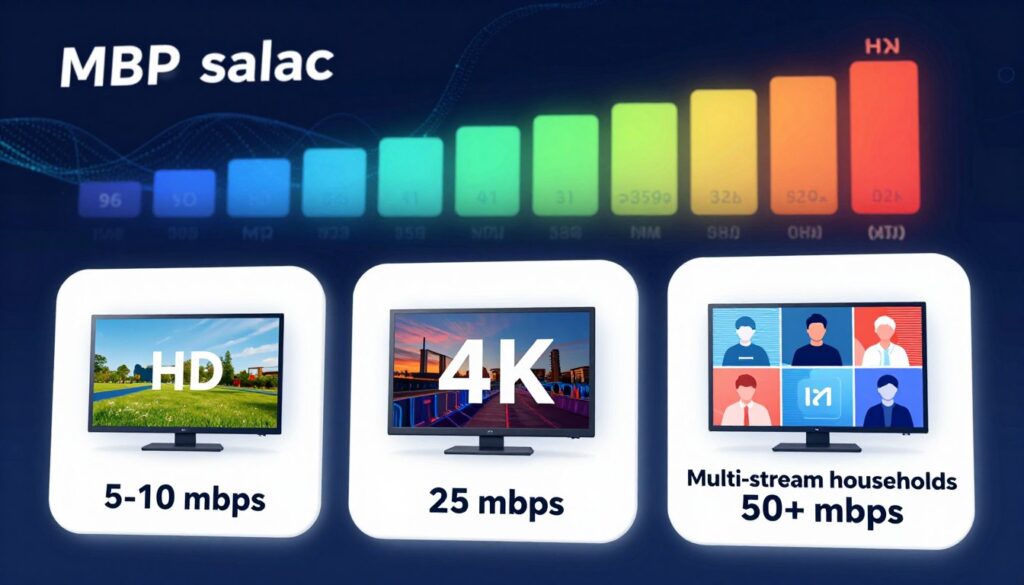
Start with clear download targets so you buy a plan that matches how your household actually watches live channels.
HD streaming recommendation based on real-world ranges
A single HD stream usually needs about 15–25 Mbps. Aim for the upper end if you rely on Wi‑Fi or expect neighbors to load the same local node.
4K UHD streaming recommendation and the “headroom” rule
4K often needs roughly 40–50+ Mbps. Use the headroom rule: if a feed requires 25 Mbps, pick a plan that reliably delivers more than that at peak times so short drops don’t trigger buffering.
Multiple devices at once: estimating bandwidth per concurrent stream
Estimate per concurrent stream: HD ≈ 20 Mbps, 4K ≈ 45 Mbps. Add 10–20% extra for background updates, phones, and smart home devices.
What to aim for if you also game, work from home, or video call
For mixed-use households, add another 20–30 Mbps to cover gaming and video calls during prime time. Sports viewers should add extra margin: live sports demand low jitter and less buffering.
| Use case | Safe target (with headroom) | Why |
|---|---|---|
| One HD stream | 25–35 Mbps | Wi‑Fi variability and device updates |
| One 4K stream | 50–65 Mbps | Compression and scene complexity |
| Multiple streams (2–4) | 40–120 Mbps | Sum of streams + background load |
Value tip: buy the tier that meets your household peak, not the highest advertised number. That keeps cost reasonable and the viewing experience steady.
HD vs 4K IPTV: what changes in data usage, compression, and buffering risk

Moving up to 4K affects more than picture detail — it alters bitrate needs and how your network behaves under load.
What actually changes: 4K requires higher bitrates, so files are larger and more sensitive to Wi‑Fi interference. That raises the chance of quality drops during congestion.
Why “4K available” doesn’t always mean “4K stable”
Not all 4K labels are equal. Encoding, bitrate and the source feed determine how a stream looks and plays. Two 4K channels from different providers may behave very differently.
Compression choices can hide or reveal detail. A heavier compression keeps data low but may add artifacts. A higher bitrate keeps clarity but needs steady throughput.
When 1080p is the better value for your plan and household
Choose 1080p if your TV is small, you share many concurrent streams, or the price to upgrade your plan outweighs the quality gain.
- Movies and high‑budget shows benefit most from true 4K detail.
- News, talk, and many live channels gain less from higher resolution.
- Prioritize stability over resolution for live sports and big events.
Practical tip: verify a provider’s real 4K consistency and pick the resolution that gives the best overall value and viewing experience. If you want to review a legal option, see the GetMaxTV review.
Connection quality checklist: latency, packet loss, and Wi‑Fi strength

When channels must update instantly, latency and packet loss become the real spoilers. Use this short checklist to find and fix the network issues that cause freezes during sports and live channel changes.
Acceptable latency for smooth channel switching and live sports
Latency is the time a packet takes to travel. Aim for ping under 40 ms for smooth channel changes and under 30 ms for competitive sports viewing.
Packet loss and jitter: the hidden causes of freezing
Packet loss drops bits of the stream and shows as stutter or frozen frames. Keep loss below 1% to avoid visible issues.
Jitter is variation in packet arrival. High jitter makes playback inconsistent even when average throughput looks fine.
Wi‑Fi signals, interference, and router placement that impact IPTV
Place routers in open areas, avoid metal cabinets, and prefer 5 GHz or 6 GHz bands near the main TV device. For large homes, use a mesh system to keep signal strength steady in living and den rooms.
Ethernet vs Wi‑Fi: what to use on your main TV device
Ethernet is the most reliable choice for a main TV or streaming box. If you use a smart TV app, a dedicated box on wired Ethernet usually gives better, more consistent results.
| Issue | Quick test | Fix |
|---|---|---|
| High ping | Run ping to provider (ms) | Restart router, try wired connection |
| Packet loss | Run continuous ping or traceroute | Check cabling, update firmware, contact service |
| Weak Wi‑Fi | Signal meter at TV location | Move router, change band, add mesh node |
Quick tip: if streams buffer despite good numbers, test during peak hours and try a wired box. For a guide to regional channel options, see the regional channels guide.
How to test your internet for IPTV before you buy a plan
Before you sign up, run tests that mirror your evening viewing routine. Short, repeated checks reveal the real picture during peak hours and help you pick a matching plan.
Run tests at peak hours to match real viewing conditions
Test during two prime-time windows over several nights: early evening and late evening. Each run should last several minutes to capture fluctuations.
Use the same device and the app or box you will stream on. If you plan to use Ethernet, test wired; if you will rely on Wi‑Fi, test on Wi‑Fi.
What to record: download, upload, ping, and consistency
Log these values each run: download (Mbps), upload, ping/latency, and any variance across runs.
Note the time and whether other devices were active. Consistent numbers beat a single high peak.
How to interpret results if streams buffer despite “fast” numbers
If streaming still buffers, look for these causes: wide speed swings, ping spikes, packet loss, or crowded Wi‑Fi channels.
Contact customer support if tests show packet loss or large jitter. Tell them the test times, average numbers, and which device you used.
- Step-by-step quick routine:
- Record baseline daytime test (wired and Wi‑Fi).
- Run three evening tests over 2–3 nights at peak hours.
- Log download, upload, ping, and consistency; note app/device used.
- Compare results to needed mbps for your streams; if borderline, choose the next tier up.
| Metric | Good target | What to watch | Action |
|---|---|---|---|
| Download | Match expected mbps for stream | Large dips between runs | Test wired; consider higher plan |
| Ping | <40 ms | Spikes during channel changes | Restart modem/router; contact customer |
| Packet loss / jitter | <1% | Stutter, audio/video sync issues | Check cabling, change Wi‑Fi channel |
| Consistency | Stable across hours | Wide variance at peak hours | Consider a different service or tier |
Quick buyer tip: if your evening tests are borderline, pick the higher plan. Real-world hours matter more than lab numbers.
Choosing an internet plan and service provider for IPTV in the US
“Smart shoppers look past headline offers and total the real monthly cost.” That keeps you focused on long-term value, not just a flashy number.
Start by matching a plan to your stream count and resolution. One 4K feed needs more headroom than several HD streams. Pick the tier that covers peak-hour demands for all active devices.
Pick the right tier: avoid underbuying or overpaying
Estimate concurrent streams, then add 20–30% for background apps and updates. If you stream sports or host guests often, choose the safer tier rather than the bare minimum.
Data caps, equipment fees, and true monthly price
Advertised prices often omit modem or router rental, installation, and promo expiration jumps.
Watch data caps on some cable and satellite-style plans; heavy 4K viewing can hit monthly limits and trigger extra charges.
ISP throttling: when a VPN helps — and when it won't
Throttling usually looks like sharp drops at peak times or sluggish channel changes. A VPN can mask traffic shaping by some providers and help with privacy.
But a VPN won’t fix weak Wi‑Fi, poor wiring, or an overloaded provider node. It also adds latency, which can hurt live viewing.
| Question | What to check | Why it matters |
|---|---|---|
| Peak performance | Provider’s real-hour tests | Shows consistency, not just peak numbers |
| Contract & fees | Promo end date, modem fees | Prevents surprise price hikes |
| Upgrade path | Easy tier changes | Gives flexibility as needs grow |
- Test peak-hour performance from your home.
- Confirm total monthly price including equipment and promos.
- Ask providers about caps, throttling policies, and upgrade options.
“The right plan delivers steady performance at the best long-term value — not the biggest number on the flyer.”
When comparing service providers, focus on steady delivery, transparent prices, and clear upgrade paths. If you want a deeper guide to selecting a provider, see this provider selection checklist.
Device and app setup that improves IPTV performance
Small, focused changes to your device and app often deliver the biggest improvements in playback. Start with the gear you already own and test one change at a time.
Smart TV vs streaming box vs Fire TV: what’s most reliable
Built-in smart TV apps are convenient but may crash or lack codec support. A dedicated box or Fire TV-type device usually gives faster navigation, fewer crashes, and better codec compatibility.
In practice, that means smoother channel changes and fewer missing frames during complex scenes.
IPTV Smarters and player settings that reduce playback issues
If you use IPTV Smarters Pro, try an external player engine or change the internal player in the app settings.
Adjust buffer sizes where available, keep EPG/time settings correct, and test playlist formats. These tweaks often fix stutter without swapping service or device.
Home network upgrades that matter most for 4K streaming
Wired Ethernet to the main box is the best single upgrade. If wiring isn’t possible, add mesh Wi‑Fi nodes to remove dead zones.
Also consider a modern router with better 5 GHz or 6 GHz support and reduce interference by moving other electronics away from the router.
“A modest device upgrade often costs less than jumping to a much higher plan and speeds up fixes immediately.”
Quick maintenance routine: update the app and device firmware, restart the router weekly, and close background apps on streaming devices. If tests are needed, run an accurate speed test during prime hours.
Speed is only half the equation: how IPTV provider quality impacts buffering
Provider architecture and routing choices shape playback more than raw numbers do. Two homes with identical plans may see different results because servers, routing, and node load vary by provider.
Independent testing: uptime and real-world stability
Independent tests (Sept–Dec 2025) across 15+ services and 300+ hours found uptime from 99.2% to 99.9%. Buffering events ranged about 0.2–0.6 per hour. Startup times averaged roughly 1.8–3.0 seconds over 90-day evaluations.
Support responsiveness: why minutes matter
When a channel goes down, quick help reduces lost viewing. Tested response times varied from ~4 minutes to ~1 hour. Fast customer response can restore access during big sports or breaking news.
What to check in servers and routing
Look for North American servers, low-latency routing, and clear load balancing. These elements cut buffering and shorten startup time during peak hours.
Buyer checklist and legality
- North American servers and clear routing
- Transparent policies and realistic channel claims
- Stable EPG and steady performance at peak time
- Responsive customer support with short ticket hours
Note: the technology itself is legal, but choose a service that is open about licensing and access. If you’re comparing options and want to review a legal subscription, you can check GetMaxTV’s offer here. For a technical reference, see detailed routing analysis.
“Even small uptime differences can add up to many hours of lost viewing across a year — choose a transparent provider that prioritizes reliable delivery.”
Conclusion
Pick headroom, not hype. Match your plan to real use: HD usually runs well around 15–25 Mbps, while 4K needs about 40–50+ Mbps plus margin. Prioritize stability—wired Ethernet and a solid router beat a higher number that dips at peak.
Remember: buffering is rarely one cause. Your home network, device choices, and provider reliability all shape the viewing experience. Test during evening peak hours and record consistent results rather than trusting a single screenshot. For a practical testing checklist, see this guide on measuring streaming quality: test your setup.
If you’re cutting the cord from traditional cable or satellite, choose the resolution and plan that give the most value for your household. Sports fans should favor extra headroom to avoid hiccups during live action. If you want a legal IPTV subscription, check GetMaxTV’s offer at GetMaxTV.
FAQ
Why does connection quality matter for IPTV streaming?
A stable connection reduces buffering and channel drops. Low latency, minimal packet loss, and steady throughput keep live sports and shows smooth. Even with high throughput, poor stability will cause pauses and pixelation.
How do throughput and stability differ when watching live channels versus VOD?
Live channels need consistent, real-time delivery, so low latency and steady rates matter most. Video on demand is more forgiving because buffering and adaptive bitrate can mask short drops. Live sports are the most sensitive to hiccups.
What range should I target for HD streaming in a typical home?
Aim for a range that provides enough headroom above a single HD stream. This helps avoid interruptions when other devices use the network. Prioritize a plan that delivers consistent performance during prime viewing hours.
What should I plan for if I want 4K UHD channels to work reliably?
4K needs higher sustained throughput and better headroom. Pick a tier that covers peak demands plus extra capacity for other active devices. Also check codec and bitrate used by the service; 4K from modern codecs can use less bandwidth than older formats.
How many concurrent streams can I support at once?
Estimate bandwidth per stream and multiply by simultaneous viewers, then add headroom for other activities. Remember gaming, video calls, and downloads all draw capacity. If multiple TVs run HD or 4K at once, choose a higher tier or wired connections.
What if I also game or work from home while streaming TV?
Reserve extra capacity for low latency tasks like gaming and video conferencing. Prioritize wired connections or quality of service settings on the router to reduce interference with live video playback.
Why does “4K available” sometimes still buffer?
The label means the provider can deliver 4K, but sustained throughput, codec efficiency, router performance, and server routing all affect stability. If any link in the chain struggles, playback will degrade despite advertised availability.
When does 1080p make more sense than 4K?
If your display is smaller, your viewing distance reduces the benefit of 4K, or your network is shared heavily, 1080p offers a better value. It uses less data, needs less headroom, and often delivers more consistent playback.
What latency is acceptable for smooth channel changes and live sports?
Keep ping times low and consistent. Lower latency helps with quick channel switching and live synchronization. High or variable latency can introduce delays or momentary freezes during fast scene changes.
How do packet loss and jitter affect IPTV?
Packet loss leads to dropped frames and stuttering. Jitter causes uneven delivery that forces the player to rebuffer. Both are often invisible in a speed test but show up as playback issues; solving them usually involves network diagnostics or router upgrades.
How important is Wi‑Fi placement and interference?
Very important. Walls, appliances, and neighboring networks can weaken signals. Place your router centrally, avoid crowded channels, and consider 5 GHz for shorter-range, high-bandwidth needs. A mesh system helps large homes.
Should I use Ethernet or Wi‑Fi for my main TV device?
Use Ethernet when possible. It provides the most consistent throughput and lowest packet loss. If Wi‑Fi is your only option, use the fastest band, keep the router nearby, and minimize interference for reliable playback.
How do I test my service under real viewing conditions?
Run tests during peak streaming hours and record download, upload, ping, and consistency over time. Repeat tests on both Wi‑Fi and wired connections. That gives you a realistic picture of what your IPTV service will handle.
What should I record during speed tests?
Note download and upload rates, ping, variance in results, and any packet loss. Check results at different times of day, and test directly on the device you use for watching to capture real-world performance.
My tests look fast but streams still buffer—what next?
Check for packet loss, jitter, and router CPU limits. Test via Ethernet, update firmware, and close background apps that use bandwidth. If issues persist, contact your provider about routing or server-side problems.
How do I pick the right plan and ISP without overpaying?
Match the tier to your household’s concurrent viewing and other online activities. Factor in equipment fees, data caps, and promotional periods. Choose a provider with good uptime and local routing to minimize buffering risk.
Do data caps or modem fees affect my viewing costs?
Yes. Caps can lead to overage charges if you stream a lot of HD or 4K. Rental fees for modems or routers add recurring costs. Factor these into the total monthly price when comparing plans.
What about ISP throttling—can a VPN help?
Throttling can degrade streaming. A VPN may mask traffic and help in some cases, but it adds overhead and may reduce performance. Check your ISP’s policies and test with and without a VPN before committing.
Which devices offer the most reliable playback: Smart TV, streaming box, or Fire TV?
Dedicated streaming boxes and media players often give the best performance thanks to optimized apps and regular updates. High-end smart TVs can work well, but older models may lack processing power or updated apps.
How can IPTV Smarters or player settings reduce issues?
Adjust buffer size, choose adaptive bitrate options, and enable hardware acceleration if available. Keep apps updated and select codecs or quality presets that match your connection for smoother playback.
What home network upgrades matter most for 4K streaming?
Upgrade to a modern router, use wired Ethernet where possible, and consider a mesh Wi‑Fi system for large homes. Ensure your router supports current Wi‑Fi standards and has sufficient processing power for multiple streams.
How much does IPTV provider quality affect buffering?
Provider infrastructure plays a big role. Good providers use reliable servers, robust North American routing, and redundancy to reduce dropouts. Even with a solid home setup, poor provider networks will cause issues.
What should I look for in provider support and reliability?
Look for transparent uptime stats, quick support response, and clear policies. Providers that document their server locations, peering arrangements, and service levels typically offer better real-world stability.
Why is legal access and transparency important when choosing a service?
Legal services protect you from takedowns, unstable servers, and sudden shutdowns. They also provide clear subscription terms, support, and reliable content libraries—important for long-term value and peace of mind.
Where can I find a legal IPTV subscription option to review?
For viewers seeking legal IPTV subscriptions, one option to review is GetMaxTV at https://watchmaxtv.com. Always verify terms, channel lineups, and device compatibility before subscribing.