
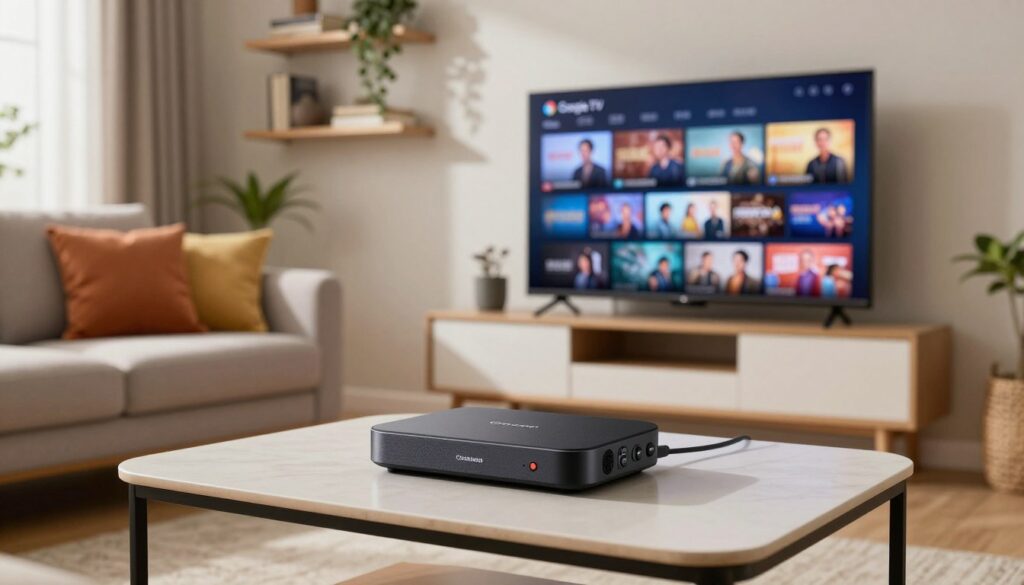
Curious how you can turn a small streaming device into a full live-TV hub? This guide shows how using an IPTV app and a playlist lets you watch live channels and on-demand content on a Chromecast with Google TV device.
You’ll learn two main ways to watch: casting from a phone or installing apps directly on the device. I’ll cover app selection, playlist setup, and simple fixes to improve streaming quality.
Many U.S. users prefer this setup as a flexible alternative to cable. The familiar remote-based interface and app ecosystem make it easy to navigate channels and apps.
GetMaxTV is mentioned as an example of a legitimate subscription to consider when evaluating services. Remember: IPTV players usually don’t host content; users must choose authorized providers.
Next up: prerequisites, app selection, step-by-step casting, Google TV interface options, buffering fixes, VPN notes, and legal use. For a practical install walkthrough, see this guide on setting up the service on your device: install IPTV on Google TV.
Key Takeaways
- Two viewing options: cast from mobile or run apps on the device.
- Pick apps that support playlists, EPG, and reliable playback.
- Stable home network and correct playlist setup are crucial for quality.
- Evaluate legal subscription brands like GetMaxTV before buying.
- This guide walks through setup, troubleshooting, and responsible use.
What You Need Before You Start Streaming IPTV on Chromecast with Google TV
Get your hardware and network in order first so setup goes smoothly. A few minutes of prep prevents the most common problems and makes initial setup painless.
Device basics and how it differs from old casting
This device runs a full Google TV interface and can install apps directly. That means you can browse, install, and control playback with the remote instead of relying only on casting from another gadget.
Casting still works, but you also gain a standalone media center that does not need a phone to play channels.
Network requirements for stable streaming in the U.S.
Aim for a solid broadband plan and consistent Wi‑Fi near the TV. For HD, plan on at least 10–15 Mbps per stream; for 4K allow 25 Mbps or more.
Keep the router close to the device and avoid thick walls or heavy interference for best quality.
Subscription details and playlist info to have ready
Have your subscription credentials and playlist details on hand. That means an M3U playlist URL or file, or Xtream Codes username, password, and server URL depending on the app you choose.
Use a mobile device or tablet during setup if you plan to cast; make sure it’s updated and on the same network as the streaming device.
- Quick home checks: move the router, reduce congestion, and keep the device clear of interference.
- Common connectivity issues like dropouts and buffering usually trace back to Wi‑Fi or placement, not the streaming service.
- Store account details securely—use a password manager to protect subscription credentials.
For a practical walkthrough on installing a playlist and service options, see this helpful setup guide: setup guide for the service.
Choosing the Right IPTV App for Chromecast with Google TV
A well-chosen playback app makes browsing and watching streams much easier. Start by matching an app to your playlist type and how you want to browse channels. A simple interface helps if you use the remote. Advanced options matter if you tweak codecs or subtitles.
Must-have features
Category lists and a favorites list speed up channel access. Look for SRT and VTT subtitle support so captions work on casted streams.
Light/dark themes, sleep mode, and a clean interface reduce friction when scrolling large libraries.
Playback and compatibility
A built-in player is convenient, but external player support improves codec handling and subtitle control.
Confirm explicit support for Chromecast and DLNA. Apps offering a special compatibility mode often avoid black-screen or codec issues on some platforms.
Supported formats
Choose apps listing broad format support: HTTP, M3U8, RTSP, RTMP, and MPD. Wider support lowers the chance a stream will fail.
| Feature | Why it matters | What to test | Outcome |
|---|---|---|---|
| Category & Favorites | Faster navigation | Save a favorite channel | Quick access to frequent channels |
| Subtitle formats | Accessibility and foreign-language shows | Load SRT on a live stream | Captions display correctly |
| External player support | Better codec handling | Play via external app | Stable playback, fewer errors |
| Privacy disclosure | Data safety and transparency | Check listing for “No data collected” | Clear developer practices |
Read app listings closely. Seek clear statements about data collection and the common “no content included” disclaimer. Player apps are tools; you must supply authorized streams. For a step-by-step support walkthrough, see this support tutorial.
How to Set Up iptv chromecast with google tv Using Casting From a Mobile Device
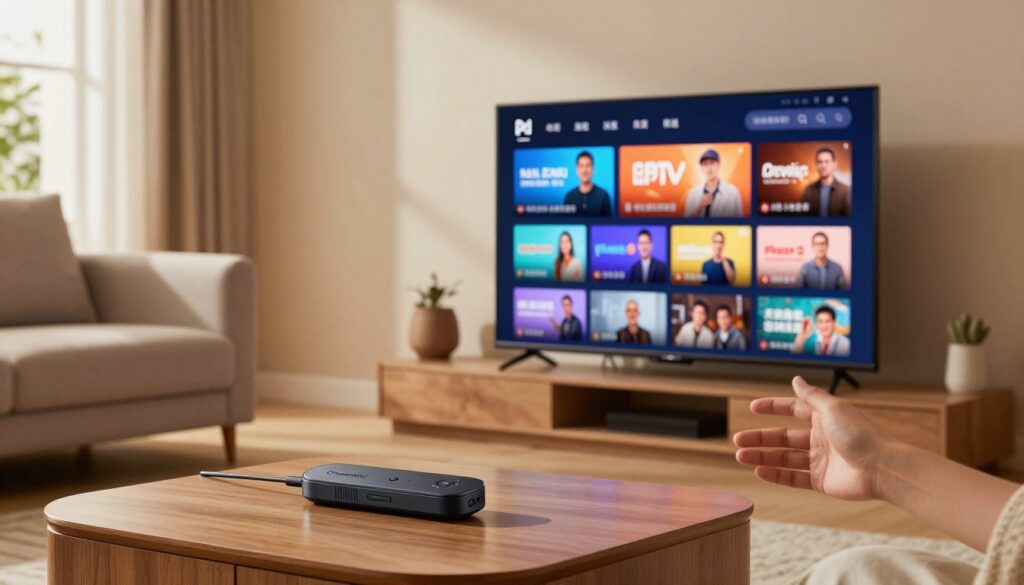
Casting from your phone is the quickest way to get live channels onto your big screen. Follow the short steps below to stream movies, shows, or live video from a compatible app on your mobile device.
Install and prepare
Step 1: Download an app on your phone or tablet that explicitly supports casting. Add your M3U URL or provider credentials so the app can load channels.
Connect to the same network
Step 2: Make sure your Chromecast and mobile device are on the same Wi‑Fi. This allows device discovery and stable streaming. If the app can’t find the player, temporarily disable cellular data.
Cast and control
- Open the app and pick a channel, movie, or show.
- Tap the Cast icon (usually near the top of the app UI).
- Select your Chromecast device from the list and wait for the video to appear on the TV.
Use your phone or tablet as a remote to pause, change channels, or switch shows. If casting fails, restart Wi‑Fi, reboot the device, or try a lower quality stream.
For a complete mobile walkthrough and extra setup tips, see the mobile setup guide.
Alternative Setup: Watching IPTV Through Google TV Apps and the Google TV Interface

The platform’s unified interface lets you scan titles and live feeds from multiple apps in one place. That means your preferred device becomes a single hub for finding entertainment instead of juggling separate services.
Browse across apps: The home page gathers recommendations and search results from installed apps. When you select a show, the system opens the correct app for playback. This reduces app-hopping and speeds up daily use.
Profiles, recommendations and watchlist
Create personal profiles so watch history and suggestions stay separate. Each profile builds a tailored library and lets you save movies and shows to a central watchlist you can access over time.
Voice search and remote tricks
Use the voice remote to find a title across supported apps and live channels faster than typing. For easier logins and text entry, open the Google TV app on your phone and use it as a virtual remote and keyboard.
| Feature | Why it helps | When to use | Result |
|---|---|---|---|
| Unified home page | One place for discovery | Large content libraries | Less time switching apps |
| Profiles & watchlist | Keeps suggestions relevant | Shared households | Cleaner recommendations |
| Voice search | Faster content find | Quick lookups or live channels | Fewer keystrokes, faster play |
| Phone app remote | Keyboard and touchpad | Entering account or playlist info | Smoother setup and control |
Quick decision guide: If you often explore a large library of movies and shows, the built-in apps approach saves time. If you mainly open a few channels, casting from a phone may be simpler. For a practical navigation tip and gestures guide, see this remote control walkthrough: remote gestures and touchpad navigation.
Improve Streaming Quality and Reduce Buffering on Chromecast with Google TV
Small tweaks to Wi‑Fi and app settings often stop the most common playback interruptions.
Prevent common connectivity problems
Common causes: weak Wi‑Fi at the TV, poor router placement, 2.4 GHz interference, and household network congestion can cause buffering and playback issues.
Try moving the router more centrally, elevating it, and keeping it away from metal cabinets and the TV. Use 5 GHz when it is stable and reboot the router when problems start suddenly.
Simple testing routine
Test multiple channels, then try the same stream at a different time of day. If only one platform or format fails, the issue is likely service-side. This helps isolate network versus platform problems.
When a VPN helps — and what to expect
A VPN can protect privacy on shared networks, and may reduce ISP throttling that causes buffering during peak hours. Expect a small speed hit from encryption; the goal is steadier playback rather than higher peak speed.
Practical tips: pick a nearby server for lower latency, switch servers if performance drops, and enable the VPN on the router or device only when needed to keep setup simple.
| Problem | Quick fix | When VPN helps | Viewer result |
|---|---|---|---|
| Weak Wi‑Fi | Move/elevate router, use 5 GHz | No | Less buffering, faster channel changes |
| Network congestion | Limit other streams, schedule heavy downloads | Sometimes | More consistent quality during peak hours |
| ISP throttling | Test at off-peak times | Yes | Smoother streaming experience |
| Single platform fail | Update app, change player, test another format | Rarely | Faster diagnosis, improved playback |
Quick checklist for persistent issues: confirm playlist details, update the playback app, toggle built-in vs external player, and test M3U8 versus HTTP streams. For router settings and advanced adjustments, see the official setup guide and a detailed router & device support page or follow this settings guide for tuning platform options.
Legal and Responsible IPTV Use on Chromecast with Google TV
Before you press play, it helps to understand how apps and playlists relate to legal content and user responsibility.
What “no content included” really means: the player app is a tool only. It does not host channels or material. You must supply playlists or account details to access content. The notice makes clear the app has no affiliation with third‑party providers.
Stay on the right side of the law. In the United States, choose authorized channels and licensed service options. Avoid offers that look like a too‑good‑to‑be‑true deal. Legitimate providers explain licensing and support; shady vendors often hide details.
Consider reputable services when you want a legal subscription. For a starting list, see this legal providers list and guidance on choosing a provider: how to pick a provider. GetMaxTV is one brand to review if you seek licensed options.
Protect your privacy and network: use strong Wi‑Fi passwords, update router firmware, avoid public networks for account logins, and do not share playlist URLs or credentials. Third parties like ISPs, admins, or trackers can see traffic; basic habits reduce exposure.
Note: a VPN can help privacy but it does not legalize unauthorized content. Prefer apps with clear privacy disclosures and good customer support for peace of mind.
Conclusion
Conclusion
A quick check of one live channel and one on‑demand show saves time later and helps confirm your setup is solid.
Choose your preferred workflow: casting from a mobile for fast starts, or installing apps on the device for a true living‑room experience. The biggest success factors are picking the right app, entering playlist details correctly, and keeping your Wi‑Fi and home network stable for smooth streaming.
Prioritize usability: a clean interface, a favorites list, and reliable playback matter more than flashy extras. Before long sessions, test one live feed, one on‑demand title, confirm audio sync, and verify your remote works.
Remember that player apps do not include content. If you want a legal subscription option, review GetMaxTV’s offer on this page and see current plan details to get started.
FAQ
What device features make Chromecast with Google TV different from older casting models?
The device runs a full Android TV-based interface with a remote, app store, and personalized profiles. Unlike older dongles that only mirrored content, this device lets you install video apps directly, search with Google Assistant, and manage watchlists and recommendations.
What internet speed do I need for stable streaming in the United States?
For reliable HD playback aim for at least 10 Mbps sustained per stream; for 4K plan on 25 Mbps or higher. Also minimize other heavy network use and place your router close to the streaming device or use Ethernet for the best results.
What information from my subscription should I have ready before setup?
Keep your provider login, any M3U or playlist URLs, and EPG (guide) links handy. Note the preferred player or app your service recommends, and check whether credentials require two‑factor authentication during the first login.
Which app features are most useful on this device?
Look for category lists, favorites, reliable subtitle support, a clean interface, and a fast search. These features make navigation simple and improve the overall viewing experience on the big screen.
Should I use an app’s built-in player or an external player?
Built-in players are convenient, but some external players like VLC or MX Player offer better codec support and more robust buffering control. Choose a setup that matches your stream formats and playback needs.
What stream formats should the app support?
Prefer apps that handle HTTP, M3U8 (HLS), RTSP, RTMP, and MPD (DASH). Broader format support reduces playback errors and increases compatibility across different channels and content libraries.
How can I verify an app’s privacy and data practices?
Check the Play Store listing for data collection disclosures, required permissions, and a link to a privacy policy. Transparent apps will list what data they collect and whether they share it with third parties.
How do I cast from my mobile device to this streaming box?
Install a casting‑capable app on your phone or tablet, ensure both devices share the same Wi‑Fi, tap the Cast icon in the app, select the streaming device from the list, and start the video. Your phone becomes a remote for channel changes and playback control.
Can I use the device natively without casting from a phone?
Yes. Install compatible streaming apps directly from the Google Play Store on the device, sign in, and browse content through the Google TV interface without needing another device.
How does Google TV’s interface improve content discovery?
The interface aggregates recommendations and search results across installed apps, supports voice search via Google Assistant, and lets you create profiles and watchlists to organize movies and shows in one place.
What steps reduce buffering and improve playback quality?
Improve Wi‑Fi signal by relocating the router, use 5 GHz where possible, consider Ethernet or a powerline adapter, limit simultaneous heavy downloads, and update the device firmware and app versions regularly.
When should I consider using a VPN for streaming?
Use a reputable VPN if you want added privacy, if your ISP applies throttling, or to access region‑restricted content that your subscription permits. Pick a fast, well‑reviewed provider to minimize speed loss.
Will a VPN always slow down my stream?
A VPN can introduce some latency and speed reduction, but a high‑quality provider with nearby servers often delivers stable performance. Test speeds before relying on it for high‑bitrate 4K playback.
Is it legal to use third‑party channels and playlists on this device?
You should only access content you’re authorized to view. Many services require separate subscriptions; using unauthorized sources may violate copyright laws. Stick to licensed channels and official services to stay compliant.
How can I protect my viewing activity and account details?
Use strong, unique passwords, enable two‑factor authentication where available, keep apps updated, and avoid installing apps from untrusted sources. Using a secure home network and a reputable VPN can also reduce exposure.
What common setup issues should I watch for?
Common problems include wrong Wi‑Fi band selection, expired playlist URLs, app permission denials, and outdated firmware. Double‑check network settings, refresh playlist links, and restart both router and device if you hit playback errors.
Can I use my phone as a keyboard and remote on the device?
Yes. The Google TV app and many streaming apps offer virtual remote functions and on‑screen keyboards, making text entry and navigation much faster than using the physical remote.
The WatchMaxTV Team is a dedicated group of streaming specialists and entertainment technology reviewers covering IPTV services for viewers in the USA, UK, and Canada since 2023. Our team independently evaluates every service we feature — testing across Smart TVs, streaming sticks, mobile devices, and gaming consoles. We measure stream stability, picture clarity in HD and 4K, program guide accuracy, and customer support quality. Our goal is simple: help cord-cutters find reliable, affordable alternatives to overpriced cable. Every recommendation on WatchMaxTV.com comes from real-world testing — not sponsored content or paid placements.