
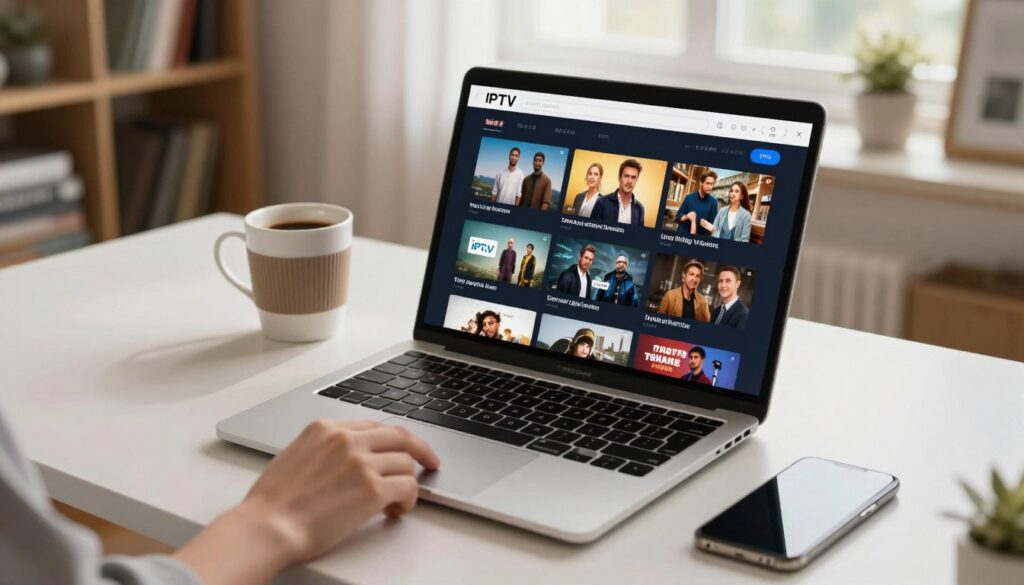
Want to stream live TV and on-demand shows on your computer without wasting time? This guide shows how to get smooth, HD playback on Apple hardware using the right player and simple configuration.
IPTV on Mac means loading a playlist or using login credentials from a licensed provider to watch live channels, catch-up, and VoD over the internet. With a good player and a stable connection, modern Apple devices handle HD and 4K with ease.
In this how-to, you’ll learn to choose a Mac-friendly player, complete the basic setup, and improve daily streaming stability. We’ll preview three approaches: feature-rich apps like IPTV Smarters Pro, App Store-friendly playlist managers such as GSE Smart IPTV, and simple fallback players like VLC.
This article helps MacBook, iMac, and Mac mini users load playlists, navigate channels, and fix common errors. Use licensed services only — IPTV is legal when you subscribe to authorized providers. For a legal subscription option, consider GetMaxTV as an example and check community recommendations like best apps for mac or detailed methods at WatchMaxTV guide.
Ready to set up a legal streaming plan? Sign up with a licensed provider such as GetMaxTV to get started safely.
Key Takeaways
- Learn to run live and on-demand streams on Apple hardware with the right player.
- Three player paths: full-featured apps, App Store playlist managers, and VLC fallback.
- Expect HD/4K playback with a solid internet link and modest tuning.
- Follow legitimate providers and avoid unauthorized sources.
- By the end you’ll load a playlist, browse channels, and troubleshoot basic issues.
What IPTV Is and Why It Works So Well on macOS
In plain terms, this is television delivered over the internet instead of through a traditional cable or satellite box. A player app acts as the TV interface, giving you easy access to live channels and a library of shows on your computer.
Key content types:
- Live TV: real-time channels like news and sports.
- Video on demand: a searchable library of movies and series you can play anytime.
- Catch-up: replay recent programs you missed from certain channels.
Most subscriptions bundle all three types, so users can jump from a live game to an on-demand movie in seconds. Interfaces usually show categories such as Live TV, Movies, and Series, plus search, EPG, and favorites to keep things tidy.
Modern Apple laptops and desktops handle HD and 4K decoding well. They multitask smoothly and support several player apps, which makes the overall streaming experience snappy and reliable.
Expect the quality to depend on three things: the provider’s reliability, your internet speed, and the player you pick. For stable, long-term access, choose a licensed service and consider reading expert reviews like this subscription review guide.
What You Need Before You Install IPTV on a Mac
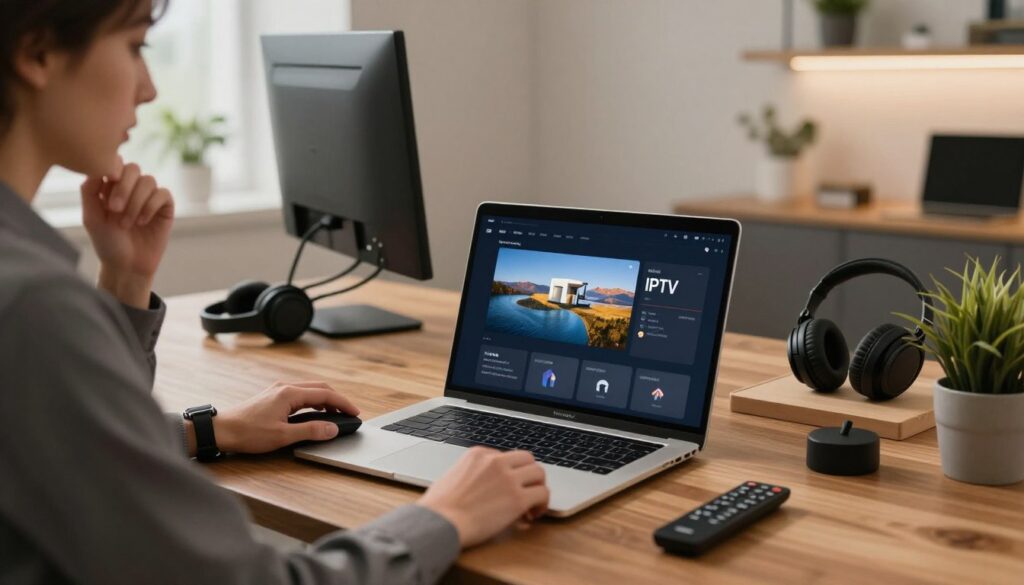
Get the basics in place so you can add channels and watch without surprises. The checklist below covers system version, connection targets, and the account details your provider will send.
Compatible versions and device basics
Use a Mac running Catalina, Big Sur, Monterey, or later. Keep the system updated and allow enough storage for the player app and any cache files.
Quick settings: enable app permissions and check Security & Privacy if the app is not from the App Store.
Internet speed targets for HD and 4K
Aim for at least 10 Mbps sustained for HD and about 25 Mbps for stable 4K. Consistent throughput and low packet loss affect stream quality as much as raw speed.
If you share the network, prefer wired Ethernet or a strong 5 GHz Wi‑Fi link for fewer drops.
What your subscription typically includes
Your subscription usually arrives by email, WhatsApp, or a customer portal. Providers send login details, plus optional EPG and VOD access depending on the plan.
Keep these details private and copy/paste carefully to avoid errors from missing characters or extra spaces.
M3U playlist URL versus Xtream Codes API credentials
An M3U URL is a single link you paste into a player. Xtream Codes uses a server URL plus username and password credentials. Each format works, but they behave differently in apps.
- M3U is quick and works well with simple players like VLC.
- Xtream Codes often loads categories and EPG automatically in feature-rich players.
If you want a quick reference for recommended settings, see the IPTV settings guide for step-by-step tips.
Best IPTV Players for Mac: Picking the Right App for Your Channels and Content

Decide what matters most—EPG, VOD, multi‑screen, or simple playlist handling—and pick the player that matches those needs. Below are three practical paths for most users.
IPTV Smarters Pro for macOS
IPTV Smarters Pro offers a tidy, TV-like interface with Live, VOD, and Series tabs. It commonly integrates EPG and supports multi‑screen viewing so you can monitor more than one channel on a single screen.
GSE Smart IPTV
GSE Smart IPTV is a strong choice if you prefer App Store installs and clear playlist management. It handles M3U lists well and makes it easy to organize channels and favorites without extra fuss.
VLC Media Player
VLC is the free, no-frills option for quickly testing an M3U URL. It gets streams playing fast and helps confirm provider access, even though the interface is less “TV” and more technical.
How to choose
Pick based on EPG support, recording needs, interface speed, and whether you use M3U or API credentials. A stable provider and correct login details matter more than the app itself.
“Choose the tool that fits how you watch — guide-driven viewers may prefer Smarters, while playlist tinkerers like GSE.”
For details on the Smarters option, see IPTV Smarters Pro for Mac.
How to Install and Set Up IPTV Smarters Pro on macOS
Get Smarters Pro up and running with a few careful clicks and the correct server credentials.
Download only from the official IPTV Smarters Pro website to avoid tampered installers and to get the latest app mac build. Open your browser, save the installer to Downloads, and keep that file until the app is in Applications.
Allow the installer and complete the install
If macOS blocks the installer, go to System Settings → Security & Privacy → General and approve it. As an optional fix when “Anywhere” is not visible, run sudo spctl --master-disable in Terminal, then re-enable stricter checks after installation.
Open from Downloads and move to Applications
Open the downloaded file from Downloads, follow the prompts, and confirm the app lives in Applications. Keeping it there makes updates and support easier.
Login and add a user
Launch the app, choose Add User, and pick the method your provider sent. Enter Username, Password, and the Server URL — the server address commonly must start with http:// to authenticate correctly.
“If login fails, re-check typos, missing characters, and correct server formatting before contacting provider support.”
Providers often include a short support video or quick-start instructions. For a step-by-step reference, see this IPTV setup guide.
How to Set Up GSE Smart IPTV on Mac Using an M3U Playlist URL
Turn a provider URL into a browsable channel list by adding it to GSE Smart IPTV’s Remote Playlists.
Why use this path: Installing from the Mac App Store is familiar and reduces trust concerns. The app mac install flow is quick and safe for most users.
Install GSE Smart IPTV from the Mac App Store
Open the Mac App Store, search for GSE Smart IPTV, then download and install the app. Launch it after the install completes.
Add a playlist using the “+” icon
In the app, go to Remote Playlists. Click the “+” icon to create a new entry.
Enter the provider name and paste the M3U playlist url exactly as given. Avoid extra spaces or truncated characters.
Confirm details and load channels
Tap Add. The playlist will sync, categories should populate, and channels become available to play. If nothing appears, the url may be expired or access blocked.
- Label playlists clearly (e.g., Home, Sports, Backup) for fast access.
- If channels don’t load, confirm the M3U link and that your provider supports M3U access for app use.
| Step | Action | What You Should See |
|---|---|---|
| 1 | Download from App Store | GSE Smart IPTV icon in Applications |
| 2 | Open Remote Playlists → “+” icon | Form to add name and M3U URL |
| 3 | Paste provider name and URL → Add | Channels and categories populate |
How to Watch IPTV on Mac with VLC for a Simple Setup
For a fast, dependable fallback, try VLC when you only need to confirm a playlist or stream URL.
Install VLC from the official website
Download VLC only from the official VLC website and install it like any standard app. This keeps the process safe and simple and avoids tampered installers.
Open a network stream
Open VLC, go to File > Open Network. Paste the M3U or provider URL into the field and press Open/Play. That single step often starts video playback within seconds.
Browse channels using the playlist panel
Once the playlist loads, open the playlist panel to see channels and groups. Using the panel makes channel surfing faster than toggling streams one by one.
VLC is a lightweight, reliable option for basic streaming and testing. Performance still depends on your internet and the provider’s stream quality. If video plays in VLC but not in a richer app, the issue is likely app settings or login format.
Need more guidance? See a quick how-to for full client alternatives or a step-by-step VLC tutorial: watch iptv on your device and VLC streaming guide.
Optimize Your IPTV Streaming Experience on Mac
A few practical tweaks will turn jittery streams into smooth, reliable viewing on your computer.
Playback and quality settings to reduce buffering
Buffering usually comes from bandwidth spikes, weak Wi‑Fi, or an overloaded device. Lower the player quality or enable hardware acceleration to reduce stalls.
Network stability: wired Ethernet vs high-speed Wi‑Fi
Use wired Ethernet when possible. If not, prefer 5 GHz Wi‑Fi and keep heavy household downloads paused while you watch.
EPG, performance tweaks, and privacy
If your provider gives an EPG URL, add it in the app’s guide settings so channels show schedules like cable. Close resource-heavy apps, restart when memory is low, and keep the system updated for better codecs and security.
A VPN can help privacy and access to geo-blocked content, but it may slow speed. Test nearby VPN servers first and disable the vpn when it breaks authentication.
Organize, record, and troubleshoot
Set favorites, create groups, and use search to jump to channels fast. Some apps (including iptv smarters pro and VLC workflows) support recording; watch storage and format limits.
“If you see ‘Authorization Failed’, re-enter username/password, confirm the server URL starts with http://, and try without a VPN. Contact provider support with the exact error if it persists.”
| Problem | Quick Fix | When to Contact Support |
|---|---|---|
| Playlist won’t load | Check URL and subscription; clear cache | Link expired or provider-side block |
| App crashes | Update app, restart computer | Crashes after update or repeated errors |
| Playback stutters | Lower quality, use Ethernet, enable accel. | All channels stutter for hours |
For a quick tutorial on advanced tweaks, see this streaming tutorial.
Conclusion
,
Conclusion
This short wrap-up reminds readers that choosing between IPTV Smarters (feature-rich), GSE Smart IPTV (App Store playlist management), and VLC (quick M3U testing) depends on how you want to watch.
Success usually comes down to three things: correct subscription details (username, password, server or M3U URL), a steady internet connection, and sensible playback settings that match your bandwidth.
Before assuming the service is down, try the guide’s troubleshooting steps—many “Authorization Failed” errors are simple copy/paste or formatting problems.
Remember that streaming is legal when you use licensed services. For a straightforward, supported option, consider GetMaxTV as a reliable way to get lawful access to live and on-demand entertainment.
Want a legal subscription? Check GetMaxTV’s current offer at watchmaxtv.com to learn more and get started.
FAQ
What players work best for streaming live TV and on-demand content on macOS?
Popular options include IPTV Smarters Pro, GSE Smart IPTV, and VLC Media Player. Each offers different strengths: Smarters Pro focuses on EPG, multi-screen and VOD features; GSE helps with playlist management and is available in the App Store; VLC is a lightweight, free choice for quickly loading an M3U URL. Pick the app that matches your needs for guides, recording, or simplicity.
What do I need before I install a player on my MacBook, iMac, or Mac mini?
Make sure your device runs a supported macOS version, has a stable internet connection, and you have subscription details from your content provider. Typical info includes an M3U playlist URL or Xtream Codes API credentials (username, password, and server URL). Also check minimum RAM and free disk space for smooth playback.
How fast should my internet be for HD and 4K streams?
For stable HD streams aim for at least 5–8 Mbps per stream. For 4K, target 20–25 Mbps or higher. Use wired Ethernet when possible for the lowest latency; a modern dual-band Wi‑Fi router can work for multiple HD streams if signal strength is strong.
How do I safely install IPTV Smarters Pro on macOS if it’s from the developer’s website?
Download the Mac version from the official IPTV Smarters website. If macOS blocks the app, open System Preferences > Security & Privacy and allow the app from unidentified developers after verifying the download source. Move the app to Applications and launch it there for updates and proper permissions.
What’s the difference between an M3U playlist URL and Xtream Codes API credentials?
An M3U URL lists channels and streams in a single playlist file you paste into a player. Xtream Codes API uses a server URL plus username and password to provide dynamic channel lists, EPG links, and on-demand menus. Some apps support both methods; choose the one your provider supplies.
How do I add a playlist in GSE Smart IPTV from the Mac App Store?
Install GSE Smart IPTV, open the app, go to Remote Playlists and click the “+” icon. Enter the provider name and paste the M3U URL (or choose local playlist). Save and load the list—channels should appear in the app’s channel browser for playback and grouping.
How can I open a stream quickly in VLC on macOS?
Install VLC from videolan.org, then choose File > Open Network or Open Location and paste the M3U URL. VLC will load the playlist; you can use the playlist panel to browse channels and switch streams fast. VLC is handy for troubleshooting stream links because it reports connection errors clearly.
What playback and quality settings help reduce buffering?
Lower initial buffering and enable adaptive bitrate if the player supports it. Reduce video resolution to 720p when network conditions fluctuate. Use wired Ethernet, close background apps that use bandwidth, and restart your router periodically to maintain a steady stream.
When should I use a VPN and what are the tradeoffs?
Use a reputable VPN to enhance privacy or access region-restricted content. Expect a small speed hit and slightly higher latency. Choose a fast server near your location and a provider with strong encryption and a no-logs policy to minimize impact on streaming quality.
How do I fix “Authorization Failed” or login errors in my player?
Verify your credentials: double-check username, password, and server URL format (include http:// or https:// if required). Confirm your subscription is active with the provider and re-enter details exactly. If it still fails, contact the service support to confirm server status or reset credentials.
What steps help organize channels and record shows?
Use the app’s favorites, categories, and EPG tagging to sort channels. Some players support local recording—enable permissions and set storage location before recording. Create custom groups in playlist settings for quick access to frequent channels.
Why does an app crash or show playlist errors and how do I troubleshoot?
Common causes are corrupted playlist URLs, outdated app versions, or insufficient system resources. Update the app and macOS, re-add the playlist, clear app cache, and restart your device. If crashes persist, reinstall the player or test the same playlist in VLC to isolate the problem.
Can I use multiple screens and devices with Smarters Pro and similar apps?
Yes. Smarters Pro and many modern players support multi-screen or multi-user setups, letting you stream different channels on separate displays or devices. Check app documentation for simultaneous stream limits and any provider restrictions tied to your subscription.
How do I keep my viewing experience private and secure?
Use strong, unique passwords for provider accounts and avoid sharing credentials. Keep the player and macOS updated for security patches. Consider a VPN for privacy, and only download apps from trusted sources or the official developer website to lower malware risk.
The WatchMaxTV Team is a dedicated group of streaming specialists and entertainment technology reviewers covering IPTV services for viewers in the USA, UK, and Canada since 2023. Our team independently evaluates every service we feature — testing across Smart TVs, streaming sticks, mobile devices, and gaming consoles. We measure stream stability, picture clarity in HD and 4K, program guide accuracy, and customer support quality. Our goal is simple: help cord-cutters find reliable, affordable alternatives to overpriced cable. Every recommendation on WatchMaxTV.com comes from real-world testing — not sponsored content or paid placements.