
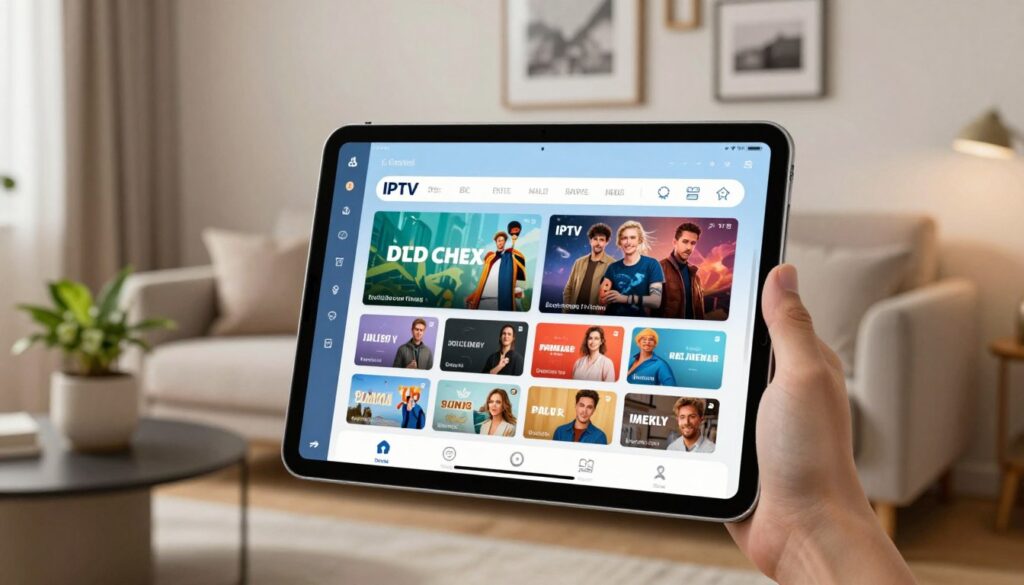
Can a tablet really replace your cable box and make live TV feel effortless?
Yes — when you use the right app and a solid service, an iPad becomes a portable, powerful streaming device.
This quick guide explains what IPTV is in plain terms: it delivers live channels and on-demand content over the internet instead of through cable. An iPad offers smooth performance and a clean interface, which helps reduce buffering and fast channel loading.
Think of the player app as an organizer. It does not host shows; it simply plays the content your provider supplies. You’ll still need a legitimate subscription from a trusted source like GetMaxTV if you choose one.
In this guide you will learn how to choose a verified app from the App Store, add your provider credentials (playlist or Xtream Codes), and set channels for easy watching. For step-by-step help, check a popular app listing or a detailed tutorial like the App Store player page and a hands-on support tutorial.
Key Takeaways
- IPTV streams TV and on-demand content over the internet.
- An iPad makes a great portable device for reliable streaming.
- Player apps organize provider content but do not host it.
- Use verified App Store apps and keep login details private.
- Follow a simple path: pick an app, add credentials, then arrange channels.
iptv apple ipad setup on iPadOS: what you need before you start
A quick pre-flight checklist helps you avoid mistakes and speeds the whole process.
Start by confirming your device and OS. Check the iPad model’s supported iPadOS version in Settings > General > About. Many players require iPadOS 12+; using the latest available iPadOS improves playback stability, app performance, and security.
What to get from your provider
Ask your provider for exact credentials before you open any app. There are two common formats:
- M3U playlist URL — a single web address you paste into the app’s playlist field.
- Xtream Codes — three parts: server URL, username, and password. These map to server, name, and password fields inside most players.
Plain language: a playlist URL points to a file of channels. A server URL connects your login to the provider’s streaming servers. Pasting the wrong value into the wrong box is a frequent error, so double-check labels.
Network basics for smooth streaming
For HD viewing aim for about 20 Mbps or higher. Use strong Wi‑Fi, prefer 5 GHz when possible, and reduce other heavy downloads while watching.
If buffering shows up, try restarting your router, closing background apps, moving closer to the router, or lowering stream quality in the app.
Need extra help? Contact your provider’s official support channel for expired links or locked accounts. For guided connection steps and common troubleshooting, see this concise connection guide or a detailed iOS walkthrough at how-to guide.
Best iOS IPTV apps for iPad and how to choose the right one
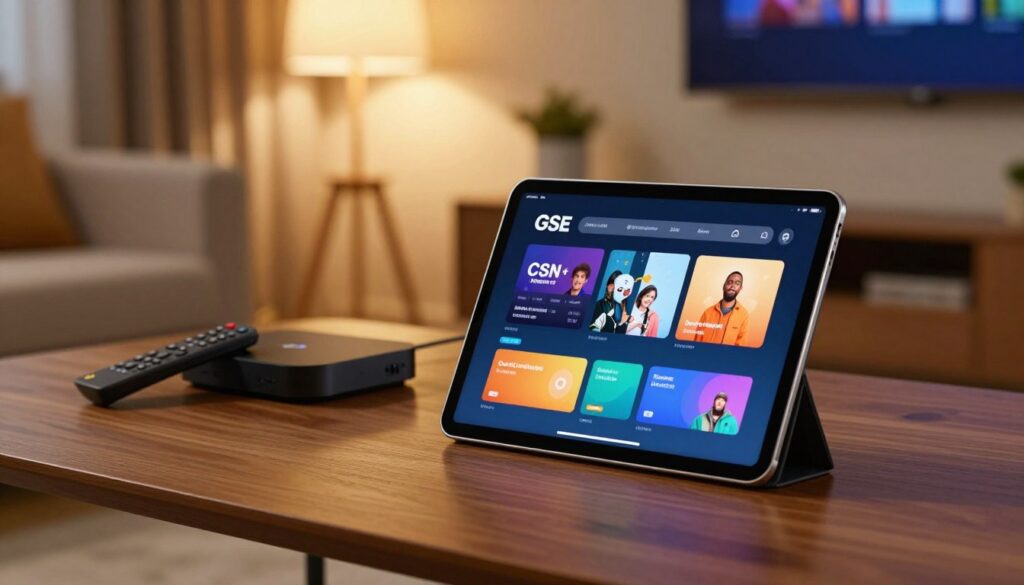
A good streaming player keeps your playlists tidy and gets you to channels with one tap. Choose an app based on playlist handling, reliability, and how fast it gets you to content rather than hype.
IPTV Smarters and top choices: strengths and limits
IPTV Smarters is known for clear navigation and multi-playlist support. It works well for users who want simple menus and multiple accounts.
Availability and features can change between store versions, so confirm current support and reviews before you install.
GSE Smart IPTV: playlist features and day-to-day use
GSE Smart excels at playlist organization and quick category switching. Its layout makes it easy to place an app icon on the home screen and return to channels fast.
Xtream Codes vs M3U playlist URL: how to decide
Use Xtream Codes if you prefer a dedicated sign-in form (server URL, username, password) for faster management. Choose an M3U playlist URL when you need portability between players.
App Store safety and account protection
- Search for well-known apps, check the developer name, and read recent reviews.
- Don’t grant unnecessary permissions and never reuse provider passwords.
- Install 1–2 trusted apps, add the same playlist, then compare speed, stability, and how quickly you can watch live content.
For a deeper GSE Smart walkthrough, see the GSE Smart IPTV tutorial.
Step-by-step setup in an IPTV app on iPad

Start here to install a trusted player, add login details, and get channels onto your home screen.
- Find and install the app: Open the App Store, tap the search bar, type the app name, then tap Get/Download and authenticate. Wait for the app icon to appear on the home screen before opening it.
- Add a playlist via Xtream Codes: Open the app, choose Add playlist, then select the option Add via Xtream Codes. This is the correct path when your provider gave Xtream credentials.
- Enter credentials correctly: Paste the server URL into the URL field, type the username and password exactly, and pick an account name you’ll recognize. Then tap Add user and wait.
- Wait for channels to load: The app will download channel lists and categories. Do not force-close the app during this sync.
- Organize favorites: Use the heart icon or long-press channels to add them to separate lists for shows, movies, and sports to speed up how you watch live content.
“If channels fail to appear, refresh the playlist in settings or check that the URL includes http/https and has no extra spaces.”
Quick fixes and when to contact support:
- Restart the device or router, update the app, clear cache, or try a different Wi‑Fi network.
- Check the iPad’s date/time and app permissions in settings.
- Contact your provider when playlists are valid but channels still won’t populate or when accounts appear locked.
For a detailed walkthrough and visual steps, see this detailed setup guide or follow the step-by-step support for a popular player.
Conclusion
Here’s a compact summary to ensure your live channels run smoothly every time. Confirm your iPad is current, choose a trusted App Store player, and add credentials with either Xtream Codes or an M3U playlist. Then organize channels and favorites for faster daily streaming.
Choose the right app: IPTV Smarters, GSE Smart IPTV, and similar players work well when matched to your provider’s login type. Keep apps and iPadOS updated to reduce interruptions and improve playback quality.
Prevent buffering: use strong Wi‑Fi, sufficient speed, and refresh playlists when needed. Protect accounts with strong passwords and avoid unverified apps to keep your viewing legal and low-risk.
For a practical how-to, see the configuring iPlayTV and GSE guide. If you want a legitimate subscription and support, check GetMaxTV at https://watchmaxtv.com.
FAQ
What do I need before I begin streaming on my iPad?
You should update your device to the latest iPadOS, confirm the model meets app requirements, and have a stable Wi‑Fi or wired connection. Also keep your App Store account ready and a valid subscription from your content provider.
What information should my provider supply for a smooth connection?
Your provider should give a playlist URL, and if required, a username, password, and server address. They may offer an Xtream Codes endpoint or an M3U playlist link—having clear details prevents login and playback issues.
How fast should my internet be to reduce buffering on iPad?
For reliable streaming, aim for at least 10–25 Mbps for HD channels and 25+ Mbps for multiple streams or 4K content. Use a 5 GHz Wi‑Fi band when possible and position your router close to the device.
Which apps work best on iPad and how do I choose one?
Look for established players on the App Store with recent updates, positive reviews, and features you need—live TV guides, favorites, and external player support. Check whether the app supports Xtream Codes or M3U playlist URL types to match your provider.
What are the pros and cons of popular players like IPTV Smarters and GSE Smart?
IPTV Smarters offers a polished interface and Xtream support but may have limitations depending on your provider. GSE Smart lets you manage M3U playlists and has flexible player options. Choose based on playlist type, channel organization, and device compatibility.
How do I safely pick an app from the App Store?
Verify developer details, read recent reviews, check update history, and avoid unverified or clone apps. Use apps with clear privacy policies and avoid sharing account credentials with unknown services.
How do I add a playlist to an app on my home screen?
Download the app from the App Store, open it from the home screen icon, select “Add playlist” or “Add account,” then choose Xtream Codes or M3U option and paste the playlist URL or enter provider credentials as instructed.
What details must I enter when adding an Xtream Codes account?
Provide the server URL, username, and password exactly as given. Optionally assign an account or profile name for easy access. Incorrect characters or spaces often cause login failures.
How can I organize channels, favorites, and sports on the device?
After channels load, use the app’s favorites or playlist tools to tag shows, movies, and sports. Create categorized lists for quick access and use the guide or search bar to jump to live events and recordings.
What common mistakes cause playback problems and how do I fix them?
Common issues include wrong credentials, outdated app or iPadOS, slow Wi‑Fi, and expired playlists. Fix them by retyping login details, updating software, switching to a faster network, or asking your provider for a refreshed URL.
Can I watch on multiple devices with the same account?
Many providers allow multiple streams; limits vary by plan. Check your subscription terms, and if needed, upgrade to a plan that supports simultaneous viewing on several devices.
How do I protect my account and credentials on iPad?
Use strong, unique passwords, enable two‑factor authentication where available, keep the app and iPadOS updated, and avoid entering credentials into untrusted apps. If you suspect compromise, change your password and notify the provider.
What if a channel constantly buffers but others work fine?
That usually means the specific stream is overloaded or the provider’s server is under strain. Try switching quality, restarting the app, or contacting your provider. Using an external player option in the app can sometimes improve playback.
Are there legal or safety concerns I should know about?
Only use content from licensed providers and official apps to avoid copyright issues and malware risks. Verify the legitimacy of services before subscribing and never share payment details with unverified sources.
The WatchMaxTV Team is a dedicated group of streaming specialists and entertainment technology reviewers covering IPTV services for viewers in the USA, UK, and Canada since 2023. Our team independently evaluates every service we feature — testing across Smart TVs, streaming sticks, mobile devices, and gaming consoles. We measure stream stability, picture clarity in HD and 4K, program guide accuracy, and customer support quality. Our goal is simple: help cord-cutters find reliable, affordable alternatives to overpriced cable. Every recommendation on WatchMaxTV.com comes from real-world testing — not sponsored content or paid placements.