
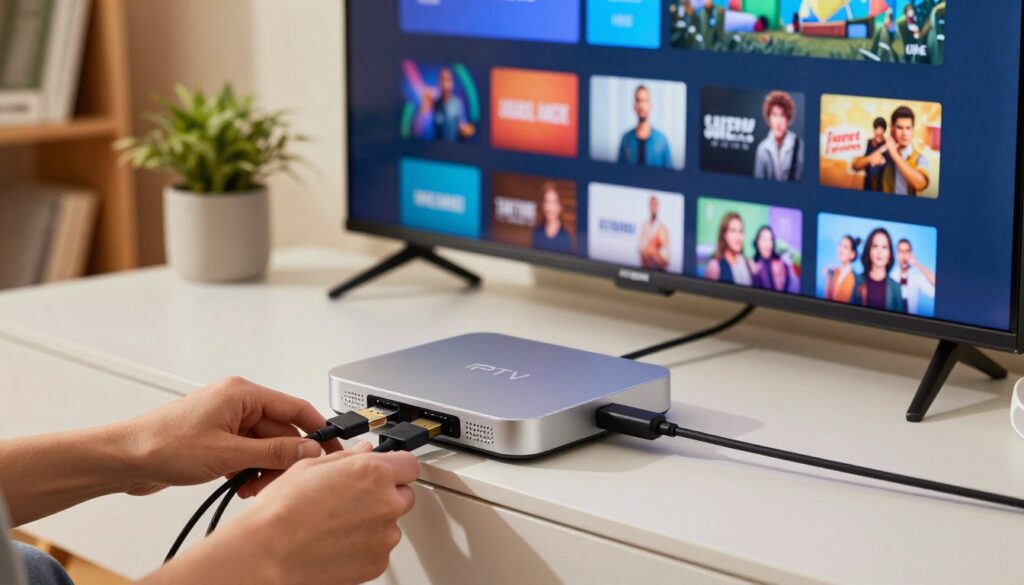
Curious which simple choices make the difference between endless buffering and a crisp 4K viewing experience? In this short, friendly how-to introduction you’ll learn what to expect as you take a sealed device to a reliable streaming setup on your TV.
You’ll complete this tutorial ready to watch live channels and on‑demand content in full resolution. The process covers unboxing, HDMI and power connections, network steps, pairing your remote, signing into accounts, and tuning picture and sound.
Keep in mind many U.S. TVs prefer 60Hz output and protected playback may need HDCP-capable HDMI ports. Performance depends on both the device and a stable high‑speed internet link. If you want a place to explore legitimate streaming options, check out GetMaxTV.
Ready to avoid common pitfalls like no-signal screens, Wi‑Fi dropouts, and buffering? Follow this friendly, expert walkthrough and then verify a legal subscription at WatchMaxTV to get started.
Key Takeaways
- You’ll go from sealed device to reliable 4K streaming by following clear steps.
- Hardware connections, network setup, app installs, and account sign-ins are essential.
- Use a wired connection when possible and check HDMI/HDCP for protected playback.
- Common issues like buffering often point to internet speed or Wi‑Fi congestion.
- Explore safe service options and subscriptions before you stream; see how to use IPTV for more context.
What IPTV Is and How It Works on a 4K Streaming Box
Streaming television over your home internet has changed how people watch live events and on‑demand video. Internet protocol television (internet protocol television) sends programs as data over your internet connection instead of through a traditional cable subscription.
Internet Protocol Television vs traditional cable in the United States
You get more device choice and flexible services with internet protocol television. Compared with traditional cable, you avoid long contracts but you depend more on your internet provider and network stability.
Common formats you’ll actually use
Live TV covers sports and news. Video‑on‑demand (VOD) serves movies and full seasons. Catch‑up or time‑shifted content lets you watch recent shows for a limited window.
Why a stable internet connection matters more than the box specs
An app on your streaming device loads your login or playlist, pulls channels and program data, and streams video to the TV. Even high-end hardware will freeze if your internet connection is slow or unstable.
- Tip: Choose reputable services for reliable content and safer access.
- Expectations: 4K quality varies by provider and consistent bandwidth beats one-off speed test spikes.
Before You Start: What You Need for a Smooth Setup
Before you touch any cords, check that you have the right parts and login details so the first power-on goes smoothly.
Your essentials
Remote, power adapter, and a certified 4K-capable HDMI cable are the basics. A certified HDMI 2.0+ cable helps deliver true resolution and higher refresh rates.
TV compatibility checklist
Confirm your TV supports 4K UHD, has an open HDMI port, and accepts HDCP 2.2 for protected content. If any item is missing, you may see a blank screen or reduced quality.
Network and account prep
Have your Wi‑Fi name and password ready. For the most reliable connection, use ethernet if your router is nearby.
Sign-in with your Google account to unlock Google Play apps and voice features. This saves time during initial app installs and updates.
Optional add-ons
- Small keyboard for faster searching.
- Mouse for apps without remote-friendly controls.
- Gamepad for casual gaming and external storage for recordings.
| Item | Why it matters | Quick check |
|---|---|---|
| HDMI cable | Needed for true resolution and HDR at higher refresh rates | Certified 2.0+ or higher |
| HDCP support | Required for protected streams | TV HDMI port lists HDCP 2.2 |
| Network | Controls buffering and playback stability | Wi‑Fi creds ready or use ethernet |
| Google account | Unlocks store access, updates, and Assistant | Username and password available |
Make sure your TV remote can switch inputs and give the device room for ventilation. For detailed connection instructions, see detailed connection instructions.
4k iptv box setup guide: Unboxing, Connections, and First Boot
Open the box and verify each accessory — doing this first saves time if a cable or battery is missing. Remove the device, remote, batteries, power adapter, and HDMI cable. Confirm everything matches the quick-start list in the manual.
Physical connections and input
Plug the HDMI into a 4K-capable TV port or your AVR, then connect power. If you want the most stable link, add an ethernet cable now.
Turn the TV to the exact HDMI input number you used. This simple step prevents a “No Signal” screen and saves troubleshooting time.
First boot, pairing, and network
Power the device and follow on-screen prompts. Pair the remote when prompted — most units ask you to hold two buttons until pairing completes.
Choose your language and connect to Wi‑Fi, or confirm the wired connection. Use Wi‑Fi for convenience; run ethernet when you need steady high-bitrate streams.
Accounts, privacy, and finishing steps
Sign in to your Google account to access Google Play, install apps, and get updates. Review privacy and diagnostic settings and opt out of data sharing if you prefer.
Name the device (for example, “Living Room Box”) so it’s easy to manage in your home. Finally, run initial app installs and system updates — this reduces early crashes and keeps the process smooth.
Set Up Your IPTV Service and Apps the Right Way
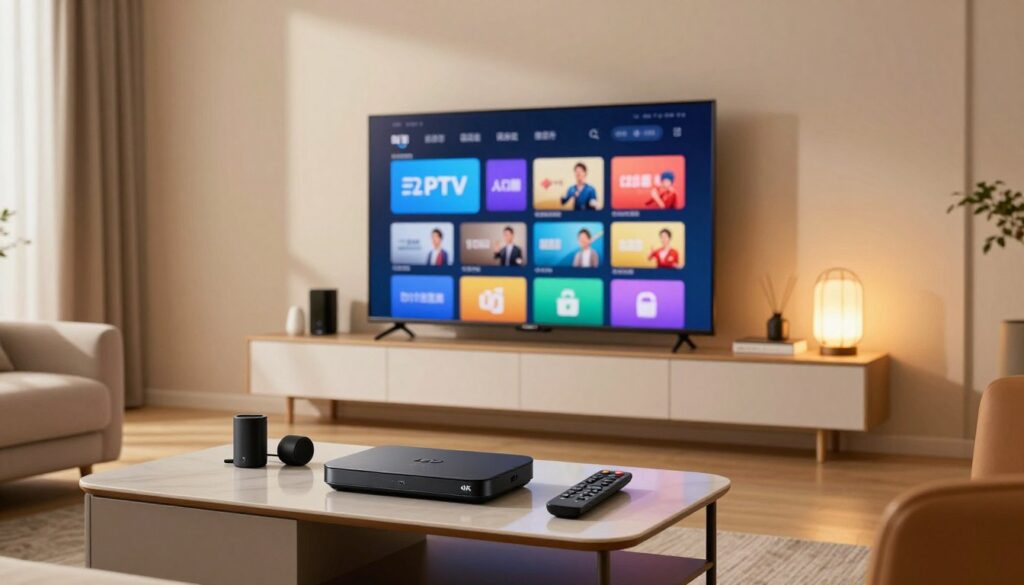
Choosing a trustworthy service and installing official apps keeps your viewing simple and secure. Start by checking pricing, clear channel lists, and responsive support before you buy a subscription.
Pick a legitimate subscription and know what you pay for
Look for transparent packages that list channels, movies, and simultaneous connections. Good services disclose EPG support, catch‑up features, and realistic quality claims.
Focus on customer support and clear refund or trial policies. That helps you avoid surprise charges and poor service.
Install apps from official stores
Use Google Play or your device’s official store to download an iptv app or player. Avoid random APKs—players like Kodi or Smarters-style apps organize streams but usually don’t host content.
Add subscription details safely
Common access methods include username/password, M3U playlist URLs, and separate EPG URLs for schedules. Playlists deliver channels; EPG provides the program guide.
Security tip: Don’t reuse important passwords, never post playlist links publicly, and only enter credentials into verified apps.
Organize your home screen and enable voice search
Pin favorite apps, create a channel row, and use a “Play Next” queue to speed access. Turn on Google Assistant for voice search so you can find movies, shows, and live channels without typing.
For more streaming options and offers to compare, check GetMaxTV at https://getmaxtv.com.
Optimize Picture and Sound for True 4K Quality
Small setting changes unlock much better picture and sound without extra cost. Start by confirming your output resolution and refresh rate so you actually get full UHD and smooth motion.
Resolution and refresh rate
On most devices go to Settings → Display and select 3840×2160. Verify the TV’s info overlay shows 2160p or 3840×2160, not 1080p.
In the United States choose 60Hz when offered for live sports and standard broadcasts. Mismatched rates can cause judder or flicker, so test 60Hz first.
HDR and Dolby Vision checklist
Only enable HDR or Dolby Vision if both your TV and device support it. Also confirm the HDMI port and cable are rated for the needed bandwidth. If color looks oversaturated or dim, turn HDR off and try again.
Audio routing and formats
Use TV speakers for simple setups. For clearer dialogue and fuller sound, route audio to a soundbar or AV receiver and enable Dolby passthrough if available.
Check audio settings in the app and device menus to pick the right output (PCM, bitstream, or passthrough).
Reduce buffering and test changes
Remember that best quality isn’t always max bitrate. If your internet connection varies, lower stream quality in the app to stop buffering.
- Play a known 4K video and view the TV info overlay.
- Change one setting at a time (resolution, HDR, or audio passthrough).
- Note which change improves your viewing experience.
Quick tip: For detailed device-specific steps, check the display and audio settings or an app settings walkthrough to tune streaming quality.
Improve Speed, Stability, and Performance Over Time

C. Over time your device can lag as apps update and caches swell; a few quick steps restores speed.
Why performance drops: Apps grow with new features and logs. Storage fills, caches grow, and background tasks multiply. That makes menus slow and causes app crashes.
Keep firmware updated
Go to Settings → About → System Update (or similar) and check for updates. Firmware often fixes bugs, improves playback, and patches security holes.
Free up storage to stop lag
Clear app cache, uninstall unused apps, and keep at least 10-15% free storage. Signs you’re storage-bound include a slow home screen, delayed remote response, and frequent crashes.
Wired vs wireless: when to use Ethernet
If you watch high-bitrate streaming or your Wi‑Fi is crowded, use ethernet for a steadier connection. Wired links cut jitter and reduce buffering during busy hours.
- Monthly: clear caches and remove unused apps.
- Quarterly: check firmware and review installed apps.
- After installs: reboot the device to finalize updates.
| Issue | Quick fix | When to use |
|---|---|---|
| Slow launcher | Uninstall apps you don’t use | When home screen lags |
| Playback stutter | Switch to ethernet or lower stream quality | During high-bitrate streams |
| Security concern | Install firmware updates | After vendor alerts or periodic checks |
Quick tip: For step-by-step device instructions, see these box maintenance steps to keep your service reliable over time.
Privacy and Security: Using a VPN for IPTV in the US
A VPN encrypts your internet traffic and masks your IP address, giving you a practical privacy layer when you stream. This protects login details and hides what you watch from casual observers on shared networks.
When a VPN is helpful
Use a VPN on public Wi‑Fi (hotels, airports) to stop eavesdroppers from intercepting your connection. It can also help on restricted networks—like some workplaces or dorms—where streaming access is blocked, provided you follow the site’s rules.
Some users report less content-based ISP throttling with a VPN because the provider cannot easily classify traffic. This is not guaranteed, but it may improve playback during peak hours.
Use VPNs responsibly
Follow local laws and each service’s terms. A VPN is a privacy tool, not a license to violate copyrights or account rules. Respect the terms of the streaming service you use.
- Simple setup: Install a VPN app on your device when supported, or configure it on your router for whole‑home coverage.
- Privacy hygiene: Use strong passwords, keep apps updated, and avoid unverified add-ons.
| Benefit | When to use | Notes |
|---|---|---|
| Encryption | Public Wi‑Fi | Protects credentials and playback data |
| Access restoration | Restricted networks | Only use where permitted by policy |
| Potential throttle reduction | Peak-time buffering | May help, not guaranteed |
For more on practical VPN options and safe playback practices, see this VPN overview and an playback checklist to ensure smooth, legal streaming in the United States.
Advanced Features You Can Add Anytime
After your main system is stable, optional extras can make navigation and storage much easier. These features are optional and safe when you follow simple precautions.
Connect external storage
Use USB drives or external hard disks to expand space for recordings or a personal media library. Make sure the device supports the file system before you format a drive.
Tip: Back up content before formatting and check power requirements for large hard disks.
Pair Bluetooth peripherals
Bluetooth keyboards speed up logins and searches. A mouse helps with apps not optimized for a remote. Pairing is usually found under Settings → Remotes & Accessories.
Sideload apps with caution
Sideloading lets you install an app not in the official store, but it increases security risks. Only use reputable developer APKs and review app permissions first.
Safer options: Look for the official app in the store, or contact the developer for a verified release before sideloading.
Multi-device viewing options
If an app isn’t available on your device, casting or screen mirroring from your phone is a handy workaround. This gives temporary access to content without installing extra apps.
Quality tip: Screen mirroring can be less stable than native playback, so use it as a backup rather than your primary 4K plan.
| Feature | Why add it | Quick safety check |
|---|---|---|
| External storage | Record streams, store personal video and music | Confirm file system and backup before formatting |
| Bluetooth keyboard/mouse | Faster searches, easier navigation | Pair via Settings and remove unused devices |
| Sideloaded apps | Access apps not in the official store | Use trusted sources and scan APKs for malware |
| Phone casting/mirroring | Quick access to app content from your phone | Use on stable Wi‑Fi and keep as a fallback option |
Troubleshooting Common 4K IPTV Box Setup Problems
Begin with a quick, ordered diagnosis so you don’t waste time. Confirm the device has power, check the TV input, and inspect HDMI connections before changing software settings.
No signal or black screen
Step 1: Reseat the HDMI at both ends. Try a different HDMI port on the TV.
If that fails, swap in a known-good cable. Confirm the device output matches a 4K-capable port and the TV input is selected.
Wi‑Fi dropouts
Reboot your router and modem first. Re-enter your Wi‑Fi password carefully to rule out credential errors.
Reduce obstacles and distance, or use Ethernet if dropouts continue. These steps improve your internet connection and streaming stability.
Remote not responding
Replace batteries, then re-pair following on-screen pairing steps. If needed, restart the box to refresh Bluetooth or IR behavior.
Apps crashing or not opening
Clear the app cache; if problems persist, clear data, then reinstall the app. Check free storage and run system updates.
4K not playing smoothly
Confirm your subscription tier allows 4K and that the iptv service isn’t capping some channels. Check HDR and resolution settings in the device menus.
Test other apps, lower stream quality, and confirm no other devices are saturating bandwidth during peak time.
Quick checklist
| Problem | First step | Next step |
|---|---|---|
| No signal | Check TV input | Reseat HDMI / change cable |
| Wi‑Fi dropouts | Reboot router | Use Ethernet if persistent |
| Remote | Replace batteries | Re-pair / restart device |
| Apps crash | Clear cache | Reinstall and free storage |
| Stuttering 4K | Verify subscription quality | Adjust settings or lower stream quality |
Last‑mile tip: If you still have trouble, run a different app to compare performance and review the connection instructions for additional steps. Most issues are simple fixes, not hardware failures.
Conclusion
Conclusion
Close out by confirming hardware connections, completing first‑boot steps, signing into apps, and adding your iptv service credentials. Run a quick playback test to verify picture and audio on your TV.
Remember: the biggest performance change comes from a stable internet link. Use Ethernet when possible and keep firmware and apps updated to avoid surprises.
Be cautious with sideloading and only install apps from trusted stores. Revisit basic troubleshooting—No Signal, Wi‑Fi drops, remote pairing, and app crashes—because most fixes are quick and repeatable.
If you want a legal subscription, check GetMaxTV’s offer and the detailed configuration guide for smooth access to channels and on‑demand content.
FAQ
What is Internet Protocol Television and how does it work on a 4K streaming device?
Internet Protocol Television delivers TV content over your internet connection instead of through traditional cable or satellite. On a 4K-capable streaming device, apps fetch live channels, video-on-demand (VOD), and catch-up services using playlist URLs and electronic program guides (EPG). Your device decodes the stream and outputs it over HDMI to your TV.
How is Internet Protocol Television different from traditional cable in the United States?
Traditional cable sends channels via coaxial networks managed by a cable operator. Internet-based TV uses broadband and apps to access channels and on-demand libraries. That lets you choose subscriptions more flexibly, but it also depends on your home internet speed and the streaming service quality.
What types of content will I actually use: live TV, VOD, or catch-up?
You’ll typically use a mix: live TV for real-time sports and news, VOD for movies and shows on demand, and catch-up to watch recent broadcasts you missed. Many providers bundle all three in their apps or via playlists and EPG integration.
How important is my internet connection versus the device specs?
Your internet matters most. For smooth high-resolution streaming, upload and download speed, low latency, and stable throughput are crucial. A good device helps decode formats and support HDR or Dolby audio, but poor bandwidth causes buffering regardless of hardware.
What do I need in the box to get started?
Make sure your package includes the remote, power adapter, and a high-speed HDMI cable rated for UHD output. Check for any quick-start pamphlet and accessories like batteries or an IR extender if provided.
How do I know my TV is compatible for true UHD playback?
Verify your TV supports UHD resolution, has an available HDMI port, and supports HDCP for protected streams. Also confirm HDR or Dolby Vision support if you plan to watch HDR content.
Should I use Wi‑Fi or Ethernet for the best streaming quality?
Use Ethernet for the most reliable high-bitrate streams, especially for UHD at 60Hz. If you use Wi‑Fi, connect to a 5 GHz network, place the router nearby, and minimize interference for better performance.
Do I need a Google account to access apps and updates?
A Google account lets you sign in to Google Play and Android TV features, install apps, sync app purchases, and receive automatic updates. Some boxes allow limited app installs without it, but the experience is smoother when signed in.
What optional accessories should I consider?
Consider a wireless keyboard or air mouse for easier text entry, external storage for recordings, a gamepad for gaming, and a quality soundbar or AV receiver for better audio.
What are the first steps after unboxing and powering the device?
Connect HDMI and power, plug in Ethernet if available, switch your TV to the correct HDMI input, pair the remote, choose language, and connect to your network. Then sign in to your Google account and review privacy settings.
How do I install and configure my streaming service apps safely?
Use official app stores like Google Play or your device’s app store. Install reputable IPTV players or provider apps, then add subscription details such as login credentials or playlist URLs. Avoid sideloading unverified APKs to reduce security risk.
How can I optimize picture and sound for true UHD quality?
Set the device resolution to UHD and a 60Hz refresh rate where supported. Enable HDR or Dolby Vision if both device and TV support it. Choose appropriate audio output (TV speakers, soundbar, or receiver) and enable Dolby options when available.
What internet speeds do I need for smooth 4K streaming?
For reliable UHD playback, aim for at least 25 Mbps per stream. Faster connections or wired Ethernet reduce buffering when multiple devices stream simultaneously or when using HDR and higher bitrates.
How do I keep the device running smoothly over time?
Keep firmware and apps updated to get security patches and stability fixes. Clear app cache, uninstall unused apps, and free up storage regularly. Reboot the device occasionally to refresh system resources.
When should I use a VPN with my streaming device?
A VPN can help secure your connection on public Wi‑Fi, bypass certain network restrictions, or prevent ISP throttling. Use it responsibly and in compliance with local laws and your streaming provider’s terms of service.
Can I add external storage for recordings or personal media?
Yes. Many devices support USB or networked storage for recordings and local media libraries. Format the drive as recommended and check app compatibility for recording features.
Is it safe to sideload apps not in the official store?
Sideloading can work but carries risk. Only install apps from trusted sources, scan files for malware, and understand that sideloaded apps may not receive automatic updates or support.
What should I try first if I get a “No Signal” or black screen?
Check the HDMI cable and port, ensure the TV input matches the connected HDMI, try a different HDMI port or cable, and confirm the device is powered on. Disable any TV picture modes that override input settings if needed.
How do I fix frequent Wi‑Fi dropouts during streaming?
Reboot your router and device, verify Wi‑Fi credentials, move the router closer or use a 5 GHz band, reduce interference, or switch to Ethernet for a stable connection.
Why won’t my remote respond and how do I fix it?
Replace batteries, re-pair the remote according to the manufacturer’s instructions, or power-cycle the device. If it’s a Bluetooth remote, ensure Bluetooth is enabled and not paired to another device.
What can I do if apps crash or fail to open?
Clear the app cache and data, update or reinstall the app, free up device storage, and ensure the device firmware is current. If problems persist, contact the app developer or your service provider.
My UHD streams stutter—what could be wrong?
Check your subscription plan and chosen stream quality, confirm sufficient internet speed, use Ethernet if possible, and verify the device and TV UHD/HDR settings are correct. Lowering stream bitrate can also reduce stutter.
The WatchMaxTV Team is a dedicated group of streaming specialists and entertainment technology reviewers covering IPTV services for viewers in the USA, UK, and Canada since 2023. Our team independently evaluates every service we feature — testing across Smart TVs, streaming sticks, mobile devices, and gaming consoles. We measure stream stability, picture clarity in HD and 4K, program guide accuracy, and customer support quality. Our goal is simple: help cord-cutters find reliable, affordable alternatives to overpriced cable. Every recommendation on WatchMaxTV.com comes from real-world testing — not sponsored content or paid placements.