
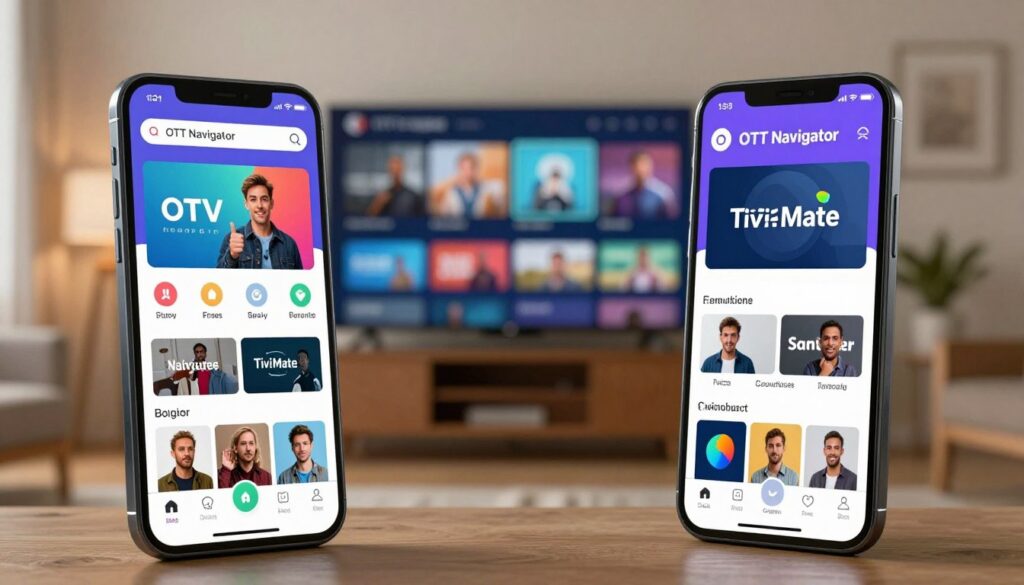
Curious which IPTV player gives you a true cable-like experience on Android TV—or the power tools you need on a phone? This comparison helps you decide quickly without jargon.
You’ll learn how two leading player apps organize and play streams, not sell channels. Both require you to add your own playlists (M3U, Xtream Codes, Stalker) and work on Android and Android TV devices.
In plain terms, one app is praised for a modern, TV-first interface, while the other shines with advanced filtering and discovery tools for power users. I’ll walk you through interface flow, EPG handling, playlist compatibility, performance features like PiP and multi-stream, and U.S. installation notes.
Important: neither app includes live channels or a subscription. You bring your own service credentials. I’ll also note legal and safety tips for U.S. viewers and point to legitimate options like GetMaxTV when you evaluate providers.
Ready to pick the right app for your device and setup tolerance? Continue reading, and if you want a legal IPTV subscription option, check the trial and plans at WatchMaxTV.
Key Takeaways
- These are IPTV player apps; they don’t sell channels or subscriptions.
- Pick TiviMate-style UI for a cable-like TV experience on Android TV.
- Choose the power-user app for advanced filtering on phones and boxes.
- Compare EPG, playlist formats, PiP, multi-stream, and catch-up before deciding.
- Legal and safety guidance for U.S. viewers is included later.
- Consider legitimate services like GetMaxTV when you need a transparent provider.
What an IPTV player does and what it doesn’t do in 2025
An IPTV player is the app that organizes your channel streams and plays them — but it doesn’t supply the channels themselves.
What an IPTV player is: it’s the software that reads a playlist, displays channels, and plays live and on-demand content. Think of it like a media player for broadcast streams. It helps you browse, search, and sometimes record, but the actual content comes from a separate IPTV service or provider.
Why these players don’t come with channels
Apps avoid shipping with channels to stay compliant with laws and to remain compatible with many services. That keeps the app flexible for users and avoids bundling content that could be unlicensed.
Playlists and logins you’ll need
To use an iptv player you usually need one of these from your provider:
- An M3U or M3U8 playlist URL
- An Xtream Codes–style login: server/portal URL + username + password
- Sometimes a separate EPG URL for program guide data
How subscriptions and payments work
Subscription can mean two things: paying the app maker for premium features, and separately paying an iptv service for channel access. Use secure payment methods that give buyer protection.
U.S. legal and safety basics
Legality depends on whether a service has rights to the content. Choose providers that are transparent about licensing and avoid offers that look too good to be true.
Install apps from the Google Play app store when possible. If you sideload, use reputable sources and skip modified APKs. For support, remember: if streams fail, the playlist URL, credentials, or the provider’s servers are usually the cause — not the app alone.
Final tip: pick the iptv player that fits your device and habits, then pair it with a legitimate provider approach for reliable, responsible streaming. For a side-by-side look at services to consider, see a helpful iptv service comparison.
ott navigator vs tivimate: quick verdict for different types of users
Your daily routine and where you watch make this choice easy. Pick the app that fits how you live and how you like to find channels.
If you want a cable-like interface on Android TV
Choose this if you want a clean, TV-first layout that feels like a set-top box. TiviMate shines with a remote-friendly interface, fast channel surfing, PiP, and multi-stream for split viewing.
The program guide is built for quick scanning so you can see what’s on now and jump to playback fast.
If you want deep filtering, customization, and power-user controls
Choose this if you prefer granular filters by category, genre, region, season, or year. OTT Navigator offers heavy personalization and UPnP/DLNA support for local browsing.
That control helps power users find niche content and tailor the guide to their habits.
If you watch on multiple devices like phones, tablets, and TV boxes
Both apps run across Android devices, but they feel different on each screen. One often fits better on phones and tablets, the other on living-room boxes and Android TV.
Practical option: mix them—use the TV-first app for couch viewing and the customizable app for mobile discovery.
Trade-off: expect TV-first polish on one side and deeper control on the other. Next, we’ll compare interface/EPG, compatibility, and performance so you can fine-tune your setup.
Interface and Electronic Program Guide experience
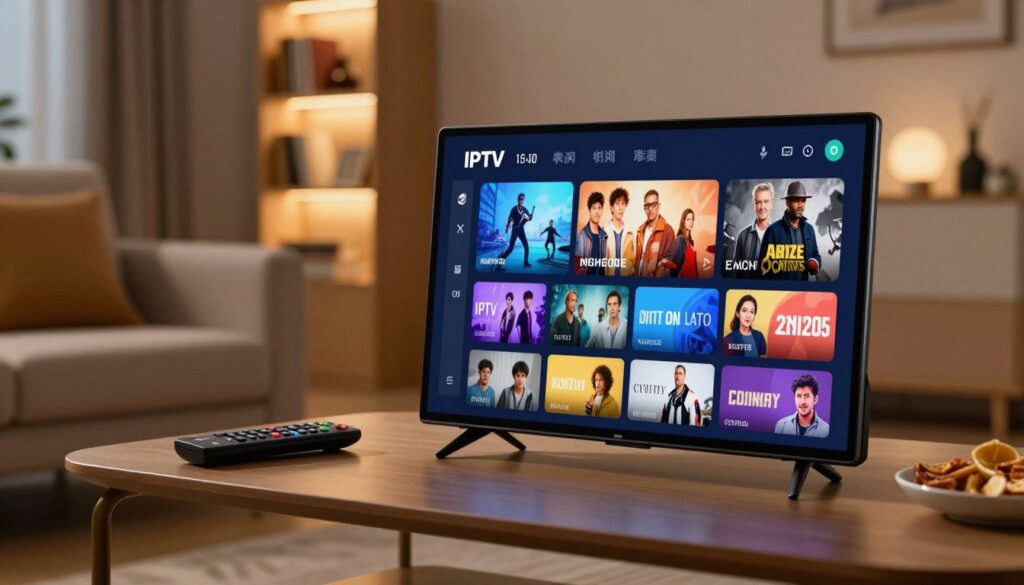
A strong interface and a reliable program guide make scanning dozens of channels painless on a TV remote.
TiviMate-style layout: the grid, channel list, and playback overlay feel like a set-top box. Navigation runs with remote-friendly focus, minimal clicks, and fast channel zaps. Picture-in-picture and multi-stream modes keep a second feed visible while you browse.
Discovery and filters: the other application leans on content recommendations and heavy filters. When your playlist has hundreds of entries, category filters and suggested items help you locate shows fast.
EPG depth and accuracy: a good electronic program guide shows multi-day timelines and maps data correctly to channels. Provider EPG quality matters—bad mapping breaks trust and makes the guide unreliable.
“A clean guide that returns you to ‘now’ without losing your place is worth more than fancy skins.”
Practical tests in 10 minutes:
- Measure guide load time and channel zap speed.
- Try search, add favorites, and jump back to now.
- Test picture-in-picture and multi-stream on a busy sports day.
For deeper setup tips, read a short front-end player review and the EPG setup guide to improve your electronic program guide results.
Playlist formats, provider compatibility, and setup options

How you add streams—by a raw playlist URL or a portal login—shapes the ease and stability of everyday use.
M3U/M3U8 playlists and URL considerations
M3U or M3U8 is the simplest way to add channels: you paste a playlist url and the app reads channel entries. Keep that url private and double-check for typos; a single character error breaks the list.
Providers may rotate urls or expire them. If your playlist stops loading, ask your provider about updated links or an alternate feed.
Xtream Codes API: why it matters
Xtream-style logins often feel smoother day to day. When a provider supports the API, categories, VOD, and EPG can populate automatically.
If you want minimal maintenance, ask your provider: “Do you support Xtream Codes API?”
Stalker Portal strengths and limits
Stalker works well with portal-style setups and can offer a native channel layout from some providers. It can struggle with uncommon stream url formats, so compatibility varies.
Multiple playlists, profiles, and premium upgrades
Running multiple playlists helps when you use several providers or want separate sports and international lists. Premium upgrades typically unlock multiple playlists, remove ads, or expand playlist features.
Ask: “Can I add several playlists or profiles?” and “Does a premium subscription lift limits?”
Using multiple EPG sources to improve your guide
Combine a provider EPG with a secondary feed when mapping is incomplete. Add the provider EPG first, then layer a public guide to fill gaps and validate timings quickly.
Quick validation: pick a known program and confirm start times match both the channel and the guide.
- Key setup questions to ask providers: “Do you provide an EPG url?”, “How often do you update it?”, and “Do you offer a Stalker portal option?”
- Goal tip: if you want low maintenance, pick the connection method your provider supports best. If you like tinkering, use multiple playlists and EPGs to fine-tune the program guide.
For a deeper look at playlist handling and multi-device syncing, see this M3U playlist guide and the playlist sync and multi-device setup.
Performance, reliability, and advanced features that affect streaming quality
You’ll notice the biggest playback wins come from balancing your device, network, and service. That balance decides whether streams play smoothly or stall.
Archived programming and VOD depend mostly on the provider. If your subscription includes catch-up or on-demand content, the player only presents what the service indexes. Test a known title to confirm timing and availability before assuming the app is at fault.
Local network playback via UPnP/DLNA lets you stream files from a NAS or home server without switching apps. If you keep local content on your network, this reduces friction and keeps playback in one place.
External player support and troubleshooting
Hand off playback to a dedicated app (for example, VLC or MX Player) when a stream has subtitle or audio issues. That can improve compatibility and sometimes reduce buffering.
- Check internet speed and prefer Ethernet for 4K streaming.
- Reboot device and router, then test a different channel or stream.
- Try a different player to isolate app vs service problems.
- Collect timestamps and channel names before contacting your provider.
“An app can tune buffering, but service uptime and bitrate usually determine freeze-free viewing.”
Safe settings to try: toggle hardware decoder, increase buffer where available, and limit multi-stream on mid-range devices. These help, but the final fix often requires your service to raise capacity or provide a stable feed.
| Feature | TV-first player | Power-user player |
|---|---|---|
| Catch-up / VOD | Depends on provider | Depends on provider |
| Local UPnP/DLNA | Limited | Built-in support |
| External player support | Yes (hand-off) | Yes (hand-off) |
| PiP / Multi-stream | Yes (best on boxes) | Some support (device dependent) |
For setup tips and direct support guides, check a troubleshooting tutorial and a service-finding guide to match your needs: player support tutorial and the best iptv service guide.
Installation and device support in the US
Get your player installed and running on U.S. devices with a few clear, safe steps. Below are concise, device-specific instructions so you avoid common pitfalls and keep your system secure.
Android TV and Google Play setup steps
Open the Google Play app store on your Android TV. Search for the application by name and install it like any other app.
After installation, open the app and choose your login method: M3U URL or Xtream Codes API. Confirm channels load before changing other settings.
Amazon Firestick sideloading with Downloader
If the app is not in the Amazon app store, you’ll sideload carefully. Enable Apps from Unknown Sources in Settings, then install the Downloader application.
- Open Downloader and enter a trusted APK download link.
- Download and install the application, then delete the APK to save space.
- Avoid unofficial or modified APKs to reduce security risk.
Post-install checklist and quick tuning
- Update your playlist and load the EPG so guide data appears.
- Set default stream format and confirm your time zone in settings.
- Test channel switching and add favorites to verify navigation.
- Start with one playlist first; validate mapping before adding more.
- Use official in-app payment flows for premium upgrades; skip shady lifetime offers.
“If channels play, the EPG populates, and navigation feels natural, your installation is successful.”
For provider comparison and stability checks as you shop, consider reviewing GetMaxTV as part of your research at GetMaxTV. If you need further device support, the provider or the app’s help pages are the next best step.
Conclusion
Pick the player that fits how and where you actually watch TV most of the time, and the rest falls into place.
If you want a cable-like, remote-first experience on your television, choose TiviMate. If you prefer deep filters, UPnP/DLNA and heavy customization, pick OTT Navigator.
Remember: the player is not the service. Your IPTV provider and your network usually control whether streaming feels smooth or flaky.
Key comparison points: EPG and guide usability, playlist compatibility (M3U/Xtream/Stalker), plus favorites, search, PiP and multi-stream features.
Prioritize safety: install from official sources and avoid sketchy downloads or questionable payment requests. For a straightforward provider option and setup help, consider GetMaxTV and see the TiviMate guide.
If you want a legal IPTV subscription, check GetMaxTV’s offer at https://watchmaxtv.com.
FAQ
What does an IPTV player do and what doesn’t it do in 2025?
An IPTV player is an app that plays live channels, VOD, and EPG data you supply via playlists, stream URLs, or provider logins. It does not include channels on its own, doesn’t act as an IPTV service, and won’t add paid premium content for you. You get playback, guide parsing, channel organization, and interface options, but you still need a subscription or playlist from a provider to watch live television.
Why don’t apps like these come with channels built in?
App developers avoid bundling channels to stay within legal and platform rules and to keep distribution simple in app stores. Channel rights vary by region and provider, so the apps focus on playback, EPG, and playlist support while leaving content delivery to licensed services and IPTV providers.
What playlists and logins will I need from my IPTV service provider?
Expect to use M3U/M3U8 playlists, Xtream Codes API credentials, or a Stalker Portal URL. Some providers also give direct stream URLs or user/pass logins. Pick a service that supplies a compatible playlist format and an EPG source so your electronic program guide and channel list work properly in the player.
Is IPTV streaming legal and safe in the United States?
Streaming is legal when you use licensed content from legitimate providers. Avoid services that offer pirated channels or unclear rights. Use secure connections, check provider reviews, and pay with traceable methods. If you’re unsure about a provider’s licensing, choose a reputable, established IPTV service or mainstream streaming services.
Which app is better if you want a cable-like interface on Android TV?
If you want a TV-first, lean-back layout with channel grids and a clear program guide on Android TV boxes and smart TVs, choose the player designed for big screens. It offers fast channel switching, favorites rows, and a familiar TV feel that matches traditional set-top boxes.
Which app is best for deep filtering, customization, and power-user controls?
For advanced sorting, custom categories, extensive filtering, and granular EPG mapping, choose the player that exposes more settings. It supports multiple playlists, profiles, and fine-tuning of the guide so you can tailor channels, genres, and view behavior to your needs.
What should you pick if you watch on phones, tablets, and TV boxes?
Pick a player with cross-device apps and synced playlist handling. Look for Android and Android TV support, phone/tablet interfaces, and options to import the same playlist or login across devices so your favorites and EPG remain consistent.
How do picture quality and multi-stream modes affect live channel viewing?
Picture-in-picture and multi-stream modes help when you want to monitor multiple live channels. The app’s handling of stream buffering, codec support, and hardware acceleration determines picture quality. Your device’s CPU/GPU and the provider’s stream bitrate matter most for smooth, high-resolution playback.
How accurate and deep are electronic program guides in these players?
EPG depth depends on the guide source and how well the player maps channel IDs to EPG entries. Some apps let you load multiple EPG sources, adjust time offsets, and merge guides to improve accuracy. Better guides show longer timelines, program descriptions, and correct thumbnails.
What playlist formats and URL considerations should I know about?
M3U and M3U8 are the most common; they list channels and stream URLs. Secure (HTTPS) URLs reduce connection issues. If your provider uses Xtream Codes or Stalker Portal, the app must support those APIs for smoother authentication and channel lists. Check playlist size limits and URL stability.
Why does Xtream Codes API support matter for daily use?
Xtream Codes API simplifies login, channel listing, group organization, and EPG mapping. It reduces manual playlist editing and often keeps channels updated automatically. Many providers still offer it as a convenience layer for client apps.
What are Stalker Portal strengths and limitations?
Stalker Portal gives a portal-style channel list and can include VOD, catch-up, and billing hooks. Its limitations include compatibility issues with some players and variations in how EPG and stream URLs are exposed, which can complicate mapping inside the app.
Can you use multiple playlists and profiles in these apps?
Yes. Many players let you import several M3U playlists and create profiles for different providers or household members. Premium upgrades often unlock unlimited playlists, multiple EPG sources, and per-profile settings for favorites and parental controls.
How do multiple EPG sources improve your program guide?
Using several EPG sources fills gaps where one guide lacks data. You can merge schedules, correct mismatches, and extend timelines. The result is more accurate program descriptions, better search results, and fewer “no data” slots in your guide.
Do these apps support archived programming, catch-up, and VOD?
Support varies by provider and player. If your IPTV service offers catch-up or VOD, choose a player that can list and play archives, resume playback, and present thumbnails. Some apps only handle live streams and need provider-side support for on-demand content.
Can I play content over my local network using UPnP or DLNA?
Some players include UPnP/DLNA support for local network playback, letting you stream media from NAS devices or home servers. Check the app’s feature list—this is especially common in apps focused on flexible content sources and local media playback.
What about external player support and fixing buffering?
Many apps let you open streams in external players like VLC or MX Player, which can handle different codecs and buffering strategies. If you see buffering, test different players, enable hardware acceleration, lower the stream bitrate, or switch to a wired network to improve stability.
Does the app or my IPTV service affect “anti-freeze” performance more?
Your IPTV service quality has the biggest impact: server stability, bitrate caps, and network routing dictate freezes. The player matters too—efficient buffering, codec support, and hardware acceleration help, but they can’t fix poor source streams.
How do I install these apps on Android TV and Google Play?
On Android TV, open Google Play, search the app by name, and install. Grant necessary permissions and then add your playlist, Xtream login, or portal URL. Follow the app’s onboarding to load EPG and customize channel groups and favorites.
How do I install on an Amazon Fire TV or Firestick?
Many players aren’t in the Amazon Appstore. Use the Downloader app or SideLoader to install the APK. Enable Apps from Unknown Sources, download the APK, and install. After installation, add your playlist or provider credentials and test playback.
What should you do right after installing the player?
Add your playlist or Xtream/Stalker credentials, load one or more EPG sources, map channels if needed, set time offset, and create favorites. Test a few channels for buffering, enable hardware acceleration, and save a backup of your settings or playlists.
How do subscription tiers and premium upgrades change features?
Premium upgrades often remove limits on playlist count, unlock multiple EPG sources, enable advanced recording or catch-up, and offer program-specific features like multi-view. Check the app’s paid tiers and compare with your viewing habits before buying.
Which devices are typically supported by these players?
Most support Android phones, tablets, Android TV boxes, and Amazon Fire devices. Some have web or iOS builds, but feature parity varies. Verify device compatibility, supported codecs, and hardware acceleration for the best picture on your TV box.
How can I improve channel switching speed and search performance?
Reduce playlist size by splitting large lists, use fast DNS or wired Ethernet, enable local caching if the app supports it, and create channel favorites or groups to shorten search paths. A well-structured playlist and optimized EPG mapping also speed up navigation.
Where can I get help if something doesn’t work?
Start with the app’s support pages, community forums, and your IPTV provider’s help desk. Many developers have Discord, Telegram, or Reddit groups where users share setup tips, playlist fixes, and EPG templates. Keep your playlist URL and app version handy when asking for assistance.
The WatchMaxTV Team is a dedicated group of streaming specialists and entertainment technology reviewers covering IPTV services for viewers in the USA, UK, and Canada since 2023. Our team independently evaluates every service we feature — testing across Smart TVs, streaming sticks, mobile devices, and gaming consoles. We measure stream stability, picture clarity in HD and 4K, program guide accuracy, and customer support quality. Our goal is simple: help cord-cutters find reliable, affordable alternatives to overpriced cable. Every recommendation on WatchMaxTV.com comes from real-world testing — not sponsored content or paid placements.