

Want live TV that never buffers and always switches channels fast? This guide walks you through how multicast works and why it still beats unicast for stable live content delivery on a home network.
You’ll get plain-English explanations of how one stream can serve many users, how routers replicate traffic to save origin bandwidth, and why IGMP matters for your devices to join channels instantly.
Expect clear steps for configuring your router and switches, practical tips on wiring vs. Wi‑Fi, and simple troubleshooting for packet loss, jitter, and buffering so you can watch without headaches.
When your network is ready, learn how an affordable provider can give you thousands of live channels and VOD with 24/7 support. For configuration details and hardware needs, check the quick setup guide at IPTV configuration guide.
Key Takeaways
- Multicast sends one stream to many users, keeping origin data rates steady.
- Unicast scales traffic with each viewer and fits on-demand streaming better.
- Your router, switches, and devices must support IGMP and proper VLANs for best results.
- Wired Ethernet is preferred; follow Wi‑Fi tips if wireless is needed.
- You’ll get step-by-step setup, troubleshooting, and a clear path to pick a budget-friendly provider.
Multicast vs unicast: how IPTV content delivery impacts bandwidth, stability, and channel switching
Knowing how one delivery method copies a single live stream while the other creates a new connection per viewer helps you pick the right setup for reliable viewing. Multicast keeps origin bandwidth low: one UDP stream can serve many users without raising the source interface rate.
That means a 6 Mbps live channel stays 6 Mbps at the server no matter the number of viewers. It also gives near‑instant channel changes because your device issues an IGMP join and joins an existing stream.
Unicast opens a separate connection per viewer. That makes adaptive bitrate, catch‑up, and standard HTTP delivery work well on Wi‑Fi, but server load and upstream traffic grow with each new watcher.
Use a hybrid approach for best results: run shared streams for live linear channels and unicast for ABR and VOD. For a practical connectivity checklist and setup tips, see the connectivity guide.
- When to pick shared streams: many viewers, fast channel zapping, low origin bandwidth.
- When to pick one‑to‑one: personalization, quality ladders, catch‑up, and Wi‑Fi friendliness.
IPTV multicast network requirements for a smooth, efficient stream
Make sure your router and switches speak the right group management language so streams go only where they belong.
IGMP, IGMP Snooping, and PIM: the group management backbone
IGMP lets each device join or leave a multicast group so data goes only to interested users. Enable IGMP on clients and your router so group joins work fast.
IGMP Snooping on switches keeps multicast traffic from flooding the local network. Turn it on to forward streams only to ports with active viewers.
If your TV traffic crosses subnets, you also need PIM on routing devices. PIM builds distribution trees so the system forwards multicast groups cleanly between VLANs.
Why wired Ethernet beats Wi‑Fi for multicast streams
Wired connections are preferred because many consumer Wi‑Fi access points treat multicast like broadcast. That behavior wastes airtime and can reduce video quality for nearby devices.
- Place live content in a dedicated VLAN for simple troubleshooting and safer delivery.
- Verify your router can act as an IGMP querier or proxy and your switches support IGMP Snooping.
- Consider a transcoder when long links need a lower, constant bitrate to meet bandwidth requirements.
Tip: confirm set‑top boxes or apps support the internet group management version your provider uses (v2 or v3) so joins succeed and zapping stays fast.
Configure your local network to use multicast IPTV step by step
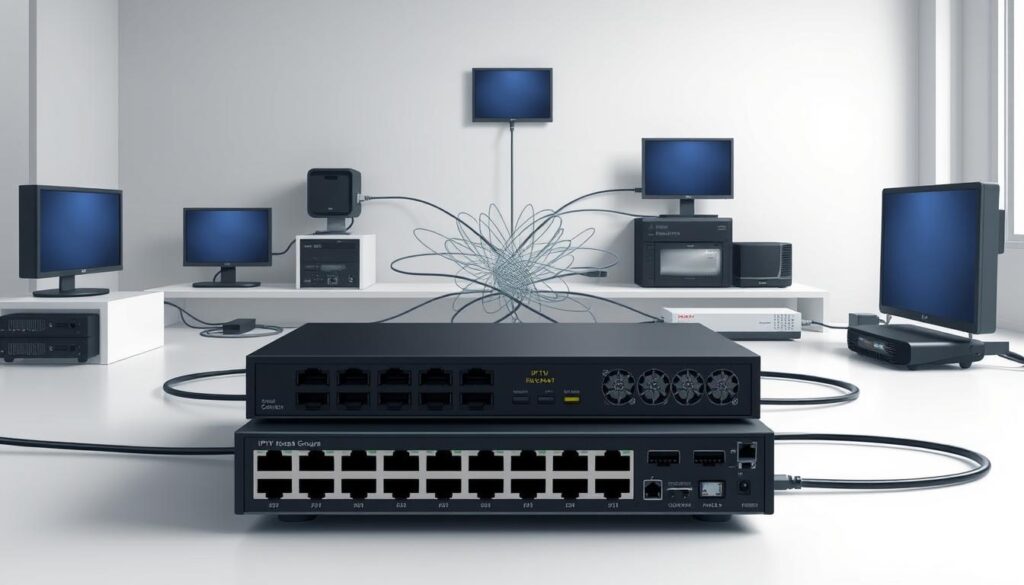
Follow this quick, step-by-step checklist to configure your router, switches, and devices so live channels arrive fast and only reach active viewers.
Router and switch setup: IGMP Proxy/Snooping, VLANs, and group handling
Enable an IGMP Proxy or querier on your router so downstream clients can request streams. Turn on IGMP Snooping on managed switches and enable Fast Leave where supported to speed channel switches.
Place live TV on a dedicated VLAN and tag or untag the port facing your set‑top box or app. Check MTU and disable storm control on the IPTV VLAN so the system does not throttle stream traffic.
Device readiness: apps, set-top boxes, and joining groups
Confirm your app or set‑top box sends internet group management joins (IGMP v2/v3) to the correct multicast group addresses your provider supplies. Wire key devices via Ethernet for steady bandwidth.
Optimizing bitrate and reducing zap time for live channels
- Prefer CBR and shorter GOPs on encoders to reduce first‑tune delay.
- Consider APs that convert multicast to unicast if you must use Wi‑Fi.
- Pre‑join popular multicast groups on startup to speed the first connection.
When everything checks out, you’ll be ready to activate a provider account and start watching in minutes.
Choosing multicast, unicast, or a hybrid approach for live streaming and VOD
Deciding between shared streams and one‑to‑one connections comes down to how many viewers you expect and which playback features you want.
Live linear channels work best with a shared approach because a single stream can serve multiple users. That keeps origin bandwidth low and gives fast channel changes on wired networks.
Live linear channels, ABR, and catch-up TV: when each model wins
Use shared streams for big events and standard channels. It cuts per‑channel load and keeps your home system responsive.
Use unicast for ABR, catch‑up and VOD. One‑to‑one delivery lets players adapt quality, support pause/rewind, and use HLS/DASH with caching.
- Hybrid is often the smartest choice: shared streams for live, unicast for personalized content.
- Transcoding and packaging matter for unicast; IGMP/PIM and VLANs matter for the shared path.
“The right mix lets you watch big‑event sports live with efficiency, and enjoy on‑demand shows with full playback control.”
| Use Case | Best Model | Main Benefit |
|---|---|---|
| Live channels with many viewers | Shared stream | Low origin bandwidth, fast zapping |
| VOD, catch‑up, ABR | Unicast | Adaptive quality, DVR features |
| Mixed household needs | Hybrid | Efficiency + personalization |
When you evaluate a provider or service, match their delivery options to your devices, bandwidth, and viewing habits. A provider that supports both paths makes the choice easy and gives you the best of both worlds.
Troubleshooting IPTV multicast: fixing packet loss, jitter, and QoS on your local network

Start by checking the basics: querier presence, IGMP Snooping on switches, and clean Ethernet cabling. These three checks often resolve the majority of packet loss and zap‑lag problems.
Diagnose before you tune. Use iperf to verify throughput and headroom for each live channel. Check switch counters and cable CRCs to rule out physical errors.
- Confirm your router runs an IGMP querier and switches have snooping enabled so group traffic doesn’t flood every port.
- Apply QoS/DSCP to prioritize live packets and enable SQM on the WAN to reduce bufferbloat and jitter.
- Capture briefly with Wireshark to validate IGMP joins and watch RTP/UDP loss patterns.
- Prefer wired Ethernet for key devices or enable multicast‑to‑unicast on APs when Wi‑Fi is required.
- Enable Fast Leave on switches to speed channel changes and keep encoders on CBR with consistent GOPs.
Check server and WAN use if you mix delivery modes so multiple users don’t exhaust bandwidth at peak times. After each change, retest to confirm steady streaming quality.
For a deeper playbook and step‑by‑step tests, see the troubleshooting guide.
GetMaxTV: the best-value IPTV provider once your network is ready
When your home network is tuned for live streams, picking a cost‑effective provider is the last step to instant viewing. GetMaxTV positions itself as the top value choice for households that want massive channel breadth without high costs.
All-in value and wide device support
Over 19,000 live channels and 97,000+ VOD titles come in a single plan for just $6.95/month. There is no contract, activation takes about two minutes, and all sports and movie packages are included.
You can stream on the devices you already own: Firestick, Smart TV, Android, Mac, Windows, tablets and more. That universal device compatibility makes initial testing fast after setup.
- Instant activation — start watching in ~2 minutes.
- 24/7 support to help with app sign‑ins, network toggles, or device setup.
- Transparent pricing — no hidden fees, no long commitments.
A multicast‑ready home network will deliver smooth live video and fast channel switching, while unicast layers handle on‑demand playback. When you’re ready, check GetMaxTV plans and sign up at GetMaxTV to test channels and device compatibility immediately.
Conclusion
Your local network is the real game-changer for fast channel zaps and steady live streams. A multicast-ready setup (IGMP, snooping, VLANs, wired Ethernet) gives instant channel changes and stable delivery, while unicast layers handle ABR and catch‑up smoothly.
You now have a clear plan to configure IGMP, Snooping, VLANs, and device apps so channels launch fast for every user. This approach minimizes origin data and keeps bandwidth predictable without relying only on raw internet speed.
Ready to test it? Subscribe in minutes at GetMaxTV or read the detailed configuration guide for step‑by‑step setup.
Prefer to try first? Get a no‑obligation free trial via WhatsApp: Start trial on WhatsApp. The signup is simple and risk‑free, with 24/7 support to help you finish setup and start watching.
FAQ
What is the difference between multicast and unicast for live channel delivery?
Multicast sends a single stream that many users on your local network can join, which cuts the bandwidth needed on shared links. Unicast creates a separate stream for each user, increasing bandwidth and server load. For live linear channels on a LAN, multicast is usually the most efficient choice; for on-demand video and adaptive bitrate (ABR), unicast or a hybrid approach often works better.
What network features must your router and switches support to handle group streams?
You should enable Internet Group Management Protocol (IGMP) on routers and use IGMP snooping on switches so multicast group joins don’t flood the network. Protocols like Protocol Independent Multicast (PIM) help route group traffic across subnets. Also configure VLANs to separate video traffic and apply Quality of Service (QoS) rules to prioritize video packets and reduce jitter.
Why is wired Ethernet recommended over Wi‑Fi for live streaming?
Wired Ethernet offers lower latency, more consistent throughput, and far less packet loss than wireless. Wi‑Fi can introduce interference, contention, and variable signal strength that increase packet loss and zap time. For reliable linear channel viewing and tight channel switching, a gigabit wired connection is best.
How do I set up IGMP Proxy or IGMP Snooping on my home gateway?
Access your router’s admin page, enable IGMP Proxy if you need cross-subnet distribution, and turn on IGMP snooping on managed switches to limit broadcast traffic. Some consumer devices label these features under “multicast,” “streaming,” or “video” settings. Save changes and reboot devices to ensure group memberships form correctly.
What should devices support to join group streams successfully?
Your set-top box, smart TV, or streaming app must support IGMP group joins and be compatible with the provider’s playlist format. Ensure firmware or app updates are applied, and allow the device on the correct VLAN or subnet. Some Android-based boxes and Linux set-top units provide explicit multicast settings you can adjust.
How can you reduce zap time when switching live channels?
Lower initial buffer sizes and use fast keyframe intervals in your encoder. Ensure multicast group joins are processed quickly by enabling IGMP fast-leave on switches and using efficient PIM or proxy configurations. Prioritize control and stream setup traffic with QoS so channel change messages aren’t delayed.
When should you choose a hybrid delivery model instead of pure group streaming?
Use a hybrid method when you have both many concurrent viewers for popular live events (benefiting from group streams) and diverse on-demand usage that requires ABR unicast. Hybrids let you deliver low-latency live channels via group delivery while serving VOD and catch-up with CDN-style unicast, balancing bandwidth and quality.
What steps help diagnose packet loss, jitter, and buffer underruns on your LAN?
Monitor interface counters on switches and routers for errors, drops, and collisions. Run continuous ping and jitter tests to the stream source and measure packet loss. Check for oversubscribed uplinks, improper MTU settings, or disabled QoS. Replace faulty cables and segregate video traffic into its own VLAN to isolate congestion.
How much internet speed do you need for multiple viewers and high-quality channels?
Calculate per-stream bitrate multiplied by concurrent unique streams on the shared link. For example, 8 Mbps per HD stream means 10 simultaneous unique streams need 80 Mbps of capacity. Group delivery reduces this on links inside your LAN, but external uplinks and last‑mile links must still handle peak unicast or CDN traffic.
What role do VLANs and QoS play in delivering consistent streaming quality?
VLANs separate video traffic from general data, preventing broadcast storms and limiting the scope of joins. QoS marks and prioritizes real-time packets so switches and routers forward video ahead of bulk traffic. Together they reduce jitter and packet loss, improving playback stability and reducing stutter during peak use.
Can consumer-grade equipment handle large multicast groups and many channels?
Basic consumer gear may struggle with many simultaneous group memberships, IGMP table limits, and VLAN handling. For large channel counts or many clients, use business-class switches and routers that support higher IGMP table sizes, robust snooping, PIM, and better CPU resources to manage group joins and multicast routing.
How do you optimize bitrate and encoding for live linear channels and catch-up TV?
Choose efficient codecs like H.264 or HEVC where supported, and set bitrates that balance quality and bandwidth. Use ABR for on-demand content and consider single-bitrate group streams for live channels on constrained links. Maintain consistent GOP/keyframe intervals to help fast channel switching and decoder performance.
What common configuration errors cause streams to fail or flood a network?
Common issues include disabled IGMP snooping, incorrect PIM settings, missing VLAN tags, and ACLs blocking IGMP packets. Misconfigured MTU or disabled jumbo frames can fragment packets, increasing loss. Verify group addresses are correct and that multicast control traffic is allowed through firewalls.
How can you test whether your network correctly forwards group traffic?
Use multicast-capable tools and client apps to join test groups and monitor traffic with Wireshark or sflow/NetFlow reports on switches. Check IGMP join and leave messages and confirm that only interested ports receive the stream. Stress-test with multiple clients to observe behavior under load.
What support and device compatibility should you look for from a provider?
Choose a provider that lists supported devices, offers clear setup guides for IGMP and VLANs, and provides 24/7 technical support. Look for universal app compatibility across Android boxes, smart TVs, and Linux set-top boxes, plus instant activation and clear service terms to simplify deployment.
The WatchMaxTV Team is a dedicated group of streaming specialists and entertainment technology reviewers covering IPTV services for viewers in the USA, UK, and Canada since 2023. Our team independently evaluates every service we feature — testing across Smart TVs, streaming sticks, mobile devices, and gaming consoles. We measure stream stability, picture clarity in HD and 4K, program guide accuracy, and customer support quality. Our goal is simple: help cord-cutters find reliable, affordable alternatives to overpriced cable. Every recommendation on WatchMaxTV.com comes from real-world testing — not sponsored content or paid placements.