

Ever wondered why a big game freezes at the best moment? You want smooth streaming that keeps up with live action, not sudden stutters that spoil viewing. This guide shows a clear path from problem to solution so you can watch without constant interruptions.
You’ll learn what stability numbers matter, how to test on the exact device you use, and which small changes deliver big gains. Expect practical steps like choosing wired over wireless when needed, tuning app settings, and using QoS to prioritize traffic.
When a bottleneck is out of your hands, this article helps you pick a provider that delivers steady streams at great value. For a deeper dive into testing and metrics, check the quality guide.
Key Takeaways
- Measure stability, not just speed, for reliable streaming.
- Test on your streaming device with other traffic paused.
- Prefer wired links or 5 GHz Wi‑Fi for better throughput.
- Adjust app settings and device maintenance to cut freezes.
- Use QoS, multicast features, or a trusted provider when needed.
Why your stream stutters today: symptoms, causes, and what’s really happening on your network
When video stalls or the sound slips out of sync, the cause is often a shifting connection rather than a single fault. You’ll notice brief buffering, audio desync, or sudden drops in quality as telltale signs.
Common problems include fluctuating speeds, crowded provider servers at peak hours, weak Wi‑Fi signal, misconfigured routers, and overheating devices. Hidden background updates can also eat bandwidth and cause micro-freezes.
Aim for at least 15 mbps for SD, 25 mbps for HD, and 50+ mbps for 4K when multiple users share the line. Test on the exact device you use and pause background downloads before troubleshooting.
- Try 5 GHz, Ethernet, or Powerline to reduce wireless interference and boost signal stability.
- If issues worsen only in evenings, the server path or provider congestion is likely the problem; switching servers or using a VPN may help.
- Small setup tweaks—router placement, cooling hot devices, or stopping updates—often stop repeated buffering without new hardware.
Quick checklist: test on device, pause background tasks, try wired connection, and compare peak vs off-peak performance.
IPTV jitter and latency explained
A few clear metrics separate a laggy stream from one that stays crisp during live events.
Latency, jitter, packet loss: the trio that defines streaming quality
Latency measures round-trip delay; keep it under 50 ms for responsive channel changes and live timing. Lower delay makes your remote feel instant and reduces sync slips during fast action.
Jitter tracks how much that delay swings. Aim for under 20 ms. When jitter climbs, audio and video slip out of step and you see stutters.
Packet loss is unforgiving—target 0% packet loss. Even 1% loss can cause pixelation and brief freezes during busy scenes.
Minimums for HD and 4K: Mbps, stable ping, and zero-loss targets
For a single stream, plan ~10 Mbps for HD and ~25 Mbps for 4K. Add extra bandwidth if other devices play games or download at the same time.
Remember: speed alone is not enough. Combine Mbps targets with low delay, low jitter, and zero loss to get true streaming quality.
Why typical speed tests mislead and how continuous data changes the rules
Standard speed tests measure bursts to one server. That shows peak throughput, not steady delivery.
Streaming needs continuous, stable data. Watch real-time metrics—delay, jitter, and loss—before you pick tweaks or a provider.
Choose a provider that guarantees stability and consistent delivery. That value-focused choice usually beats raw speed numbers when you want smooth, reliable playback.
How to test your connection the right way for IPTV performance
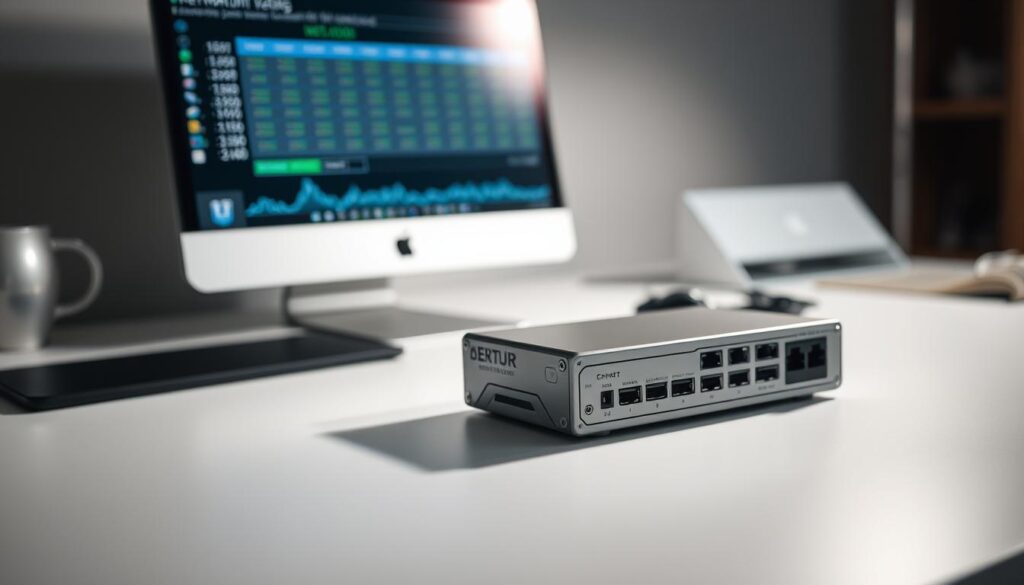
Start every check on the exact screen you watch from so results mirror real playback. That gives you a true baseline and removes guesswork.
Test on the actual streaming device to mirror real playback
Run the test on your TV box or smart TV app. A laptop or phone can follow a different path through the router and give misleading results.
Compare Ethernet vs Wi‑Fi and 2.4 GHz vs 5 GHz
Plug in an ethernet cable and run the same test. Then test over 5 GHz and 2.4 GHz Wi‑Fi. Wired links usually reduce dropouts; 5 GHz often gives better speeds while 2.4 GHz passes through walls more easily.
Use tools that measure packet loss, jitter, and more
Pick a tool that shows packet loss, delay, and short-term swings, not just Mbps. Record results so you can compare after each tweak.
Control background traffic for accurate, repeatable results
- Pause updates, cloud syncs, and other streams on every device.
- Run tests at different times to spot peak-hour drops in internet speed.
- If ethernet beats Wi‑Fi, consider Powerline adapters or a better router with QoS to prioritize streaming traffic.
Network and router fixes that crush buffering, jitter, and dropouts
Before swapping gear or services, try these targeted fixes that usually cut buffering fast.
Prioritize streaming with QoS and traffic shaping
Turn on qos in your router to give streaming packets priority. This keeps big downloads or game updates from stealing bandwidth during live events.
Set rules for your streaming device by MAC or port so critical packets move first. After applying changes, reboot the router to activate them.
Enable IGMP proxy/snooping and multicast-friendly settings
Enable IGMP proxy or snooping so multicast streams flow cleanly across the network. Without it, some streams freeze a few seconds after play.
Switch to wired Ethernet or Powerline for rock-solid stability
Use an ethernet link or Powerline adapters to avoid wireless interference and packet loss. Wired connection gives the steadier performance most streams need.
Optimize Wi‑Fi placement, channels, and mesh coverage
Reposition your router to reduce walls between the box and device. Pick a less crowded channel and prefer 5 GHz where possible to cut cross-home interference.
If rooms are far apart, add a mesh system and ensure secondary nodes pass multicast correctly.
| Fix | Why it helps | Quick action |
|---|---|---|
| Enable QoS | Prioritizes streaming packets over heavy traffic | Set device priority by MAC or app, then reboot |
| IGMP snooping/proxy | Prevents multicast streams from being blocked | Turn on in router settings, check mesh compatibility |
| Wired connection | Removes wireless drops for steady throughput | Use ethernet or Powerline adapters |
| Wi‑Fi tuning | Reduces interference and improves signal range | Move router, change channel, add mesh if needed |
Tip: After each change, run your test routine to compare numbers. These steps often halve buffering and restore reliable streaming nights.
App and device tuning to stabilize playback and reduce interruptions

A few app tweaks and device fixes can turn an erratic feed into a stable playback experience in minutes.
Start inside the app: lower resolution one step (for example, 4K to 1080p). This often steadies a marginal connection fast without major quality loss.
Increase buffer size where the app allows it so short drops don’t become visible pauses. If MPEG‑TS (UDP) stutters, try HLS — many users report HLS is more resilient on crowded routes.
Quick device and app wins
- Enable hardware acceleration to offload decoding to the GPU and reduce CPU spikes.
- Keep firmware and app updates current; stability fixes land quietly in updates.
- Clear cache, remove unused apps, and reboot devices periodically to free RAM.
- Ventilate hot devices or add a small fan; heat throttling causes strange playback issues.
- Use ethernet for big events or 4K content to remove wireless variability.
| Tweak | Why it helps | Action |
|---|---|---|
| Lower resolution | Reduces bitrate demand during peaks | Set one level down in app settings |
| Increase buffer | Absorbs brief data drops | Adjust buffer in advanced player options |
| Switch protocol | Some protocols handle congestion better | Try HLS if MPEG‑TS shows stutter |
| Hardware accel & updates | Improves decoding and stability | Enable accel, install firmware/app updates |
Tip: Combine these quick wins and you should see consistent improvements within minutes. For deeper buffer tuning, read the increase buffer size guide, or follow steps to stop buffering for good.
When the bottleneck isn’t you: provider congestion and ISP throttling
Nightly buffering that doesn’t show up during the day usually signals congestion beyond your home. Start by comparing daytime tests with peak-hour runs. If your results degrade only at night, the provider path or ISP rules are the likely cause.
Identifying server overload and switching to less crowded routes
Try alternate servers when available. Watch whether packet loss and latency calm down on a different route.
If a nearby server gives steadier speeds, you’ve found a less crowded path. Document the test times and results so you can make a clear case to services or switch providers if needed.
Using a high‑speed VPN to bypass peak‑hour throttling
Use a fast VPN to mask traffic types and avoid ISP throttling. Pick an exit close to the content path for better bandwidth and lower delay.
Compare streaming with and without a VPN. If performance improves, throttling or a poor route was limiting your connection. Fiber lines usually hold up better during congestion, so note the access type when you test.
- If daytime tests are clean but nights fail, upstream congestion is likely.
- Switch servers, test with a VPN, and track peak patterns to confirm the cause.
- Once confirmed, moving to a better provider is often the simplest permanent fix.
| Indicator | What it suggests | Quick action |
|---|---|---|
| Evening-only packet loss | Provider server overload or ISP shaping | Switch server or test with a VPN |
| Better performance via VPN | ISP throttling or poor routing | Choose nearby VPN exit and compare speeds |
| Consistent daytime results, night drops | Peak-hour congestion on upstream path | Document tests, contact services, consider provider change |
Next step:If upstream congestion is confirmed, choose a reliable, affordable provider with optimized servers so your streaming stays smooth even at peak times.
The smarter choice after fixes: why GetMaxTV delivers stable, affordable streaming
Once your home network is tuned, the provider you pick decides whether smooth viewing sticks during peak times.
GetMaxTV pairs a huge library with delivery that stays responsive under load. You get 19,000+ live channels and 97,000+ VOD for just $6.95/month. That single price keeps content broad without surprise fees.
All the content, one low price
The plan includes all sports and movie packages at no extra cost. That means premium viewing without add-on charges. It’s a simple way to keep your monthly costs predictable while expanding what you watch.
Fast setup, no contract, works on your devices
Activation takes about two minutes, and there’s no contract to lock you in. You can use Firestick, Smart TV, Android, iOS, Mac, or Windows—so you won’t need new hardware.
- Value: Huge content library for one low fee.
- Flexibility: Instant activation and no contract.
- Compatibility: Works on the devices you already own.
- Stability: Optimized delivery keeps streams steady when many users are online.
- Support: 24/7 help if you need it.
After you stabilize your connection at home, choose a provider that won’t bog down at peak times. If you want a quick walkthrough to get Set up on any box, follow the quick setup guide.
Peace of mind with GetMaxTV: optimized servers and real 24/7 support
A strong server setup plus 24/7 experts turns a shaky night of streaming into a reliable viewing routine.
GetMaxTV relies on optimized server routes so your stream stays stable when demand spikes. Behind the scenes, disciplined server monitoring keeps performance steady during big events.
All sports and movie packages are included at no extra cost. That keeps content costs flat and gives you more choices without surprise fees.
Help when you need it: dedicated experts to resolve issues fast
Real 24/7 support means you can get help right away. Dedicated agents walk users through clear steps—switch a channel source, check for updates, or reboot nodes—to restore service quickly.
“Support that guides you through a fix in minutes makes a huge difference during live events.”
- Optimized routes: fewer slow paths, more reliable delivery.
- Inclusive content: sports and movie packs at one price for relaxed viewing.
- Responsive help: tips for devices and app tweaks delivered fast.
With focused server management, 24/7 assistance, and all content bundled in, you get a provider that reduces downtime and makes your viewing predictable—even when the wider internet is busy.
Conclusion
A few targeted tests and simple fixes are the fastest route to steady playback.
Start by testing your actual device for packet loss, jitter, and latency, not just raw Mbps. Aim for ~10–25 mbps per stream and document results so you can spot peak-hour issues. Small home fixes—Ethernet or Powerline, QoS, IGMP, and Wi‑Fi tuning—usually stop most buffering and interruptions.
Choose a provider with optimized servers and 24/7 support to avoid route congestion. For deeper testing advice, see the quality guide.
Ready to lock in smooth streaming? Subscribe at GetMaxTV — 19,000+ live channels and 97,000+ VOD for $6.95/month, instant activation in 2 minutes, universal compatibility, no contract, all sports and movie packages included, plus 24/7 support. Prefer to try first? Start a free trial on WhatsApp: message support.
FAQ
What causes stream stuttering and interruptions on my setup?
Stuttering usually comes from unstable network conditions: variable delay, packet loss, or sudden bandwidth drops. Background devices, weak Wi‑Fi, overloaded routers, or a busy content server can all trigger playback issues. Test your actual streaming device over Ethernet to see the true cause.
How do I measure the real streaming quality on my device?
Run tests from the same device and app you use to watch content. Measure delay, packet loss, and throughput over several minutes rather than a single-speed test. Compare Ethernet vs Wi‑Fi, and repeat tests during peak and off‑peak hours for accurate results.
What are the minimum speeds and targets for stable HD and 4K viewing?
Aim for consistent throughput above typical HD or 4K requirements, low and stable ping, and near‑zero packet loss. For HD, target comfortable sustained bandwidth; for 4K, you’ll need significantly more headroom. Also prioritize stability over bursty peak numbers.
Why do standard speed tests mislead my troubleshooting?
Many tests show short bursts of peak speed but don’t capture jitter or packet loss. Streaming relies on steady delivery, so continuous measurements of delay variation and loss give better insight than one‑second Mbps results.
Should I use Ethernet or Wi‑Fi for best playback?
Wired Ethernet gives the most stable connection with lower delay and fewer dropouts. If Ethernet isn’t possible, use 5 GHz Wi‑Fi, optimize placement, reduce interference, or set up a mesh system to maintain consistent coverage.
How do QoS and traffic shaping help my viewing experience?
Quality of Service lets your router prioritize streaming traffic over downloads or backups. Traffic shaping reduces congestion during peak use, ensuring your playback gets the bandwidth and low delay it needs to avoid buffering and interruptions.
What router settings improve multicast or live stream delivery?
Enable IGMP snooping or proxy where available, and choose multicast‑friendly firmware. These features help manage group traffic efficiently and reduce unwanted packet loss on local networks carrying live channels.
Can changing the streaming app settings reduce dropouts?
Yes. Lower the resolution, increase buffer size if the app allows, switch protocols (HLS vs UDP vs MPEG‑TS) to one that suits your network, and enable hardware acceleration. These tweaks help smooth playback on constrained connections.
How do I know when the problem is the content provider or my ISP?
If multiple users on different networks report the same issue, the provider may be overloaded. If problems coincide with peak hours and affect many services, ISP congestion or throttling could be the cause. Traceroutes and latency patterns can help identify the bottleneck.
Are VPNs useful to fix slow or throttled streams?
A high‑speed VPN can bypass ISP throttling or routing congestion, but it adds encryption overhead that can increase delay. Test a reputable VPN provider to see if it improves stability during peak times before relying on it regularly.
What basic maintenance keeps my player and network performing well?
Keep firmware and apps updated, clear app caches, prevent device overheating, and restart routers occasionally. Also limit background syncing and updates during viewing to free bandwidth and reduce interruptions.
How can I make Wi‑Fi more reliable for streaming in my home?
Place the router centrally and away from interference, use 5 GHz for closer devices, select the clearest channel, and consider a wired backhaul or powerline adapters for distant rooms. Mesh systems help when a single router can’t cover your space.
What tests show packet loss and delay variation rather than just speed?
Use network tools that report packet loss, round‑trip time, and variation over time. Run tests during real playback and while reproducing typical household traffic to get realistic, actionable data.
If I switch providers, what should I check to ensure better performance?
Verify advertised network capacity, ask about peering and route quality for streaming services, test a trial period during peak hours, and confirm 24/7 support that can help diagnose routing or server issues quickly.
The WatchMaxTV Team is a dedicated group of streaming specialists and entertainment technology reviewers covering IPTV services for viewers in the USA, UK, and Canada since 2023. Our team independently evaluates every service we feature — testing across Smart TVs, streaming sticks, mobile devices, and gaming consoles. We measure stream stability, picture clarity in HD and 4K, program guide accuracy, and customer support quality. Our goal is simple: help cord-cutters find reliable, affordable alternatives to overpriced cable. Every recommendation on WatchMaxTV.com comes from real-world testing — not sponsored content or paid placements.