

Have you ever wondered why some live games and movies stream in crisp detail while others stutter or blur?
Your viewing experience depends mostly on one thing: how much data is sent per second. This short, friendly guide shows how bitrate shapes picture sharpness, smooth motion, and overall stability so you stop guessing and start enjoying better video now.
We’ll set clear expectations for common Mbps ranges — SD, HD, Full HD, and 4K — and explain why headroom matters when many people watch at once. You’ll also see how delivery tech like adaptive streaming, QoS, and CDNs keep streams steady without extra effort from you.
When you’re ready to act, the path to GetMaxTV is simple: instant activation, universal compatibility, 19,000+ live channels, 97,000+ VOD, and 24/7 support at just $6.95/month. That combination makes it easy to test real improvements in speed and picture quality risk-free.
Key Takeaways
- Bitrate controls picture sharpness and smoothness; more Mbps usually means better quality.
- Typical needs: SD ~2–3 Mbps, HD ~5–8 Mbps, 4K ~20+ Mbps; allow headroom for peak times.
- Delivery tech like ABR, QoS, and CDNs prevents stutters and reduces latency.
- Simple home changes—Ethernet, 5 GHz Wi‑Fi, and router upgrades—improve results fast.
- GetMaxTV offers a low-cost, large-channel option with instant setup and 24/7 support to try improvements risk-free.
What bitrate means for IPTV quality, buffering, and your viewing experience
Your picture clarity, motion smoothness, and pauses all come down to the amount of video data sent each second. That data rate determines how much visual detail the stream can carry, and it matters more than just resolution or frame rate alone.
Bitrate vs resolution vs frame rate: how each affects sharpness and motion
Resolution sets pixel count, frame rate controls motion, and bitrate sets the amount of data that paints each frame. Two streams at 1080p can look very different if one uses more data or better compression.
Why higher bitrate needs more bandwidth (and when compression offsets it)
Higher data rates need more bandwidth, especially for HDR or fast sports. Modern compression (H.264/H.265) often keeps video quality high at lower rates, but poor compression or many simultaneous users will force drops and buffering.
Adaptive delivery and traffic prioritization help. Learn practical bandwidth targets in this bandwidth guide and fine-tune device settings via this quality settings walkthrough.
IPTV bitrate explained: SD, HD, Full HD, and 4K speed requirements
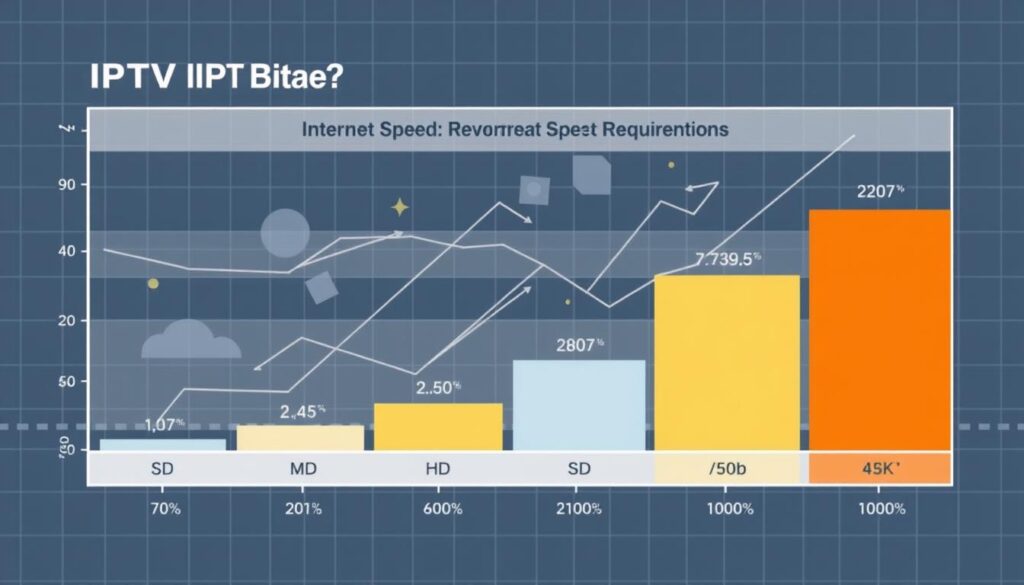
Think of mbps as the plumbing for video — it determines how much visual data flows at once. Match the picture you want to the speeds you buy so you avoid frustration when multiple devices are active.
Practical targets you can use
- SD: 3–4 Mbps — good for small screens or background TV.
- HD: 5–8 Mbps — crisp on most living-room sets.
- Full HD: 8–12 Mbps — cleaner detail for larger TVs.
- 4K: 25–35+ Mbps — needed for big screens, sports, and HDR content.
Headroom and real-world math
Add 20–30% headroom above minimums to fight evening congestion and jitter. For example, three HD streams can need about 24–36 Mbps plus extra for other internet use.
Do the simple math: multiply per-stream targets by your concurrent viewers, then add headroom. Pick a service plan that covers this total so your streaming quality stays steady. When you’re ready, GetMaxTV fits into that setup without extra configuration and makes testing easier with its broad device support.
Network factors that make or break streaming quality
When video stutters, the culprit is usually the path your data takes from server to screen. A few milliseconds of delay or a handful of lost packets can turn a smooth show into pauses and pixelation.
What matters most:
- Bandwidth — raw capacity matters, but also check latency, jitter, and packet loss for real-world stability.
- Latency and jitter — low and consistent timing keeps live sports and fast channel changes responsive.
- Packet loss — even small losses cause visible glitches; fiber ISPs usually give the best consistency.
Home network basics
Prefer Ethernet for critical TVs. Wired connections cut interference and give steady performance for multiple users.
If you must use Wi‑Fi, pick 5 GHz and keep the device near the router. Older routers and crowded channels can throttle stream quality, so update firmware or upgrade hardware.
Enable IGMP Snooping on switches for efficient multicast. Also remember turnkey fixes: reboot the router, scan Wi‑Fi channels, and test speed during peak hours. For deeper fixes and provider-level tech like adaptive delivery, read this adaptive algorithm overview and this quality guide.
Modern optimization methods that keep streams stable

Modern delivery tricks work behind the scenes to keep your shows smooth, even when the house is busy.
Adaptive Bitrate Streaming dynamically shifts quality to match available bandwidth. When traffic spikes, ABR scales video down to avoid buffering and then raises it back when conditions improve.
Traffic priority and smarter switching
Quality of Service (QoS) tags important video packets so your playback gets priority over background downloads. On managed switches, enabling IGMP Snooping prevents multicast traffic from flooding every port, which keeps other devices responsive.
Efficient delivery for live channels and global reach
Multicast delivers a single live stream to many users without duplicating data, saving mbps and cutting server load. CDNs place content near you, which speeds starts and reduces stalls during live streaming.
- Smart compression (H.264/H.265) keeps video clear at lower rates.
- Top providers blend ABR, QoS, multicast, and CDNs for consistent performance.
- When you compare iptv services, ask about ABR, CDN partners, and traffic prioritization.
For practical tips on improving streaming quality, check provider settings and look for these optimizations—real value shows up in smooth playback, not just headline specs.
Device and buffer settings: fine-tune for faster starts and fewer interruptions
A few quick changes on your player and router can make channels load faster and play without hiccups. Focus on small, safe tweaks so you see results right away.
How buffering works and common limits
Buffering preloads data so brief internet drops don’t freeze your show. Many players use about 8 MB by default.
Older Android builds often cap buffers at 10–30 seconds. Newer systems may allow ~60 seconds. Larger buffers smooth out choppy connections but add start and channel-change delay.
When to raise or lower buffers (sports trade-off)
Increase the buffer if your connection is inconsistent. Decrease it for faster starts and quicker channel changes, which helps live sports where latency matters.
Compression codecs and practical tweaks
Use H.264 or H.265 to get better video quality at lower mbps. Clear app cache (example: Fire TV > Settings > Applications > Manage Installed Applications) and keep devices updated.
- Test one setting at a time—buffer size, codec, or Wi‑Fi channel.
- Close background apps to free memory for smooth playback.
- For extra tips on improving streaming quality, see this streaming quality guide.
Step-by-step setup: test, optimize, and lock in smooth playback
Begin with a real test on the device you use most to catch performance issues where they happen. Run a speed check at peak evening times so your measured internet speed reflects real-world conditions.
Speed testing and spotting router bottlenecks
Use the router’s client list to find devices hogging bandwidth. Pause or limit those during big games or movie nights. Compare Ethernet vs 5 GHz Wi‑Fi on your main TV—an Ethernet cable often shows clear gains in stability.
Channel switching, cache, and quick stability checks
Clear the app cache if channels or EPG load slowly. Tweak player settings one at a time and measure channel start and switch times. Reboot the router monthly and update firmware to keep performance steady.
| Test | Action | Expected result |
|---|---|---|
| Speed test on TV device | Run at peak time | Real speed for plan decisions |
| Ethernet vs 5 GHz | Compare both | Ethernet = best stability |
| Router client check | Limit heavy users | Better streaming quality |
| Cache & app settings | Clear and tweak | Faster channel switching |
Example: three HD streams need about 24–36 Mbps plus headroom. Keep 20–30% extra so your video stays smooth. If problems persist, test a different device or app to isolate the issue and lock in smooth playback.
Why GetMaxTV delivers top quality without the high price
GetMaxTV packs a massive lineup into a single, low-cost plan you can test in minutes. You get a huge library of live channels and on-demand titles, modern delivery tech, and simple setup that works with gear you already own.
What you get right away
19,000+ live channels and 97,000+ VOD mean all major sports and movie packages arrive with no add-on fees. That breadth makes it easy to find live games, new releases, and classic films without juggling multiple providers.
Fast activation and broad device support
Sign up and start watching in about two minutes. There’s no contract and the monthly price is just $6.95. The service supports Firestick, Smart TV, Android, Mac, Windows, and more, so setup is usually plug-and-play.
- Stable playback: providers that use ABR, CDN distribution, and traffic prioritization reduce buffering during peak hours.
- Better local performance: use Ethernet or a strong 5 GHz Wi‑Fi connection to improve speed and reduce drops on Fire TV and smart sets.
- 24/7 support: quick help for settings, device tips, or account questions so you stay watching.
| Feature | What it means for you | Typical benefit | How to use |
|---|---|---|---|
| Channel & VOD count | 19,000+ live | 97,000+ VOD | All sports and movies in one place | Search or browse by category |
| Price & terms | $6.95/month | No contract | Low cost, no long-term lock | Subscribe and activate in ~2 minutes |
| Device support | Firestick, Smart TV, Android, Mac, Windows | Works on existing hardware | Install app or load playlist |
| Delivery & support | ABR, CDN, traffic priority | 24/7 help | Fewer stutters during peak times | Use Ethernet/5 GHz and contact support if needed |
Want to compare providers? See a curated list of top options at best IPTV service providers. For quick device tips and fine-tuning, check GetMaxTV’s setup and quality settings page.
Choosing the right plan and provider for flawless live sports and movies
Start by sizing your plan to real needs. Count how many concurrent streams you expect and the resolution targets. For example, three HD streams often need about 24–36 Mbps plus 20–30% headroom for smooth viewing during peak times.
Choose providers that invest in delivery tech. Favor services that use ABR, QoS, multicast for live channels, and CDNs. These features directly improve streaming quality during big games and crowded viewing hours.
Check device compatibility and app support for your main TVs, sticks, and phones. If everyone uses different gear, look for a provider with broad device support so you avoid extra hardware or complex setup.
Look for clear pricing with no contract and transparent rules on simultaneous streams. Fast, responsive support matters—24/7 help is priceless right before a big match or movie night.
Read plan details for allowed streams and usage policies so your household habits match the offer. Shortlist providers with large, well-curated libraries so you spend less time hunting for content.
If you want all of the above at the best price, GetMaxTV bundles instant activation, broad device support, and round‑the‑clock support. For a quick checklist when comparing options, see this streaming quality checklist.
Conclusion
Let’s wrap up with clear steps you can use tonight to cut buffering and boost video quality.
You now have a complete guide to plan mbps, headroom, and simple device settings for a better viewing experience. Use the quick math: SD 3–4 Mbps, HD 5–8 Mbps, Full HD 8–12 Mbps, 4K 25–35+ Mbps, plus 20–30% headroom.
Prefer Ethernet or strong 5 GHz Wi‑Fi, keep devices close, and update firmware. Tune buffer size for your priorities and clear app cache on sticks like Fire TV. For buffer metrics and practical tips, see this buffer count and fill guide.
Ready to subscribe? Visit https://watchmaxtv.com/ for GetMaxTV—19,000+ live channels, 97,000+ VOD, $6.95/month, instant setup, universal compatibility, and 24/7 support. Not sure yet? Try a no‑obligation free trial on WhatsApp: https://wa.me/message/OZ4NORVZQTYAC1
FAQ
What does bitrate mean for streaming quality and buffering?
Bitrate measures how much video data flows per second. Higher rates usually give sharper images and smoother motion, but they need more internet bandwidth. If your connection can’t supply the required throughput, you’ll see buffering and playback stutters.
How do bitrate, resolution, and frame rate differ?
Resolution sets pixel count (sharpness), frame rate controls motion smoothness (fps), and data rate controls how much information is sent each second. You can have a high resolution with a low rate that looks blocky, or a lower resolution with a high rate that looks cleaner. All three work together to determine perceived quality.
How many Mbps do I need for SD, HD, Full HD, and 4K streams?
Typical targets are: SD around 3–4 Mbps, HD about 5–8 Mbps, Full HD 8–12 Mbps, and 4K roughly 25–35+ Mbps. These are practical starting points; actual needs vary with codec and scene complexity.
Should I add extra bandwidth beyond those targets?
Yes. Add 20–30% headroom to handle network jitter, peak-time congestion, and short bitrate spikes. That headroom reduces the chance of buffering during complex scenes or when other devices share your connection.
How do I plan for multiple streams in my household?
Add the recommended Mbps for each simultaneous stream, then add headroom. For example, two Full HD streams (2 × 10 Mbps) plus 30% headroom needs about 26 Mbps. Don’t forget background uses like cloud backups or downloads.
Which network factors most affect playback performance?
Bandwidth, latency, jitter, and packet loss. Bandwidth limits throughput, high latency delays interactions, jitter causes uneven delivery, and packet loss forces retransmits. Together they determine whether a stream starts fast and plays smoothly.
Is Ethernet better than Wi‑Fi for streaming?
Yes. Wired Ethernet gives lower latency, more consistent throughput, and less interference. If you must use Wi‑Fi, 5 GHz networks and a recent router model offer the best balance of speed and reliability for high-quality video.
What is Adaptive Bitrate Streaming and how does it help?
Adaptive Bitrate Streaming automatically switches quality up or down based on current network conditions. It keeps playback continuous by reducing quality when bandwidth drops and restoring it when bandwidth improves, minimizing buffering.
Can router settings improve streaming reliability?
Yes. Enabling QoS to prioritize video traffic, using IGMP snooping for multicast on local networks, and keeping firmware updated can reduce interruptions and improve channel switching times.
How does buffering work and when should I adjust buffer size?
Devices prefetch a small amount of video into a buffer to smooth short network hiccups. Increasing buffer size reduces rebuffering but raises startup delay and live latency. For live sports you may prefer smaller buffers to keep action closer to real time.
Do newer codecs let you use less data for the same quality?
Yes. Modern codecs like H.265 (HEVC) and AV1 deliver similar visual quality at lower data rates than older codecs like H.264. That means you can watch higher-resolution video without proportionally higher bandwidth.
How do I test my connection to spot bottlenecks?
Run a speed test on the device you use for viewing, preferably over the same network link (Wi‑Fi or Ethernet). Check for consistent download Mbps, low jitter, and low packet loss. Repeat tests at different times, and test directly on the router if needed.
Why do channel switching delays happen and how can I reduce them?
Delays come from device buffering, DNS lookups, and the provider’s stream startup. Keeping app cache trimmed, using a fast DNS, and choosing a provider with optimized channel delivery speeds up channel changes.
How much bandwidth does a service listing tens of thousands of channels typically require?
Bandwidth per stream follows the quality tiers above. The number of channels in a service doesn’t change per-stream needs, but a provider with a large catalog should use CDNs and efficient delivery to keep global performance stable.
What should I look for when choosing a streaming plan for sports and movies?
Prioritize consistent real-world throughput, low latency for live sports, device compatibility (Fire TV, Android, smart TVs, Windows/macOS), and clear support policies. Also check trial options and whether the provider uses modern codecs and CDNs.
The WatchMaxTV Team is a dedicated group of streaming specialists and entertainment technology reviewers covering IPTV services for viewers in the USA, UK, and Canada since 2023. Our team independently evaluates every service we feature — testing across Smart TVs, streaming sticks, mobile devices, and gaming consoles. We measure stream stability, picture clarity in HD and 4K, program guide accuracy, and customer support quality. Our goal is simple: help cord-cutters find reliable, affordable alternatives to overpriced cable. Every recommendation on WatchMaxTV.com comes from real-world testing — not sponsored content or paid placements.