
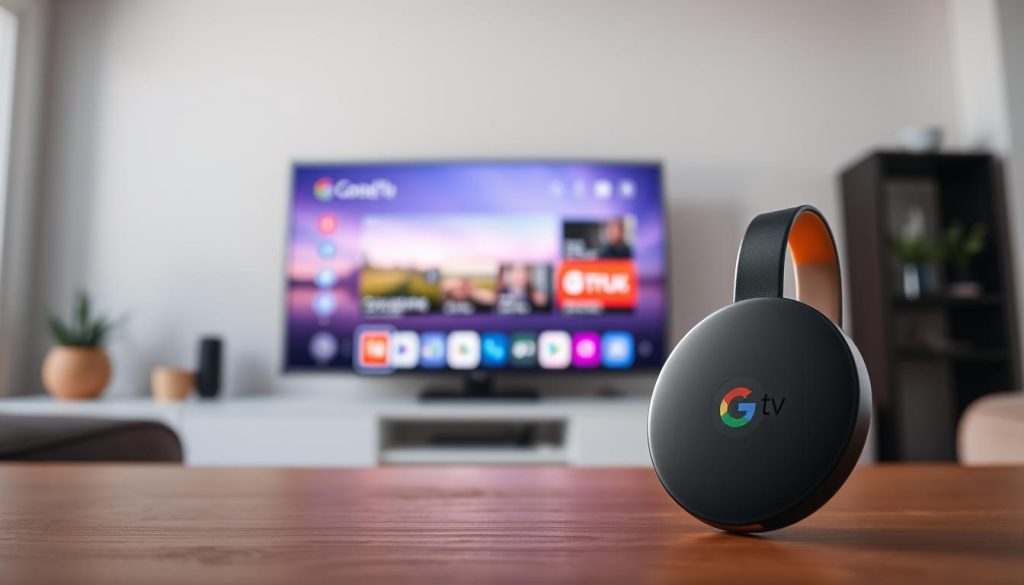
Did you know over 30 million Chromecast devices have been sold worldwide? They’ve changed how we watch media. Now, using Chromecast for IPTV streaming is key.
It’s easy to cast your favorite IPTV content on the big screen. Use Chromecast or Google TV Streamer (4K) to show a Chrome tab or your PC screen on TV. Try our Free IPTV Trial for premium streaming!
To cast content to Chromecast, use apps that support screen mirroring and casting. For example, an app on the Google Play Store lets you cast local videos, photos, and music to Chromecast. You can find it here.
Key Takeaways
- Learn how to cast IPTV on Chromecast with Google TV.
- Discover the benefits of using Chromecast for IPTV streaming.
- Understand the process of setting up your Chromecast for IPTV.
- Explore the different methods to cast content to Chromecast.
- Enjoy your favorite IPTV content on the big screen.
What You Need to Know About IPTV Streaming
Understanding IPTV streaming is key for a smooth Chromecast experience. IPTV, or Internet Protocol Television, lets users stream media directly to their devices. It offers a flexible and personalized viewing experience.
What is IPTV and How Does It Work?
IPTV streaming sends TV content over the internet. This way, viewers can access many channels and on-demand content. IPTV Smarters Pro is a top IPTV app that works with many devices, including Chromecast. It lets users watch their favorite shows on a bigger screen.
The Evolution of Chromecast with Google TV
Chromecast has grown a lot with Google TV. It now has a smarter interface and better content finding. Google TV combines content from different streaming services and apps. This makes it easier to find and watch what you like.
| Feature | Chromecast (Previous) | Chromecast with Google TV |
|---|---|---|
| Interface | Simple, casting-focused | Enhanced, content discovery |
| Content Access | Limited to casting from devices | Direct access to various streaming services |
| IPTV Compatibility | Requires casting or sideloading apps | Supports IPTV apps directly through Google Play |
Enjoy premium streaming now at https://watchmaxtv.com.
The Complete Guide to IPTV for Chromecast
Casting IPTV to Chromecast is now easy, thanks to Google TV. This guide will show why Chromecast is great for IPTV streaming. It will also compare Chromecast models for the best IPTV performance.
Why Chromecast is Ideal for IPTV Streaming
Chromecast is a top pick for IPTV streaming because it’s easy to use. IPTV streaming on Chromecast lets users watch their favorite channels on TV. It’s versatile, but some plugins like Silverlight and VLC might not work.
Chromecast is great for IPTV because it can cast M3U files. Users can easily cast their IPTV playlists using the cast m3u to Chromecast feature. This makes it a favorite among many.
Comparing Chromecast Models for IPTV Performance
Different Chromecast models offer different IPTV performance levels. The latest Chromecast with Google TV has better features and performance than older models.
Here’s a comparison of the key features:
- Chromecast (3rd Generation): Supports up to 1080p, ideal for standard IPTV streaming.
- Chromecast with Google TV: Supports up to 4K, offers a more interactive experience with Google TV.
- Chromecast Ultra: Also supports up to 4K, with additional features like HDR.
The Chromecast with Google TV is recommended for the best IPTV experience. It supports 4K and has interactive features.
Essential Requirements Before You Begin
Before you start streaming IPTV on your Chromecast, make sure you have the right stuff. You need the right hardware and a solid internet connection. It’s not just about having the service; it’s about having the right setup.
Hardware Checklist
You’ll need a few important devices to get started. These include:
- A Chromecast or Chromecast with Google TV device
- A Google TV Streamer (4K) or Chromecast Ultra for 4K streaming
- A TV with an HDMI port to connect your Chromecast
- A mobile device or computer for initial setup
Make sure your Chromecast fits your TV. Also, have a mobile device or computer ready for setup.
Internet Connection Requirements
A fast and stable internet connection is key for smooth IPTV streaming. Here’s what you need to know:
Recommended Bandwidth for HD and 4K Streaming
For HD streaming, you need at least 5 Mbps internet speed. But for 4K streaming, you’ll need 25 Mbps or more.
Wi-Fi vs. Ethernet Considerations
Wi-Fi is easy, but Ethernet gives you a more stable and faster connection. It’s best for 4K streaming. If you can, use Ethernet for your Chromecast.
Setting Up Your Chromecast with Google TV
Setting up your Chromecast with Google TV is easy and makes watching IPTV better. First, you need to do some initial steps and adjust your settings for IPTV.
Initial Configuration Steps
First, make sure your Chromecast is hooked up to your TV and turned on. Then, download and install the Google Home app on your phone. Follow the app’s instructions to link your Chromecast to Wi-Fi.
Once it’s connected, your Chromecast will walk you through the setup. This includes signing into your Google account and agreeing to the terms.
Optimizing Settings for IPTV Streaming
After setting up, you can tweak your Chromecast for IPTV streaming. This means adjusting display and audio settings for the best viewing.
Adjusting Display and Audio Settings
To change display settings, go to Google TV settings, then “Display.” Adjust the resolution and other settings as you like. For audio, go to “Audio” and set it up for your TV’s sound.
This ensures you get the best sound and picture when streaming IPTV.
Managing Storage for IPTV Apps
IPTV apps need space on your Chromecast to work right. To manage storage, go to Google TV settings, then “Apps.” Pick the IPTV app you want to manage.
You can clear cache and data or uninstall apps to free up space. This keeps your IPTV apps running smoothly.
By following these steps, you can enjoy top-notch IPTV streaming on your Chromecast with Google TV. For more info and to check out premium IPTV options, visit https://watchmaxtv.com.
Top IPT IPT IPT IPT IPT IPTV Apps Compatible with Chromecast
Choosing the right app is key for a smooth IPTV streaming experience on Chromecast. There are many options, including Google TV apps and third-party IPTV apps. Each has its own special features and benefits.
Native Google TV Applications
Google TV has many apps that work well with IPTV. For example, the Smarters Pro app is known for being easy to use and reliable.
Some main features of Google TV apps include:
- Easy integration with Chromecast
- User-friendly interfaces
- Support for various IPTV formats
Third-Party IPTV Applications
Third-party apps offer more features and customization. BubbleUPnP is a favorite for casting M3U playlists to Chromecast, making IPTV streaming better.
| App Name | Key Features | Compatibility |
|---|---|---|
| Smarters Pro | User-friendly interface, reliable streaming | Chromecast, Google TV |
| BubbleUPnP | Casting M3U playlists, media management | Chromecast, Android, iOS |
Free vs. Premium IPTV Apps
Choosing between free and premium IPTV apps is important. Free apps have basic features, but premium apps offer more, better support, and more content.
Security Considerations When Choosing Apps
Security is a big deal when picking an IPTV app. Look for apps with strong security, like encryption and secure login, to keep your streaming safe.
Step-by-Step: Installing IPTV Apps on Google TV
To watch IPTV on your Chromecast with Google TV, you need to install the right apps. We’ll show you how to do it. You can install IPTV apps in two ways: from the Google Play Store or by sideloading APK files. Both methods are easy and fit different needs.
From the Google Play Store
Installing IPTV apps from the Google Play Store is easy. First, make sure your Chromecast with Google TV is on and connected to the internet. Then, go to the Google Play Store, search for your IPTV app (like IPTV Smarters Pro), and click ‘Install’. After it’s installed, you can set it up with your IPTV details and start watching.
Sideloading Apps (APK Installation)
Sideloading IPTV apps means installing APK files not found on the Google Play Store. This way, you can get more IPTV apps.
Using the Downloader App
One way to sideload IPTV apps is with the Downloader app. First, get the Downloader app from the Google Play Store. Then, use it to download the APK file of your chosen IPTV app from a trusted site. After downloading, tap on the APK file to start the installation. Just follow the steps to finish and you’re set to stream.
Using a USB Drive for Installation
Another way is using a USB drive. Download the IPTV app’s APK file on a computer, then move it to a USB drive. Plug the USB drive into your Chromecast with Google TV. You’ll need to turn on app installation from unknown sources in your Google TV settings. Then, use a file manager app to find the APK file on the USB drive and install it.

By following these steps, you can easily install IPTV apps on your Chromecast with Google TV. You can enjoy lots of streaming content. Whether you like the ease of the Google Play Store or the flexibility of APK files, we’ve got you covered.
How to Cast M3U to Chromecast Effectively
Learn how to cast M3U to Chromecast for a better IPTV streaming experience. Casting M3U files to Chromecast makes streaming your favorite content easy. Follow these steps for seamless M3U streaming.
Understanding M3U Playlists
An M3U playlist is a file format for multimedia playlists. It’s used in IPTV services to list TV channels or media files. M3U playlists work with many media players, making it simple to access your favorite content.
To cast M3U to Chromecast, you need to know how M3U playlists work. Also, how they can be used with your Chromecast device.
Methods for Loading M3U Files
There are several ways to load M3U files onto your Chromecast. One way is to use an IPTV player app that supports M3U playlists and works with Chromecast. Apps like IPTV Player – Cast to TV let you load M3U files and stream them to your TV.
Another method is using third-party apps to sideload M3U playlists onto your Chromecast. This gives you more control over your IPTV content.
Troubleshooting M3U Playback Issues
While casting M3U to Chromecast is easy, you might face playback issues. Problems like buffering, poor video quality, or not loading correctly can happen. Checking your internet connection is a good first step. A stable and fast connection is key for smooth IPTV streaming.
If problems continue, try restarting your Chromecast or updating the IPTV app. Also, make sure your M3U file is correctly formatted and hosted on a reliable server. This can help fix playback issues.
By following these tips, you can cast M3U to Chromecast effectively. Enjoy a premium IPTV streaming experience. For more info and premium IPTV solutions, visit WatchMaxTV.
Using BubbleUPnP IPTV with Chromecast
BubbleUPnP is a great app for streaming IPTV on Chromecast. It makes watching TV on your TV easy and fun. It’s perfect for anyone wanting to improve their TV watching experience.
BubbleUPnP Setup Guide
Setting up BubbleUPnP on Chromecast is easy. First, make sure you have the app on your Android device. Then, just follow these steps:
- Open the BubbleUPnP app and go to settings.
- Pick your Chromecast device from the list.
- Set up your IPTV settings as your provider says.
For more help, check out the IPTV configuration guide on WatchMaxTV.
Advanced Features and Tips
BubbleUPnP has cool features to make your IPTV better. You can:
- Transcoding Options: Change settings to work better with Chromecast.
- Custom Playlists: Make playlists of your favorite shows and channels.
Transcoding Options for Better Compatibility
Transcoding lets you adjust streaming quality and format. This helps Chromecast play smoothly and look better.
Creating Custom Playlists
You can make playlists with your favorite shows. This makes watching TV more personal and fun.
Need more help or want to learn more? Contact us on WhatsApp Support.
Alternative Methods to Stream IPTV to Chromecast
There are other ways to stream IPTV to Chromecast, giving users more choices. These options let you customize your viewing experience. They work well with different devices and preferences.
Screen Mirroring from Mobile Devices
Screen mirroring from mobile devices is a great way to watch IPTV on Chromecast. It mirrors your phone or tablet screen on your TV. First, make sure your device and Chromecast are on the same Wi-Fi. Then, use your device’s casting feature to mirror your screen. This is handy for devices that can’t install IPTV apps directly.
Steps to Screen Mirror:
- Connect your mobile device and Chromecast to the same Wi-Fi network.
- Open the Google Home app on your mobile device.
- Select your Chromecast device from the list.
- Tap on “Cast my screen” to begin mirroring.
Casting from PC/Mac to Chromecast
Streaming IPTV from a PC or Mac to Chromecast is also an option. Google Chrome lets you cast your desktop or specific tabs to Chromecast. This is great for watching IPTV on websites or platforms Chromecast apps don’t support.
To cast from Chrome:
- Open Google Chrome on your PC/Mac.
- Click on the three-dot menu and select “Cast.”
- Choose your Chromecast device from the available options.
- You can choose to cast a tab, desktop, or file.
Using these alternative methods, you can enjoy a more flexible IPTV streaming experience on Chromecast. Whether through screen mirroring or casting from a computer, these options make IPTV content more accessible and versatile.
Optimizing Your IPTV Streaming Experience
Improving your IPTV streaming on Chromecast can make watching much better. To do this, you need to think about and adjust a few things.
Improving Streaming Quality
First, make sure your internet is fast and stable. You’ll need at least 5 Mbps for HD content. Also, having fewer devices on your network helps your Chromecast get more bandwidth.
Reducing Buffering Issues
Buffering can be annoying. Check your internet speed and think about getting a better plan if needed. Also, close apps you don’t need on your Chromecast and other devices.
Managing Bandwidth Usage
It’s important to manage your bandwidth well. Try to stream on fewer devices at once. Use Quality of Service (QoS) settings on your router to make sure IPTV gets priority.
| Optimization Technique | Description | Benefit |
|---|---|---|
| Stable Internet Connection | Ensure a fast and stable internet connection. | Reduces buffering and improves streaming quality. |
| Limit Device Connections | Reduce the number of devices connected to your network. | Allocates more bandwidth to Chromecast. |
| QoS Settings | Use Quality of Service settings on your router. | Prioritizes IPTV traffic for a smoother experience. |
By using these tips, you can get a top-notch IPTV streaming experience on your Chromecast. For more details and to check out premium IPTV options, visit https://watchmaxtv.com.
WatchMaxTV: Premium IPTV Solution for Your Chromecast
WatchMaxTV offers a top-notch IPTV experience for Chromecast users. It combines a huge content library with special features.
Exclusive Features and Content Library
WatchMaxTV gives you access to many channels and on-demand content. You can watch movies, TV shows, sports, and more. It’s designed for all tastes, so there’s something for everyone.
Key features include an easy-to-use interface, high-quality streaming, and the chance to customize your viewing.
How to Claim Your Free IPTV Trial
WatchMaxTV has a free trial for new users. To get it, just visit their website at https://watchmaxtv.com and sign up. This trial lets you try all the service’s features and see the streaming quality.
“Try our Free IPTV Trial!” WatchMaxTV invites you to try their premium service.
Setting Up WatchMaxTV on Chromecast with Google TV
Setting up WatchMaxTV on Chromecast with Google TV is easy. First, make sure your Chromecast is set up and connected to your TV.
Installation Process
Go to the Google Play Store on your Google TV. Search for WatchMaxTV, then install it. After installing, open the app and follow the setup steps.
Accessing Premium Channels
Once set up, you can watch premium channels and content through WatchMaxTV. Browse the channels, pick what you want to watch, and start streaming.
By following these easy steps, you can enjoy a premium IPTV experience on your Chromecast with Google TV, thanks to WatchMaxTV.
Conclusion
You now know how to get a smooth IPTV experience on your Chromecast with Google TV. This guide shows you how to easily stream your favorite IPTV channels and shows right to your TV.
Using Google TV apps or third-party apps like BubbleUPnP is easy. You can also cast M3U playlists to Chromecast for more entertainment. To make your viewing better, tweak your IPTV settings and manage your internet use well.
If you run into problems or need help, just ask for support on WhatsApp. For a better IPTV experience, check out premium services like WatchMaxTV. They offer lots of content and special features.
Start enjoying your IPTV streaming on Chromecast and have fun watching!
FAQ
What is IPTV and how does it work with Chromecast?
IPTV lets you stream media over the internet. Chromecast, now Google TV, is great for watching IPTV on your TV. It makes streaming easy and fun.
What are the essential requirements for casting IPTV on Chromecast?
You need a Chromecast, a good internet connection, and a device with the IPTV app. For the best quality, your internet should be at least 25 Mbps for 4K.
How do I set up my Chromecast with Google TV for IPTV streaming?
First, connect to Wi-Fi and update your Chromecast. Then, set up IPTV streaming. You can also tweak display and audio for a better watch.
What are the top IPTV apps compatible with Chromecast?
Top apps include Google TV apps and third-party ones like BubbleUPnP. Look for good content, easy use, and security.
How do I cast M3U files to Chromecast?
Use apps like BubbleUPnP to cast M3U files. Just load the file and stream it to your TV through Chromecast.
What is BubbleUPnP, and how does it work with Chromecast?
BubbleUPnP is a great IPTV app for Chromecast. It streams content, including M3U playlists, and has cool features like transcoding.
Are there alternative methods to stream IPTV to Chromecast?
Yes, you can stream IPTV through screen mirroring or casting from PC/Mac to Chromecast.
How can I optimize my IPTV streaming experience on Chromecast?
Improve streaming quality and reduce buffering. Use a stable internet, adjust video settings, and limit other internet use while streaming.
What is WatchMaxTV, and how does it work with Chromecast?
WatchMaxTV is a top IPTV service for Chromecast. It offers special features and a big content library. Try it for free and enjoy a better viewing experience.
Can I use Chromecast with Ethernet instead of Wi-Fi?
Yes, Chromecast works with Ethernet for a stable connection. This is great for 4K streaming.
How do I troubleshoot M3U playback issues on Chromecast?
Check the M3U file for errors and make sure the app works with Chromecast. Also, ensure your internet is stable. Try adjusting video quality or restarting Chromecast.
The WatchMaxTV Team is a dedicated group of streaming specialists and entertainment technology reviewers covering IPTV services for viewers in the USA, UK, and Canada since 2023. Our team independently evaluates every service we feature — testing across Smart TVs, streaming sticks, mobile devices, and gaming consoles. We measure stream stability, picture clarity in HD and 4K, program guide accuracy, and customer support quality. Our goal is simple: help cord-cutters find reliable, affordable alternatives to overpriced cable. Every recommendation on WatchMaxTV.com comes from real-world testing — not sponsored content or paid placements.