

Are you certain your Ultra HD streams need a faster plan, or is something else stealing your smooth playback?
Streaming in Ultra HD demands steady bandwidth and low packet loss. Long loading circles, sudden drops in resolution, or freezing on live channels are the signs you know too well.
You’ll learn to separate the three big causes: your home connection, the route to the service, and the app or device setup. Start with quick wins—use Ethernet, stop background traffic—and then try advanced steps like QoS, DNS tweaks, or VPN tuning.
Test each change one at a time so you see what actually helps your viewing experience. This guide targets US home networks and common devices: Smart TVs, Fire TV/Android boxes, phones, and PCs.
For an example of a provider that prioritizes reliability, consider services like GetMaxTV. For deeper router and speed checks, see this streaming troubleshooting guide at network streaming tips or learn advanced steps at advanced buffering help.
Key Takeaways
- Ultra HD needs steady bandwidth—real-world stability matters more than headline speed.
- Recognize buffering by loading circles, resolution drops, and freezes.
- Fixes follow a workflow: identify cause, try fast fixes, then advanced tuning.
- Use wired connections and reduce competing devices first.
- Test changes one at a time to confirm improvements.
Why your IPTV keeps buffering in 4K
First, identify if the slowdown is coming from your router, the route your data takes, or the provider’s servers.
Speed and stability are different things. A high headline internet speed does not help when your connection has jitter, packet loss, or short drops. Those momentary faults cause stutter and forced quality drops during Ultra HD playback.
Real-world internet speed depends on shared home bandwidth, Wi‑Fi interference, and distance from the router. Even with a fast plan, poor Wi‑Fi or competing devices can turn that speed into a playback problem.
Network congestion and overloaded servers at peak times
Neighborhood congestion plus busy provider servers make evenings and live events the worst times for buffering. If interruptions happen at the same time every night or only on popular channels, server-side load is likely the cause.
ISP throttling, poor routing, and regional restrictions
ISPs sometimes slow streaming-type traffic during heavy use. That throttling can make your streams lag even when tests show strong speed.
Poor routing to an overseas server increases latency and can cause random freezes. In some cases, a VPN improves the route or bypasses regional limits, but use that only after you verify symptoms.
- How to spot server issues: outages tied to specific channels or nightly repeats.
- When it’s your network: problems across apps and devices at once.
- When to try routing or DNS changes: inconsistent stutter with otherwise good speed tests.
You’ll first stabilize your home network, then try DNS, VPN, or app settings if symptoms match. For guided diagnostics, see a practical troubleshooting guide at streaming buffering and freezing help or a deeper troubleshooting walkthrough at complete troubleshooting steps.
| Cause | Signs | First step |
|---|---|---|
| Unstable connection | Short freezes, resolution drops | Use Ethernet and test again |
| Server overload | Issues at same time or on popular channels | Try alternate channels or contact provider |
| ISP throttling / poor routing | Good speed test but stutter/latency | Test different routes or consider VPN |
4k iptv buffering fix with a stronger internet connection and home network
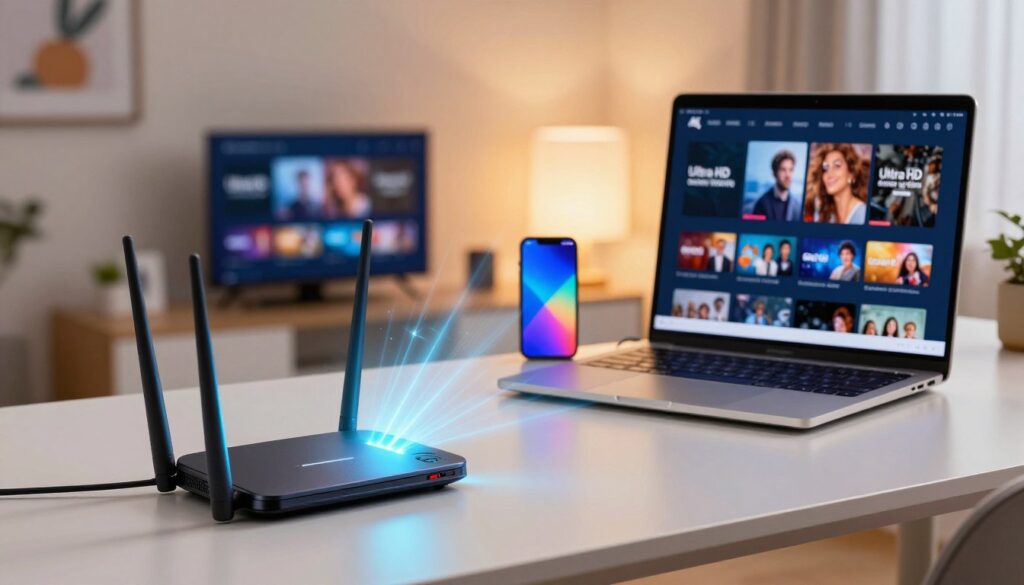
Start by confirming the real-world throughput reaching your streaming device, not the number on your ISP plan.
Confirm you’re hitting the real-world speed you need
Run a speed test at the TV or streaming box. Aim for a consistent 25–30+ mbps for Ultra HD, not brief spikes.
Repeat tests at different times to check for packet loss or jitter that kills steady playback.
Use a wired connection with an Ethernet cable
Switch to a wired connection. An ethernet cable cuts interference, lowers latency, and stabilizes video throughput.
Reduce bandwidth competition
Pause console updates, cloud backups, and other streaming devices during prime viewing. Those background tasks eat bandwidth.
Reboot and place your router for a cleaner signal
Power-cycle your modem and router monthly. Move the router out of cabinets, up high, and away from thick walls and microwaves.
Turn on QoS and upgrade old hardware
Enable QoS to prioritize your streaming device so video keeps top priority when many devices are active.
If your router or cables are old, upgrade to a modern dual/tri-band unit and verified cables for better performance.
Try faster DNS to speed startup
Use Cloudflare (1.1.1.1) or Google DNS (8.8.8.8) to reduce channel start time. DNS helps startup delays but won’t replace missing bandwidth.
“After these steps you should see faster channel start, fewer resolution drops, and more stable playback during peak hours.”
For a step-by-step troubleshooting checklist, see this practical guide at streaming troubleshooting guide and a quality-focused overview at streaming quality guide.
When a VPN helps IPTV buffering and how to configure it for streaming

If your video runs smooth off-peak but chokes during prime time, a VPN might be worth testing. You benefit most when your ISP applies traffic shaping, when channels are geo-blocked, or when routing to a distant server is inefficient.
Choose the right protocol and transport. Prefer WireGuard for low overhead and speed. Use UDP for faster transport and switch to TCP if your connection drops packets or needs stability.
Pick the best server location. Try a VPN server near you for low latency, or one closer to the service’s region to avoid long routing. If the VPN makes things worse, move to a less busy server or another city.
Follow this order: connect the VPN first, confirm it stays connected, then open your app so the stream follows the new route. Enable auto-reconnect and a kill switch to prevent sudden interruptions.
“Do an A/B test: run the same channel 5–10 minutes with VPN off vs. on and keep the route that gives fewer stalls and better quality.”
- When VPN helps: nightly throttling, geo-restrictions, or poor routing.
- When it won’t help: slow base internet or unstable Wi‑Fi—fix the network first.
- Need detailed setup tips? See a VPN guide for tuning your connection and settings at VPN streaming settings or read about routing and performance at routing and lag.
Optimize your IPTV app, streaming device, and IPTV service
A smooth stream often depends more on the app and device than on headline internet numbers. Start with quick app checks and a short maintenance routine before chasing network changes.
Clear cache and keep software current
Accumulated cache and temporary data can slow an app, cause freezes, or trigger repeated buffering issues on lower-memory devices.
Clear the app cache, restart the app, and update the app and device firmware regularly. That simple habit improves responsiveness and reduces playback errors.
Adjust player settings and test devices
Switch decoder modes between hardware and software if you see stutter. Lower video quality to match your actual internet speed when consistency drops.
Try the same stream on another streaming device to isolate whether the problem is the device, the router, or the service.
Alternate streams, servers, and when to contact your provider
If your provider offers multiple streams or servers, test them during peak times to find the least congested option.
If issues persist on multiple channels despite Ethernet and steady Mbps, report channel name, time, device model, measured internet speed, VPN status, and which streams you tested.
| Check | Action | Why it helps |
|---|---|---|
| App cache | Clear cache + restart | Removes corrupt temp data that causes freezes |
| Software | Update app and firmware | Fixes playback bugs and compatibility |
| Device test | Try alternate devices | Isolates hardware decoding limits |
| Provider streams | Switch servers/streams | Bypasses temporary server congestion |
“If you’re comparing services and want a more consistent experience, learn about reliable options like GetMaxTV: https://getmaxtv.com”
For guided app-level help and support steps, see our support tutorial.
Conclusion
, Keep it simple: focus first on steady home gear and a repeatable test routine.
Verify real-world Mbps and stability at the device, then switch to Ethernet and remove competing tasks. After that try QoS, DNS, and app tweaks. Use a VPN only when routing, throttling, or geo-restrictions point that way.
Remember the mindset: consistent connection and an optimized device-to-service pipeline deliver the best streaming quality. Spot provider-side overload by testing the same channel at peak times before replacing hardware.
Keep a short baseline test—one known channel, same time window—so you can measure whether each change helps with observed issues.
Want a legal subscription? Check GetMaxTV’s offer at https://watchmaxtv.com for a compliant, reliable option.
FAQ
Why does my Ultra HD stream keep freezing and showing low quality?
Frequent freezing usually points to internet speed or stability problems. Run a speed test on the device you use for streaming; real-world throughput below the required megabits per second for Ultra HD will cause drops. Also check for packet loss and high latency, which disrupt video playback even if raw speed looks adequate.
How much internet speed do you really need for smooth Ultra HD streaming?
For consistent Ultra HD viewing, aim for a sustained wired throughput higher than the advertised minimum — typically at least 25–50 Mbps per stream. If multiple devices share your connection, add their needs together. Use a speed test while streaming to measure real-world performance rather than relying solely on your plan’s headline number.
Will switching to an Ethernet cable help my streaming performance?
Yes. A wired connection removes Wi‑Fi interference and gives you steadier throughput and lower latency, which improves picture quality and reduces stalls. Use a quality Cat5e or Cat6 cable and connect directly to the router or a gigabit switch for best results.
How does network congestion and peak-hour traffic affect streams?
During peak times, overloaded ISP routes or provider servers can cause slower speeds and buffering. If you notice issues mainly during evenings, congestion is likely. Try off‑peak testing, or contact your provider to ask about network load or alternate server options.
Can my ISP be throttling my streaming traffic?
Some ISPs throttle certain types of traffic or prioritize other services, which can degrade stream quality. Run repeated speed tests and compare results with and without a reputable VPN to see if routing changes improve performance. If you suspect throttling, discuss plan or routing options with your ISP.
Should I use a VPN to improve streaming performance?
A VPN can help if poor routing or regional blocks cause slowdowns, but it also adds overhead. Choose a fast protocol (like WireGuard) and a nearby server to minimize latency. Test with and without the VPN to confirm it helps in your situation before relying on it.
What router settings can I change to prioritize streaming?
Enable QoS (Quality of Service) to prioritize your streaming device or app traffic. Assign higher priority to the device’s IP or MAC address, and limit background-heavy apps. Also ensure firmware is current and that your router supports the bandwidth and features you need for Ultra HD.
How do I reduce bandwidth competition at home?
Pause or schedule large downloads, cloud backups, and software updates during non-viewing hours. Ask household members to avoid simultaneous high-definition streams or online gaming when you need a clean connection. You can also use guest networks or device-level limits to keep traffic balanced.
What should I do with my streaming app and device to stop stuttering?
Clear the app cache, update the app and device firmware, and reboot the streaming device. If the player allows, switch decoders (hardware vs. software) or lower initial startup quality to reduce buffering. Testing alternative streams or servers from your provider can also reveal if a specific source is the problem.
How can I tell if the problem is my service provider’s servers?
If multiple devices and wired connections all struggle while other internet uses remain fine, the issue may be provider-side. Look for patterns like poor performance only on certain channels or times. Contact provider support with timestamps and test results so they can investigate server load or routing problems.
When should I upgrade hardware to improve streaming?
Upgrade if your router or Wi‑Fi gear is several years old, doesn’t support gigabit LAN or modern Wi‑Fi standards (Wi‑Fi 5/6), or if cables are damaged or substandard. Newer hardware handles higher sustained throughput, has better radios, and offers improved QoS and DNS options for smoother playback.
Will switching DNS servers reduce startup delays?
Faster DNS can cut initial lookup times and improve channel change responsiveness. Try reliable public DNS like Google DNS or Cloudflare and measure improvements. DNS changes won’t solve sustained slow throughput but can speed startup and reduce initial buffering.
How can I check for throttling or poor routing without technical tools?
Do simple tests: compare speed test results on your streaming device versus other devices, try a wired connection, and test with a VPN to see if performance changes. If VPN routing improves playback significantly, poor ISP routing or throttling could be the cause.
What minimum Mbps should each streaming device have to avoid competition?
Reserve at least 25–50 Mbps per Ultra HD stream. For HD streams, allocate 5–8 Mbps. Add a buffer for other household use; for example, with three people streaming one Ultra HD and two HD streams, plan for roughly 60–80 Mbps to avoid contention.
How do I report a service issue to my provider effectively?
Gather facts: times of interruptions, speed test screenshots (with device, wired/wireless noted), affected channels or streams, and steps you already tried. Provide this data to support so they can reproduce the issue and check server logs, routing, or peering problems quickly.
Are there quick fixes I can try right now to stop freezes?
Reboot your router and streaming device, switch to a wired connection, close background apps, and lower the stream quality temporarily. Clear the app cache, test an alternate server or stream, and if available, enable QoS or pause heavy downloads. These steps often restore smooth playback immediately.
The WatchMaxTV Team is a dedicated group of streaming specialists and entertainment technology reviewers covering IPTV services for viewers in the USA, UK, and Canada since 2023. Our team independently evaluates every service we feature — testing across Smart TVs, streaming sticks, mobile devices, and gaming consoles. We measure stream stability, picture clarity in HD and 4K, program guide accuracy, and customer support quality. Our goal is simple: help cord-cutters find reliable, affordable alternatives to overpriced cable. Every recommendation on WatchMaxTV.com comes from real-world testing — not sponsored content or paid placements.