Can your home network actually handle true UHD live TV without constant buffering? If you stream live channels, this question matters more than you might think.
In plain terms: 4k iptv bandwidth requirements describe how much download capacity and steady performance your internet must deliver so a UHD live channel plays smoothly right now, not later.
You’ll learn why a single 4K stream often needs ~20–25 Mbps, why real-world speed drops and latency break playback, and how bitrate differs from raw speed. I’ll set realistic expectations for US households and show quick tests you can run during peak hours.
Practical outcome: a realistic Mbps target, a short checklist to diagnose your setup, and simple fixes you can try before upgrading your plan. If you want a quality-focused service to evaluate after you check your network, consider looking at GetMaxTV’s offerings on their site.
For technical context and codec tips, check this guide from a reliable source.
Key Takeaways
- One UHD live stream typically needs about 25 Mbps under ideal conditions.
- Stability, latency, and jitter often matter more than peak download speed.
- Test speeds during evening hours and prefer wired connections when possible.
- Simple fixes—like reducing other devices or changing Wi‑Fi bands—can help fast.
- After you verify your network, you can evaluate services such as GetMaxTV for legal subscriptions.
What 4K IPTV streaming actually demands from your network
A live UHD channel stresses your network with steady, high-rate data bursts that expose weak links in your setup.
Bandwidth vs. bitrate: bandwidth is how much your internet can move. Bitrate is how much the stream tries to send. Match them by adding headroom: a 20 Mbps stream needs a plan that stays above that during peaks.
Simple math: HD at ~6 mbps vs. UHD at ~25 mbps means UHD carries roughly four times the data. For fast sports, bitrate spikes even higher to keep motion sharp.
Why stability matters: a short dip or packet loss can stall live video. Speed tests show peaks, but live playback needs steady throughput and low packet loss to keep quality steady.
Latency and jitter: latency is the server response time. High latency delays channel start and menus. Jitter is latency variation; it causes random stutter and pauses even when average speed looks fine.
- Keep wired connections where possible for best performance.
- Run tests during peak hours to see real behavior.
- Use the quality guide to compare practical expectations.
| Quality | Typical Bitrate (mbps) | Why it matters |
|---|---|---|
| SD | 2–3 | Low data, easy on most internet plans |
| HD | 5–8 | Good balance of detail and data |
| UHD | 20+ | Needs steady throughput and low jitter for smooth playback |
4k iptv bandwidth requirements for smooth UHD playback
Streaming true UHD at home needs steady throughput, not just a high headline speed. Start with a practical baseline: treat 25 Mbps as the minimum for one UHD channel, but plan higher for real use.
Real-world minimums for a single 4K stream
Baseline: aim for 25 Mbps per UHD stream. That gives you a working start under ideal codec and network conditions.
“Consider 25 Mbps the floor — not the safe target.”
How codecs and HDR can push Mbps needs higher
Efficient codecs lower transport needs, while older or low-compression codecs raise them. HDR adds data for richer color and contrast, which can push a 20–25 Mbps stream into the 30+ range on some channels.
How many simultaneous streams your home can support
Quick calculator: multiply the number of UHD streams by 25 Mbps, add 8 Mbps for each extra HD stream, then add 15% for background devices like phones, tablets, and smart appliances.
Planning for headroom: why “minimum speed” isn’t a safe target
ISPs often slow during peak hours. Give yourself headroom so users and devices can share a plan without constant buffering. For evening peaks in US households, choose a plan that covers your peak load plus 20–30% to stay stable.
How to check if your internet speed is sufficient for 4K IPTV

Start by checking your actual connection the same way you’ll watch: that gives the clearest picture of real playback behavior. Run the test on the device and in the room where you plan to stream.
- Run a proper speed test: pause downloads, use the same device, and test on Ethernet first for a baseline.
- Record key metrics: note download speed, upload speed, latency (ping), jitter, and the exact time of day.
- Test at multiple times: run the same test during midday and peak evening hours to spot throttling or congestion.
Interpreting numbers is more than chasing the highest download speed. Stable latency and low jitter keep playback smooth even when headline Mbps fluctuate.
“A real stream is the final test: watch a full channel and monitor load time, stutter, pixelation, and drops.”
| Check | Good Result | What it means |
|---|---|---|
| Download speed | ≥25 Mbps (single UHD) | Enough raw throughput for a single 4k stream |
| Latency / jitter | Steady response and fewer stutters | |
| Real stream test | No stutter for 15+ minutes | Confirms device, Wi‑Fi, and service all work together |
For a step-by-step guide to running a proper speed check, see this practical internet speed test guide. If tests look fine but playback still struggles, focus on Wi‑Fi placement, router limits, or server distance rather than your plan alone.
Common 4K IPTV playback issues and what they usually mean

Seeing playback trouble? Use the visible cues on your screen as a roadmap to the cause.
Buffering and long channel loads
What you see: long load times or spinning wheels before channels start.
Likely causes: insufficient headroom, ISP slowdowns during peak hours, or high jitter that prevents steady delivery.
Quick checks: restart your router and device, test on Ethernet, and run a speed test when fewer devices are online.
Pixelation during fast motion and quality drops
What you see: blocky pixels or sudden resolution drops on sports and action scenes.
Likely causes: the adaptive bitrate is lowering quality because the connection can’t sustain required throughput or the service is hitting lower bitrates.
Quick checks: try a wired connection, switch Wi‑Fi bands, or pause other heavy streams to see if quality returns.
Stream drops and inconsistent playback
What you see: abrupt stops, app crashes, or channels that fall offline without warning.
Likely causes: unstable links such as packet loss, router reboots, Wi‑Fi roaming, or upstream server problems at the service provider.
How to tell local vs upstream: if problems repeat at the same time each evening, suspect ISP congestion. If drops occur randomly across networks, contact the service for server-side checks.
“Start with the simple fixes: restart devices, confirm the right Wi‑Fi band, and test again when fewer devices use the network.”
For a step-by-step list to isolate a persistent problem, follow this troubleshooting guide.
Wi‑Fi vs. Ethernet for 4K IPTV: choosing the best connection
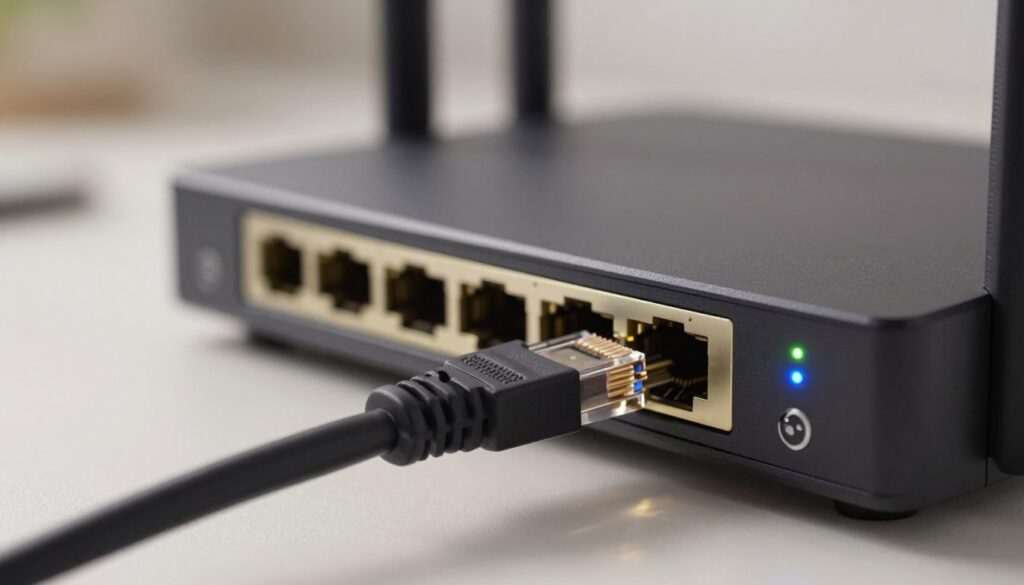
How you connect your streaming device at home directly shapes latency, stability, and perceived picture quality.
Why wired Ethernet is typically more reliable for UHD
Ethernet gives steadier speeds and lower latency. A wired link avoids interference and keeps packet loss minimal, so live channels stay smooth.
If your TV or set‑top box is stationary, plug it into an ethernet port for the simplest win.
When Wi‑Fi can work well
Modern Wi‑Fi 5 and 6 routers can handle high rates if the device sits in a strong signal area. Use 5 GHz for less congestion and shorter range.
Place the router centrally and test speeds near the streaming device before relying on wireless for UHD playback.
Distance, walls, and congestion: improving signal quality at home
Physical barriers and many devices on Wi‑Fi reduce stability. Heavy congestion looks like buffering even when headline internet speeds appear high.
Elevate the router, avoid metal or enclosed cabinets, and move sources of interference away. For larger homes, use wired links for fixed TVs and strong Wi‑Fi for flexible placement.
| Connection type | Typical benefit | Best use |
|---|---|---|
| Ethernet | Lowest latency, consistent speeds | Stationary TVs and set‑top boxes |
| Wi‑Fi 5/6 (5 GHz) | Good speeds, flexible placement | Rooms with a clear line to the router |
| Wi‑Fi (2.4 GHz) | Longer range, more interference | Fallback for distant devices, not ideal for live UHD |
For a practical checklist on testing your setup, consult the performance guide.
Optimize your home setup to reduce buffering without upgrading your plan
A few targeted changes to your router and device settings can cut buffering without paying for a faster plan.
Enable Quality of Service to prioritize streaming
Use QoS or traffic-priority rules on your router to give video packets higher priority than file downloads or game updates.
Look for options named QoS, Traffic Control, or Application Priority. Prioritize your streaming device or the streaming app so live content stays smooth when other devices use the network.
For step-by-step tips, check the connectivity guide.
Update firmware on router and streaming device
Keep your router and streaming device firmware current. Updates often fix stability issues and improve how the router handles multimedia data.
Apply updates during off-hours and reboot both devices after installing them to ensure changes take effect.
Cut background congestion and improve coverage
Pause cloud backups, large downloads, and OS updates during prime viewing. That frees data and reduces dips in throughput.
For larger homes, add a mesh system or a quality extender so your TV is on a strong signal instead of fighting walls and distance.
Router and switch features that help
Enable multicast-friendly options like IGMP snooping on capable routers or switches to avoid wasting network resources on multicast streams.
Also look for smarter QoS, traffic-shaping, and gigabit Ethernet ports to keep local traffic efficient.
Tip: Adaptive bitrate helps when speeds dip, but your goal is fewer dips. These fixes often improve playback without changing your internet plan.
Picking an IPTV provider and internet plan for consistent 4K in the US
Choose a provider with real infrastructure behind its ads. A provider that uses regional servers and CDN support will cut latency and keep channels steady during peak viewing.
What good provider infrastructure looks like
Regional servers and CDN support reduce distance to the stream and lower packet loss. That means faster channel loads and fewer pauses for you.
Capacity and load balancing let a service handle peak traffic without dropping quality across many users.
Match your internet plan to how your household streams
Count users and simultaneous streams. If one person watches in UHD while others game or video call, choose a higher tier.
| Plan | Typical users / streams | Why it works |
|---|---|---|
| 50–100 Mbps | 2–4 mixed streams | Comfortable for HD and occasional UHD; consider fiber for stability |
| 100 Mbps | 3–5 mixed streams | Good headroom for multiple users and background devices |
| 200+ Mbps | Large households | Best for many simultaneous UHD streams and low latency needs |
Practical tips and a service to consider
Look for an internet service that stays consistent at night, offers low latency, and lists fiber-optic options where available.
Once your home network is tuned, research quality-focused services such as GetMaxTV to compare channel lineup and server footprint: compare options on GetMaxTV.
Quick rule: stable UHD is about sustained throughput and low jitter, not just the highest advertised speed.
For a quick provider check, review a concise quality guide here: service quality guide.
Conclusion
In short, smooth UHD video needs steady throughput and low jitter more than a one-off headline number.
Key takeaway: your internet experience hinges on sustained delivery of Mbps, not just the top speed. Treat ~25 Mbps as a baseline for one stream and add headroom for others.
Fastest checks are simple: run a proper speed test, then validate with a real stream on the device you use. If you see buffering, try Ethernet, improve Wi‑Fi placement, or enable QoS to protect video traffic.
Match plans and providers to how your household streams. For a practical read on capacity, see this bandwidth guide and a concise speed guide.
If you want a legal subscription option, check GetMaxTV’s offer on WatchMaxTV.
FAQ
What internet speed do you need for UHD TV streaming at home?
For a single UHD stream you should aim for at least 25–50 Mbps of stable download speed. That gives you room for higher bitrates, HDR, and occasional network noise. If other people or devices share your connection, add 25–50 Mbps per extra simultaneous UHD stream to avoid interruptions.
How is bitrate different from connection speed, and why does it matter?
Bitrate is the actual data rate the video uses (measured in Mbps) while your connection speed is the capacity of your internet plan. A high bitrate means richer detail and less compression, so even with a fast plan a low bitrate stream may look poor, and a high bitrate stream will need more sustained throughput.
Why does stability matter as much as raw download speed for live TV?
Stability—consistent throughput with low packet loss—prevents rebuffering and quality drops. A plan that hits high peak speeds but fluctuates or drops under load will still cause freezes or automatic quality reductions during live broadcasts.
What are latency and jitter, and how do they affect playback?
Latency is the delay to the server; jitter is variation in that delay. High latency can make start times slow and remote controls laggy. High jitter causes uneven data arrival, which can trigger buffering, stutter, and increased packet retransmissions that hurt picture smoothness.
What’s the real-world minimum for one UHD stream?
Real-world minimums are about 25 Mbps for a well-compressed HDR stream and closer to 50 Mbps for less-compressed feeds or sports. Codec efficiency, scene complexity, and HDR all push the requirement up from the theoretical minimum.
How do codecs and HDR affect Mbps needs?
Newer codecs like HEVC (H.265) or AV1 reduce bitrate needs for the same quality compared with older H.264. But HDR and higher frame rates add data complexity, so even efficient codecs may require higher sustained Mbps to preserve that extra detail and color depth.
How many simultaneous UHD streams can your home support?
Divide your plan’s sustained download speed by the per-stream requirement (25–50 Mbps). For example, a 300 Mbps plan can handle roughly six to twelve UHD streams in ideal conditions, but real-world factors like Wi‑Fi overhead and other traffic reduce that number.
Why isn’t the “minimum speed” a safe target?
Minimums assume perfect conditions. You need headroom for background tasks, smart devices, OS updates, and peak-hour slowdowns. Plan for 30–50% more capacity than the stated minimum to keep playback consistent.
How should you run a speed test to check if your connection is ready?
Use a trusted speed test like Ookla or Fast.com from the device you stream on, over the same network type (Wi‑Fi or Ethernet). Close background apps, test several times, and record download/upload speeds, latency, and packet loss.
Why test at different times of day?
ISPs can get congested during evening peak hours, and providers may throttle certain traffic. Testing morning, afternoon, and peak evening will reveal slowdowns that affect live TV and help you pick the right plan or time-shift content.
How do you interpret speed test results beyond download numbers?
Look at latency (lower is better), packet loss (should be 0%), and jitter (low). A high download number with high packet loss or jitter often leads to poor playback despite the headline speed.
What’s the best way to validate performance with a real stream?
Play a high-bitrate UHD channel during peak hours on the device you’ll use. Watch for buffering, quality switching, and start delays. This gives the most practical measure of performance under real conditions.
What do buffering and long channel loads usually indicate?
They typically point to insufficient sustained throughput, intermittent packet loss, or Wi‑Fi issues. Check wired connections, run tests, and rule out local congestion before blaming the content provider.
Why does pixelation happen during fast motion?
Fast motion requires higher instantaneous bitrate. If your stream or network can’t deliver that spike, the encoder lowers quality temporarily, causing blockiness or loss of detail. Better codecs, higher bitrates, or more stable networks reduce this.
What causes stream drops and inconsistent playback?
Drops often come from router firmware bugs, overloaded home networks, weak Wi‑Fi signal, or ISP throttling. Restart devices, test wired connections, update firmware, and check your ISP’s status if problems persist.
Is Ethernet always better than Wi‑Fi for UHD streaming?
Yes—Ethernet gives lower latency, no interference, and steadier throughput, which makes it the best choice when possible. Use a wired connection for your main streaming device to reduce the chance of rebuffering.
When can Wi‑Fi work well for UHD?
Modern Wi‑Fi 5 (802.11ac) and Wi‑Fi 6 (802.11ax) can support UHD if the router is high quality, you’re on the right band (5 GHz or 6 GHz), signal strength is strong, and there’s minimal interference. Close distance and good channel selection help.
How do distance, walls, and congestion affect signal quality?
Physical barriers and other wireless networks weaken Wi‑Fi signal and increase retransmissions. Move the router, change channels, reduce interfering devices, or add mesh nodes to improve coverage and cut packet loss.
How can Quality of Service (QoS) improve your streaming without upgrading your plan?
QoS settings let your router prioritize streaming traffic and your main device over downloads and background updates. Properly configured, QoS ensures smoother playback during shared usage periods.
Why should you update router and streaming device firmware?
Firmware updates fix bugs, improve stability, and optimize performance. Keeping devices current reduces crashes, fixes compatibility issues, and can improve throughput and media handling.
How can you reduce network congestion from other devices?
Schedule large downloads, pause cloud backups during prime viewing hours, limit device updates, and use guest networks for less critical devices. That frees up capacity for UHD playback.
When should you add mesh systems or extenders?
If rooms far from the router get poor signal or your home has thick walls, mesh systems provide consistent coverage. Place nodes to maintain a strong link between the main router and streaming devices.
What router or switch features help streaming performance?
Look for gigabit Ethernet ports, hardware NAT, modern QoS options, MU-MIMO (for Wi‑Fi), and USB ports for local media. Managed switches and VLAN support help in complex setups to segregate traffic and reduce congestion.
What should you look for in a streaming provider’s infrastructure?
Choose providers that use regional servers, CDN support, and adaptive bitrate streaming. These features reduce latency and improve reliability when many viewers request the same live feed.
How do you match an internet plan to your household’s habits?
Estimate concurrent device demands (UHD streams, gaming, video calls), add headroom for peaks, and pick a plan with consistent advertised speeds and low data caps. In many US homes, plans of 200–500 Mbps hit the sweet spot for mixed use.
What should you know about quality-focused services like GetMaxTV?
Services that emphasize higher bitrates, regional CDN support, and better codec use tend to provide more consistent picture quality. Check reviews, testing tools, and trial options before committing.
Where can you compare options and learn more before switching services?
Use comparison resources like ISP and streaming review sites, user forums, and trial accounts on services such as GetMaxTV to test real-world performance in your area before switching.